


And we’re a go — Linux Mint 22.2 ‘Zara’ has been released, with fresh disc images available to download and upgrades from earlier releases live.
A host of refinements are on offer in this new stable release: improved visuals, the ability to authenticate commands with a fingerprint, and quality-of-life improvements to first-party apps like the Hypnotix TV streaming app and desktop notes tool Sticky.
This is the third update in the Linux Mint 22 series that launched last summer, and it fleshes out the features Linux Mint 22.1 added at the start of this year. Like those, Linux Mint 22.2 is based on Ubuntu 24.04 LTS with the latest HWE updates onboard.
After a month of bug fixes based on feedback from August’s beta release, Linux Mint devs have approved the final, stable release. ISOs are up on mirrors and upgrades are now live, with an official announcement expected soon.
For a closer look at what’s new, read on!
Linux Mint 22.2: New Features
Visual improvements

Linux Mint 22.2 continues efforts to improve the distro’s visual appeal.
The login screen user pod now applies a blur effect on the background image, improving the readability of username, password and session selection text. The blur is subtle, and more noticeable if a busy or colourful wallpaper is in use – as I’ve demoed above.
Sticking with the login screen, the login pod now shows user account avatars (providing one is set). For users with multi-login setups, it’s a handy bit of differentiation. For those who find it annoying, it can be disabled.
Once logged in, you may notice Linux Mint 22.2 looks cooler — quite literally!
The default Mint-Y theme is slightly bluer than before, giving apps a subtle metallic sheen. Lots of apps and websites are said to use a bluish greys as a colder hue is perceived by users as more modern (at least, until trends change again).
It’s not just the Mint-Y light theme that’s changed. Dark theme elements in the Cinnamon desktop also shift softer as a result of the blue. I can’t say I’d have noticed this had it not been pointed out, but side-by-side it is a touch more obvious:
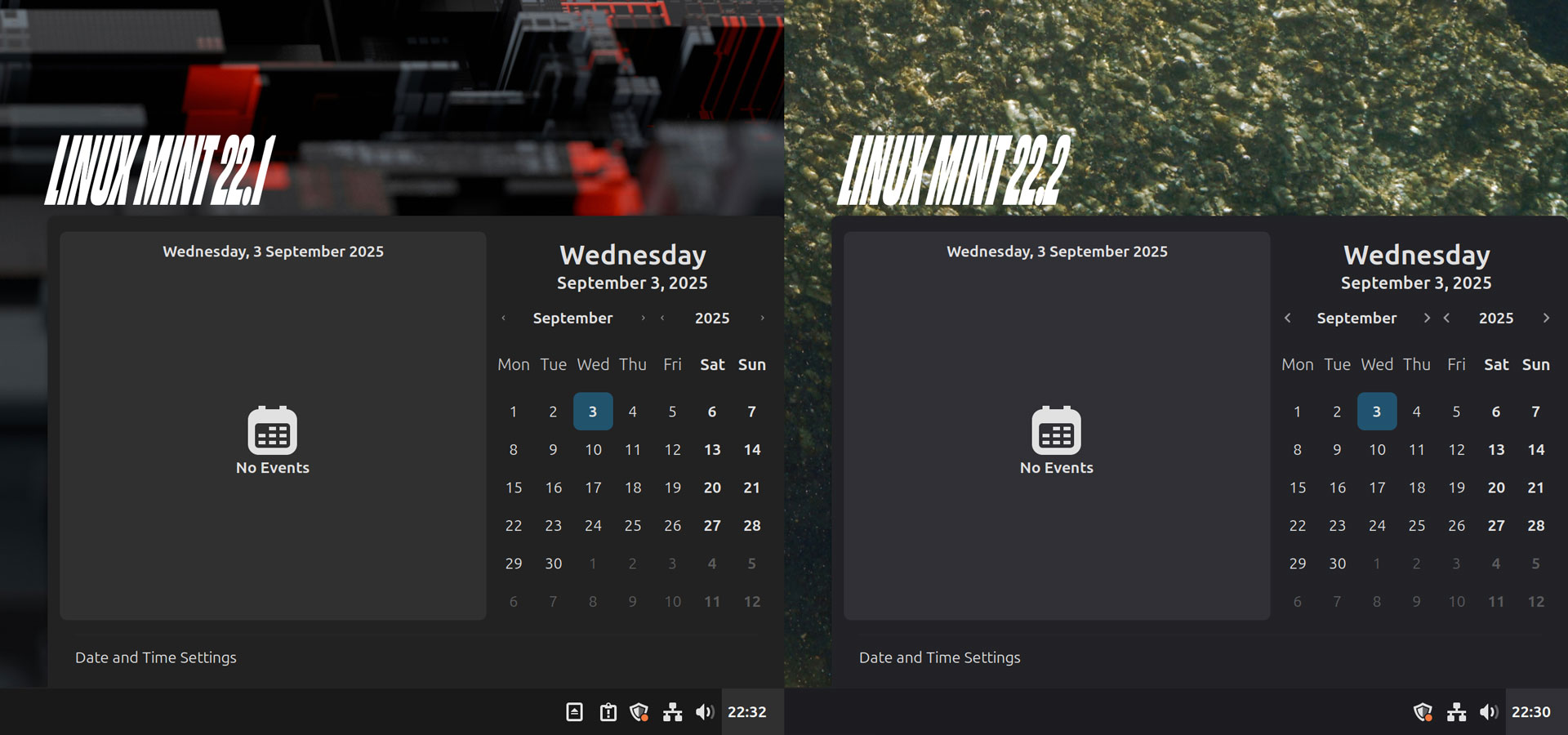
Linux Mint 22.2 also improves the look of modern GTK4/libadwaita apps. It does this using a patched version of the libadwaita stylesheet that works with Mint-Y, Mint-X, and Mint-L themes, and fully respects Cinnamon’s accent colours.
Linux Mint’s lead, Clément Lefebvre, says these changes make themes look “more modern”, dark mode is softer, and Cinnamon panel elements “much nicer looking”. He adds that GTK4/libadwaita apps fit in “a little bit better” too.
A number of new icons feature in the default Mint-Y icon set, including revised designs for Android Studio and various Google-related web apps, MuseScore, Signal, Sublime Text and ktorrent. Icons are added for Rumble, Elk, Pleroma and a few others.
While some may scoff at Linux Mint paying so much attention to relatively minor changes, form and function are not opposites. Good form leads to good function. The changes will help Linux Mint appeal to the impending influx of Windows 10 emigrants!
Fingerprint login and auth support
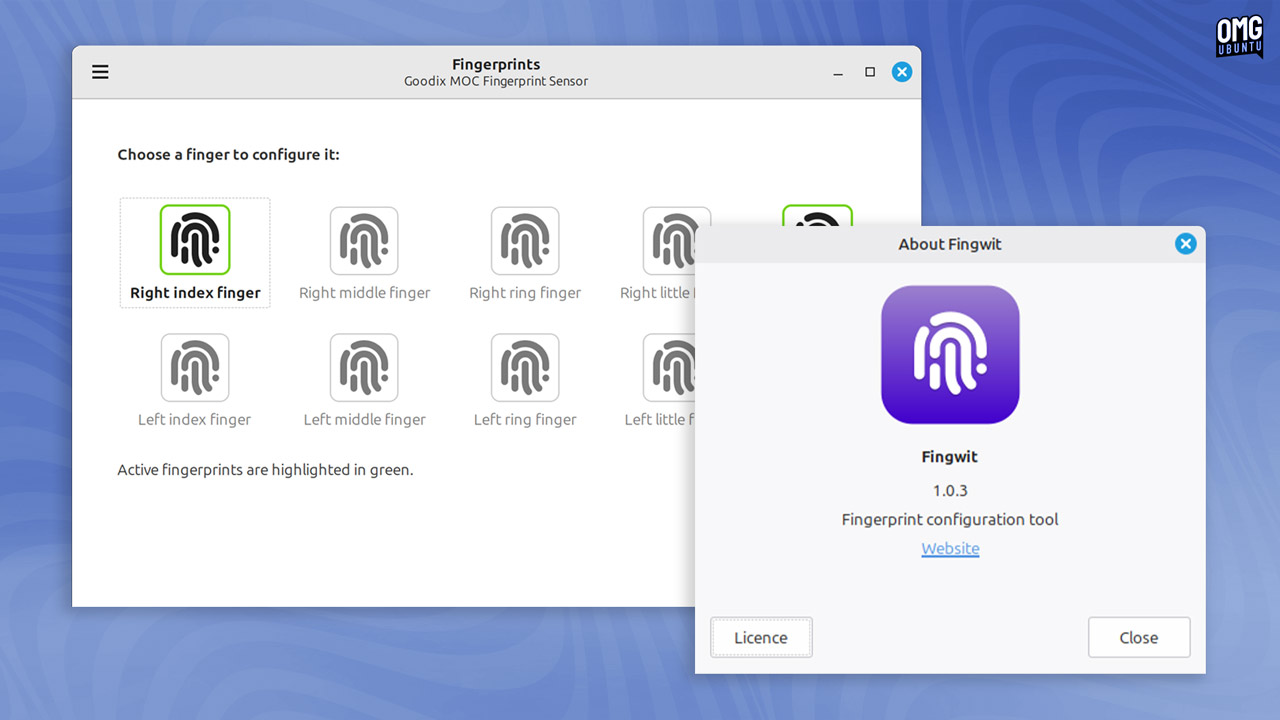
Does your laptop have a fingerprint reader? Does it work in Linux? Rare combo!
Linux Mint 22.2 includes a brand new desktop utility called Fingwit. You can use this to enrol, manage and configure fingerprints. Certain apps and system tasks can then use fingerprint authentication rather than passwords, e.g, sudo commands.
You can use your fingerprint to unlock Linux Mint, and even login. However, fingerprint login is only supported only if encryption or keyring are not enabled. This is because encrypted directories require a password to decrypt, which a fingerprint can’t (yet) replace.
Stickier Sticky notes
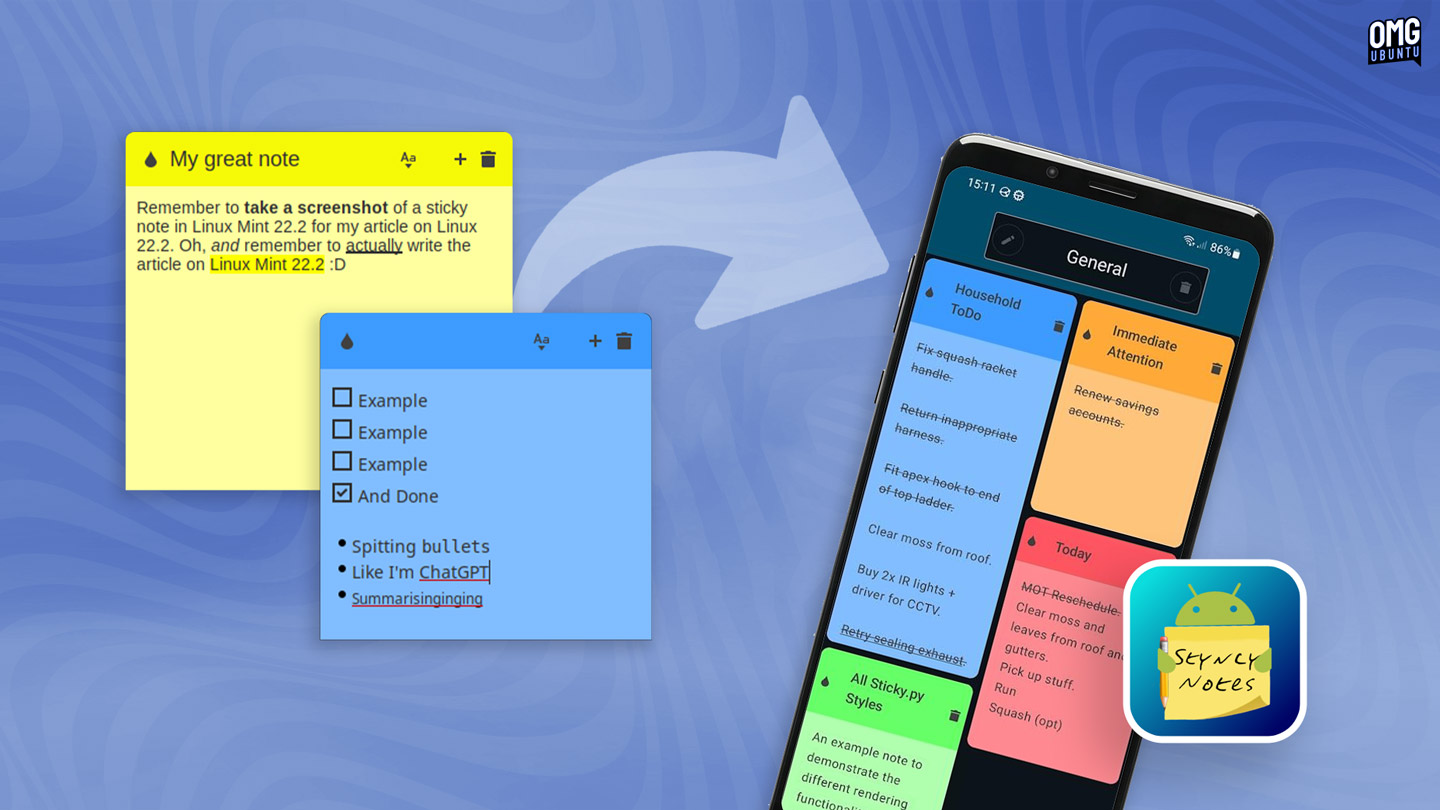
Linux Mint 22.2 brings some small improvements to its Notes app (aka Sticky), which are floating post-it style windows you can scatter over your desktop to jot down to-do lists, reminders, tasks and anything else you need to make a note of.
You’ll notice that the top corners of notes are now rounded, but you may not notice (unless you log in to the experimental Cinnamon Wayland session) that these now work under Wayland.
Finally, notes are most useful if you can access them elsewhere. To that end, a companion app for Android is now available on F-Droid. It supports the same formatting features as the desktop version and lets you sync notes between devices via SyncThing.
Hypnotix’s new viewing modes

Linear TV ain’t dead, it’s just… There, in the background of the modern media landscape. Which is probably how most people use Hypnotix, the IPTV player app, to watch TV on Linux Mint: on in the background.
Performance improvements mean the app now starts up faster, and searching for support TV channels — and a reminder that it does let you add other IPTV playlists — is more responsive.
Screensaver and lock screen no longer activate during playback (they will if nothing is playing), and the volume is no longer reset when you change channels, which will be a relief to anyone tuning in to late-night TV in a quiet house.
In Linux Mint 22.2, Hypnotix adds a pair of new ‘modes’ for watching (full-screen was already supported):
- Theatre (F6) hides controls and menus, keeps window borders and titlebar
- Borderless (F7) hides everything for a floating PiP-style effect
Moving Hypnotix in borderless mode is active can be done by holding the Alt key and repositioning the the player using a mouse of touchpad. Borderless mode supports window snapping too, which is handy if you want to pop it in a corner.
Other software changes
With Linux Mint 22.2 (sort of) embracing libadwaita a swathe of apps the distro has previously downgraded to pre-libadwaita versions get re-upgraded: GNOME Calendar, Simple Scan and Baobab, the disk analyser tool among them.
Cover art for .aiff audio files can now be seen in the file manager thanks to a new xapp-aiff-thumbnailer preinstalled in Linux Mint 22.2.
Warpinator, the app for sharing files between devices using a local network, gains minor tweaks, but is now a little more versatile with the arrival of a Warpinator app for iOS and iPadOS. There’s already an Android version, for those wondering.
Elsewhere:
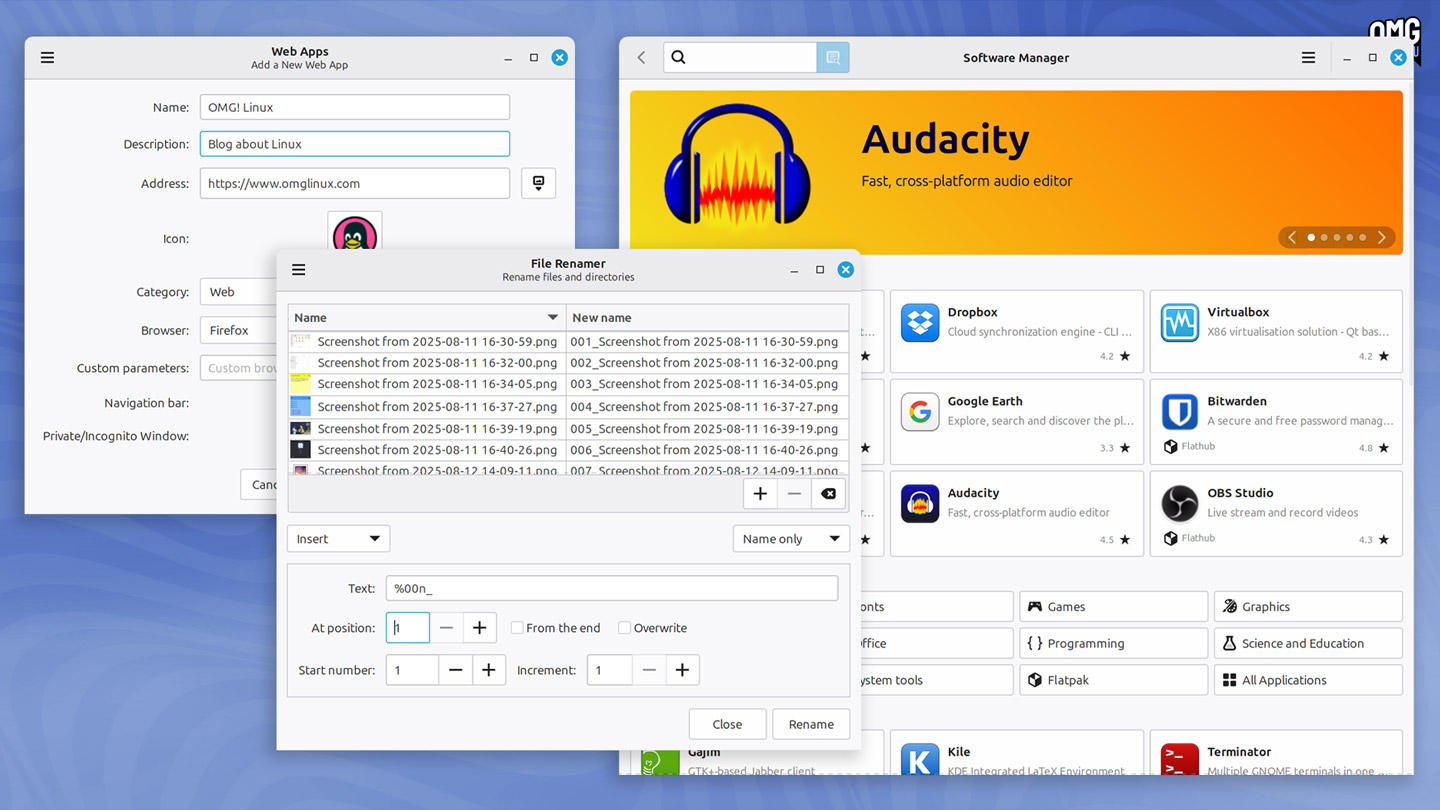
- Software Manager – home page improved; format info tooltip added
- WebApp Manager – webapp description field is now editable
- Xviewer – EDID-based colour correction is now disabled by default
- Renamer – supports leading zeros, enumeration and increment step
- Timeshift – assorted Btrfs improvements
- Mint Drivers – connectivity test now uses https
- Mint Menu – application list order resets following a search
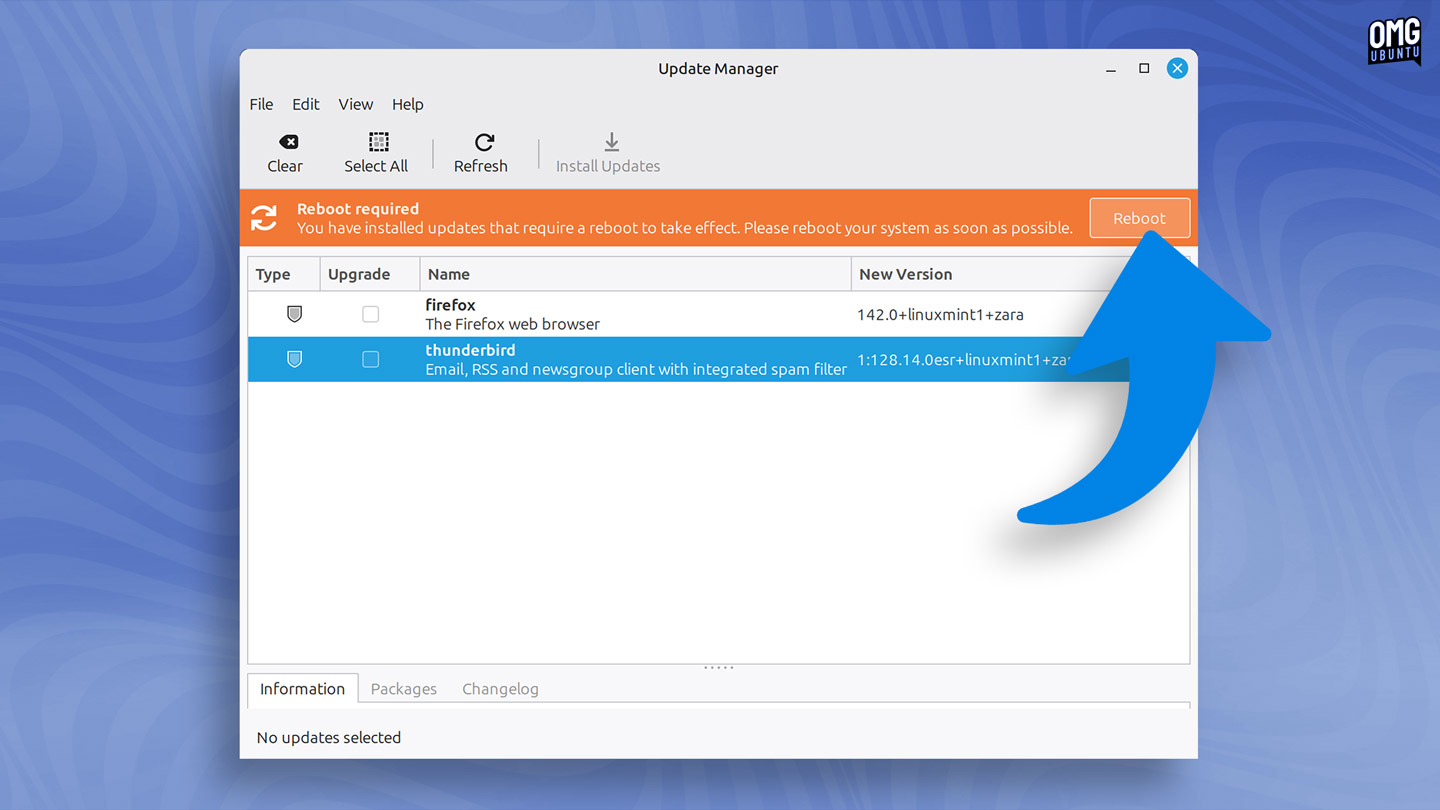
- Updater Manager – reboot button is now shown when reboot is required
Beyond all of the above are scores of smaller updates, fixes, and fixes throughout desktop and software stacks, and all of the foundational goodies inherited from the underlying Ubuntu package set.
The official Linux Mint release page has more details on these changes, or read the release announcement.
Download Linux Mint 22.2
You can download Linux Mint 22.2 from the Linux Mint website.
System requirements for this release haven’t changed from other releases in the 22.x series. To use it you need:
- 64-bit Intel/AMD processor (faster, the better)
- 2GB RAM (4GB recommended)
- 20GB of disk space (100GB recommended)
- 1024×768 resolution (higher resolution better)
Do refer to the list of known issues/problems before installing, and report any issues you find to Linux Mint via GitHub (at that link) so things can be investigated and fixed. More details in the
If you installed the beta last month you can upgrade to the final stable release simply by installing all software updates. You will have the exact same set of packages, and get the same ongoing support, as a fresh install.
How to Upgrade to Linux Mint 22.2

Upgrades from earlier versions are already live, so if you are using Linux Mint 22.1 you can do an in-place upgrade without needing to wipe and reinstall.
To upgrade to Linux Mint 22.2 from Linux Mint 22.1 (or 22, if you’re still on that version) directly,:
- Open Update Manager
- If an update for Update Manager is shown, install it
- Go to the Edit menu
- Select ‘Upgrade to Linux Mint 22.2 Zara’
An on-screen wizard will guide you through the process from there.
All releases in the Linux Mint 22.x series are supported with updates until 2029.