

KDE Plasma 6.6 is now available to download, adding text extraction to screenshots, per-app volume control in the taskbar and the ability to save custom themes.
The update also introduces new components, including on-screen keyboard, login manager and OEM setup wizard. All are offered alternatives rather than replacements.
This is the seventh major update to KDE Plasma 6 since Plasma 6.0 arrived in February 2024, which saw the popular Linux desktop environment ported to Qt 6. It is dedicated to the memory of KDE contributor Björn Balazs.
Users of Ubuntu-based KDE Neon as well as rolling-release distributions like Arch will be able to install KDE Plasma 6.6 from today. Users on Kubuntu 25.10 may be able to install it via the Kubuntu backports PPA, and Kubuntu 26.04 LTS will ship Plasma 6.6 by default.
What’s New in KDE Plasma 6.6?
Extract text from screenshots
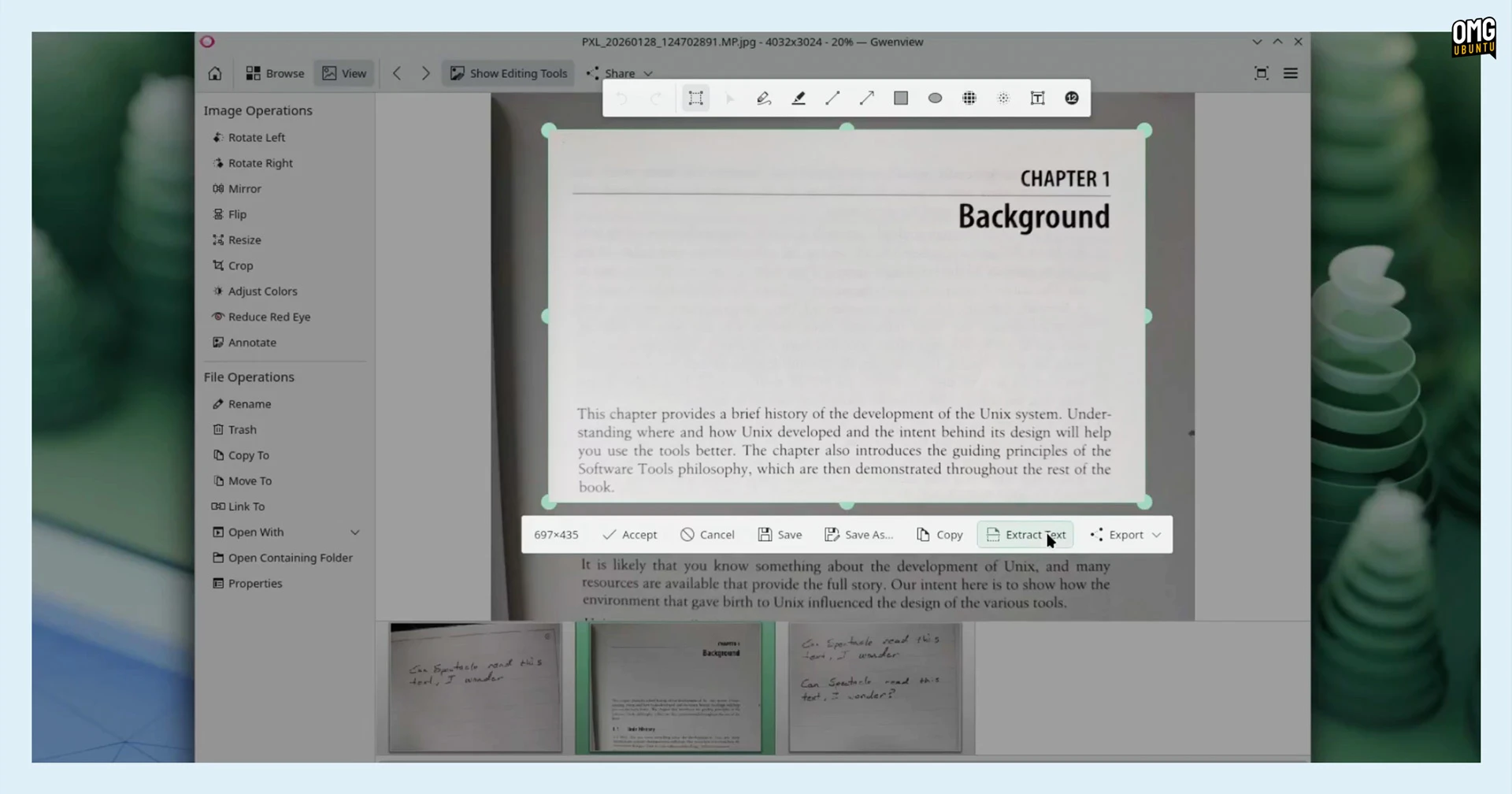
Spectacle, the built-in screenshot tool in KDE Plasma, can now extract text from images via optical character recognition (OCR). Screenshot anything with text in – a web page, document or error box you can’t select copy from – and Spectacle pulls the text out and copies it to your clipboard.
The feature is powered by Tesseract OCR and supports multiple languages. You can configure those in General Options or switch based on your current session in the viewer window itself. It handles clean printed text fine but won’t work wonders on scrappy handwriting!
Spectacle also captures moving images, and a notable buff to its screen recording feature in Plasma 6.6 as it now lets you exclude individual windows from screen recordings.
You can trigger this from the title bar context menu, the Task Manager context menu, or set up window rules. It will be handy when you’re recording a tutorial and don’t want, say, your password manager or e-mail list in shot.
Save appearance tweaks as custom themes

KDE Plasma is a famously configurable desktop environment. If you take time to tweak colours, fonts and window decorations to make them “just right”, this version lets you save your refinement as a distant custom global theme you can re-use again.
Custom themes appear alongside pre-installed options so you can select them anytime. You can also make them follow the day/night switching introduced in Plasma 6.5 so your KDE desktop looks different at different times of day.
To make use of the feature, open System Settings > Colours & Themes and modify an existing theme by hovering over its thumbnail and clicking on the pencil button. Once done tweaking, hit the save button and give your creation a name.
Sticking with visual tweaks, when a dark colour scheme is active, the blur effect behind translucent panels and widgets is darker and more vibrant when bright colours are behind it. For those who’d rather dial it back, blur saturation level is now user-configurable.
60Hz animation bug fixed
KDE Plasma 6.6 will please those looking at the desktop on a 144Hz or higher display, as animations in Plasma and KWin are now much smoother.
A bug open since early 2024 reported that animations were effectively capped at 60Hz regardless of a display’s refresh rate, with animations running to an independent timer rather than syncing to the compositor’s render loop. That’s now fixed.
Other performance improvements in Plasma 6.6 see work to reduce idle memory usage and plenty of Wayland buffs, like custom screen modes, improved screen mirroring and better colour pipeline handling.
Connect to Wi-Fi via QR codes
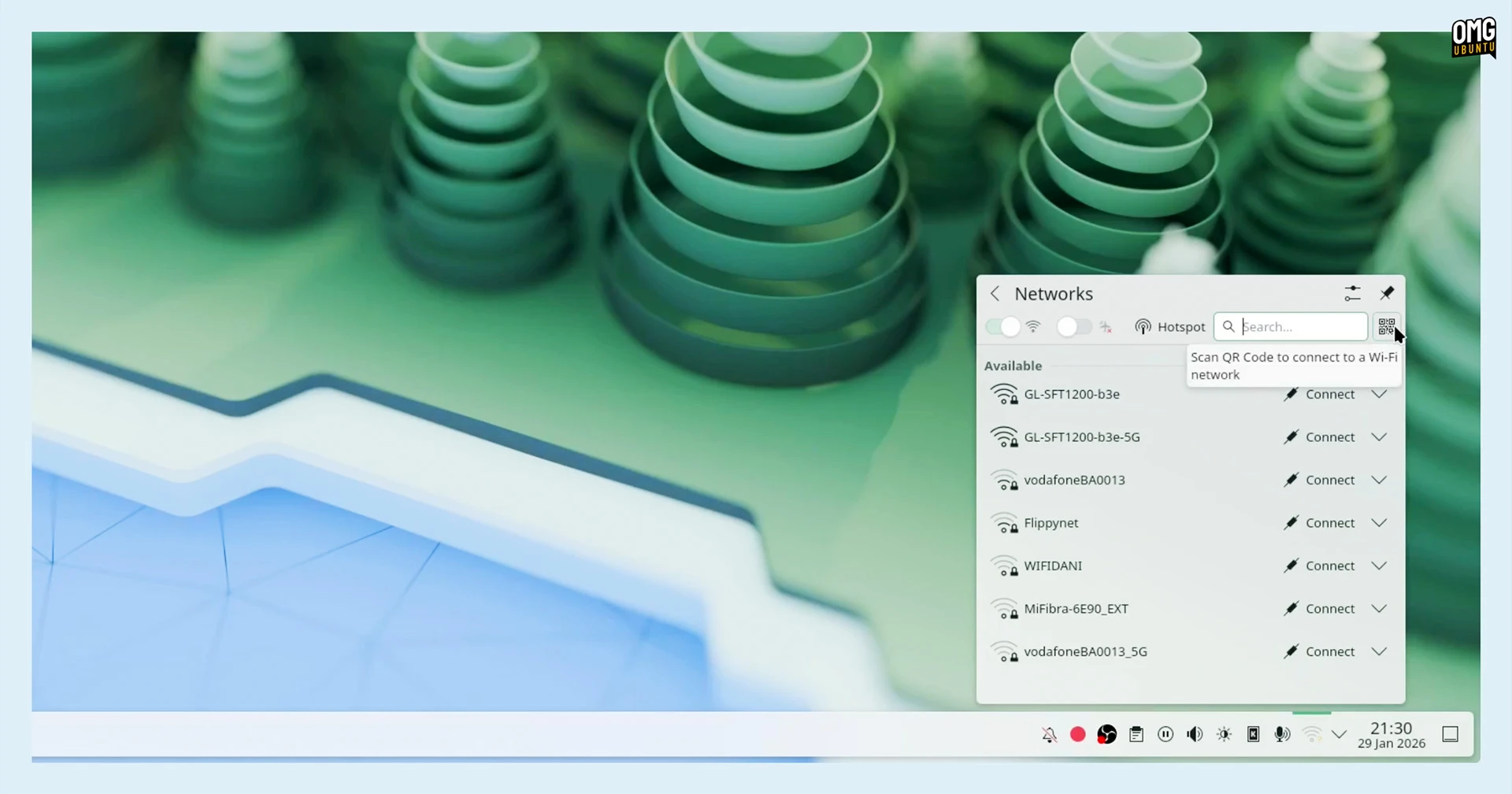
If your router displays a QR code for network access, Plasma 6.6 can scan it using your device’s camera.
To access the feature, you click the QR code icon in the top-right of the Networks widget in the system tray. This requires the QRCA Barcode Scanner app to be installed. Thereafter, you just orient your webcam at the QR code (or if said code is on a phone, flash it up).
Many mobile operating systems (like Android) let you to ‘share’ a Wi-Fi password as a QR code. They can often be found at public wi-fi spots, where passwords change often or are so long that no-one can memorise them on the walk back from the ‘free Wi-Fi’ poster…
Change per-app volume with mouse scroll wheel
Move your mouse over any application playing audio in the task manager (KDE lingo for the buttons that show your open apps in the panel), then scroll the mouse wheel to change the volume for that app specifically, without additional menus or windows.
Though minor, it is often smaller changes like this that are more keenly felt. If you tend to have multiple noise-making apps open, e.g., music players, browsers, chat apps etc., this is nifty as previously you had to right-click an app, open its volume controls and adjust there.
Media seeking using keyboard shortcuts
Plasma 6.6 also plumbs in global keyboard shortcuts for seeking backwards or forwards 5 or 30 seconds in playing media (assuming it uses MPRIS). This will let you skip through a podcast or rewind a missed line in a video without switching windows.
Since these keybindings are not assigned by default, you’ll need to set them yourself in System Settings. They will will only work in media players which support external control via MPRIS, but these days there’s little which doesn’t!
Workflow buffs include 5×5 virtual desktop grid
Multi-tasking in KDE Plasma 6.6 sees a boost with the virtual desktop limit raised from 20 to 25. If you covet a 5×5 grid configuration, now you can create one. Virtual desktops can now be limited to the primary monitor only, rather than spanning all connected displays.
The Window List widget (shows all open windows in a menu) gains a couple of new options (not enabled by default): windows can open on hover rather than needing a click, and the list can be set to show only windows on the current virtual desktop.
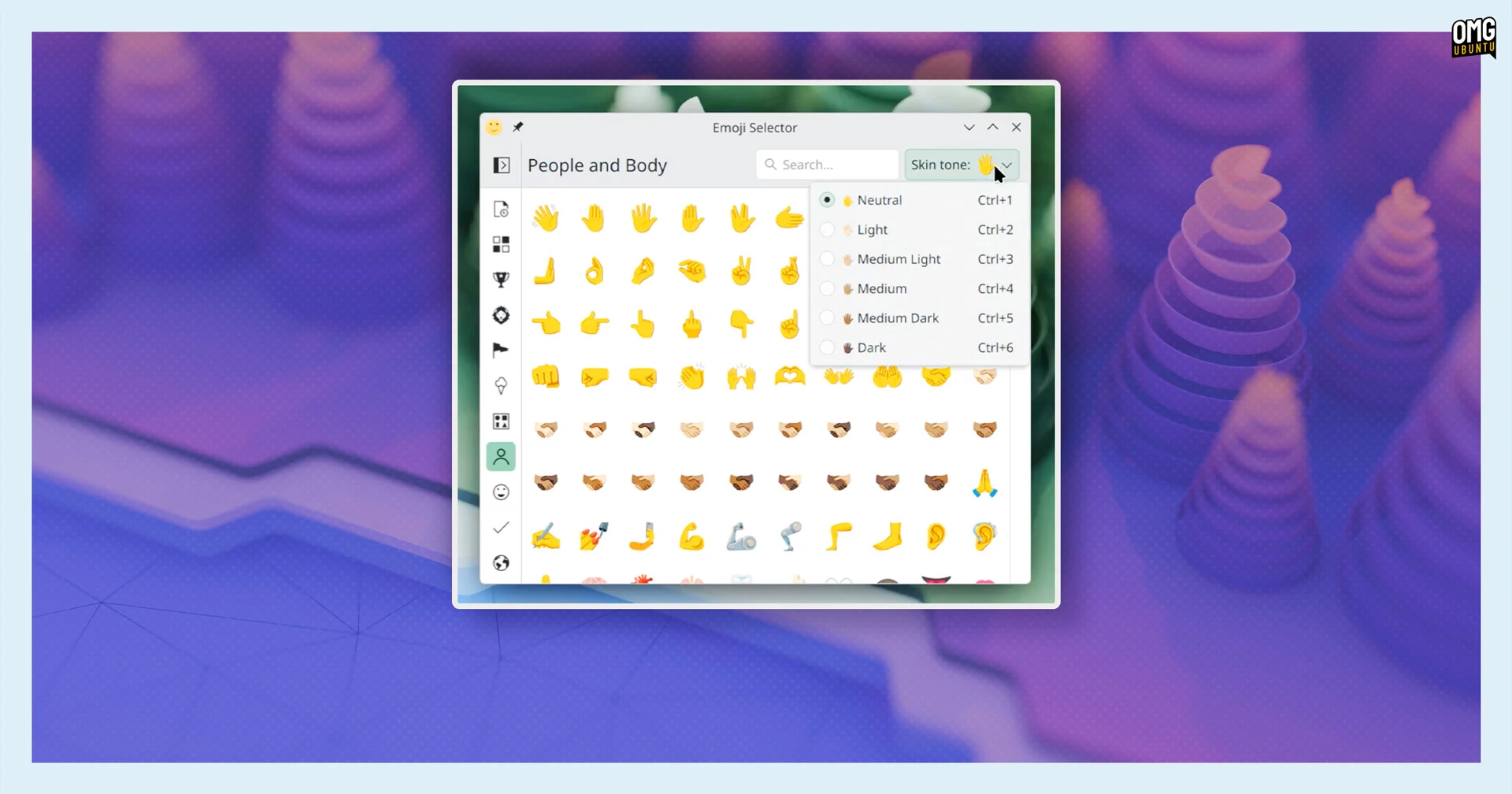
You can also now hold alt and double-click any file or folder on the desktop space to open its properties dialog directly; a skin tone filter is available in the emoji selector (open with super + .).
Accessibility: Grayscale colour filter, slow keys & more
Accessibility is improved in KDE Plasma 6.6 with a new Grayscale colour filter. This joins the desktop’s existing filters for protanopia, deuteranopia, and tritanopia colour blindness.
Zoom and Magnifier pick up a new tracking mode to keep the pointer permanently centred on screen, making it easier to know where the cursor is during during high magnification interactions. The desktop also now follows the Reduced Motion setting by nixing animations.
And the Plasma Wayland session now support Slow Keys, an accessibility feature that requires a key to be held for a moment before it registers. This is useful for users with motor control difficulties who tend to accidentally graze keys.
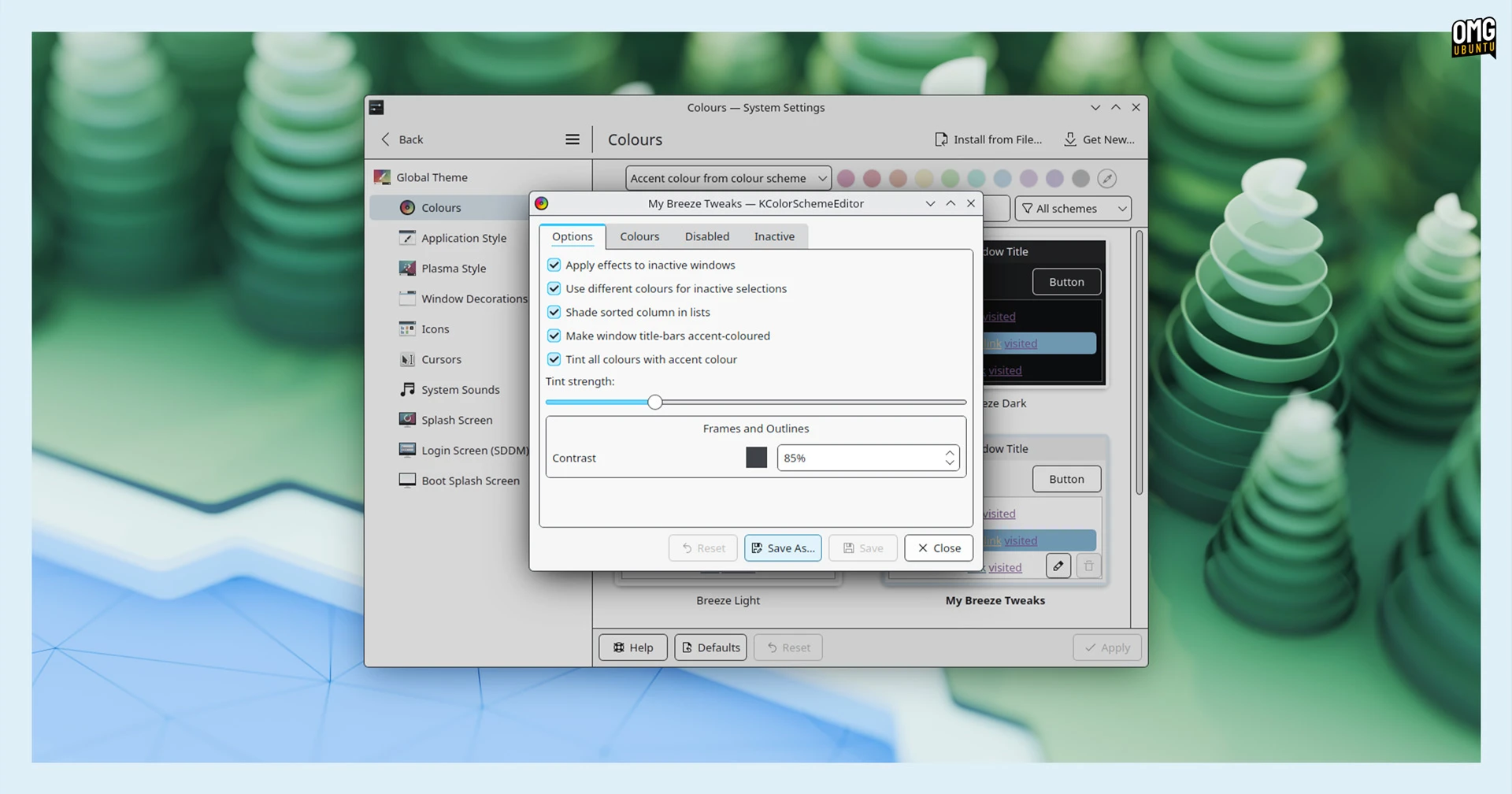
Finally, if you find interface borders too faint or overbearing too look at – a common point of chatter around KDE’s Breeze style – you’ll be pleased to know you can now adjust the intensity of frames and outlines around UI elements.
Other changes in KDE Plasma 6.6
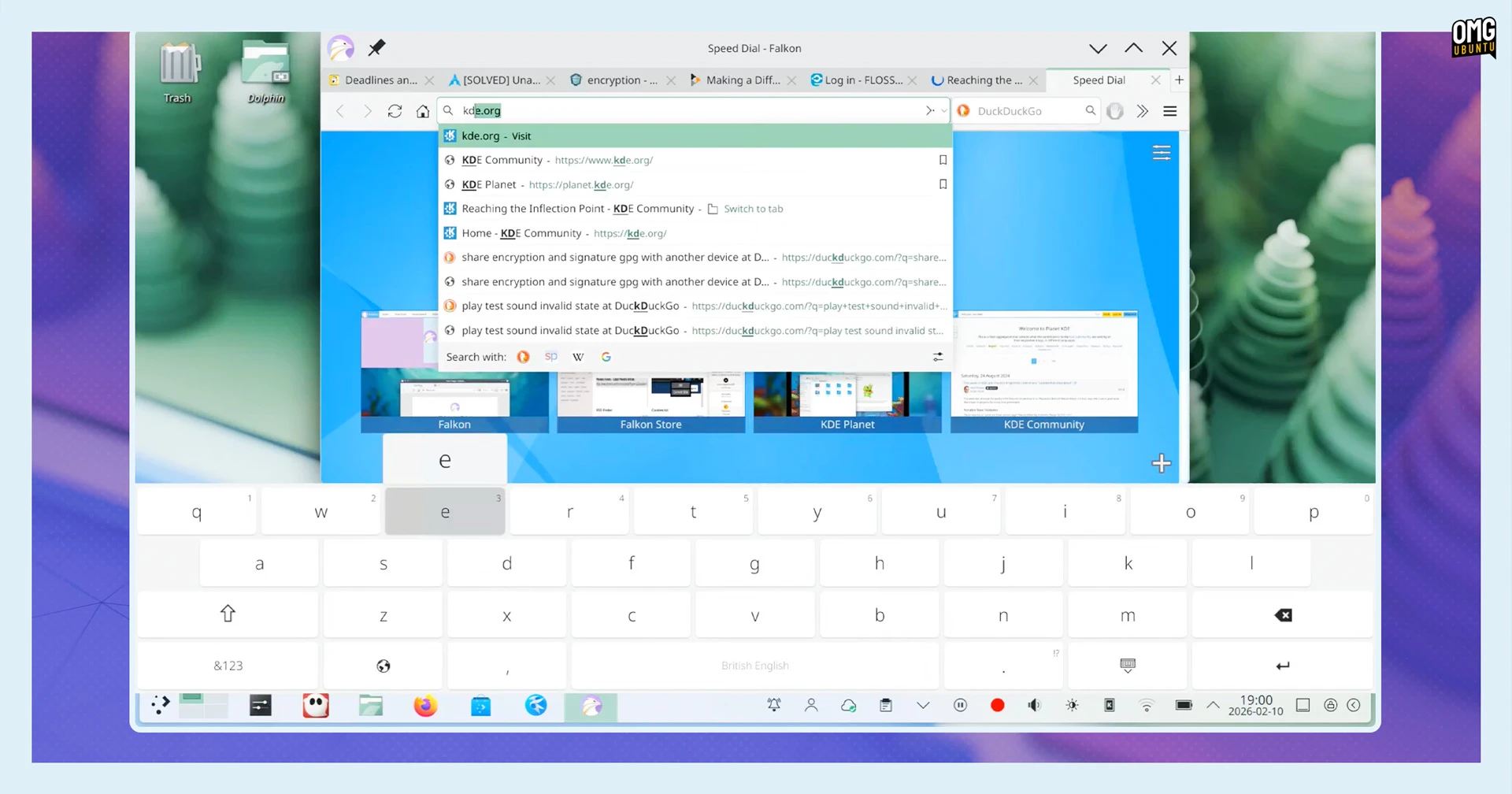
KDE Plasma 6.6 adds three new system components, albeit available as alternatives to existing software many KDE-based distros offers rather than enforced replacements.
Plasma Keyboard is a new on-screen keyboard for KDE designed for touch input. It offers a nicer look than Maliit, the on-screen keyboard many distros previously used, and is based on Qt Virtual Keyboard.
Plasma Login Manager is an alternative to SDDM (Simple Desktop Display Manager), the default login screen for many Plasma distributions. It handles user login and session selection.
Plasma Setup is an OEM-style first-run wizard for configuring user accounts and basic system settings, separately from the OS installation process. It’s primarily intended to cover pre-installs where the person buying the device isn’t the one installing the OS.
Other improvements in Plasma 6.6 include:
- Sandboxed app formats (e.g., Flatpaks) can request USB device access
- Auto-screen brightness on devices with ambient light sensors (optional)
- Hardware-based screen content sharpening on supported displays
- Font installation through the Discover software centre
- Mounting removable drives no longer performs a file system scan by default
- Crash reporting now works for non-KDE applications
- Up arrow in Kickoff search results can return focus to search field
- Screen chooser dialog now includes a search/filter field
- Process priority adjustment & process command matching in System Monitor
- Lock/Logout widget icons can be reordered to match your preference
The full changelog is available on the KDE website, with videos on the dedicated overview page.
How to Get KDE Plasma 6.6

KDE Plasma 6.6 is rolling out to users of KDE Neon and other rolling-release Linux distributions now, while source code is available from the KDE website for those who prefer to compile Plasma 6.6 themselves.
Kubuntu users can check the Kubuntu Backports PPA in the coming weeks for Plasma 6.6 packages, though support varies by Ubuntu version.