
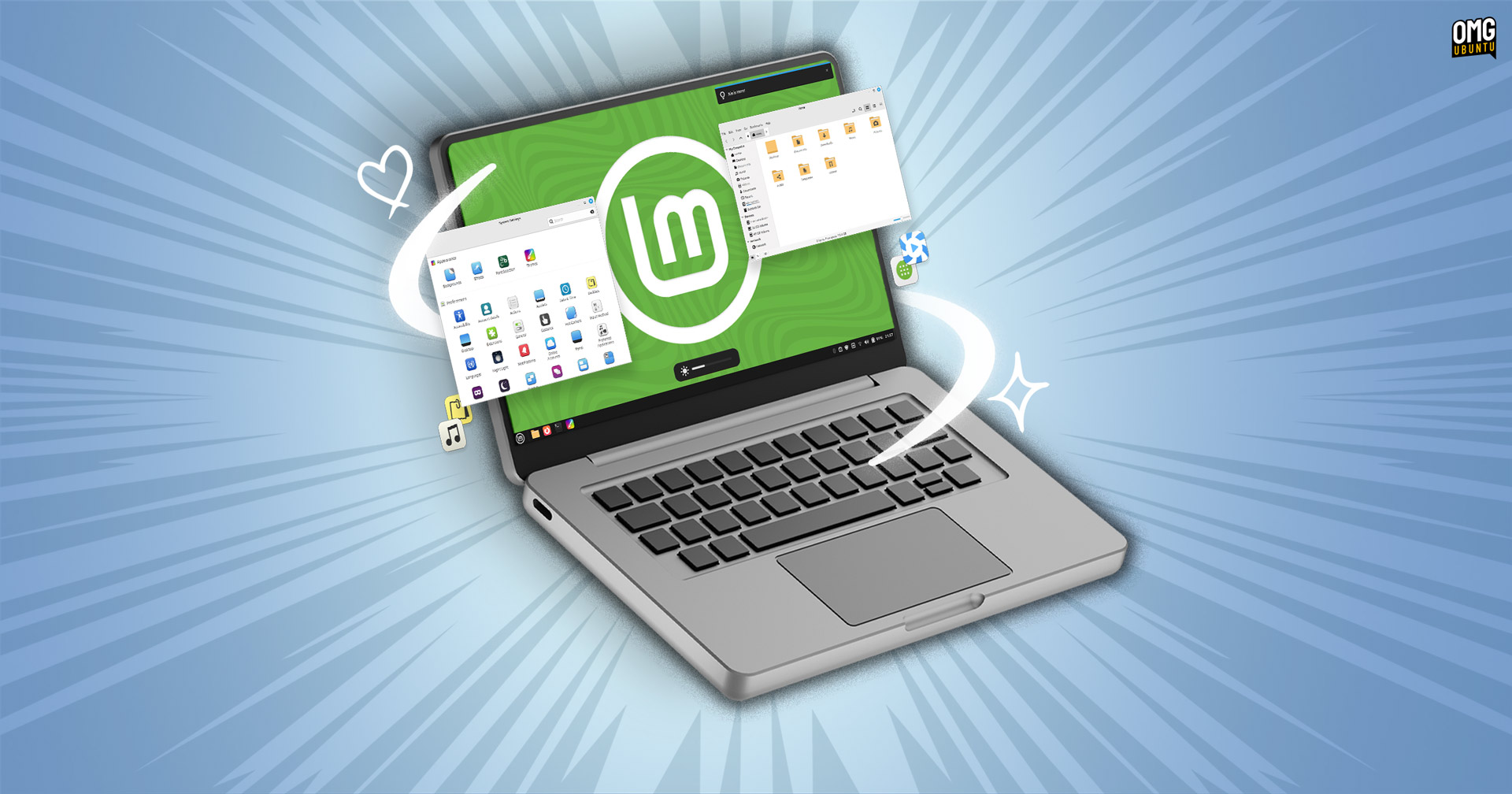

A major new release of Linux Mint is now available to download.
Linux Mint 22.1 is the first update in the Linux Mint 22.x series and, like that version, is built on top of Ubuntu 24.04 LTS and uses Linux Kernel 6.8 (though the distro plans to release newer kernel updates more often by opting-in to the Ubuntu HWE).
Being based on Ubuntu 24.04 LTS means Linux Mint 22.1 receives on-going updates until July 2029.
Though it features few foundational changes, Linux Mint 22.1 brings improvements to what sits on top – a new version of the Cinnamon desktop, Wayland-friendly features, new APT tools, expanded capabilities in many core apps, and more.
In this post, I share an overview of what’s new and improved in Linux Mint 22.1, where to download the ISO to try it out, recap the system requirements, and how to upgrade from Linux Mint 22 directly so that no reinstall is needed.
Let’s dive in!
Linux Mint 22.1: What’s New?
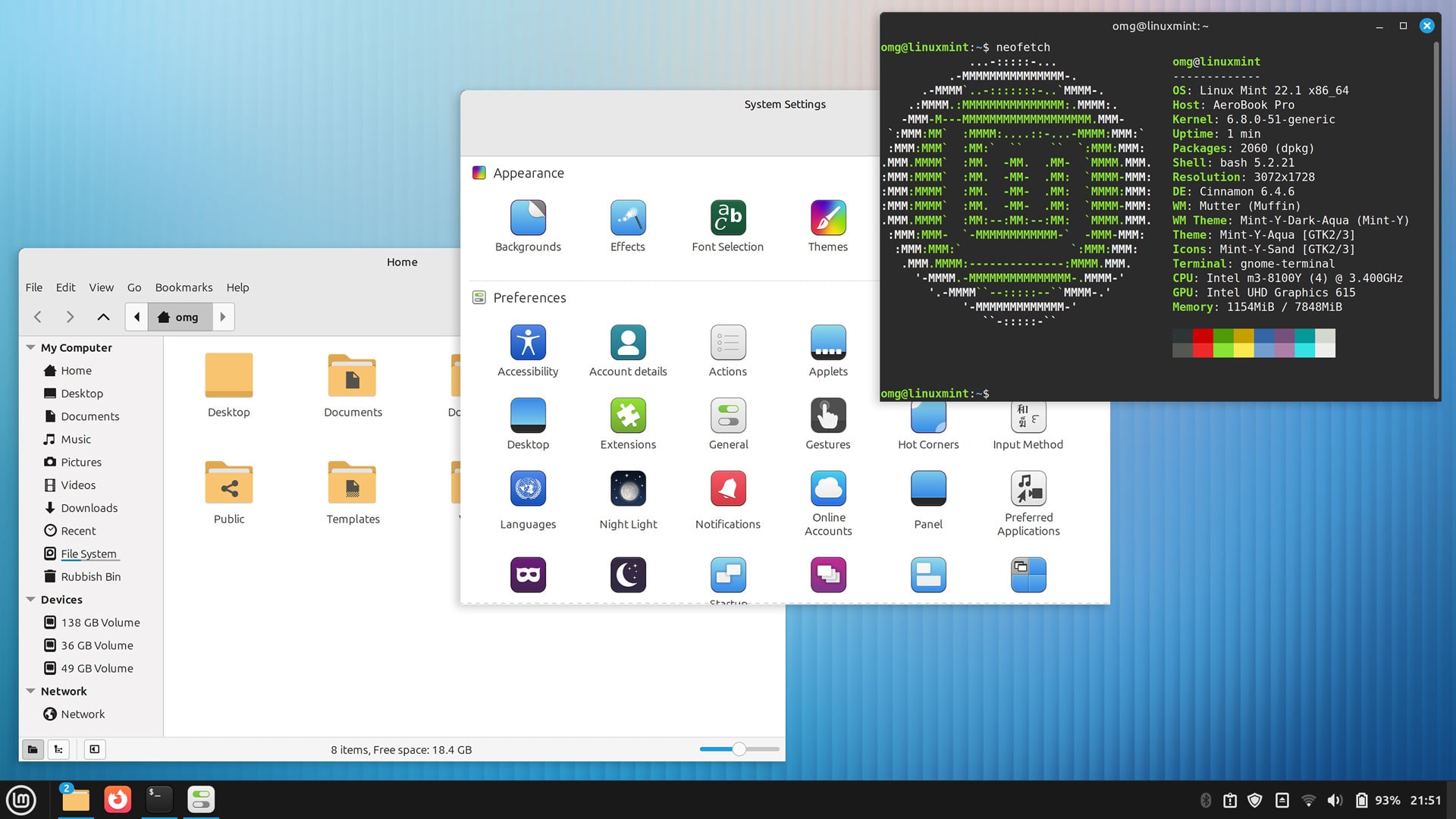
Linux Mint 22.1 ships with a new version of its home-grown desktop environment, Cinnamon 6.4.
The headline change in Cinnamon 6.4 is a brand new default theme. It uses rounder corners in applets and menus, boosts contrast and padding, and uses a ‘floating’ style for panel applets and menus. The changes effect a more modern looking desktop aesthetic.
However, the new Cinnamon desktop theme isn’t on show in Linux Mint 22.1 by default.
The distro continues to use its own Mint-Y-Dark theme out-of-the-box. To switch to the new default Cinnamon theme go to Settings > Themes > Advanced Settings and change the the Desktop theme to Cinnamon (first in the list).
Drag the slider on the image to see how the two themes compare:


Cinnamon 6.4 also comes with another major visual and UX improvement, one that all users will notice irrespective of which theme they use: clutter dialogs.
Clutter dialogs were added to improve Cinnamon’s Wayland compatibility and the overall end-user experience, as the previous mix of floating dialogs styled like GTK apps were easily lost among other open apps (which often have their own floating dialogs).
The screenshot below shows Linux Mint’s new Clutter-based dialogs and authentication prompts.
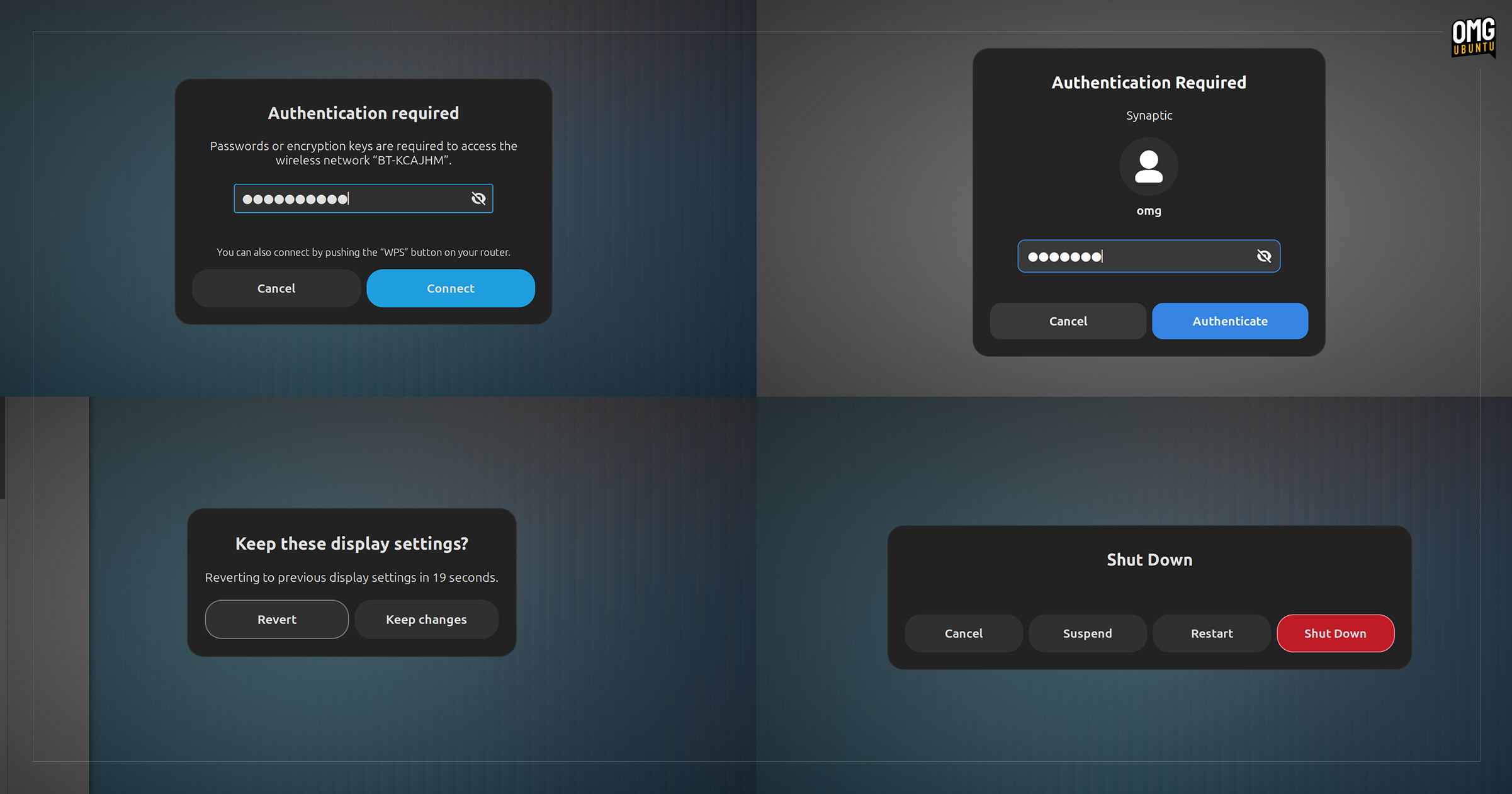
Clutter is used for the majority of modal dialogs, including logout/shutdown session; force quit prompts; keyring unlock; wi-fi network connections/WPS; keeping/reverting display resolution or monitor changes, and more.
By giving system dialogs and prompts a uniform look more closely aligned to the style of the desktop environment, Linux Mint makes it more obvious that a request or change will affect the entire desktop or OS, and not an individual app.
Night Light Returns

Another big addition to Cinnamon 6.4 is a new Night Light feature. This works in both the default X11/Xorg session and in Linux Mint’s (improved but experimental) Wayland session. You can enable Night Light in Linux Mint 22.1 via Settings > Night Light.
When Night Light is enabled, your screen will turn warmer (more orange) around sunset, as blue light is filtered out. At sunrise, screen colours return to normal. A custom time schedule can be used instead, and the overall colour temperature/intensity is adjustable.
Power Mode Switching
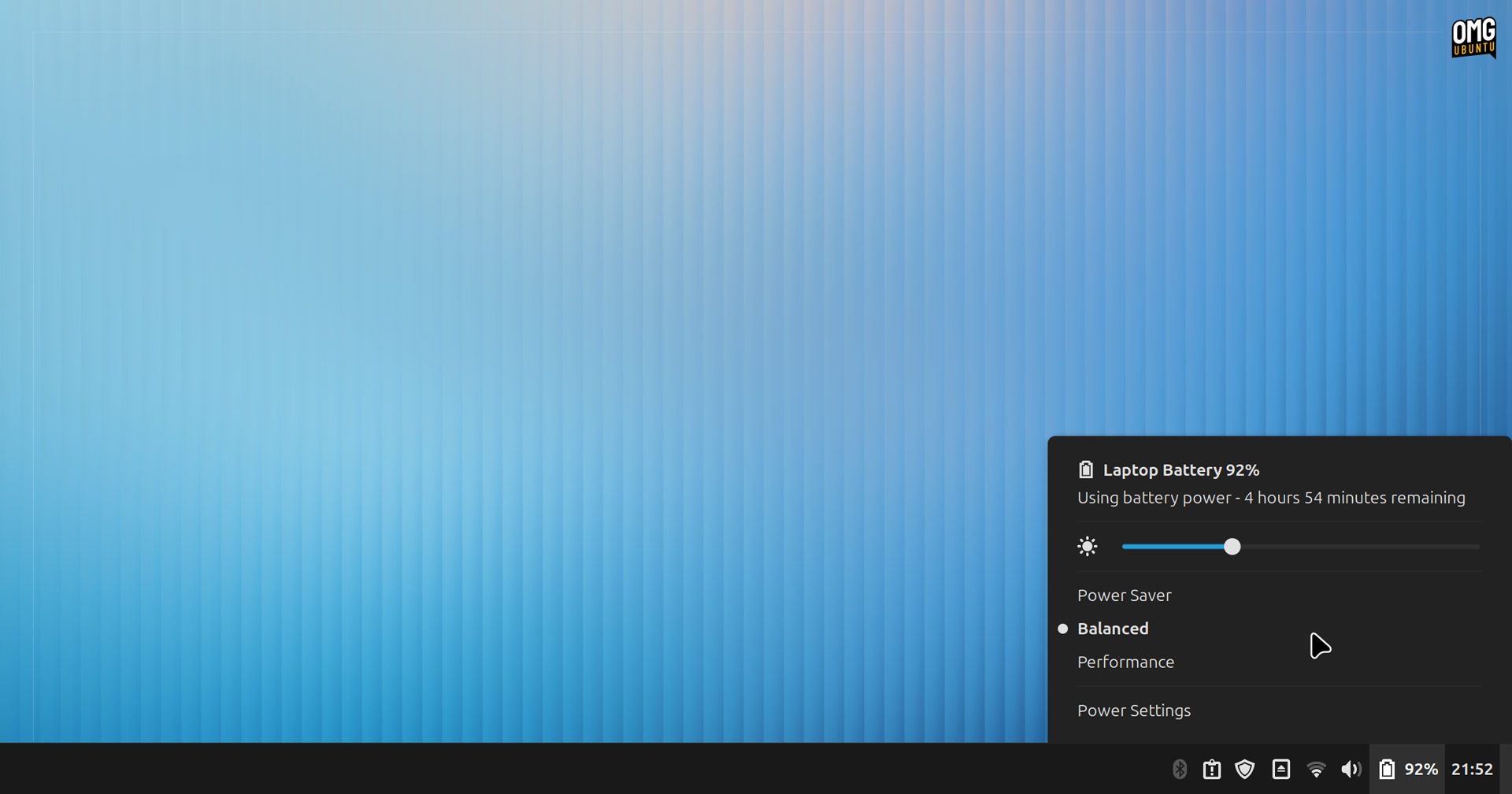
Cinnamon 6.4 adds power profile switching to the Power applet and the Power Management settings panel, possible now that Linux Mint 22.1 ships with power-profiles daemon (PPD) preinstalled.
Options shown are the usual ones: Power Saver, Balanced, and Performance. Depending on your system’s hardware support in PPD you may only find two of these – same as you would on any Linux distribution using PPD.
Package Management Tweaks

Most of us think of APT as a singular thing but it’s actually a collection of tools and libraries – some, though still working, are decades old and no longer maintained.
Linux Mint has found it increasingly difficult to keep some of them working with newer, more modern components used in the desktop stack.
So Linux Mint 22.1 modernises its APT stack by replacing older components with a bespoke set of first-party, future-proof package management tools and libraries:
- Aptkit replaces
aptdaemon - Captain replaces Gdebi (and
apturllinks) - Synaptic removed
Apps and system features that previously made use of aptdaemon, synaptic, and apturl now use their respective replacements in Linux Mint 22.1 – no-one will notice much (if any) difference to what went before.
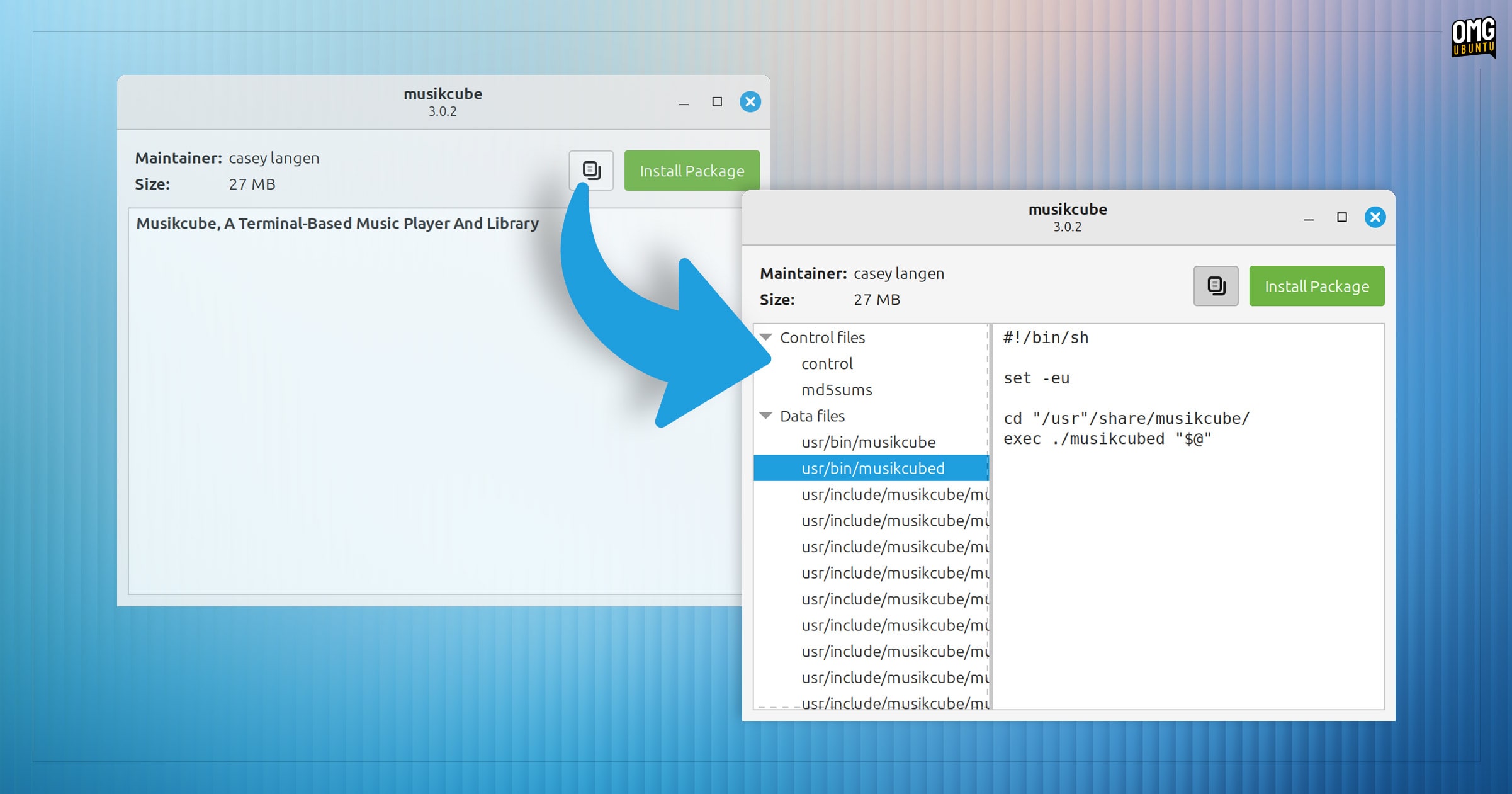
For example, double-clicking on a DEB package to install, Captain looks like Gdebi, although it has some improvements, like a button to view a list of files inside the DEB and preview them in-situ, which is neat.
And the switch finally allows the distro to offer a GUI assistant so users can ‘downgrade foreign packages’ (i.e., packages which are newer than/not in the main repos).
Several of Linux Mint’s default apps pick up some minor new features.
New App Features
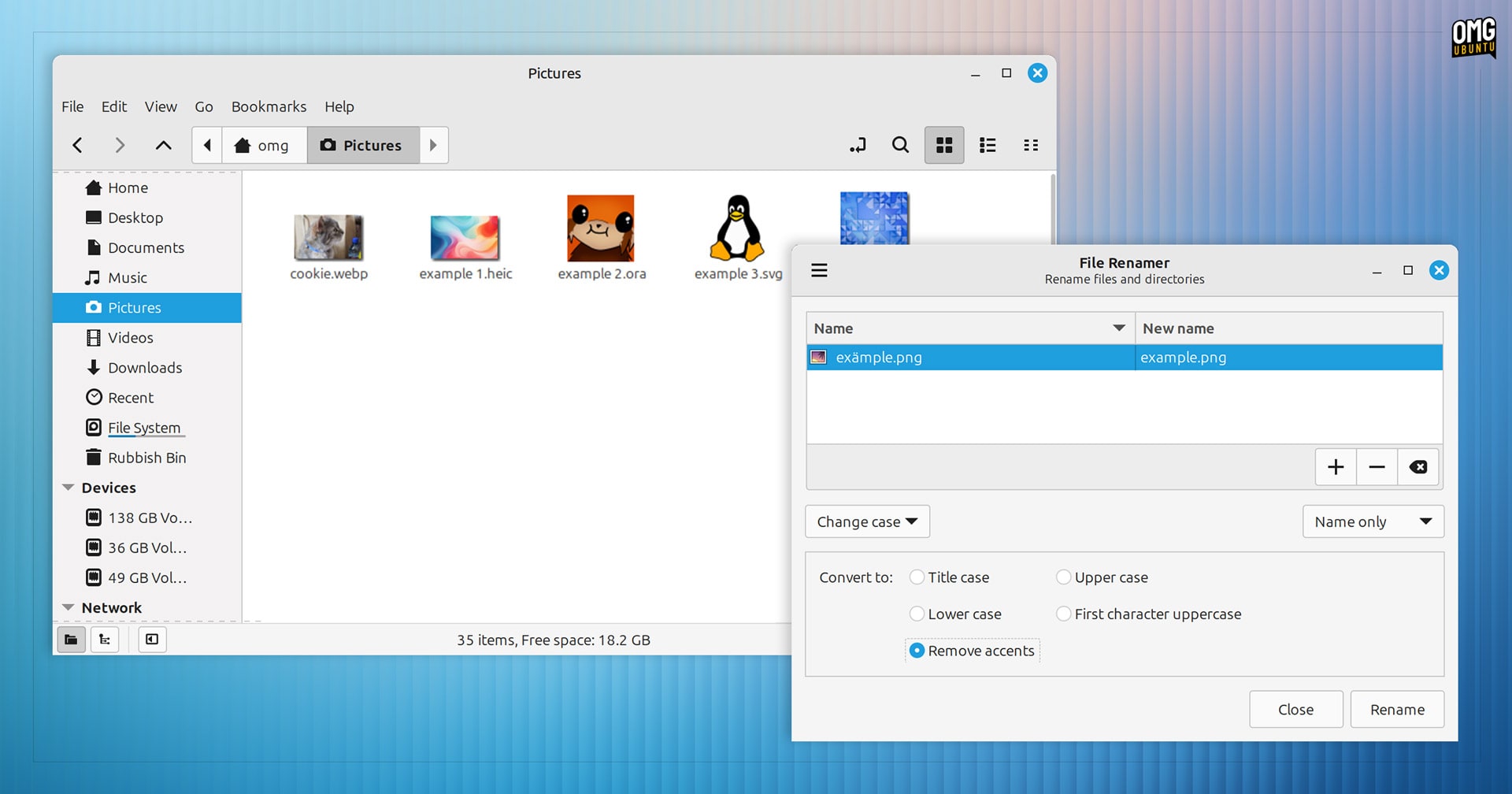
Nemo file manager now includes an option to disable auto-expanding treeview columns if using drag and drop to move/copy files, and actions (downloadable scripts for the file manager) now support keyboard shortcuts.
The Bulky file renamer is now equipped to remove accents from file names; Software Manager benefits rom a series of speed improvements, and a thumbnailer is pre-installed to generate file previews for OpenRaster (.ora) files used by graphic design apps.
Simplified Desktop Wallpapers
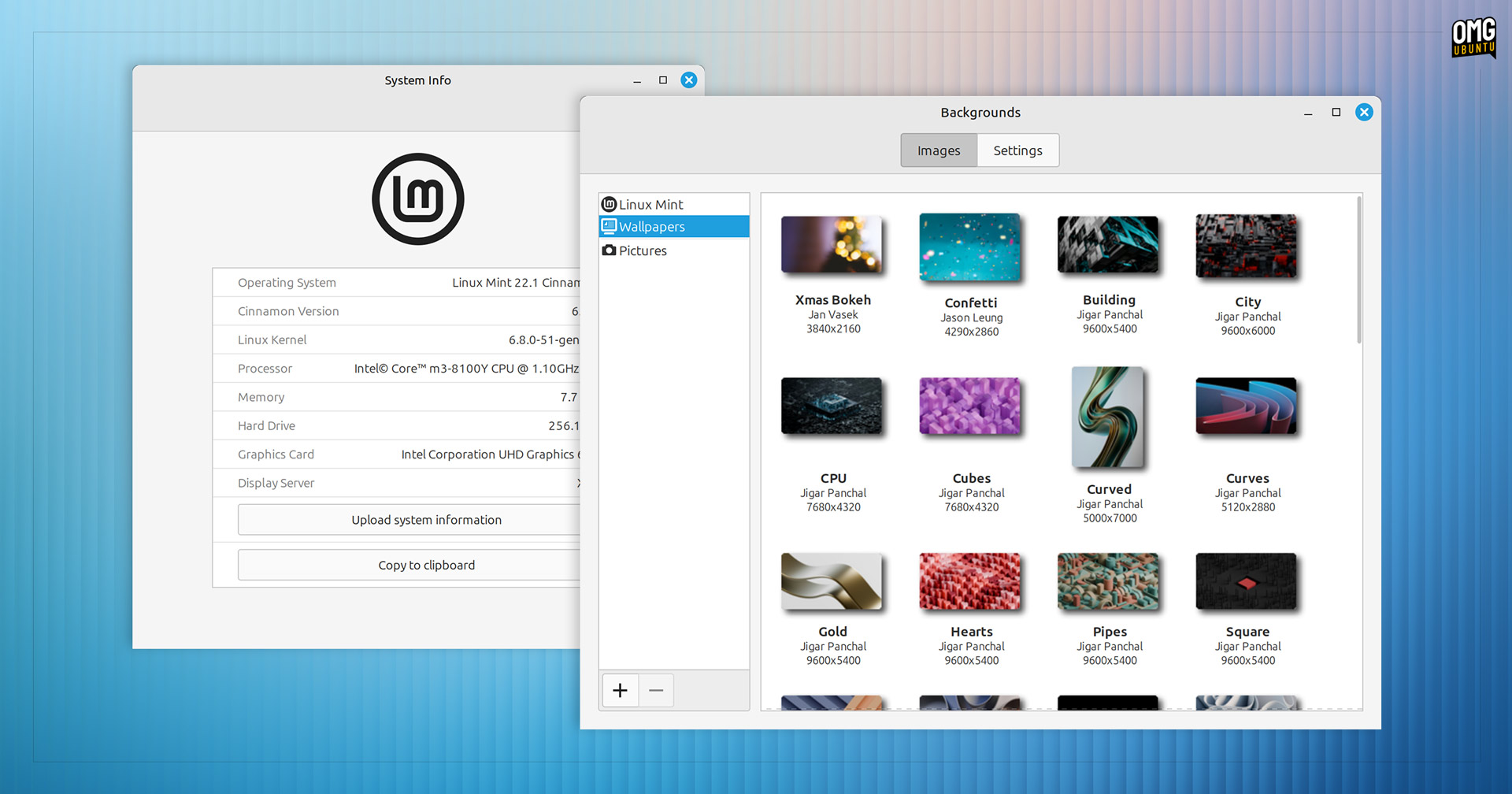
Each new version of Linux Mint would add news desktops backgrounds and continue to ship with wallpapers from earlier releases, each grouped by Linux Mint codename. Grouping wallpapers by labels such as Uma, Wilma, Virginia, etc won’t mean much to most.
In Linux Mint 22.1, the number of desktop wallpapers has been reduced and the way they’re listed simplified. A new ‘Wallpapers’ group offers a range of colourful abstract desktop backgrounds. More themed sets will come in later releases.
Other Changes
Cinnamon 6.4 makes it easier to find the audio “overamplification” option on the Settings > Sound page should you want to push your system volume past 100% – useful for quiet video, but be careful not to blow your speakers out!
But we’re not done yet; there’s plenty more:
- Menu renames ‘Quit’ to ‘Shut Down’
- Menu can be navigated using numpad arrow keys
- Grouped window list adds option to only list windows from current monitor
- Notification setting to show over fullscreen mode
- Volume change sound plays when dragging volume slider
- Option to toggle password visibility in the screensaver dialog
- Improved alt + tab switcher
As you’d expect, lots of bug fixes, performance buffs, and translation tweaks come bundled up inside of this update. Though invisible (and hard to screenshot) such changes are just as important as obvious (and easy to screenshot) ones.
Getting Linux Mint 22.1
Download Linux Mint 22.1 from the Linux Mint website as a direct ISO download (through a local mirror) or using the official torrent, should you prefer.
The Linux Mint 22.1 ISO is <3 GB in size – almost half the size of Ubuntu 24.04 LTS (5.7 GB)! Ensure you have enough disk space (and bandwidth) to download the image, and a USB stick or memory card you can use to flash it to.
Linux Mint 22.1 system requirements are the same as for v22: your computer must have a 64-bit dual-core processor, 2 GB RAM, and 15 GB of free space to run Linux Mint, but any specs exceeding those will give better overall experience.
A comprehensive installation guide on the Linux Mint docs site walks though installing Linux Mint step-by-step, should you need assistance.
How to Upgrade to Linux Mint 22.1
You can upgrade to Linux Mint 22.1 from Linux Mint 22.0 directly, without the need to download the ISO, flash it to a USB stick, and reinstall the OS.
Upgrading Linux Mint is done using the Mint Upgrade tool.
On Linux Mint 22.0 run sudo apt install mintupgrade from the command line to install the upgrade tool (if an older version is installed it must be updated first).
Then, run sudo mintupgrade check to check for the newest release.
Be aware that Linux Mint release upgrades are often not available immediately, right away, on the day of the ISO release. This is to allow for a little bit of extra testing should any last-minute bugs be found and fixed to ensure in-place upgrades go smoothly.
You’ll be prompted to backup important files, settings, and configurations before you can proceed, and install all pending updates. If you wish to skip any of those steps go to Mint Upgrade > Settings and adjust accordingly.
Linux Mint 22.1 is a Solid Upgrade
As one of the best known and widely used Linux distributions, Linux Mint is famed for its focus on not rocking the boat. Big changes can and do land, as seen here, but its developers take a considered, cautious approach in introducing and implementing them.
Windows 10 support ends this year and more people than ever will looking at Linux for a way to keep computing safely without buying a new PC or expensive Windows 11 license – Linux Mint, more than other distros, could be poised to benefit.
Of course, things aren’t done.
Linux Mint 22.2 will be the next major in-series update, expected to see release in July 2025. For details on what changes the Linux Mint team have planned for that release, watch this space!