

Taking screenshots on Linux is easy enough, but making them visually engaging? That requires more effort — not so with Gradia.
Gradia is a new screenshot tool for Linux with a key difference: it’s not a tool for taking screenshots but making screenshots look better for use in app store listings, blog posts, social media posts etc., without needing to use fully-featured image editing software.
Or to say the same thing in fewer words: Gradia can turn hum-drum screen captures into eye-catching graphics simply by placing them on a colourful background with (optional) annotations.
While Gradia can open most image files (they don’t have to be screenshots) it is designed specifically for working with windowed app screenshots (in PNG) as it places them on a background image with padding, border radii, shadows, and other tweaks.
Read on for a run-through of what this tool can do.
Gradia: Key Features
A top-level overview of the key Gradia features:
- Annotation: Pen, text, lines, arrow, shapes, highlight, pixelate, count
- Background: Pick a solid colour, gradient, or select a custom image
- Padding: Reduce the size of the screenshot in relation to background
- Aspect ratio: Define a format e.g., 1:1 for square, 16:9 for widescreen, etc
- Shadow: Dial in a drop-shadow strength around the screenshot
Of these features I find aspect ratio and padding the most inspired as they make it easy to create all kinds of images from one screenshot: a square image for Instagram, vertical 19.5:9 graphics for mobile app stores, 16:9 wide images preferred by X, Mastodon, et al.
While you can adjust the stroke and fill colour for most of Gradia’s markup tools you can’t set line or pen thickness, and text tool doesn’t let you change the font (you can change font size). Edit: latest update added these features.
Engaging from start to finish
Gradia’s welcome screen is brilliant because it’s not blank:
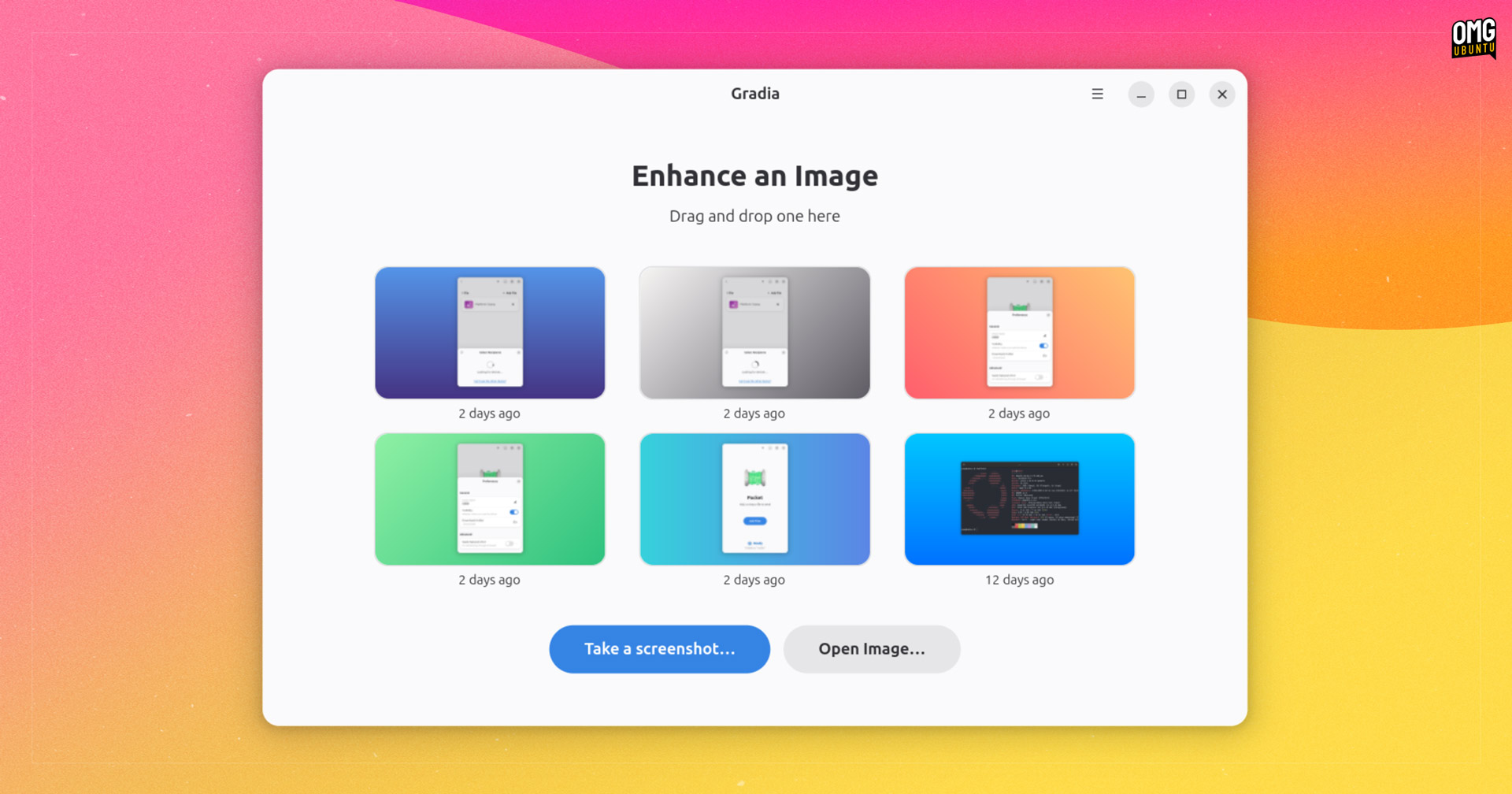
Instead, it shows a rich preview of the most recent screenshots in ~/Pictures/Screenshots (the default screenshot folder on most Linux distributions, including Ubuntu) overlaid on colourful backgrounds (but only in the preview; it hasn’t modified the originals).
Click on one of the recent screenshot previews to open it up in Gradia to edit, drag and drop or click the button to open a different image, or hit the big ‘Take a screenshot…’ button to do precisely that.
You can customise the background easily.
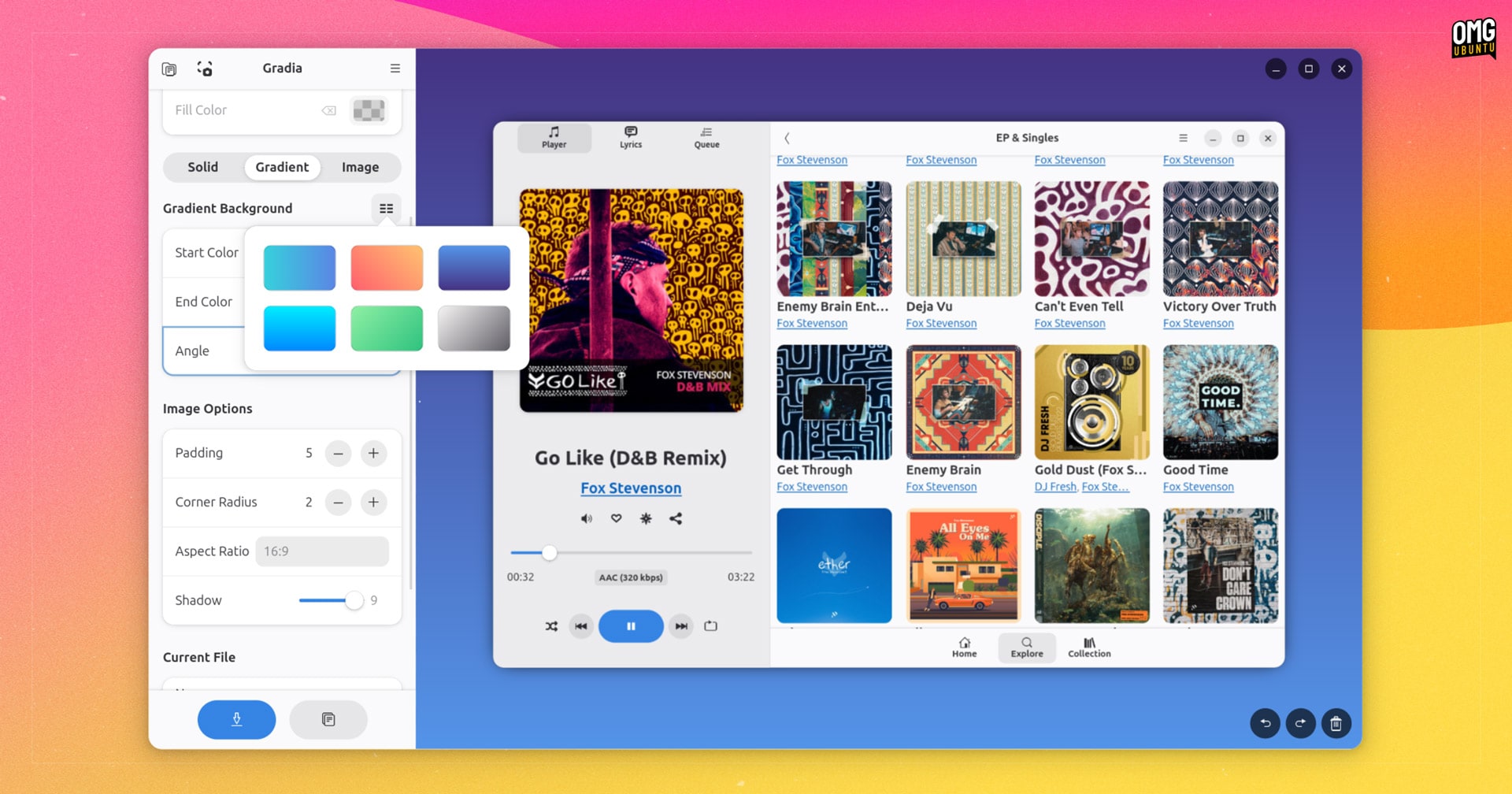
Solid colours are solid colours, and you can set a custom one or opt entirely for transparency; a handful of gradient presets are included but you can enter a custom colour for start, end and adjust angle; or pick an image file.
On-canvas undo/redo buttons make experimenting with markup less of a commitment, while the ability to reposition (and for text, reedit) elements means you don’t have to be precise if going freehand – pop ’em into proper position at any time.
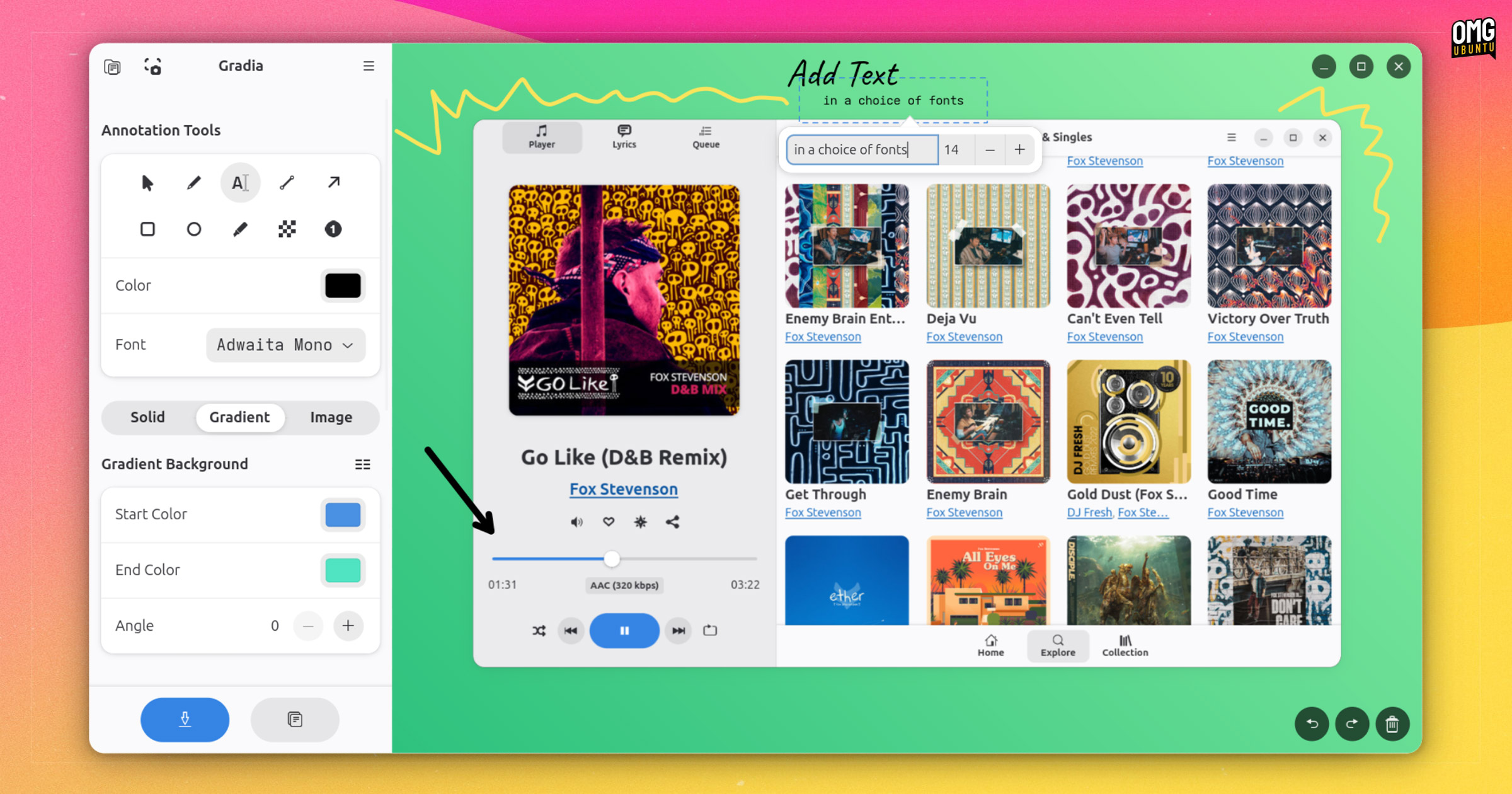
Once you’re done, you can save your marked up marvel as a new image or copy it to the clipboard for pasting elsewhere. As the original screenshot is not overwritten you’re able to work with it again if you need to.
Gradia has a built-in button to take a new screenshot (if you need one) it’s possible to set up a custom keyboard shortcut to take a screenshot and automatically open it in the app, ready for editing.
Who is Gradia Aimed At?
Linux developers and software companies who want to create engaging screenshots for their app store listings, GitHub repos, project landing pages and social media shares will no doubt appreciate Gradia‘s all-in-one approach to creating visuals.
The end results are much nicer to gawk at that beige window frames on white background, that’s for sure.
Equally, bug reporters, software testers, and bloggers, educators and tutorial makers who want to annotate or callout detail within a screenshot (or create standardised before/after comparisons) may find Gradia an expedient choice versus Flameshot et al.
If you’re interested in trying it out, you can grab the latest release from Flathub or checkout the source code on the project GitHub.