

The Ubuntu 25.04 release is packed full of fresh features, updated apps and other upgrades that deliver a practical, pleasing out-of-the-box experience.
—Perhaps not a perfect one, though.

I just installed Ubuntu 25.04 on my “couch potato” laptop and there were a few “things” I had to do to make the experience better — albeit better for me!
I didn’t do anything drastic: I didn’t remove Snap, uninstall GNOME Shell, or decamp to a 100% Libre Linux kernel and expunge proprietary drivers.
Part post-install tasks and todos, part future-proof plumbing to setup a few things ahead of time so I can use them as/when needed.
As I’ve done in past, I made a list as I went along (this post) so others can look at what I do to get ideas or pointers for their own installs.
Nothing in this list is mandatory, absolute or totally essential — it’s a blog post, not a YouTube video ;)
But there is one thing you MUST do after installing Ubuntu: share YOUR top post-install tasks in the comments. That way, your fellow Ubuntu users—and me—can get some more ideas!
Things to Do After Installing Ubuntu 25.04
1. Check for Updates
- 1. Check for Updates
- 2. Ubuntu Dock Configuration
- 3. Display Battery Percentage
- 4. Get Cosy with Night Light
- 5. Make Use of Fractional Scaling
- 6. Setup Wellbeing Reminders
- 7. Speed Up Overview Searching
- 8. Personalise the Desktop
- 9. Tame Mozilla Firefox
- 10. Explore GNOME Extensions
- 11. Get (Even) More Software
A boring but important first thing to do after you install Ubuntu is to check for software updates.
Not everyone installs new versions of Ubuntu immediately, and since the Ubuntu installer (ISO) is a frozen snapshot… The longer past April 17 you are, the more likely it is that updates, bug fixes and security patches are waiting to be installed.
- Open Software Updater
- Check for updates
- Install them
Want to update Ubuntu from the command-line instead? Just open Terminal and run sudo apt update followed by sudo apt upgrade to get going.
2. Ubuntu Dock Configuration

The Ubuntu Dock sits on the left side by default, but it’s not fixed there: you can move it to the bottom or right of the screen. You can also adjust icon size, enable auto-hide, disable panel mode (for a compact look), and set which screen it appears on (if using more than one).
To configure the dock in Ubuntu, head to Settings > Ubuntu Desktop and scroll down to the Ubuntu Dock section. Various options are on show, but a few more can be accessed by clicking the “Configure Dock Behaviour” row.
Personally, I always choose to hide unmounted volumes (drives/partitions). My multi-boot laptop has four operating systems and all of its icons clutter up the dock, leaving less room for the apps I’m running and using.
Ubuntu makes it easy to mount ‘volumes’ via the file manager as/when needed, which then show on the dock, an “on-demand” approach I prefer.
Ssh, Secret Settings

Want even more control over the way the Ubuntu Dock looks and behaves? A bunch of hidden settings are available too:
- Autohide controls – behaviour, animations, threshold to reveal
- Hide or reposition the app picker icon – the one with the Ubuntu logo
- Customise keyboard shortcuts – pick a different modifier key
- Customise click action – minimise on click, spread apps + more
- Appearance tweaks – change opacity, dock colour, running indicator type
To access these settings, install the third-party Extension Manager app from the Ubuntu repositories (covered in step #10) then open it, click the “Installed” tab, scroll down, and click the cog icon in the Ubuntu Dock row.
A preferences panel will appear with all various options – the rest is up to you!
If all you want to do is enable “minimise-on-click“, which minimises a running app when you click its icon and restores it when clicking again (similar to the taskbar on Windows and ChromeOS), you don’t need to install the app mentioned above.
Instead, run this command in the Terminal to enable minimise-on-click:
gsettings set org.gnome.shell.extensions.dash-to-dock click-action 'minimize'
If you often have multiple windows of the same app open you may prefer to run the command with minimize-or-previews at the end instead.
To “undo” the changes and go back to the way the Ubuntu Dock worked originally run the same command again but with no value at the end.
3. Show Battery Percentage on Top Panel

Opting to display battery percentage in Ubuntu’s top panel makes it easier to gauge how much juice your laptop or tablet has left before a mad dash to the nearest plug socket will be required.
While you can open the Quick Settings menu to see remaining battery percentage, putting it always-on-show means you don’t have to interrupt what you’re doing to check:
- Open Settings > Power
- Select the Battery tab
- Toggle on the ‘Show battery percentage’ option
Do you want to see the estimated amount of battery time remaining? You can’t put that in the panel but you can open the Power Statistics app (included minimal and expanded installs), select your battery, and look for it in the list – the time varies wildly based on usage, mind.
4. Get Cosy with Night Light

Ubuntu comes with a blue light filter feature (Night Light) which can reduce the amount of blue light your display emits, something purported to improve sleep onset and reduce eye fatigue.
When active, Night Light gently turns your screen warmer after sunset, and back to normal during the day. You can customise the schedule (handy if your sleep schedule/patterns aren’t in sync with sunrise/sunset) and adjust the temperature intensity.
Enable Night Light in Ubuntu:
- Settings > Screen Display
- Click the Night Light option at the bottom
- Slide the toggle to turn it on
When enabled, you can turn Night Light on/off at any time using the dedicated button that’s shown in the Quick Settings menu. I find the toggle handy when I’m working on site graphics at the night and want to check that the colours I’m seeing are the right ones!
5. Make Use of Fractional Scaling
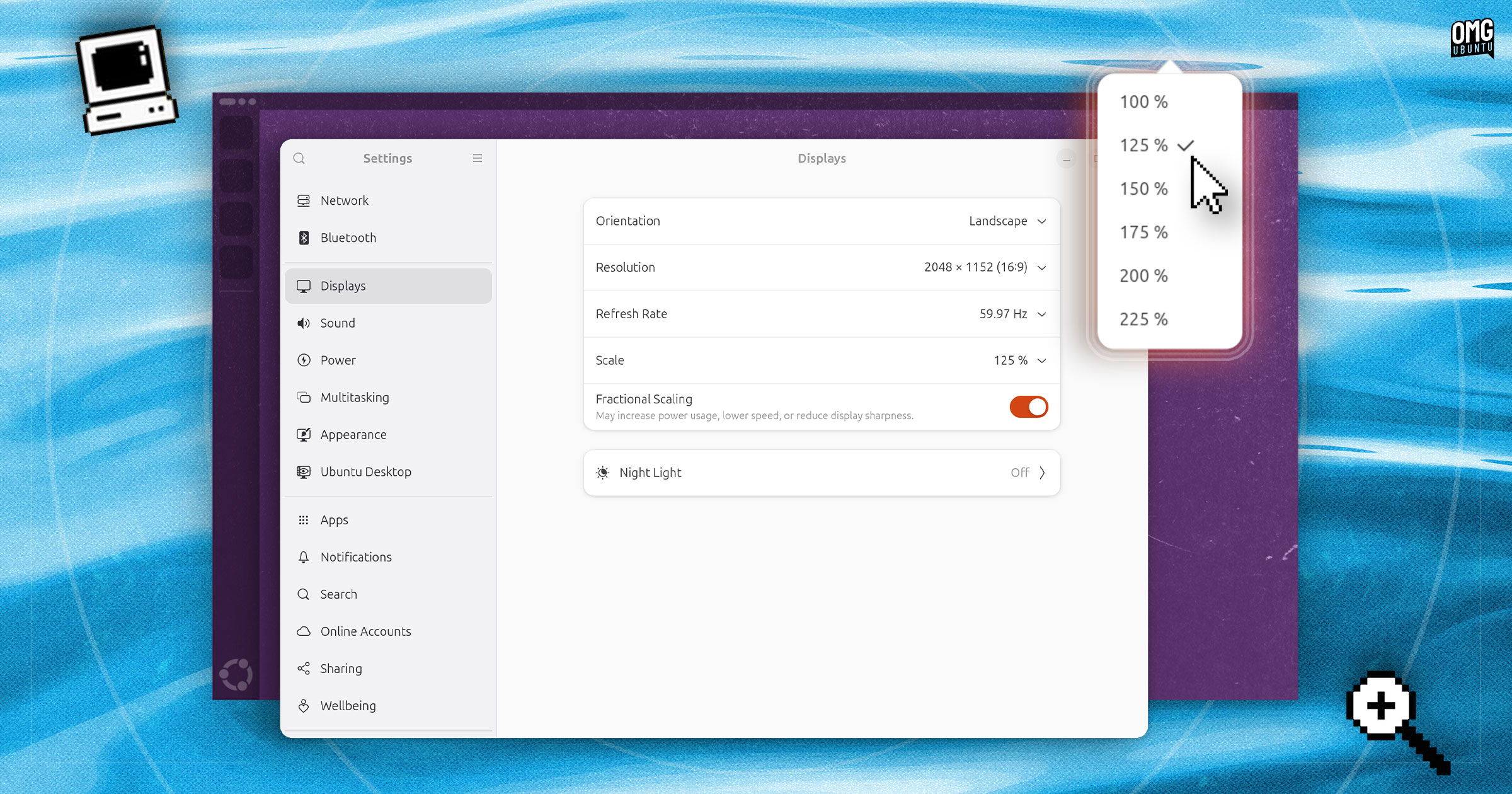
Fractional scaling support in Ubuntu is far from new, but the feature remains disabled by default. Plus, even when it is enabled it won’t automatically scale the UI the ‘best’ settings for your monitor’s screen size or resolution – you need to do that yourself.
Head to Settings > Displays and turn on ‘Fractional Scaling‘ to access a drop-down menu full of in fractional scaling options (125, 150, 175 & 225), which sit between the standard 100 and 200 options.
Depending on your monitor, you may need to try out a few different values before you find your ideal “sweet spot”, i.e., one which doesn’t render UI elements and text too small, but not overly big, either —making you goldilocks sans any bears.
6. Setup Wellbeing Reminders
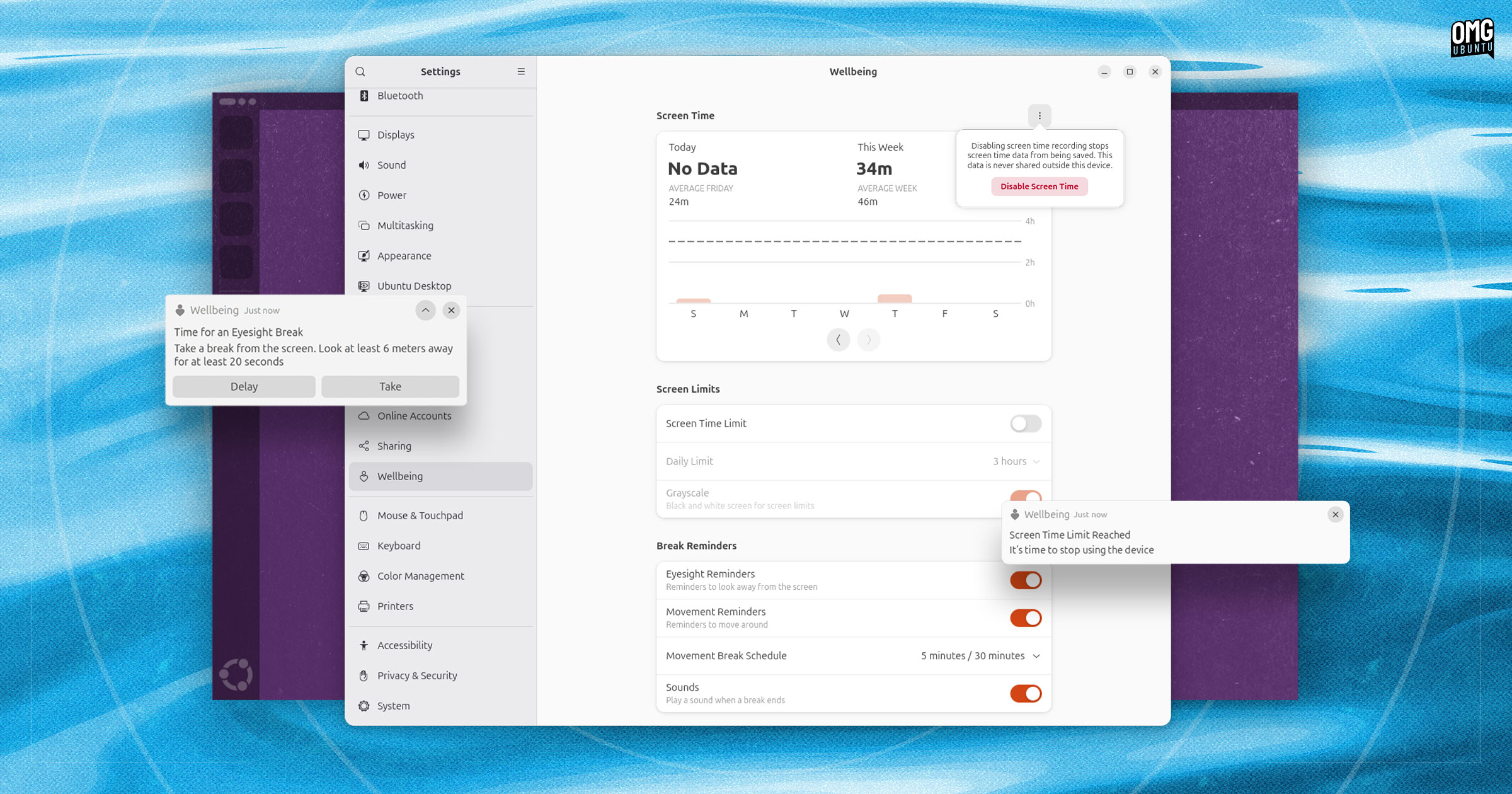
Ubuntu 25.04 brings new ‘Wellbeing’ controls to the Settings app, backed up by a new Screen Time tracking feature which monitors how much (or little, heh) you use your device.
Screen Time tracking is enabled for everyone (it can be disabled) but there are some other “controls” included which aren’t. You may want to make use of these, especially if you spend a lot of time at your computer.
- Screen time tracking – View a chart showing how long you use your computer each day so you can monitor usage over time
- Daily screen limits – Set usage duration limit which, when reached, sends a notification and, optionally, turns screen greyscale
- Break reminders – Receive notifications reminding you to stand up, stretch, and/or look away from the screen based on a preferred schedule
While the new Wellbeing panel gives you tools to manage your screen time, it’s up to you to take advantage of them.
7. Speed Up Overview Searching
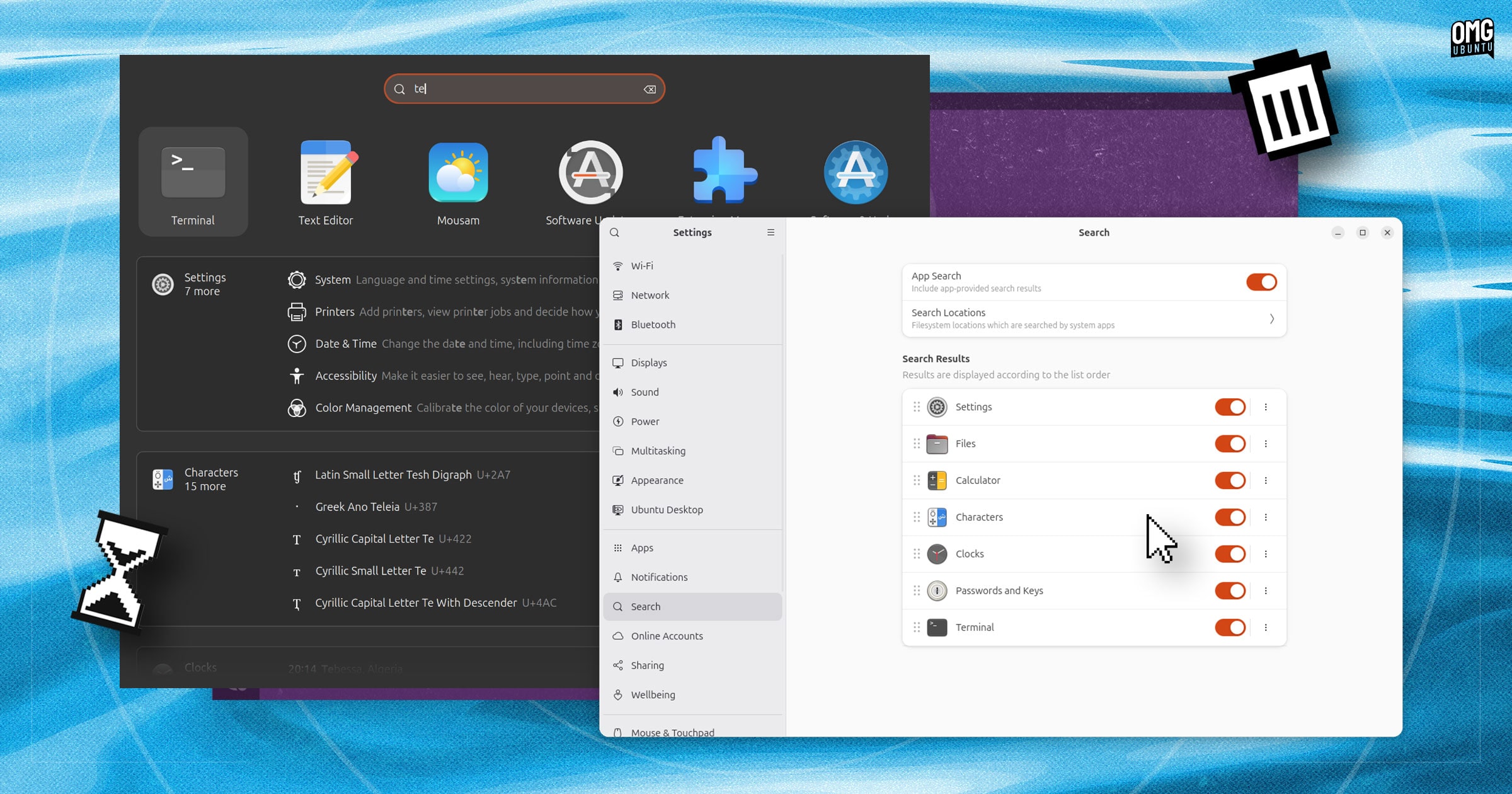
On Ubuntu, you can search and open apps quickly by tapping the super key and instantly typing what you want to find. Results appear, and you can click hem with your mouse (or select them using arrow keys and then hitting enter to action).
It’s fast, intuitive and something I’m not sure I could live without.
However, I find that the Overview often freezes and stutters as results trickle in when I use it on my “couch potato” laptop. While it’s still fast enough, it’s not as fluid or it is on my other computers.
Overview searches for more than just apps. Each time you enter a query it matches it to settings, files, timezones, passwords and—the bottleneck for me—letters, characters, diacritics, and emoji from the hundreds of fonts in the Characters app.
I never use the overview to search for emoji and obscure symbols so in Settings > Search I turn off Characters searching.
Et voila, the performance of overview on my laptop becomes SIGNIFICANTLY smoother as a result.
8. Personalise the Ubuntu Desktop
Changing the desktop background is not the most “critical” of tasks, granted. Yet it is a quick and easy way to make Ubuntu feel more yours that, and the default wallpaper is very dark with significant ‘banding’ in the gradient that looks awful on high-resolution/vivid displays.
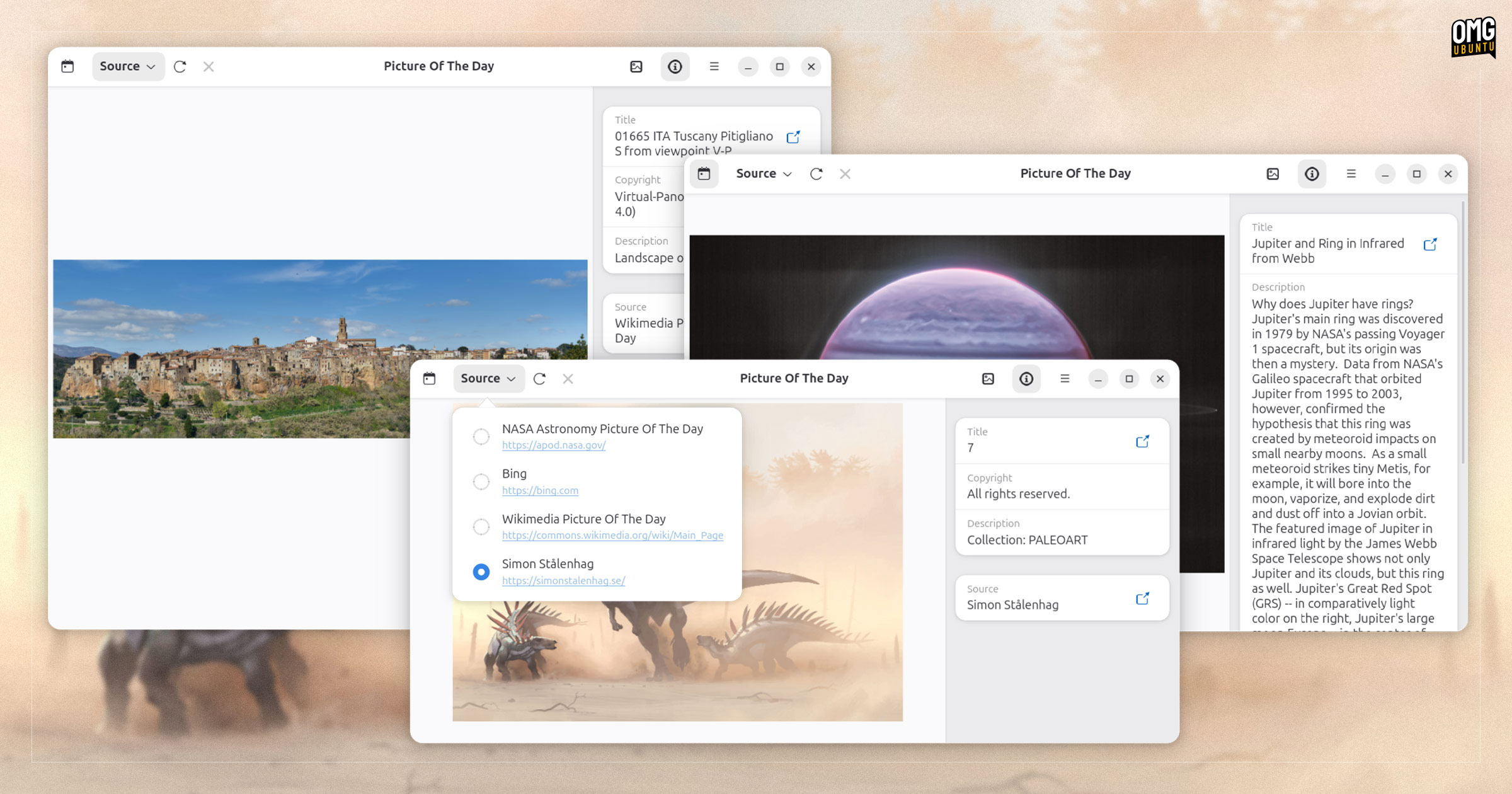
Take a moment to change your desktop’s mood by changing wallpaper (and perhaps pick a different accent colour, if orange isn’t your thing).
Ubuntu 25.04 comes with a set of new community-sourced wallpapers, though the majority are also dark and also puffin themed!
Installing the gnome-backgrounds package from the repos nets you a huge range of brilliant backgrounds, many which adapt to light/dark mode.
You can also find backgrounds online (Unsplash is my go-to) or use a Linux wallpaper app, many can change your background automatically so there’s always something new to see when you finally minimise your web browser.
Ah, talking of web browsers…
9. Tame Mozilla Firefox

Firefox is the default browser in Ubuntu for good reason: it’s free, open-source, reliable, extensible, and works with nearly every web site out there. Plus, you can stream video from major streaming services like Netflix, Disney+ and Amazon Prime on it.
Unless you’ve a hard-set preference for a different web browser (or browser engine), Firefox is every-bit as good as anything else.
That said, there is a bunch of stuff I disable and opt-out of before I start using it:
- Turn off sponsored stories and sites on the New Tab page
- Opt-out of feature, technical and interaction tracking
- Disable search suggestions and trending searches
Many of these “features” are ones that Mozilla (who make Firefox) market as useful time savers that help us do things faster.
Personally? I find most of that stuff is there to hijack attention, to make us look at things we weren’t planning to — all so someone, somewhere can try to sell us something (because the web doesn’t have enough of that, right?).
Mozilla’s privacy policy states that ‘search suggestions’ may include ‘sponsored links’ from its ad partners (link), and interaction and that technical data is used to ‘personalise future content, including sponsored content’ you’re shown on the New Tab page (link).
—Nah, I’m okay, thanks!
There’s more than enough occlusion and manipulation of content on the web itself, without my browser—supposed to be a tool, not a frickin’ billboard—trying to upsell, market and “misdirect” me for its own benefit too.
If you’re similarly inclined, take a moment to dial down the noise so you can focus on the things you want to, not what algorithms, advertisers and marketing teams want you to.
10. Explore GNOME Extensions
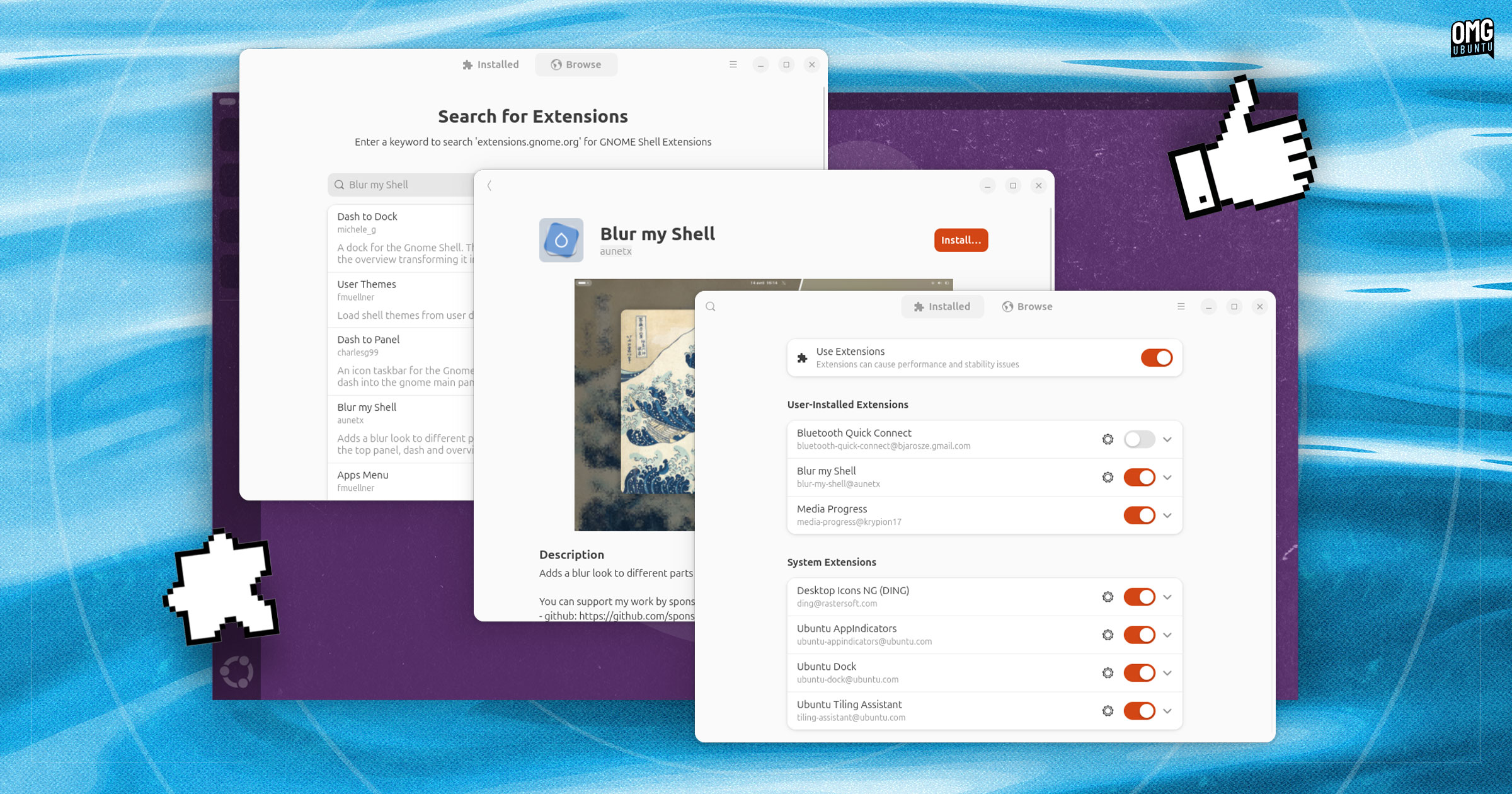
You can add all kinds of neat, novel and niche features to the Ubuntu’s desktop using GNOME Shell Extensions.
It feels like there’s an extension for everything[citation needed] you can think of: weather forecasts, system monitoring, advanced window tiling, clipboard management, timers, currency trackers, alternative app menus, docks and task switchers — plus lashings of shameless bling!
The open-source Extension Manager app offers the best experience for finding, installing and configuring GNOME extensions.
You can install Extension Manager through App Center if you search for it by name and set the filter to ‘Debian’ – at least in theory: I get “no results found” each time I try.
To save head scratching, open Terminal and run sudo apt install gnome-shell-extension-manager to get, then open it from the app picker to get started.
11. Get (Even) More Software

Ubuntu defaults to a minimal install light on preinstalled apps (unless you opt for the expanded install, but even then there’s a good chance the software provided aren’t your personal faves and don’t cover everything you plan to do).
So, once you’re done installing Ubuntu 25.04 and configuring the core parts to work the way you want, take some time to install the apps you want, so they are there ready to go next time you need them.
Stacks of great apps are available the Ubuntu repos, including the latest GIMP 3.0 release for photo editing, the perennially popular media player VLC, plus creative essentials like 3D powerhouse Blender, audio editor Audacity, and vector graphics icon Inkscape.
Plus, you have access to all the software on the Snap Store and, if you install Flatpak and set up Flathub, thousands of apps available there (many exclusively – and the selection growing every day).
A few choice picks (keep in mind many of these apps are distributed on all three):
Repo
- Rhythmbox
- LibreOffice
- GIMP
- VLC
- Handbrake
Snap Store
- Spotify
- ONLYOFFICE
- Steam
- VSCode
- Chromium
Flathub
- Discord
- Mission Center
- Tuba
- Pinta
- Mousam
Plus, there’s even more Linux software (e.g., Google Chrome, Microsoft Edge) not officially available on any ‘store’ or via any repo. Instead, you’ll download an installer (typically a .deb file, sometimes an AppImage) from the official website or GitHub page.
Wrapping Up
There you have it: my list of things to do after installing Ubuntu 25.04. Whether you followed a single step or went through and did ’em all, you now have an Ubuntu desktop experience fine-tuned to my your needs, tastes, and workflow.