

Do you want to click on an app icon in the Ubuntu Dock to minimise the app window, instead of giving it focus and bringing it to the foreground?
The way Ubuntu Dock works may seem odd to someone used to Windows
Ubuntu’s default behaviour is to focus or restore/maximise apps on click, which not everyone (hi) is a fan of.
If you recently made the switch to Ubuntu from Windows or Chrome OS (which also use minimise-on-click in their respective taskbars), Ubuntu’s behaviour can seem frustrating.
Fortunately, it is easy to enable minimise on click in the Ubuntu dock. In this guide, I show you how.
Before we begin, here’s an overview of how the Ubuntu Dock click behaviours work out-of-the-box in modern versions of Ubuntu.
When you click on an application icon in the Ubuntu Dock (this is bar on the left-hand side of the screen, just incase you’re wondering) one of the following happens:
- The app opens (if it’s not already running)
- The app is given focus (if open and visible, but not in focus)
- Nothing (if the app is running and already has focus)
- The window is maximised (if previously minimized)
- A window picker is shown if an app has multiple windows open
‘Minimise-on-click’ changes the behaviour of #3 so that an open app window will minimise to its respective icon on the dock when clicked. A subsequent click will put the app window back on the desktop space.
It’s easier “seen” than said, so here’s a GIF of it in action:
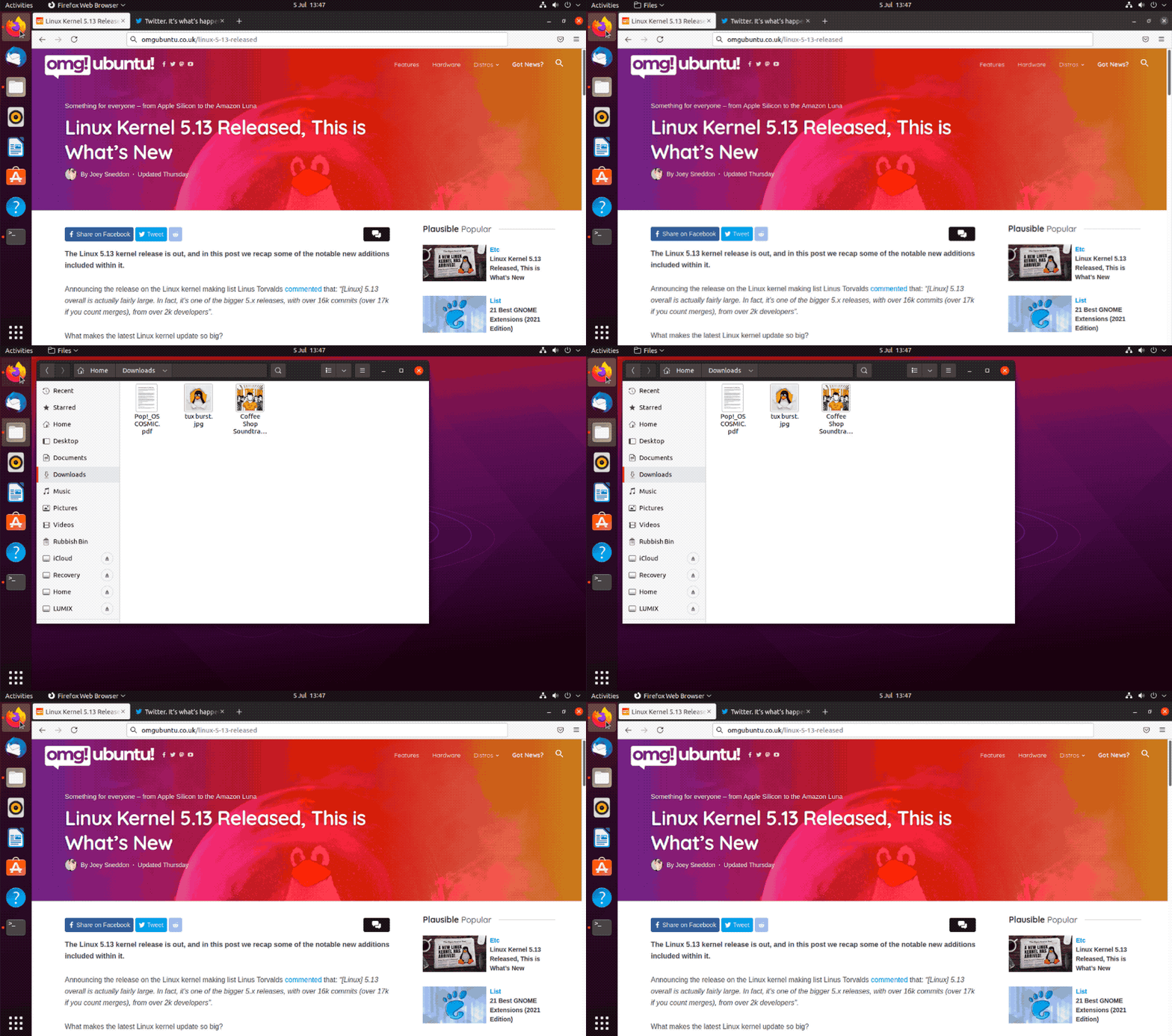
People who switch to Ubuntu from Windows, Chrome OS, or Linux distros that use this behaviour often find the lack of minimise on click in the Ubuntu Dock both unintuitive and frustrating.
And although there are plenty of Ubuntu Dock settings in the Settings app, including ways to move the Ubuntu dock to a different position, change auto-hide behaviour, or hide mounted icons, there’s no button to minimize apps on click.
However, there is a hidden setting we can use.
Enable Minimise on Click in Ubuntu
There are two ways to enable minimise-on-click for the Ubuntu Dock: command line (fastest) or clicking around with your mouse in GUI (lengthier, and you need to install an extra app).
I recommend using the command line. It’s quicker and there’s less chance of making a mistake:
- Open a new Terminal window
- Paste
gsettings set org.gnome.shell.extensions.dash-to-dock click-action 'minimize' - Hit the enter/return key
The change will take effect immediately.
If you don’t want to lose the window picker (option #5 in the list at the start of this guide) run the following command instead of the one above. It will enable minimize on click BUT still show the window picker for an app with multiple open windows:
gsettings set org.gnome.shell.extensions.dash-to-dock click-action 'minimize-or-previews'
To undo either of the changes above and revert to Ubuntu Dock’s default click behaviour you can run this command:
gsettings reset org.gnome.shell.extensions.dash-to-dock click-action
Again, the change will take effect right away, so no logout/login is required.
Enable Minimize on Click Using Dconf-Editor

If you don’t like running terminal commands you can also access this setting using the Dconf-Editor desktop app.
Please use this app carefully. It contains a lot of settings, most of which you shouldn’t mess with, and it’s easy to accidentally change values while mousing around, especially if you use a mouse scroll wheel – so take care.
- Install Dconf-Editor using Ubuntu Software
- Open Dconf-Editor
- Navigate to
/org/gnome/shell/extensions/dash-to-dock - Scroll down to the “click-action” setting
- Click the “custom value” button
- Select “minimize” from the menu
- Close Dconf-Editor
The change takes effect immediately.
Minimise Made Easy
Once you’ve completed either of these methods in Ubuntu or later, clicking on an app icon in the Ubuntu dock on minimise the associated window instead of focusing it (if visible).