

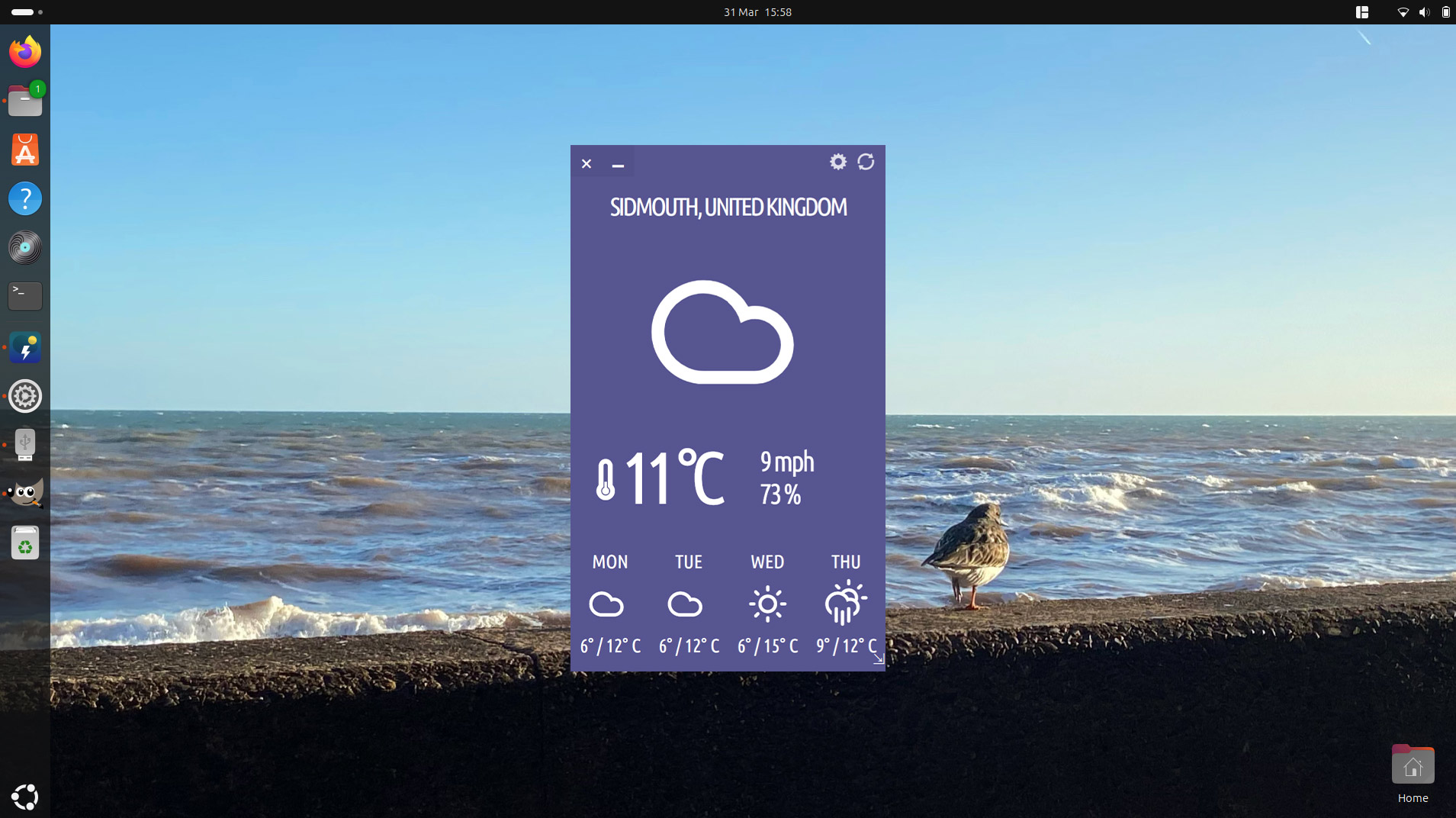
An iconic desktop weather app from Linux’s past has just blown in — yes, Typhoon is back!
Typhoon’s conceit is simple: display current conditions at a location plus a 4 day forecast on a customisable coloured background.

Long long-time OMG! Ubuntu readers may just about recall that Typhoon is a fork of an older app called Stormcloud.
Between 2012 and 2013, Stormcloud was one of the best-selling apps on Ubuntu – topping the download chart for 6 consecutive months!
Sadly, development on Typhoon dried up not long after it launched, with its dev unable to weather changes to its backend weather API.
But what is old is new again…
Typhoon’s developer Archisman Panigrahi has revived his effort, moved source code from Launchpad to GitHub, reworked it, and switched to Open-Meteo, the open source meteorological API other Linux weather apps use.
Now ready for its time in the sun, the first new version of Typhoon to be released in almost 7 years is available to download.
Why use a weather app?
When it comes to checking the weather on a computer, Linux users aren’t short on options.
Meteorological obsessives can dive into detailed weather apps like Mousam; GNOME Weather caters to no-frills forecast fans; and all manner of extensions, applets, desktop widgets, CLI tools, etc satisfy niche tastes in-between.
Of course, a great many people prefer to check the weather forecast on a website in their preferred browser, open an app on their smartphone, see it on their smartwatch, or (old fashioned) look out a window – all equally valid.
However, for those who like, want and enjoy seeing the weather forecast on the Linux desktop in an app rather than omni-present panel applet, Typhoon adds to the variety on offer — and to the nostalgia, for those who remember Stormcloud!
Not everyone sees the point of desktop weather apps. To those staring at this post puzzled: you’re not “missing” something others who do use them can see, they’re just not for you!
Typhoon Weather App
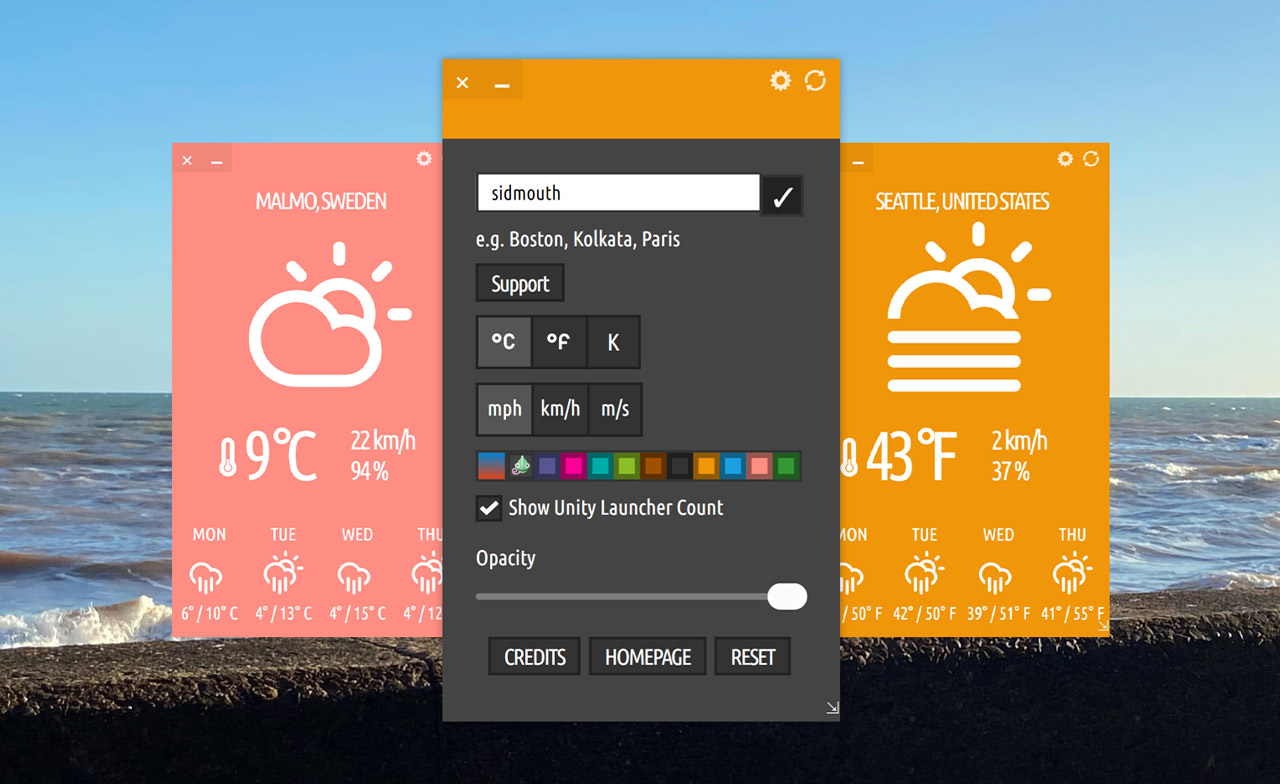
Typhoon is a visually striking desktop weather app written in JavaScript and Python that supports the following features (items with an asterisk are new to the revival version):
- Current conditions: temperature, wind speed, humidity
- 4 day forecast with conditions and temperature high and low
- Simple location search
- Choice of background colour and window opacity
- Set preferred temperature and wind speed units
- Run multiple instances with different location/colour
- Unity Launcher icon shows temperature badge (optional)
- Chameleonic background colour option (derived from wallpaper)
- Resizable window (fixed ratio)
With, I’m sure, a shower of features and further improvements to come in time!
How to Install Typhoon Weather App
Ubuntu, Linux Mint and other Ubuntu-based distro users can install the new Typhoon weather app from an official PPA. It provides prebuilt DEB packages for Ubuntu 18.04 LTS to Ubuntu 25.04.
To add the Typhoon PPA, open a new Terminal window and run:
sudo add-apt-repository ppa:apandada1/typhoon
Enter your password as prompted, then read the text shown and, if happy to add the PPA, press y to continue.
Depending on your version of Ubuntu/APT the list of software sources may or may not be refreshed automatically after adding the PPA. Either way, run: :
sudo apt update && sudo apt install typhoon
That’s it.
Not a fan of PPAs?
You can download a Typhoon DEB from the project’s GitHub releases page (unfurl the assets), or grab the app from Flathub.
Configure Typhoon
Open Typhoon and click the small cog icon in the header to access the settings panel. From here you can set a location, pick a background colour and choose meteorological units.
In the location search bar type the location you want to see weather for, but only type the main location name, e.g., “Sidmouth” rather than “Sidmouth, United Kingdom“. Then hit enter. If a matching location is found a tick icon is shown to the search box. Click it to set.
To return to the main view after setting a location, background colour and/or preferred units, click the refresh icon in the title bar area.
Finally, to resize Typhoon click and drag the arrow icon in in the lower right-hand corner. Resizing is a fixed vertical ratio and window, icons (including window buttons) scale up/down.
It’s not uncommon for open source apps, tools and projects to wind up unmaintained, abandoned, discontinued or archived—even hugely popular ones like Neofetch aren’t immune—so it’s nice to be able to write about an open source app being brought back to life.
It’d also be remiss to not mention Cumulus Qt, a Qt-based weather app inspired by a separate revival of Stormcloud/Typhoon. Cumulus Qt did, in my opinion, improve on the visual presentation of forecast data whilst retaining the iconic slab-of-colour look.