
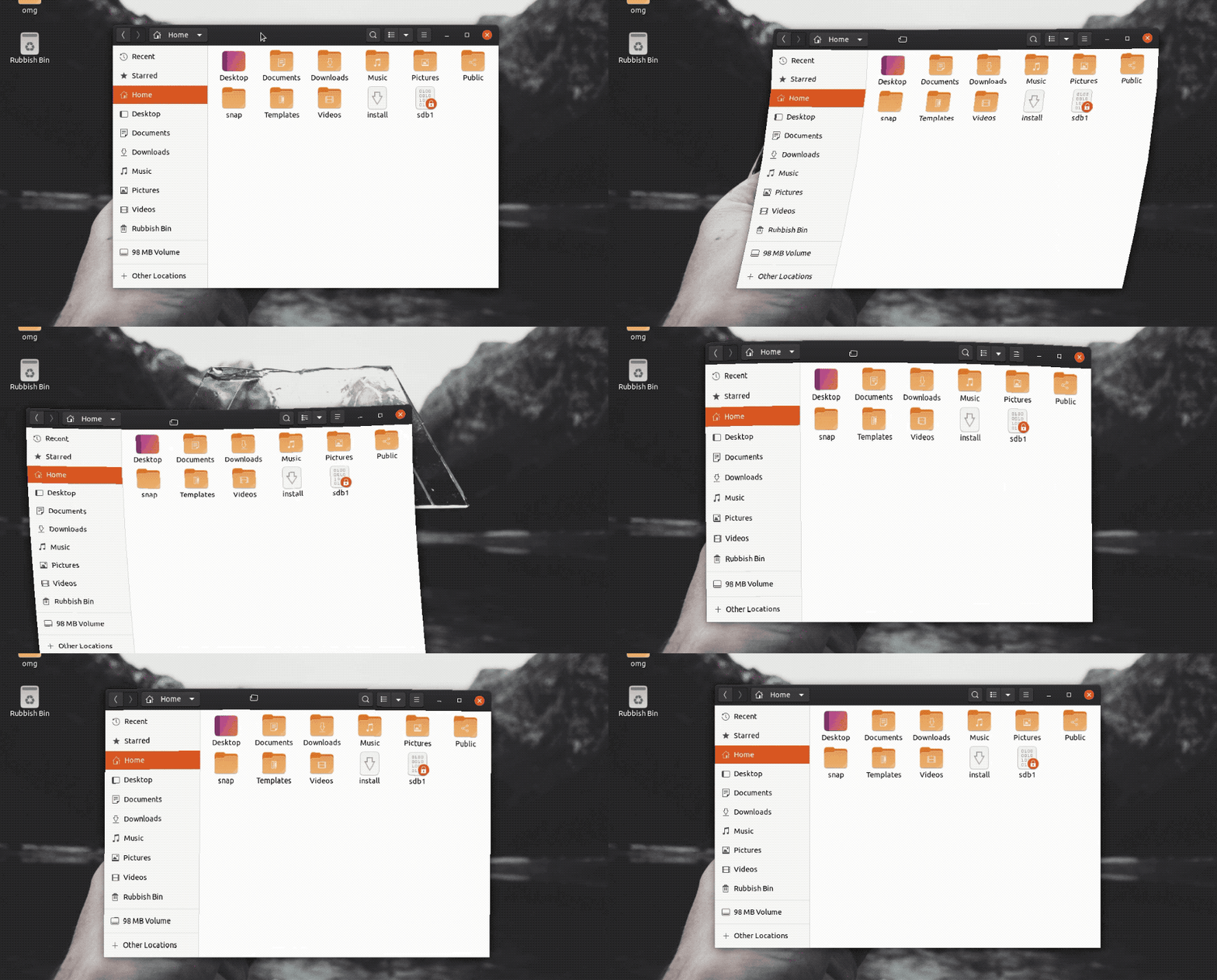

Wobbly windows, remember those?
When I first discovered Linux wobbly windows were all the rage. In a weird way, they’re kind of why I started using Linux: Windows couldn’t do something as weirdly cool as that!
But as fashions, tastes, and technologies changed the notion of being able to jiggle your windows around fell out of favour.
However, where there’s a will window, there’s a way wobble.
Promising Wayland-based compositors could bring the bling back in full, but those effects, awesome as they are, are unlikely to gain acceptance in upstream GNOME Shell (the project generally doesn’t add or introduce support for settings extraneous to the default setup).
So the next-best solution is to make use of third-party patches and community extensions.
There are 2 ways to enable wobbly windows in GNOME Shell on Ubuntu: one easy, one involved.
Wobbly Window GNOME Extension
The easy way to enable a wobbly window effect in GNOME on Ubuntu 18.04 LTS (and above) is to install the open source “Compiz-alike Windows Effect” extension from the extensions.gnome.org (EGO) website:
Slide the toggle from “off” to “on” to trigger an install prompt. The extension will be download and enabled. Once done the wobbly window effect is applied immediately — just grab the nearest window and give it a wiggle!
You can disable this extension at any time using the Extensions app on Ubuntu 20.04 LTS or GNOME Tweaks on Ubuntu 18.04 LTS.
Do keep in mind that this is a slick visual effect that will require some extra resources to run smoothly. I noticed my laptop fans kicked in shortly after enabling this extension.
You can also install a libanimation patch
A more faithful wobbly window effect in GNOME Shell is also available as a GNOME extension but it requires a patched version of libanimation to be compiled from source too.
This method features the actual wobbly window logic from Compiz, split out and ported over.
Full steps on how to do this — usual warnings on installing things not in the repos apply here — are helpfully listed on the respective GitHub page. The steps work on both Ubuntu 18.04 LTS and Ubuntu 20.04 LTS.