

Sometimes, file thumbnails in the Ubuntu file manager aren’t enough. You need a closer look at a file, photo or folder to make sure it’s the one you want, but don’t want the hassle of opening it in an app to find out.
That’s where GNOME Sushi, a spacebar file preview tool, comes in.
It is basically the macOS ‘Quick Look‘ for Linux desktops that use Nautilus, aka Files – GNOME’s file manager app and the one Ubuntu ships with by default.
Select a file in Nautilus, tap spacebar and an instantaneous (and often interactive) preview of the file contents appears, floating right over the file manager. No need to open a full app to peek at a PDF file, scrub through a video or find the right image:
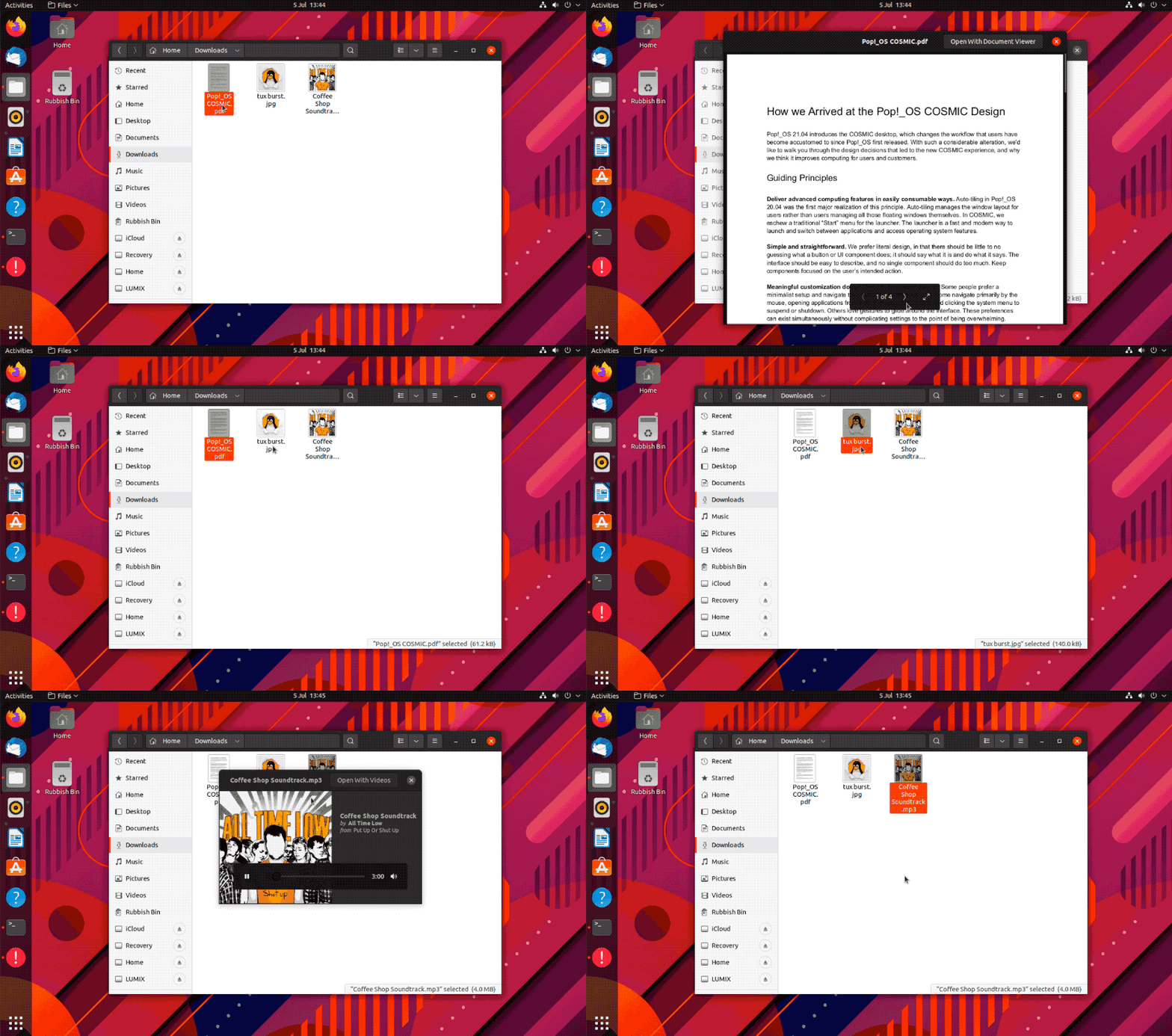
Sushi can preview most file types, including plain-text documents and scripts for syntax highlighting in code. It can also show you the contents of PDFs, HTML files and even LibreOffice documents.
Music and video file previews use the GStreamer framework to let you to seek/scrub through them.
And, of course, GNOME Sushi is especially great for gawking at photos:
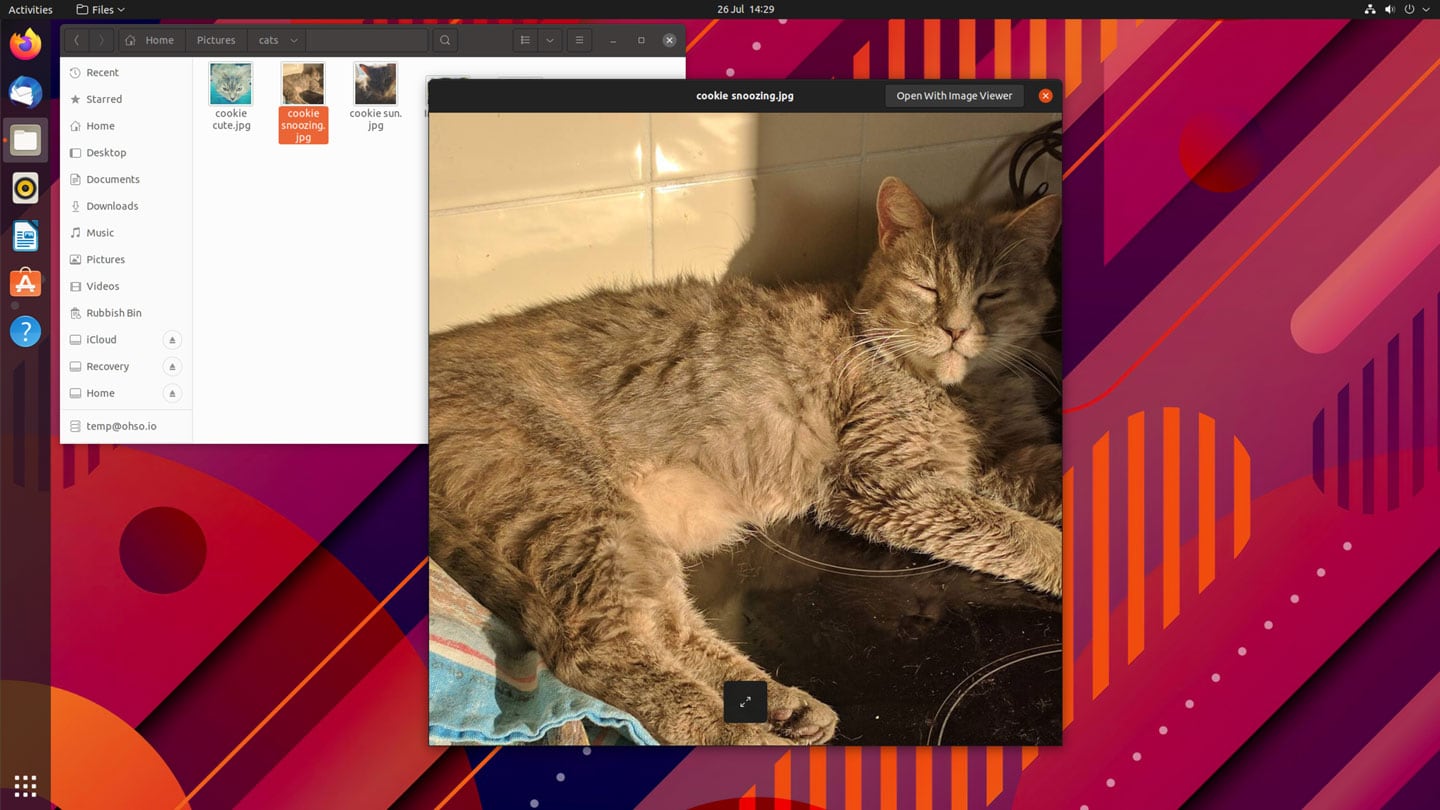
One feature that makes using Sushi especially useful: your keyboard’s arrow keys can page between different files in the folder you opened a file preview from, with the window automatically adjusting to the content.
For instance, if say you preview an image file in a folder than starts with the letter ‘a’, and you press the right arrow key and it selects a PDF file with the letter ‘b’, the preview adapts/
Pressing the spacebar again closes the Sushi preview.
In all, it’s an intuitive behaviour that is easy to adopt; a spacebar tap to preview, arrow keys to page and a spacebar tap to dismiss.
One feature Sushi (sadly) lacks that its macOS counterpart has are ‘actions’. You can’t preview an image and then hit a button to annotate it in the same window, for instance.
All common file previews do have a button to open the file in the default application that’s associated with the file type, which is means you don’t need to close the preview and then double-click the file to actually open it.
Install GNOME Sushi on Ubuntu
GNOME Sushi is a simple feature that can have a major impact on your workflow. Its preview prowess is such that, after a few days of use, you will begin to wonder how you managed without it!
Install GNOME Sushi on Ubuntu from the command line:
sudo apt-get install gnome-sushi
Alternatively, install the app using Ubuntu Software or App Center, depending on the version of Ubuntu you use.
You will need to restart Nautilus (log out and back in) before it works.
There’s nothing to configure, so once you’ve installed it you can open Nautilus, highlight a file using your mouse or keyboard and hit the spacebar to preview it!
A quick and effective way to take an instantaneous peek at PDF files, photos and other documents without needing to open them. I consider Sushi tool a must have on my desktop – let me know if you use it, by leaving a comment!