


Ubuntu’s Yaru icons are fine, but fine isn’t exciting. If you want to give your desktop a bit more flavour, the rounded-square Hatter icon set — which reader Mark B. recently tipped me to, cheers! — is an eye-catching alternative to the stock look.
Before going on I should stress that on Ubuntu third-party icon packs can not (easily) theme icons for Snap apps. This means apps like Firefox, App Center, and Firmware Updater will continue to use Yaru style icons, even if you switch to a different icon set.
But if that doesn’t put you off, or you have un-snapped your system so that it’s not an issue, read on to learn more about Hatter and how you can install it on Ubuntu.
Hatter is a Colourful Linux Icon Set
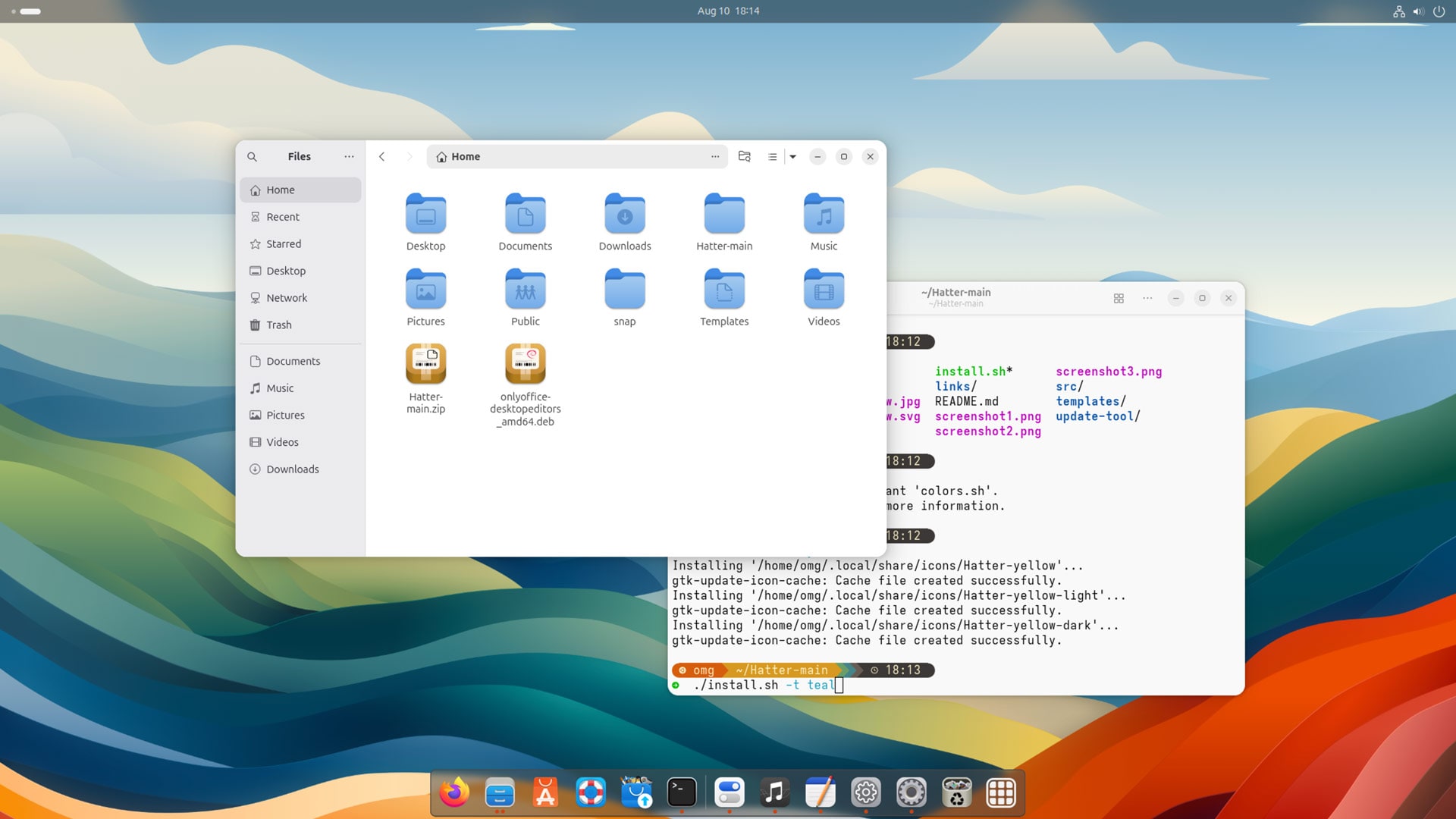
Hatter is a colourful icon theme designed to integrate cleanly with GNOME desktop aesthetics (i.e., a lot of smooth corners). It is by no means exclusively for GNOME; you can use Hatter icons on Cinnamon, Xfce, and MATE desktops as well.
The Hatter icon theme takes a respectful approach to handling branded app icons (e.g., GIMP, Inkscape, Steam, Firefox), opting for designs that stick close to the brand identity the icons represent. You’re not left squinting at abstract interpretations to work out which icon is for what.
I like that, and I like that in a number of icons, elements ‘escape’ the boundaries of the tile shape, like the end of Wilber’s paintbrush in the icon for GIMP, the pencil in the icon for Gedit/Text Editor, the tail in the icon for Firefox.
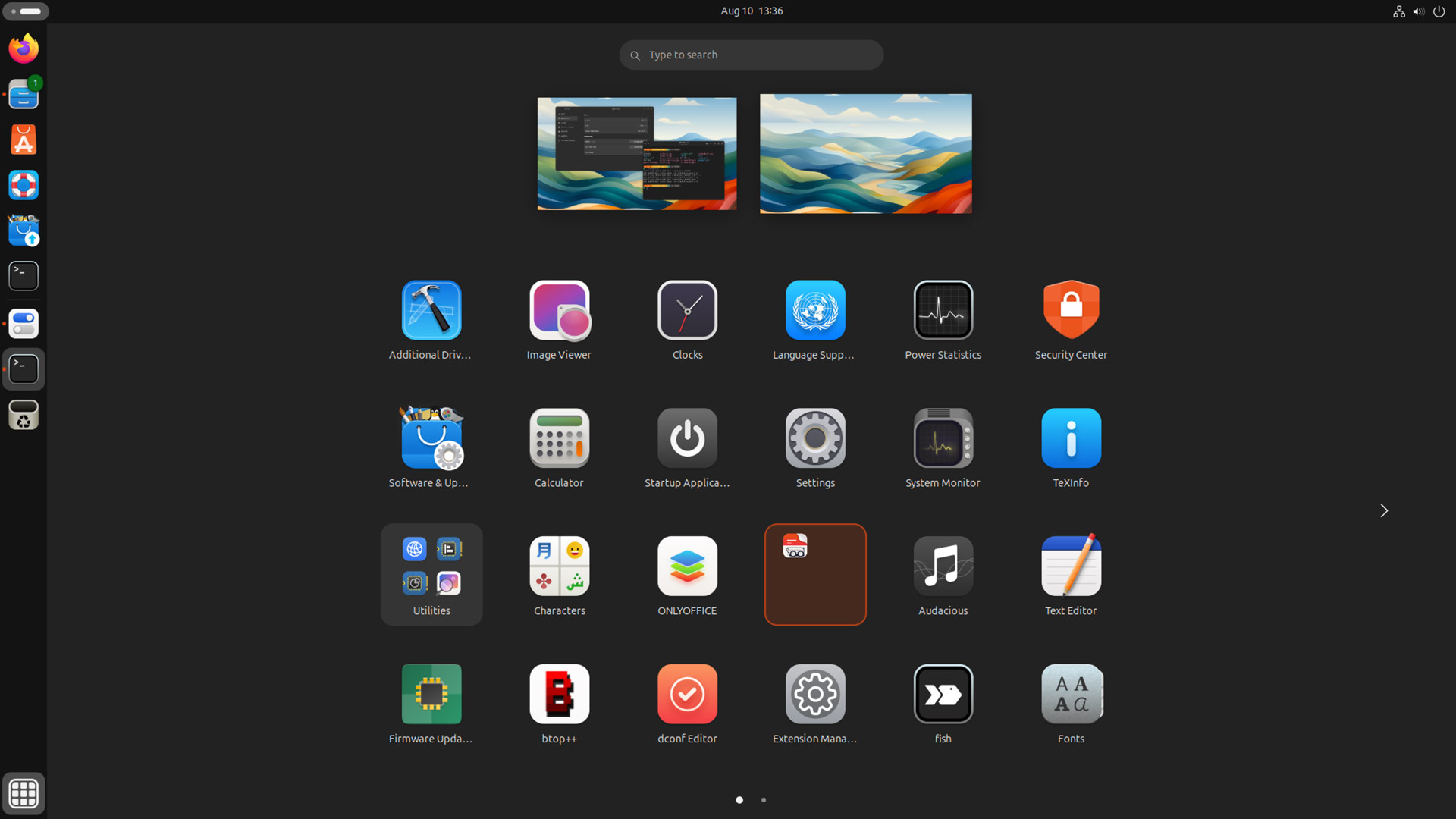
Non-branded icons, such as system settings, terminals, etc, use familiar, recognisable motifs. One rub (which varies based on your installed apps) is that some categories of app (mainly terminals) re-use the same icon. This makes it a tad hard to tell what’s what.
If there’s an icon you really want themed, the Github repo includes templates and a “hatter-ify” script which you can use to create your own icons to add to the theme.
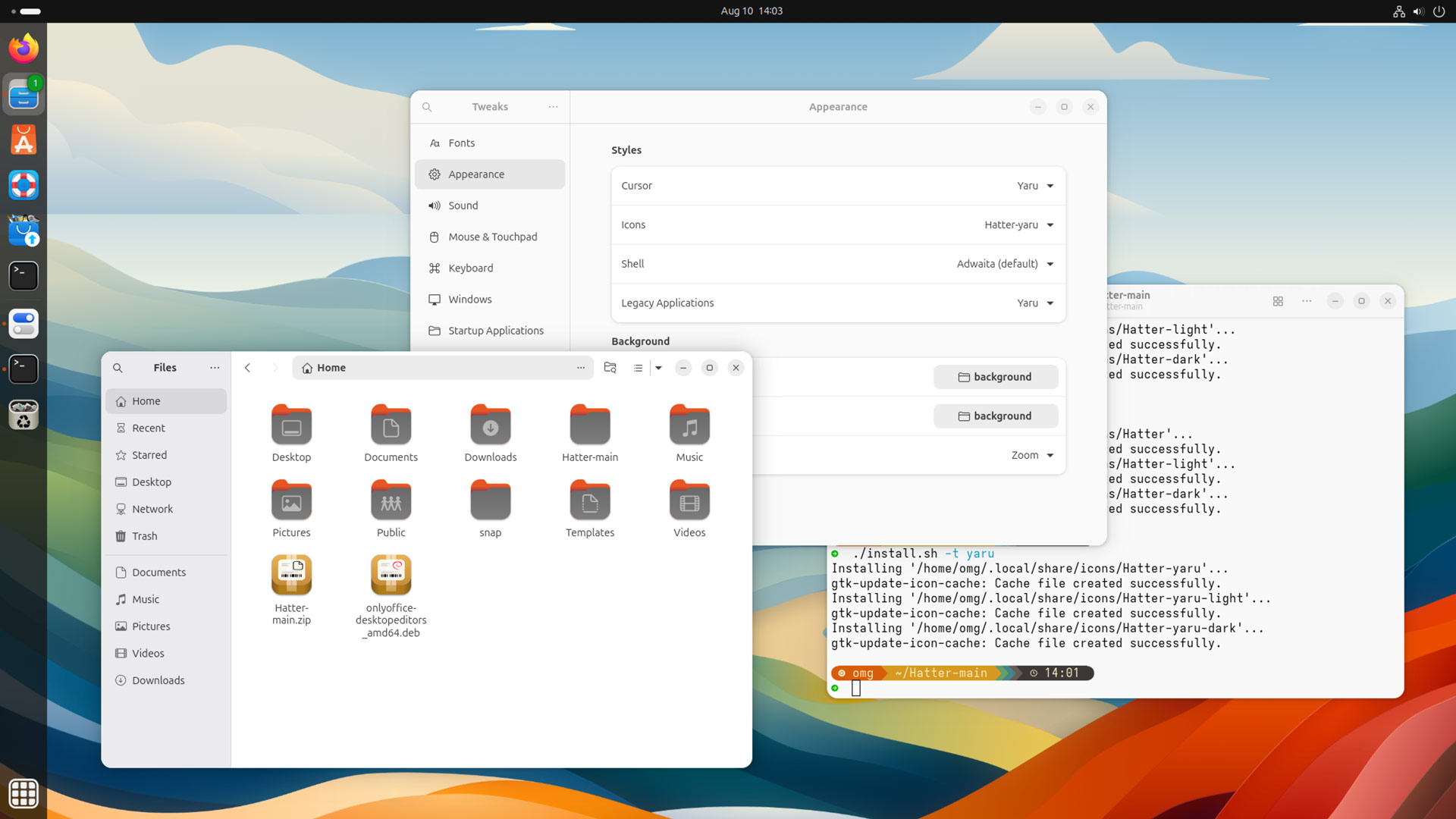
The theme includes a variant with Yaru-coloured folders, which is ideal for those who want a fresh look but without breaking all links to the iconic Ubuntu desktop experience, along with other folder colour choices if stock blue folders don’t suit you.
Coverage, criticism & consensus
Design approach aside, Linux icon themes live or die on the number of apps they carry icons for. For heavily stylised icons, “gaps” are obvious, and ruin the vibe. Some sets are super expansive, like Papirus, others, like Yaru, intentionally don’t cover non-default apps.
Hatter falls somewhere in the middle. It has broad coverage for most popular desktop apps and utilities, it is not going to theme everything. It helps that most un-themed icons these days use rounded-square frames, so those look less out of place when mixed in.
Design purists may consider the mix of simple and busy icons a negative, or critique the inconsistent perspective in some of the ‘3D’ style icons such as Geary and the trash can use. I’d wager most of us go off subjective aesthetic impression, i.e. “do I like how this looks?”.
And if you do, that’s what matters.
The trend for installing icon themes on Ubuntu has declined in recent years, partly because most users find the Yaru icon “good enough” — but you don’t have to settle for what satisfies “most” users.
If you want to give your desktop a more distinctive look, switching to a different icon set is an easy way to go about it – and it has icons for more than 2,400 apps, utilities, and games.
And Hatter? Well, it’s a solid alternative to Adwaita, Yaru and Papirus icons (the latter used, in part, by the Linux Mint Y icon set), and doesn’t veer far from the reasons which make those icon sets popular: good coverage, colourful, but not gaudy to be distracting.
Install Hatter Icons on Ubuntu
Hatter can be installed using the install script on the project Github. Download the full repo as a ZIP, extract, cd into the directory, and run ./install.sh or, for Yaru-colour folder icons, instead run ./install.sh -t yaru.
Once installed, you can change icon theme in Ubuntu by installing the gnome-tweaks app from the command line (or App Center, but be sure to switch to the ‘DEB’ filter). Then open, go to Appearance -> Icons and set the ‘Hatter’ or ‘Hatter-yaru’ icon set.
For those wanting to embrace the look further, the developer of Hatter provides a matching GNOME Shell theme. That theme hasn’t been updated for ~10 months, so may or may not work well on newer GNOME Shell releases in recent Ubuntu releases.
Thanks Mark!