

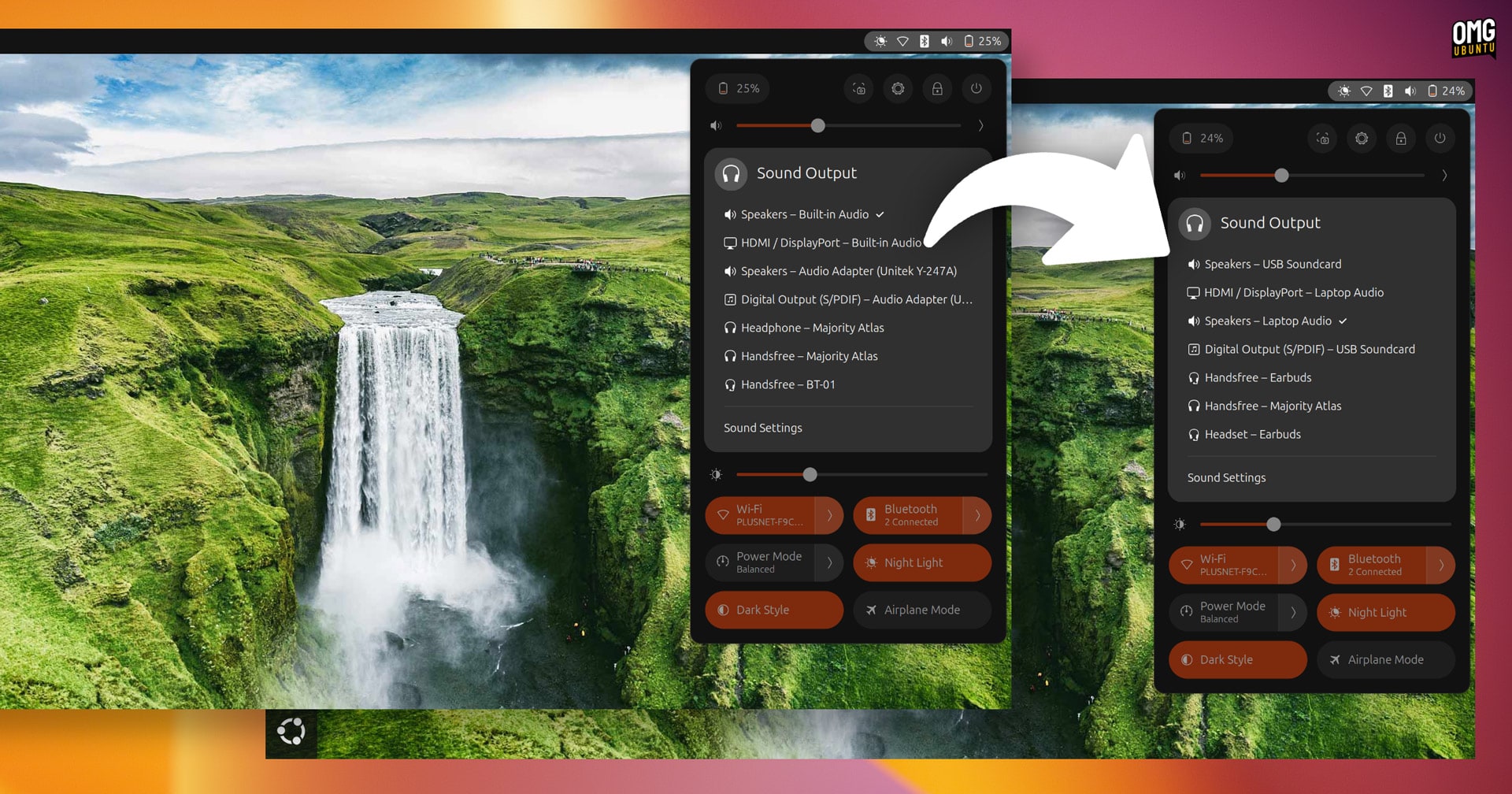
If you regularly switch between different sound sources on Ubuntu, you are probably used to seeing a long list of audio devices sporting generic names that skew technical more than intelligible.
It is not like GF119 HDMI Audio Controller or internal speakers don’t say what they do—they do!—but when switching sound output too many similarly-named options can cause friction as you stop to scan, squint and settle on which BT-01 is the one you want to connect to.
But there are solutions.
Ubuntu uses Pipewire as its default sound server and Wireplumber as its session and policy manager. This means we have several ways to go about changing audio device names.
The easiest I’ve come across is Simple Wireplumber GUI. It is a user-friendly tool for Wireplumber that lets you rename sound devices (both input and output) to whatever you like, and and see those names reflected throughout the desktop UI, settings and other apps.
You can make sound device labels more descriptive, which makes visual scanning easier and generally keep your sound menus looking tidy and ordered.
Simple Wireplumber GUI
First, you need to install the Simple Wireplumber GUI app. Unless you are content to build it from its source code, you will need to install it from Flathub.
If you haven’t already set up Flathub and Flatpak on Ubuntu, you will need to do that first. When you install the app, it will also pull in the GNOME 48 runtime (a bundle of dependencies that Flatpak apps share).
If you already use Flathub on Ubuntu—and if you don’t, you are missing out on some terrific apps—installing Simple Wireplumber GUI won’t take long at all since it is a modest <400KiB download:
flatpak install flathub io.github.dyegoaurelio.simple-wireplumber-gui
Before you launch the app, there’s an extra hoop to jump through on Ubuntu (this may apply to other distros too but I only tested on Ubuntu).
By default, the app can’t create the necessary configuration file in your Home folder (which is where Wireplumber will read it from). You must grant it permission to write to your home folder or your custom sound device labels won’t be detected.
How do you give a Flatpak app permission to write to the Home folder config file? You can use a graphical tool like Flatseal or Warehouse (recommended) or use command-line magic with portals, as per the Flatpak Sandbox Permissions docs:
flatpak override --user io.github.dyegoaurelio.simple-wireplumber-gui --filesystem=xdg-config:create
Next, launch the app.
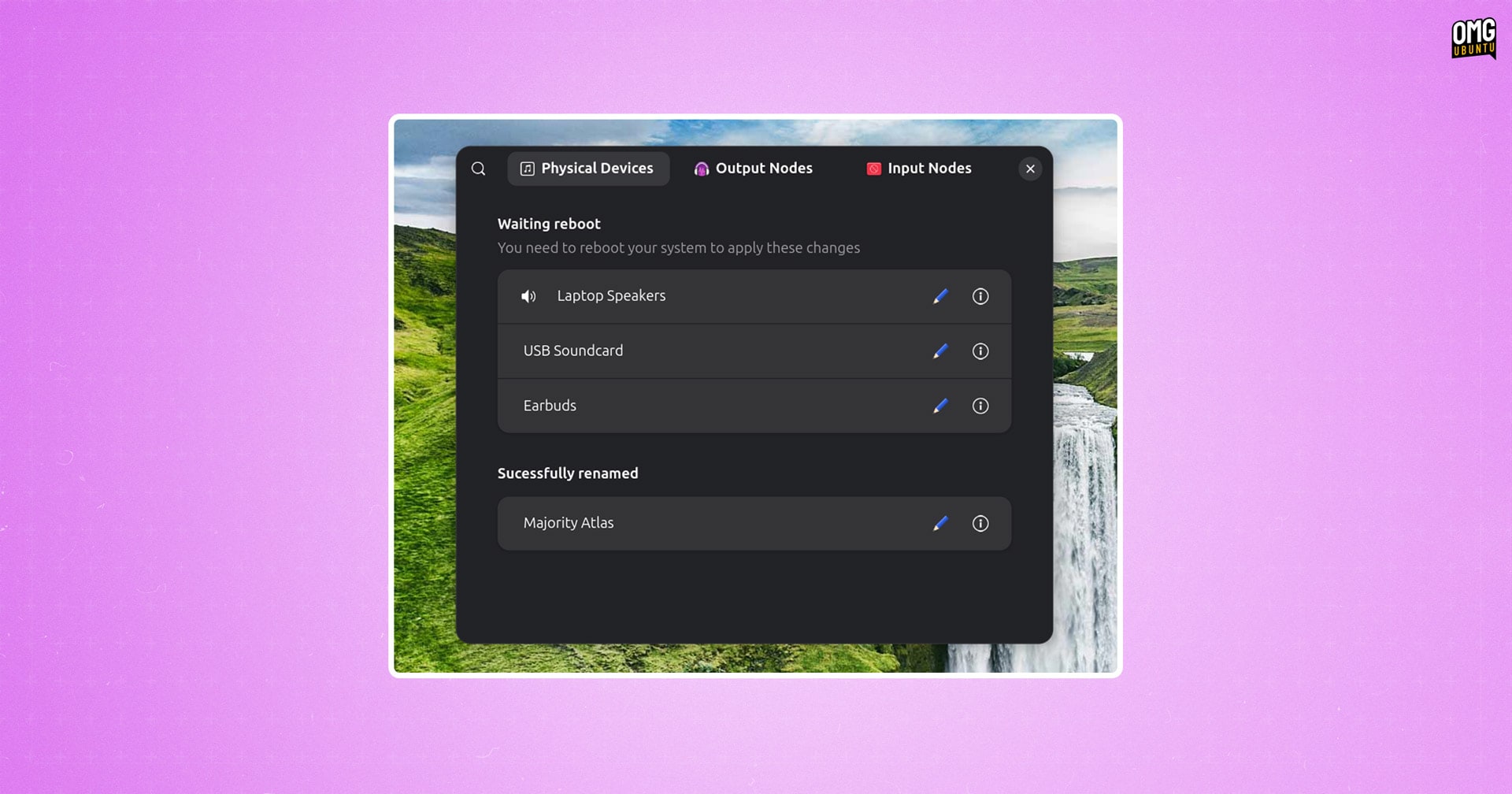
The user-interface is straight forward, showing 3 tabs: Physical Devices, Output Nodes and Input Nodes.
Switch between the tabs to find the sound card, speaker, sound bar, microphone, USB peripheral or other audio interface(s) you want to rename.
Click the pencil icon and in the modal that appears, enter your new label. Click ‘Apply Changes’ to apply changes.
The app will prompt you to reboot for the new audio name changes to take effect. You may find you don’t need to; restarting the Wireplumber service may suffice:
systemctl --user restart wireplumber.service
If it doesn’t, reboot like the app suggests.
As this is merely a graphical front-end to Wireplumber, uninstalling the app will not undo the name changes you make with it. To revert everything back to stock (if not always obvious) labels pop open a terminal and run:
flatpak run io.github.dyegoaurelio.simple-wireplumber-gui --clear-settings
Or trash the name change file in the ~/Home/.config/wireplumber directory and reboot.
Is there much benefit to renaming audio devices? It’ll vary; most people aren’t bothered, but those working with a variety of audio devices and connections, or bugged by a sound device being listed as something other (e.g., ‘handsfree speaker’ instead of ‘sound bar’) may appreciate it.
Given how easy this utility makes it to give technical audio labels personal descriptors, anyone who has the itch to do it, can.