


The clock applet in Xfce 4.18 includes a number of new customisation options that makes it easy to adjust the layout of the date and time.
It even includes a couple of presets layouts so you can, in a couple of clicks, get a natty looking date in the panel.
Custom layouts let you:
- Change the order of the date and time
- Insert separators, emoji, or special characters
- Adjust font weight and colour for emphasis
- Change line height
These options give time-tweakers more options to toy with.

In an echo of post I did back in 2009 (and having visited the Pango markup docs for a refresher) I’m sharing some cool clock applet layouts you can use in Xfce 4.18 (tested in endeavourOS, but will work in Xubuntu 23.04 and above).
To use them, first add the regular Xfce clock applet to an Xfce panel, open the Clock applet preferences, set the layout to ‘Time Only’, and select the “custom format”.
Then just copy/paste the syntax for one of the styles below into the entry field and hit the enter key.
Changes apply instantly.
Custom Clock Layouts for Xfce
1. Time Stack

As mentioned, the clock applet in Xfce 4.18 natively supports showing date and time on separate lines. You do not need custom code to achieve it. However, I don’t like spacing of the default preset, so I rolled my own, pictured above.
Sidenote: Yeah, you do have to squint to see the clocks in these images. Sorry about that – I took my screenshots on a laptop with a lowly 1366×768 resolution.
This is the code for the stacked layout:
<span line_height="0.8">%a %d %b %n<b>%I:%M %p</b></span>
You MUST remember to adjust the font size used for Time. Pick a font size appropriate to your screen resolution. On mine, 8pt works best.
I say this as the Time font needs to be small enough to accommodate two lines without looking strange. A thin font helps with this, as does an applied bold style on the time portion for visual emphasis.
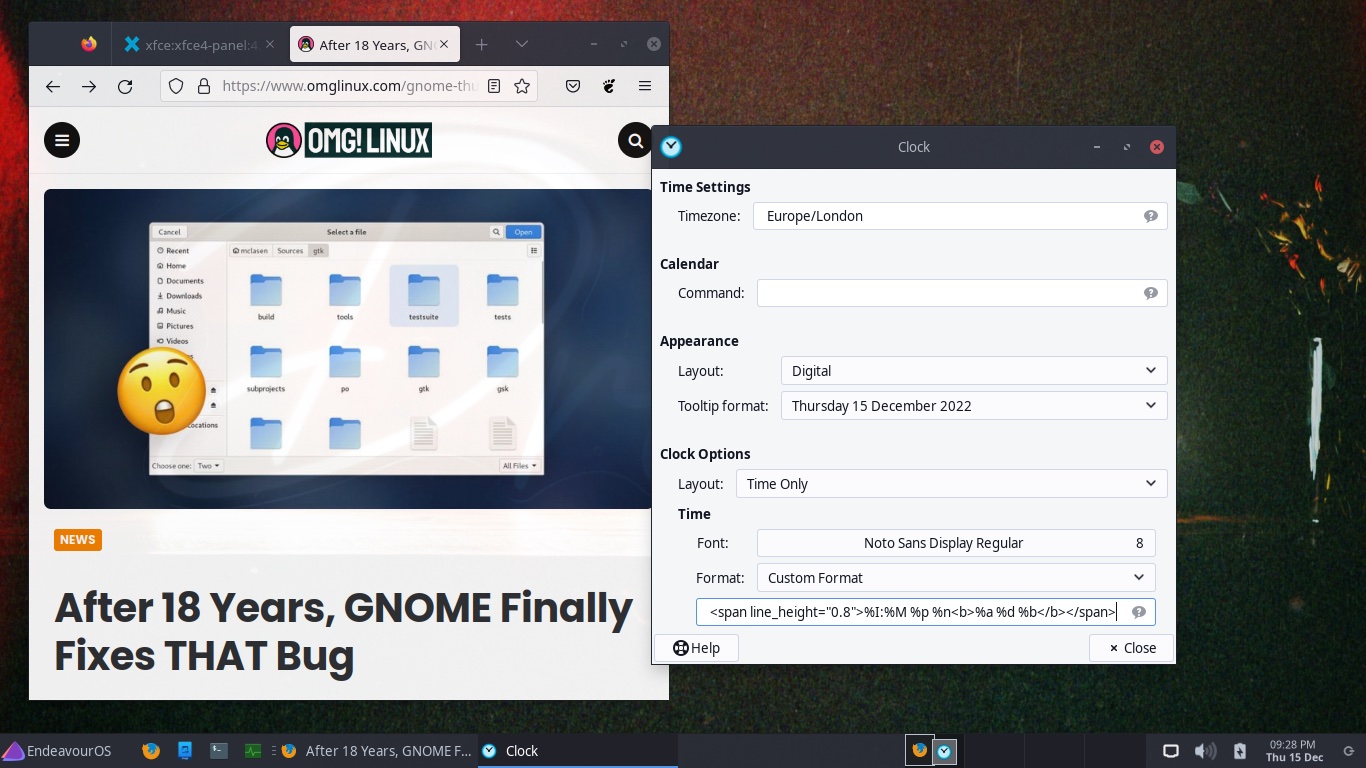
Want the stack the other way around, so the time is at the top and the date on the bottom? Reverse the syntax like so:
<span line_height="0.8">%I:%M %p %n<b>%a %d %b</b></span>
Play around with fonts to tailor a timepiece truly suited to your mood, your desktop vibe, or (perhaps most importantly) tells you the info you want to see.
2. Simple Weighted

For a concise clock, try this simple weighted layout.
I don’t need to see the exact date constantly (and if I do, I can hover over the clock applet and it shows in the tooltip). But having the memory capacity of a ZX Spectrum, I do forget the day regularly. So this layout helps me with that (and bolds the time for emphasis):
%a <b>%I:%H %p</b>
I never said these custom layouts were going to blow your mind! ;)
3. macOS Clock Layout

Like the way macOS displays the day, date and time? Why not copy them? I did for this layout (just don’t tell Tim Cook, ok? 🤭):
%a %d %b <b>%H:%M</b>
If you type this code in rather than copy/paste be mindful of the extra space before the time. This gap makes the date a touch more distinct from the time, rather than it all reading like a single line.
4. Distinct Clock
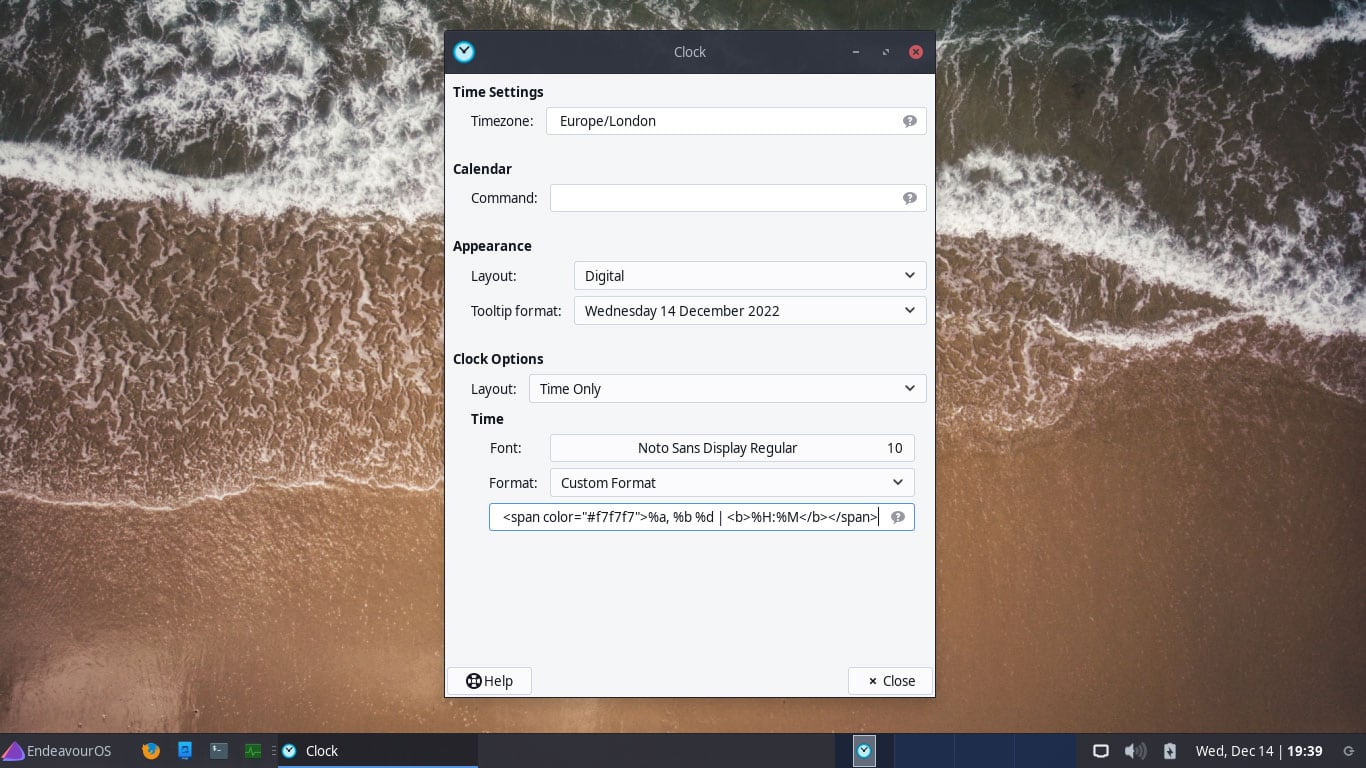
As mentioned, Xfce now lets you use colours in the clock applet using a span class. Most hex values work, so if you want a hot pink date or a neon green time you can!
As the colour of panel on my endeavourOS install is a grey-ish white, this bright white, divider, and bold text layout creates a clock layout which stands in my setup:
<span color="#f7f7f7">%a, %b %d | <b>%H:%M</b></span>
Over to You
The beauty of Xfce now supporting custom layouts is that we are control. Me, and you – so do tweak things how you want. Don’t take any of the snippets I shared above as sacrosanct.
The Xfce online docs has an excellent guide to what the various values mean. When playing around with values I find it handy to have that page open in a browser tabs so I can quickly refer to it.
If you’ve got some cool clock layouts of your own please do share them below. Other than that, thanks for indulging me in relaying vacation for this obscure, niche bit area of desktop customisation.