
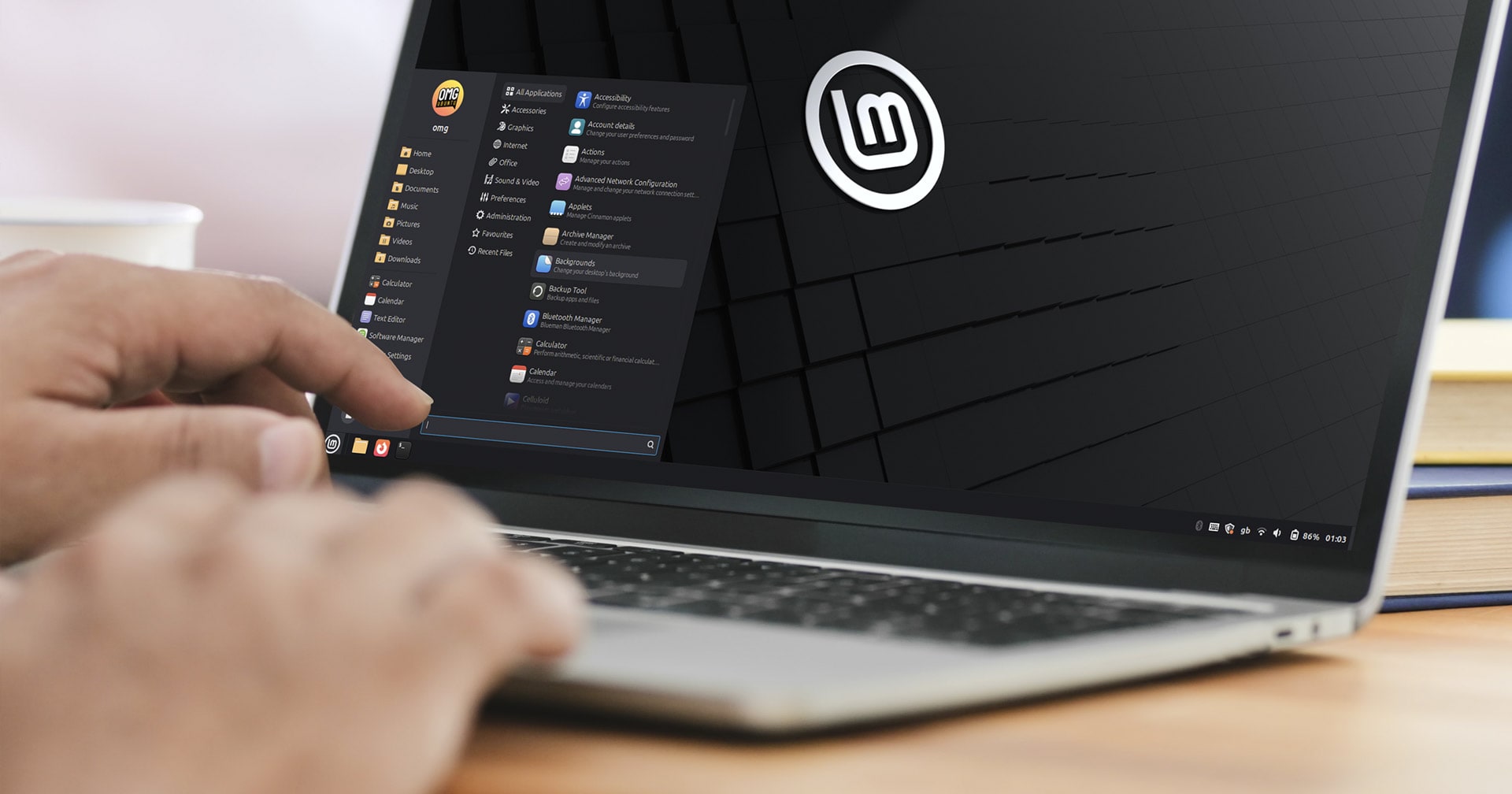

Linux Mint 22.3 “Zena” is officially available for download.
Built on top of Ubuntu 24.04.3 LTS, this is the fourth and final entry in the 22 series. It introduces a new-look app menu, adds new(ish) system utilities, improves language handling, and runs on the Linux 6.14 kernel, though an Ubuntu HWE with Linux 6.17 will be available shortly.
Linux Mint 22.3 provides near-full access to the Ubuntu 24.04 LTS ‘noble’ repos, but as the doesn’t let users install snaps (support can be enabled manually) it ships with traditional Deb versions of Mozilla Firefox and Thunderbird.
For a closer look at the changes on offer in this update, scroll on!
Linux Mint 22.3: New Features
Redesigned Mint Menu

The most immediately noticeable change in Linux Mint 22.3 is the redesigned Mint Menu, which is the Cinnamon desktop’s standard mean for searching through and launching your installed apps.
Mint Menu retains its 3-column layout and search bar, though search moves to the bottom. A full-height sidebar is topped by your user account picture, there are (smaller) symbolic app category icons, app description text and a row of session action buttons.
A practical improvement: “favourites” shown in the sidebar no longer repeats apps that are already pinned to the desktop panel. So Text Editor, Calculator and Calendar shortcuts have replaced the duplicate Firefox, Nemo and Terminal shortcuts respectively.

I’ve seen some folks unhappy with the changes change, but to me it feels like a competent modernisation; Mint rarely does change for changes sake. It’s not that kind of distro.
Besides which, the app menu is more customisable than before.
Configuration options allow you to adjust and rearrange elements, including changing the search bar position, hiding app descriptions, increasing the size of category icons and bringing back their colour, and turning off file search.

That change isn’t the sort people switch distro over but I find it an important signifier of the way Linux Mint’s developers approach making changes, i.e., from the POV of how people use what is made, not how Mint would prefer people to use it.
Beyond that, the new Mint Menu works the way it used it, it just looks (in my opinion) better whilst doing it. With config options aplenty to adjust the layout, there’s no need for anyone put off by the changes to seek out a replacement.
Fractional Improvements
When fractional scaling is enabled on a display you can now choose whether to scale up or scale down.
On single displays this makes no real difference, but it proves handy when working with multiple monitors whose HiDPI status varies.
Scale down is the traditional approach, and delivers the sharpish image as it renders everything at a higher resolution and shrinks it to fit. Scale up renders everything at a lower resolution and then enlarges it. The loss in sharpness is offset by improved performance.
This is one of those changes you’ll want to play around with to see what suits you.
Cinnamon 6.6.4

A swathe of smaller tweaks are available in the Cinnamon 6.6.4 desktop Linux Mint 22.3 ships with by default. Few of the changes seem “major” in isolation, but together they deliver the kind of quality-of-life buffs that matter more in day-to-day usage.
For instance, keyboard layout and language handling is hugely improved in Cinnamon 6.6.4, including in the (still experimental) Wayland session.
The keyboard settings page and the language switcher panel applet now groups traditional XKB layouts and IBus input methods together. This means switching language input is easier, even when opting to use IBus input methods like Mozc.
A new, native on-screen keyboard (OSK) is included. Like the keyboard appelt this too also supports easy switching between configured layouts.
Other changes:
- App icon badging shows unread notification counts (right-side)
- Window Tiling options grouped in their own section in Windows module
- Alt + Tab gains an option to show windows from the current monitor only
- Hot corners can be (optionally) activated when apps are full-screen
- New Thunderbolt module for configuring attached TB devices/hubs
- Night Light ‘Always On’ option is available
Cinnamon’s many panel applets also receive attention.
Network can handle multiple active VPN connections; Calendar refreshes remote calendars when the event list is opened; and album art no longer vanishes in the Sound applet after adjusting volume.

The Cornerbar applet lets you cycle through workspaces using mouse wheel, and the Workspace Switcher gains an option to show icons of open apps on each workspace indicator.
Finally, a new Night Light applet can be added to your panel to easily toggle the blue-light filtering feature on or off. Toggling is all it does; the applet is not interactive so you can’t adjust temperature on the fly – a feature for a future update, perhaps?
XApp Symbolic Icons
On show in the Mint Menu, Linux Mint 22.3 adds the XApp Symbolic Icons (XSI) set. This is a distro-agnostic pack of symbolic icons that GTK app developers can rely on, without needing to bundle their own custom icons or worry about missing ones.
The switch was required as Linux Mint previously used GNOME’s symbolic icon set, but recent versions of the Adwaita symbolic icon have dropped a number of icons which many non-GNOME apps had been using.
To avoid users seeing blank/missing icons in apps, the XSI project was born. It’s an under-the-hood upgrade users won’t notice is included, but one they’d certainly notice if it wasn’t!
New(ish) System Tools

Linux Mint 22.3 adds a dedicated System Information tool to make digging into hardware specs and capabilities easier. You don’t need to run terminal commands to peek under the hood of your laptop or PC, just open this. I like it.
Now, this app is isn’t entirely new–new, but rather an expanded version of the old System Info settings panel that also swallows up features previously found in the standalone System Reports tool.
The main screen gives you the basics, i.e., your kernel and desktop version, display manager, RAM and CPU specs, but where the tool shines are in the other sections:
- USB shows attached devices, speed, power draw and controller capacity
- GPU lists graphics card model, driver and hardware acceleration status
- PCI details internal components like type, brand and driver info
- BIOS displays motherboard details, BIOS version and secure boot status
System Administration also makes its debut, though with a single focus: managing the boot menu. It lets you force GRUB to show on single-OS systems, control boot delay, and add custom boot parameters to GRUB entires without needing to edit configuration files.
It’s a safe bet that Mint plans to add or merge in other administrative settings in future releases to make this a proper administration hub rather than, as here, just a GUI for customising GRUB.
Nemo’s expanded features

A new version of the Nemo file manager ships as part of Linux Mint 22.3 and the Cinnamon desktop 6.6 release with a clutch of changes around search.
For one, Nemo’s search has been made more reliable and accurate, with Mint saying that the “helpers used internally by Nemo now use wildcards in mimetypes and are run concurrently.”
Nemo already lets search file contents using regular expressions (regex), but not filenames – now it can. Most Linux Mint users will stick to traditional text searches, but regex is useful for speed and specificity.
Click the regex button in the search bar next and use regex syntax to find files by name based on a set of predicable parameters. A built-in syntax validation flags incorrect expressions before they run.
Beyond search, Nemo now lets you pause and resume file operations. This proves handy when you want to temporarily pause a large file transfer part-way through (to give your slow-poke USB’s write rate chance to recover).
Nemo Actions you install from Spices (Mint’s online hub for add-ons) can now show their own icons, making context-menu extras easier to spot; and a template manager in Nemo’s Preferences makes it easy to add and amend templates shown in the right click context menu.
Finally, Nemo 6.6 makes a feature I didn’t know existed easier to use: dual-pane file management (aka Split View). This required knowing you could press F3 to activate it. Now you are able to add a dual-pane button to the Nemo toolbar.
And when using split panes, Mint say the “location is preserved until the main pane location changes”, which is handy.
Other App Updates
Linux Mint’s preinstalled software sees some minor changes in this update, including:
- Timeshift can pause/resume active snapshots
- Warpinator supports IPv6 and sending text messages
- Hypnotix will auto-hide the cursor when playback is fullscreen
- Captain can install multiple packages via
apt://URLs - Update Manager tray icon indicates if a system restart is needed
- Mint Backup has a new ‘install all’ button for expansive backups
Plus, there are translation updates, bug fixes, security and dependency bumps to other apps.
Worth downloading?
Having tested the Linux Mint 22.3 beta for before Christmas, I can say that this update feels solid. Some changes, like the revamped app menu, feel more impactful day-to-day than can be gleaned from static screenshots and blog text blurbs.
The new System Information app is also a highlight. It appeals to me as a ‘power user’ looking to ‘geek out’ on what my hardware actually supports, but it gives newer users a useful aid to help them learn and troubleshoot if they need to get help with issues.
Add up the benefit of all the lesser-sounding changes, and Linux Mint 22.3 is an update that does what the distro does best: focusing on iterative improvements, rather than whizz-bang change. Criticism that this distro is dull, dated and staid are, in a roundabout way, compliments.
If you want a Linux distribution you can use, without it endlessly changing the ground beneath you so that you can rely on it, not repeatedly need to relearn how to use it, then arguably, there are few distros as rock-solid as this one. Well worth trying.
If you want the benefits of an Ubuntu long-term support base but with a traditional desktop environment on top, a Snap-free setup or an X11-by-default desktop experience, then Linux Mint is well worth trying.
Download Linux Mint 22.3
You can download Linux Mint from the official website, with version 22.3 available from January 13 2026.
It’s provided as an ISO file which you flash/write to a USB drive which you then boot your laptop or PC from, and run through the OS installer.
Linux Mint’s system requirements stay the same, so to use it you need:
- 64-bit Intel/AMD processor (faster, the better)
- 2GB RAM (4GB recommended)
- 20GB of disk space (100GB recommended)
- 1024×768 resolution (higher resolution better)
Refer to the list of known issues/problems before installing.
All releases in the Linux Mint 22.x series are supported with updates until 2029.
How to Upgrade to Linux Mint 22.3

If you installed last month’s beta releases you can upgrade to the stable release by running the Update Manager and installing all pending updates. These are the same packages, with the same features, and the same ongoing support as in a fresh install.
If you currently run Linux Mint 22.2 you can upgrade to Linux Mint 22.3 like so:
- Open Update Manager
- If an update for Update Manager is shown, install it
- Go to the Edit menu
- Select ‘Upgrade to Linux Mint 22.3 ‘Zena’
The process is straight forward and pretty quick on a good connection. An on-screen wizard will guide you through the entire thing.
Next stop: Linux Mint 23
With Ubuntu 26.04 LTS due in April, the next major Linux Mint release will be based on that, keep an eye to the blog for details on what to expect in Linux Mint 23 when it’s (tentatively) released in the summer!