

Microsoft Edge is available for Linux and can be installed on Ubuntu using Microsoft’s official software repository or downloading a Deb installer.
Once installed, Edge receives updates through Ubuntu’s standard software update tools, alongside other system packages.
In this guide, I show you how to install Microsoft Edge on Ubuntu using both methods. The .deb is easiest for most, but adding the apt repo manually via your terminal is quick and saves the need to open any browser tabs.
Before we get into it, a reminder that this is a guide on how to install Edge on Ubuntu, not why you should install it. You choose the software you use on your computer. If you don’t want to use Edge, that’s cool – this tutorial is written to help those who do.
Installing Microsoft Edge on Ubuntu
Install Edge on Ubuntu (.deb)
You can download an official .deb installer of Microsoft Edge for Ubuntu from the browser’s official website.
This installer will work on all versions of Ubuntu, including flavours like Kubuntu and Xubuntu, as well as Ubuntu-based distros like Linux Mint, Zorin OS, Pop!_OS and others.
The steps below cover how to do it on a standard Ubuntu system that uses GNOME Shell. Some steps may vary if you follow this guide from a different system.
1. Go to Microsoft Edge Download Page
Open any web browser and go to the official Microsoft Edge download page.
This page has a prominent download button (though the design of the web page changes regularly so what you see in my screenshots may have changed since it was taken):
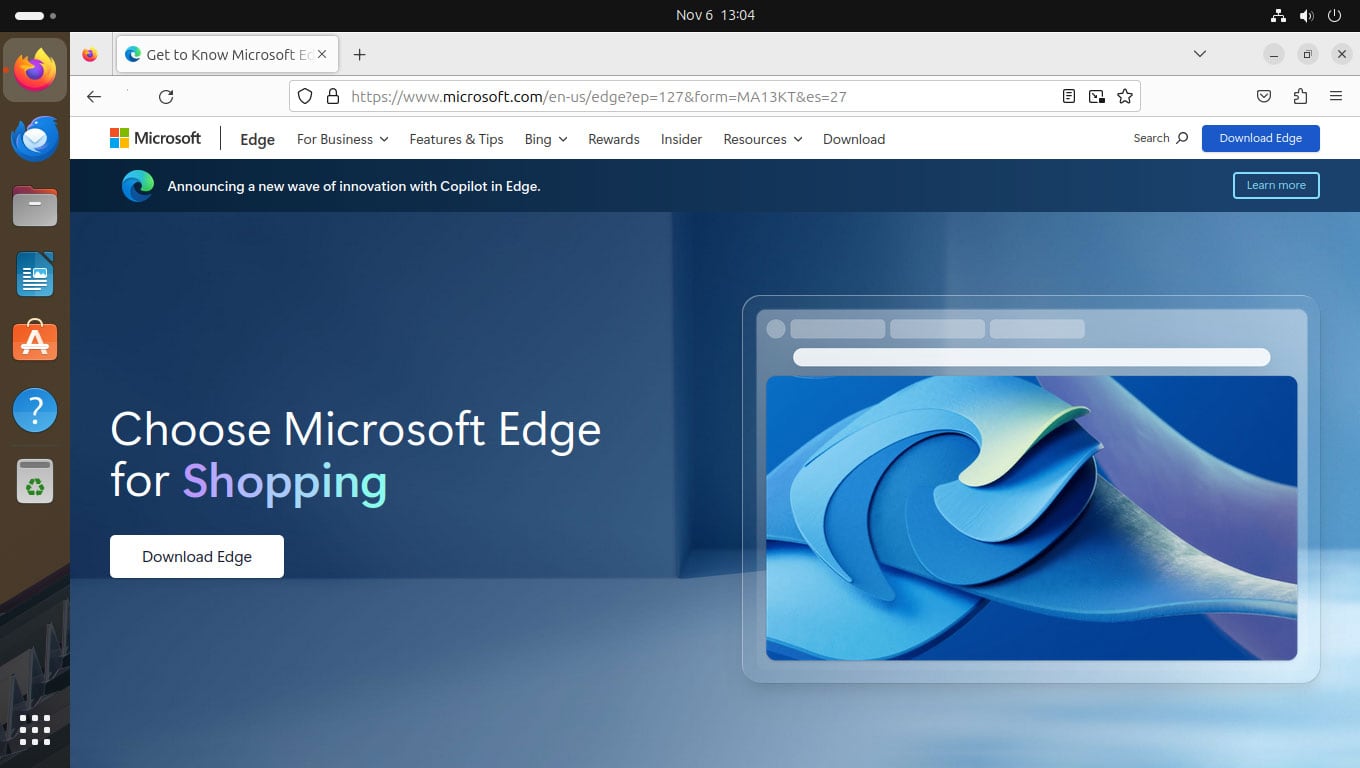
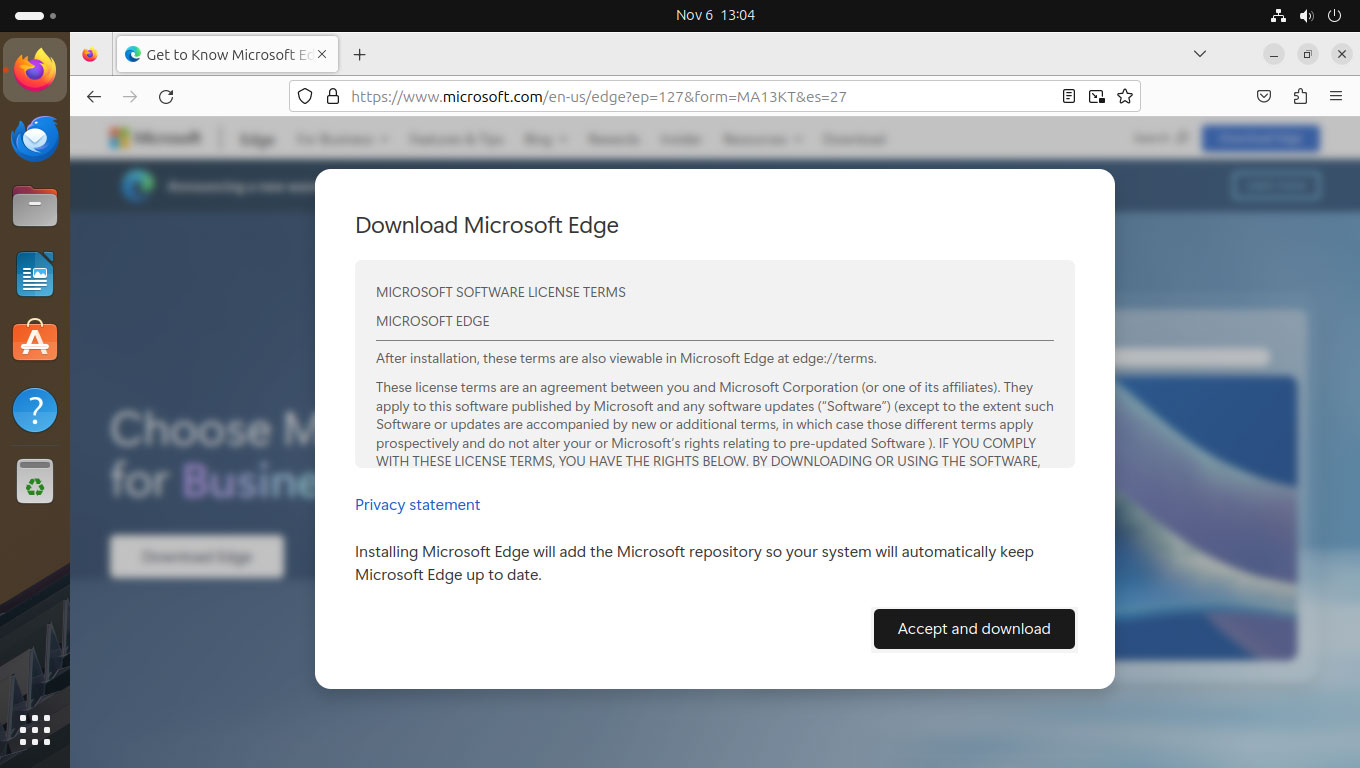
Click the download button. You might be asked to agree to Microsoft Edge’s terms of service first. If so, skim through the text – lol, yeah – then click ‘Accept and download’ and the .deb installer will be provided.
2. Save the installer
Depending on the browser you’re using to download Edge, you may be asked where you want to save the .deb installer first. I recommend you choose your Downloads folder (or another directory you can access easily).
Then, just wait for the download to finish!

3. Double click on the installer
Once the .deb finishes downloading, open the file manager and go to the folder you saved it to, find the microsoft-edge-stable file and double click on it.
You should see Ubuntu Software (Ubuntu 22.04) or App Center (Ubuntu 24.04 LTS) open. On Linux Mint, clicking the DEB will open the default package installer there, e.g., Gdebi or the newer Mint Installer.
Now, you follow the instructions you see on screen:

You will be prompted to enter your user password to authorise the installation. If you don’t, it will fail and Edge won’t be installed.
During installation, the official Microsoft Edge repository is added to your system’s list of software sources. This is what enables browser updates to be installed alongside your other software updates via the Software Updater.
4. Open Microsoft Edge
Once the install has finished, go to the Applications picker (or whatever app menu or launcher your system uses) to find and open Microsoft Edge.
The first time you run Edge on Linux it will take a few moments to initialise, generate the relevant cache and config folders it will use and, naturally, do the annoying thing of checking to see if it’s the default browser and asking you if you’d like it to be.
Install Edge from Microsoft’s APT repository
If you’d rather install Edge on Ubuntu using the command line, you can do so! You can skipping the .deb package above and add Microsoft’s official Linux repo directly from your terminal.
The following command will add the repo to your system and import the Microsoft GPG key that is needed to authenticate packages (so you can be sure packages are what they say they are):
wget -qO- https://packages.microsoft.com/keys/microsoft.asc | gpg --dearmor | sudo tee /usr/share/keyrings/microsoft-edge.gpg > /dev/null
echo "deb [arch=amd64 signed-by=/usr/share/keyrings/microsoft-edge.gpg] https://packages.microsoft.com/repos/edge stable main" | sudo tee /etc/apt/sources.list.d/microsoft-edge.list
You will need to enter your user password to approve this.
Once done, just refresh your system’s package cache and proceed to install Microsoft Edge stable:
sudo apt update && sudo apt install microsoft-edge-stable
Launch the browser using your favourite Linux app launcher, or run microsoft-edge from your terminal.
Install Edge Beta or Dev builds
Microsoft also provides Beta and Dev versions of Edge for those who want to test new features early or see if a bug has been fixed (keep in mind these aren’t stable and may also have bugs and incomplete features).
You can use beta and dev versions alongside stable builds, or on their own:
Install them:
sudo apt install microsoft-edge-beta
or:
sudo apt install microsoft-edge-dev
How to uninstall Microsoft Edge
If you install Edge and decide it’s not for you, it’s easy to remove it.
Remove the browser:
sudo apt remove microsoft-edge-stable
On Ubuntu 26.04 LTS, you can also uninstall it from the App Center: go to Manage, filter by ‘Debian packages’, find Edge in the list and select the uninstall option there.
Optional: remove the Microsoft repository and key too:
sudo rm /etc/apt/sources.list.d/microsoft-edge.list
sudo rm /usr/share/keyrings/microsoft-edge.gpg
Can you install Microsoft Edge on Ubuntu ARM?
As of this update (August 2026), Microsoft Edge for Linux is only available for 64-bit Intel/AMD systems. If you run Ubuntu on ARM hardware (like a Raspberry Pi or a Snapdragon X laptop), you’re out of luck; there’s no aarch64 build at present.
Google recently released official Arm64 Chrome Linux builds, while both Vivaldi and Firefox have offered Arm64 Linux builds for a while. Chances are Microsoft will follow suit at some point.
Got Edge running? Let me know how you get on in the comments.