
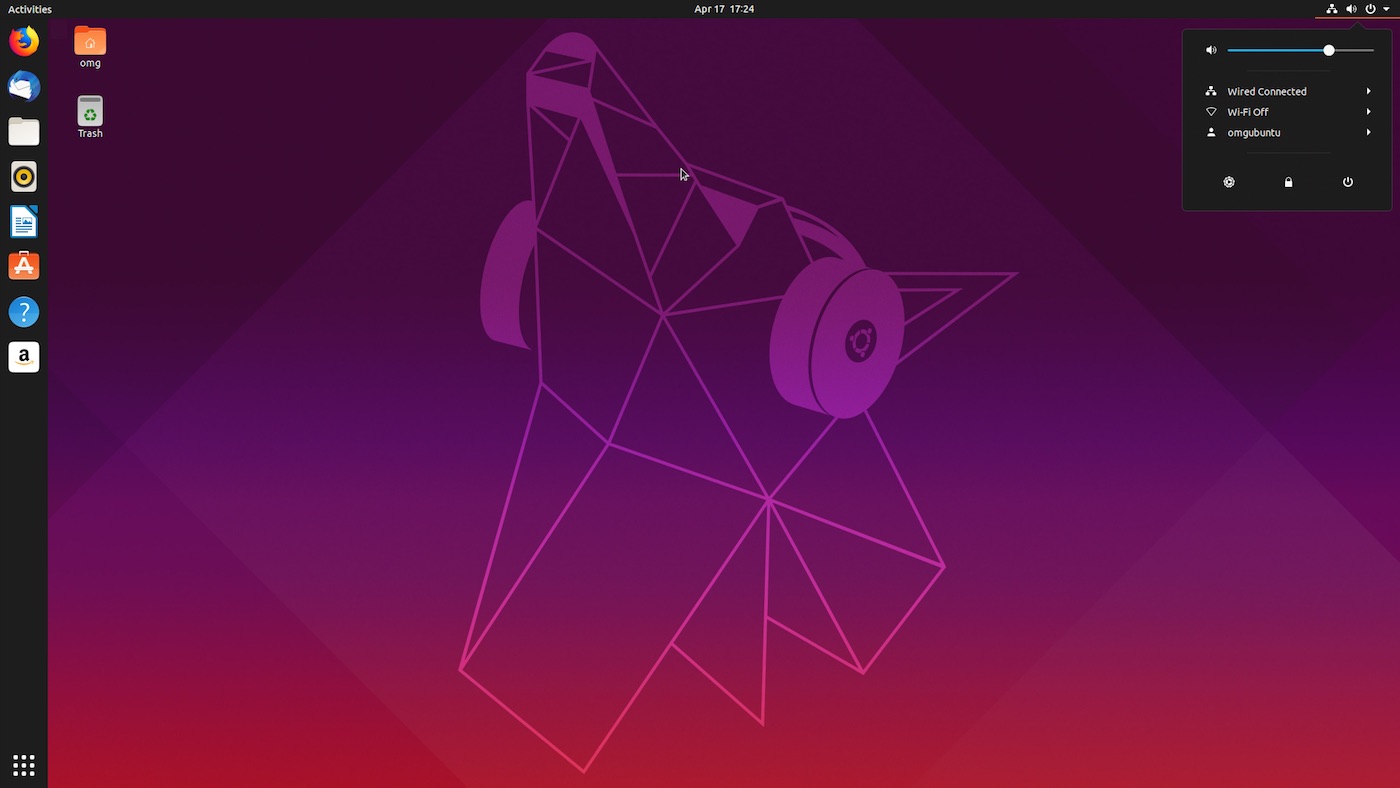

Ubuntu 19.04 is available to download, bringing with it six months of development goodies. In this post we look at the new features and changes the new version brings.
But first things first: where to download it? Skip to the download section below for the link to download Ubuntu 19.04 ISO for Intel/AMD devices or Raspberry Pi.
You can also upgrade to Ubuntu 19.04 from 18.10, without needing to reinstall. An ‘upgrade prompt’ will appear to users sometime after 18 April, 2019.
Regardless of the how you end up getting it, you’ll want to know what’s new once you have it, so read on to learn everything you need to know about the release Ubuntu’s developers have dubbed the ‘Disco Dingo’.
Ubuntu 19.04: Features & Release
Release Date
The Ubuntu 19.04 release date is April 18, 2019. Daily builds became available in November 2018, while the first Ubuntu 19.04 beta released on March 28.
Other milestones during “Disco Dingo” development included feature freeze on February 21, 2019, UI freeze on March 14, 2019, and kernel freeze on April 1, 2019.
Improved Performance
Ubuntu 19.04 is the fourth version of Ubuntu to ship with the GNOME Shell desktop, but the first version to actually feel like the switch was worth it!
Ubuntu desktop feels as fast and as fluid as it did during the Unity desktop days – finally!
Don’t get me wrong: I love the GNOME Shell workflow, the UI, the UX. It runs great on Fedora, Arch and Manjaro (or so I’m told).
But until now, Ubuntu’s implementation of the GNOME Shell desktop has handled like an underwater level in Sonic the Hedgehog, i.e. pretty sluggish.
Thankfully the treacle-footed feeling that afflicts earlier versions is absent in the Disco Dingo. Here, the Ubuntu desktop finally feels as fast and as fluid as it did during the late Unity desktop days.
The uptick is the result of work by both upstream and downstream developers. Memory enhancements, CPU optimisations, and animation tweaks combine to make an Ubuntu desktop experience that feels infinitely more responsive.
Improved performance is what defines the ‘Disco Dingo’, so if you only take one thing away from reading this post, let it be this.
Linux Kernel 5.0 & New Graphics Drivers
Ubuntu 19.04 is powered by the Linux 5.0 kernel release.
To quote our own post on its release, this kernel version comes with ‘a bucket full of improvements’. Support for AMD FreeSync, Raspberry Pi touchscreens, and Adiantum encryption sit among the highlights.
Mesa 19.0 is available out of the box in 19.04. This is the latest development release of the popular open-source graphics driver and ensures those of you using compatible graphics cards get the best performance on Linux.
If you use a machine with an NVIDIA graphics card you now have the option to install proprietary NVIDIA graphics drivers during installation. No, it’s not essential, but it certainly helps cut down on the amount of post-install things-to-do.
Similarly, those who choose to install Ubuntu 19.04 in a VMware virtual machine will be pleased to hear that (where detected) the open-vm-tools package is installed as part of the install process.
Finally, since we’re on the subject of graphic drivers, keep an eye out for the new ‘safe graphics mode’ option in the Grub menu. Choosing this will boot Ubuntu with “NOMODESET” turned on. If you’re having issues with graphics cards or graphics drivers this mode will prove invaluable.
Major Desktop Improvements
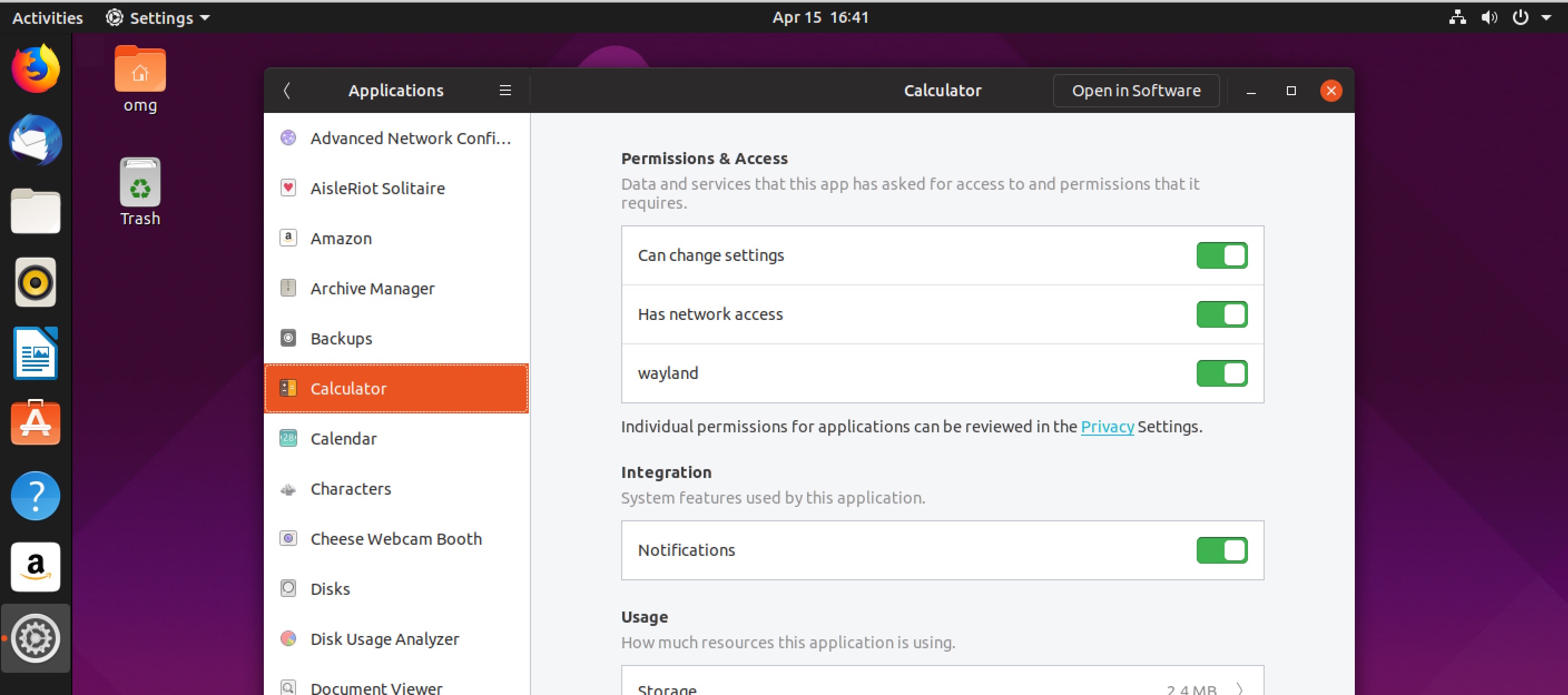
Ubuntu 19.04 includes the GNOME 3.32 desktop release, which packs in a wealth of improvements.
Features like night-light intensity control, rounded user avatars, faster Google Drive access, and advanced application permission are ready to play with from the get-go.
File favouriting is now supported in the Nautilus file manager, too.
To make use of it first select a file, then right-click on it and then click the “Star” icon in the context menu that appears.
You can view all of your starred files in Nautilus by selecting the ‘Starred’ bookmark in the file manager’s sidebar – east!
Updated icon set

The Disco Dingo features a new background wallpaper and an updated Yaru GTK & icon theme.
The Yaru icon set switches from the uniform ‘squircle’ shape for a liberal mix of icon shapes. This might not sound like a big deal but it makes a massive improvement to the look of the apps screen, which now has a cohesive and consistent appearance to it.
On the subject of icons, the new upstream Adwaita icon set is available to install from the 19.04 repos (should you want to try it out). Open a Terminal window and run sudo apt install adwaita-icon-theme and switch icon theme using the Tweaks tool.
New Desktop Icons Extension
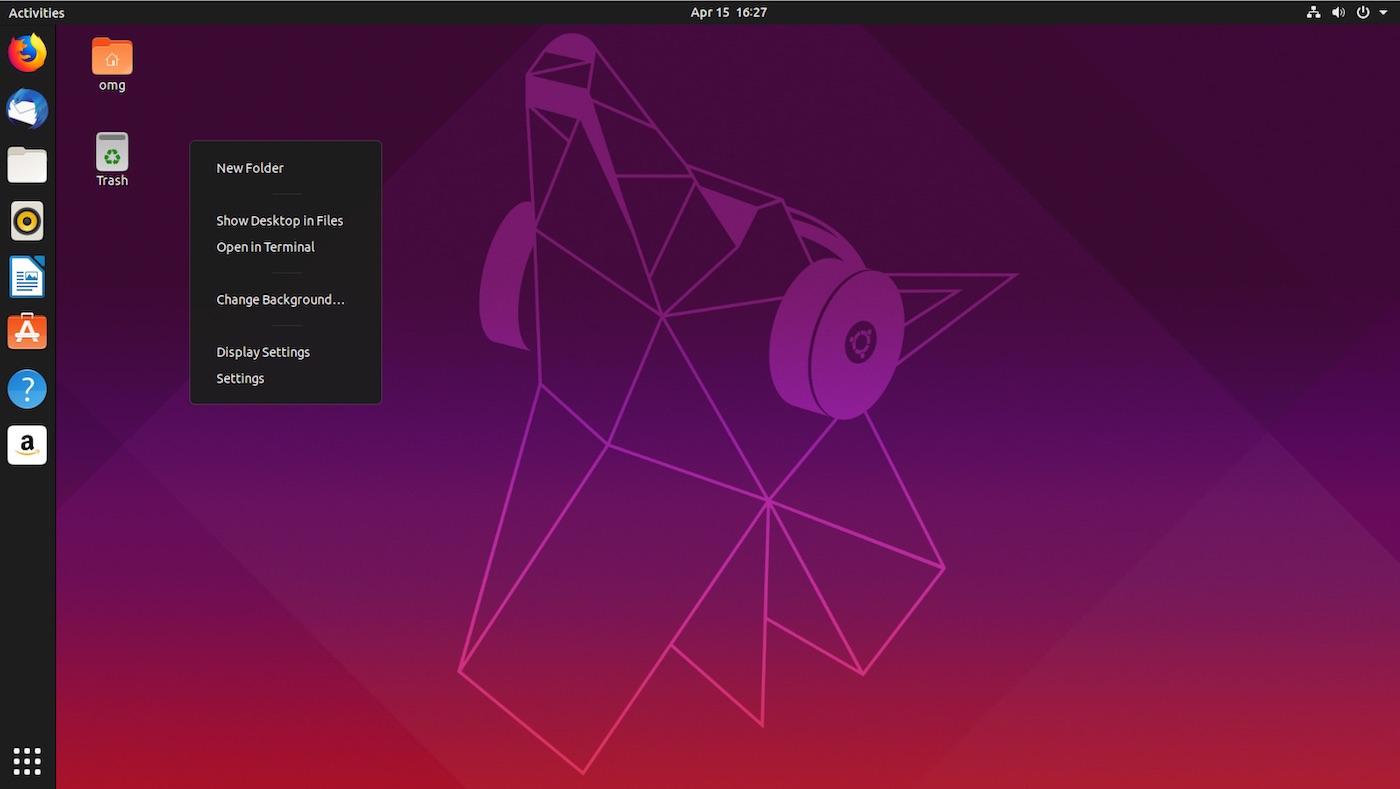
Ubuntu’s new Desktop Icons extension lacks functionality I’m used to having
With the update to Nautilus 3.32, Ubuntu lost the ability to show icons on the desktop. To remedy the (rather critical) omissions, a new GNOME Shell extension is included. It’s called “Desktop Icons” and it does exactly what you’d expect it to: show icons on the desktop.
Alas, it’s not a fully-formed replacement. The new extension lacks some of the functionality we’re all (probably) used to.
For example, the ‘desktop icons’ extension doesn’t let you drag and drop files from the desktop onto app shortcuts or into app windows. Instead, you have to open Nautilus > Desktop and do it via the file manager.
Fractional Scaling Support
Ubuntu 19.04 offers experimental fractional scaling support in the (optional) Wayland session. Scaling values available include 125%, 150% and 200%.
There’s alsoexperimental fractional scaling support on Xorg for HiDPI displays. While this feature isn’t ready for the prime time you can turn it on using a command-line switch.
Other Changes
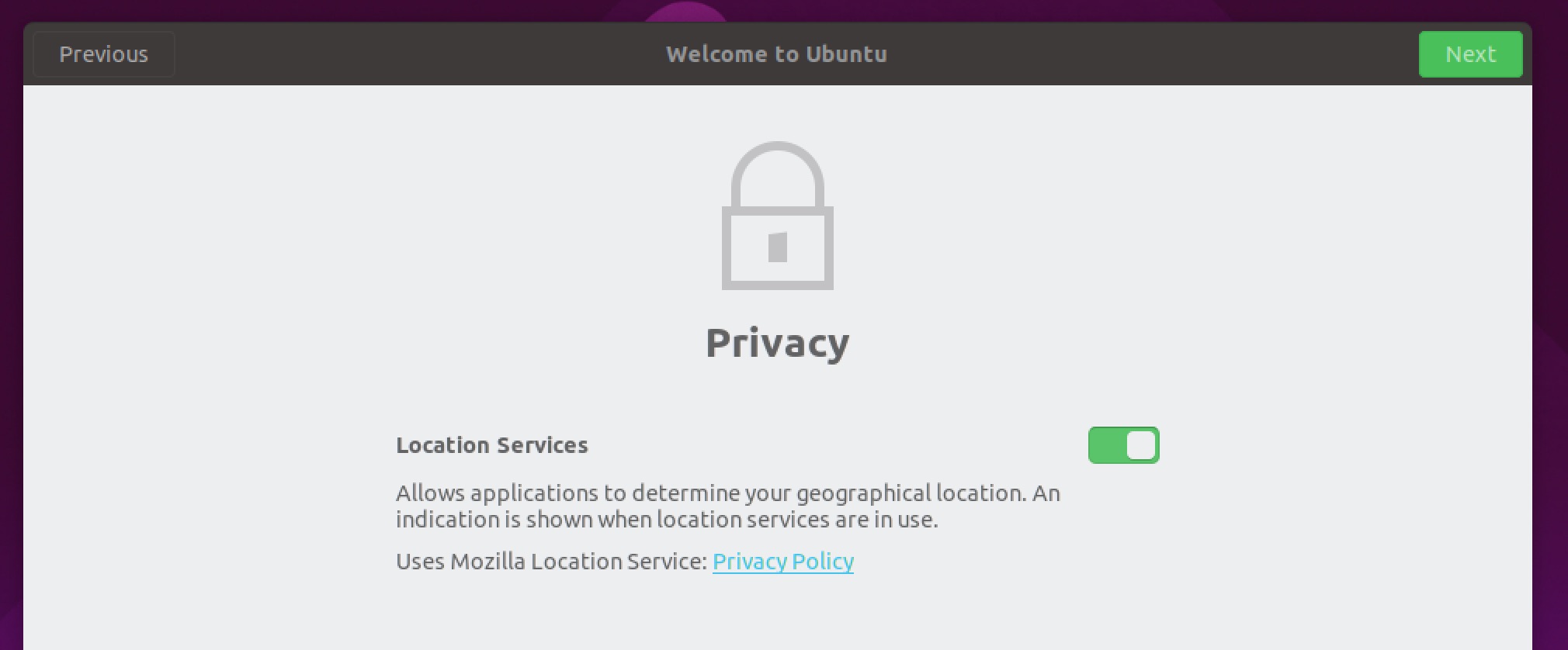
An option to enable location detection (via geo-clue, useful when travelling) has been added to the set-up tool.
There’s also better integration of Canonical’s LivePatch service (though the feature itself only supports LTS releases).
New & Updated Apps
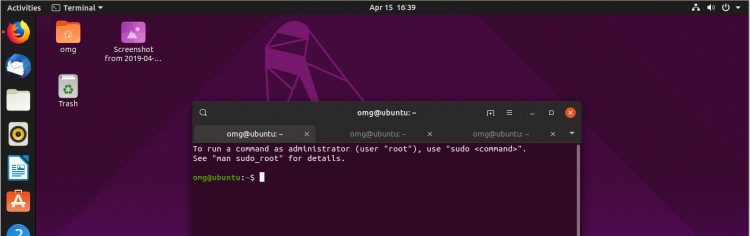
There’s a new header bar in the default Terminal emulator (though it can be disabled) plus a few new features, like ‘find’ and ‘read only’ mode.
“File indexing and search service Tracker is now installed by default”
File indexing and search service Tracker is installed by default. This lets desktop apps to keep tabs on recently used files and helps to improve search times.
Mozilla Firefox 66, Thunderbird 58 and LibreOffice 6.2.2 all come as standard (though oddly client-side decoration in Firefox is not enabled by default, despite being available).
Although the Ubuntu Software store is kept back on version 3.30 it still proffers access to the latest apps on the Snapcraft Store.
Things that didn’t make this release

GSconnect, the handy extension that lets you connect an Android phone to Ubuntu wirelessly, didn’t make it in to this release. However, the add-on is available in the archives and isn’t difficult to set up.
Likewise, GNOME Clocks was scheduled to be part of the default app selection but, alas, didn’t make it in in time. There’s also no revamped installer slideshow, something Ubuntu founder Mark Shuttleworth is keen to explore.
Download Ubuntu 19.04
You can download Ubuntu 19.04 desktop as a 64-bit .ISO image by hitting the button below:
Ubuntu 19.04 Summary
Other Ubuntu flavours are also available, including Ubuntu MATE 19.04 (ideal for older hardware) and Kubuntu (perfect for those who prefer KDE).
Despite the name, Ubuntu 19.04 is more of a mid-afternoon tea dance than a raucous disco. That’s not a negative per se, it’s just that this release feels more like a familiar, choreographed, routine update, rather than trying to throw shapes on the distro dance floor.
But with a lighter, more responsive feel, the latest software, and a new Linux kernel, this newest version of Ubuntu has lot to tempt you with.
Changes in brief:
- Performance improvements
- ‘Safe Graphics Mode’ option
- Updated icon theme
- Fractional Scaling Support
- Star files in Nautilus
- GNOME Shell 3.32
- Linux kernel 5.0
- Desktop icons extension
- Geoclue integration
- New wallpaper