


If you want to install Sublime Text on Ubuntu, Linux Mint, or aother Ubuntu-based Linux distro this guide will show you how (as there are several different ways to do it).
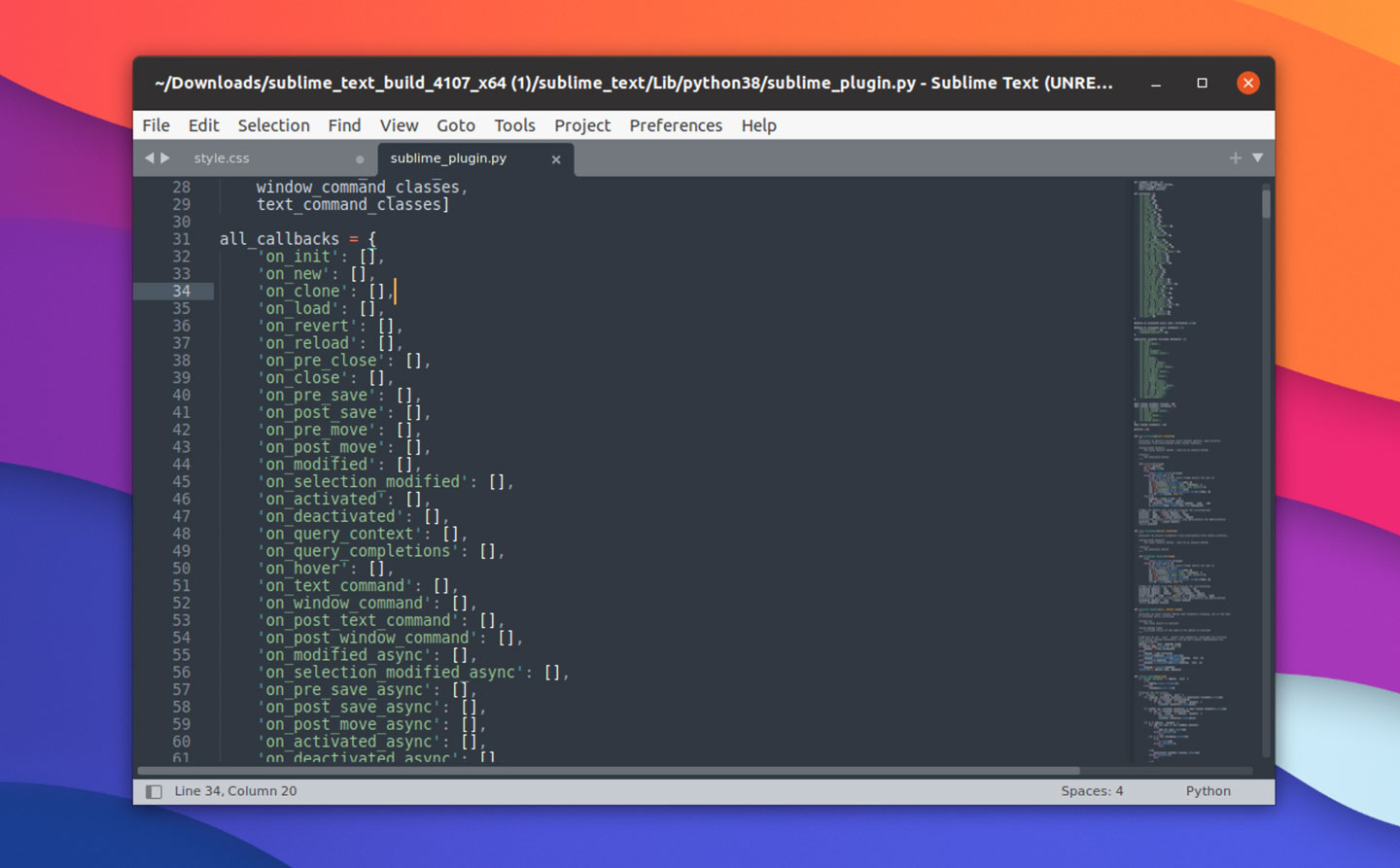
Sublime Text is a closed-source, cross-platform text editor with a huge following among web and software developers. This text editor is fast, boasts an expansive set of features, and is easily expanded with free plugins created by its community of users.
As well as macOS and Windows, Sublime Text is available for Linux. You can install it on Ubuntu easily, but it’s not available directly from the Ubuntu repos (as it’s not open-source).
The best way to install Sublime Text on Ubuntu is to add the official Sublime Text APT repository to your system. This repo supports Ubuntu 18.04 LTS and later, and makes it easy to install the editor and install updates to it alongside other Ubuntu software updates.
Let’s take a look at how to do that.
Installing Sublime Text on Ubuntu
The Sublime Text website offers download for Windows, macOS and Linux, with a DEB installer provided for Ubuntu.
However, the Sublime Text DEB package does not add the official APT to your system. This means you won’t get future updates to the app — updates which almost certainly will fix bugs, provide new features, and improve performance stability.
So there are two different ways to get the app and ensure you get automatic updates to new builds.
Sublime Text Snap App
If you use Ubuntu you will find the the Sublime Text snap is the quickest and easiest way to get the editor and ensure access to future updates.
While this snap is not official it is maintained by the trusted Snapcrafters community team.
Open the Ubuntu Software or App Center app (depending on your Ubuntu version), search for ‘Sublime Text’, and click ‘install’ to get it.
Or, install it from the command-line like so:
sudo snap install sublime-text
Finally, launch the app from the app picker/grid/menu and away you go!
Sublime Text APT Repo
Don’t want to use a snap package (or in the case of Linux Mint, can’t)? Set up the official Linux repo instead, which provides traditional DEB packages for all supported Ubuntu LTS releases.
Step 1: Download the security key for the Sublime text editor repository. This step is important as it ensures any packages you download from the linked repo are what they say they are, with no nasty surprises:
wget -qO - https://download.sublimetext.com/sublimehq-pub.gpg | gpg --dearmor | sudo tee /etc/apt/trusted.gpg.d/sublimehq-archive.gpg > /dev/null
Step 2: Add the Sublime Text stable repository:
echo "deb https://download.sublimetext.com/ apt/stable/" | sudo tee /etc/apt/sources.list.d/sublime-text.list
Step 3: Install Sublime Text:
sudo apt update && sudo apt install sublime-text
That’s all you need to do!
After the install is complete you can go ahead and open Sublime Text from your desktop app launcher of choice.
Happy coding
Sublime Text is a proprietary text editor. While you can download Sublime Text for free you are supposed to buy a license if you plan to use it full-time. A Sublime Text license costs $80.
However, the editor’s evaluation period is unlimited, with no functional limitations. The trial period does not expire, which means you can use Sublime Text for free, for as long as you like.
Just keep in mind that buying a license supports its continued existence, which benefits you in the long term.
Happy coding!