


If you’re looking for a super fast file search tool for Ubuntu similar to the Everything Search Engine on Windows ,the hunt is over: FSearch is what you need.
The developer of this fast, file-finding utility is Christian Boxdörfer and he is upfront about the inspiration for FSearch, explaining on the project homepage:
“[Everything Search Engine] provides instant results as you type for all your files and lots of useful features (regex, filters, bookmarks, …). On Linux however I couldn’t find anything that’s even remotely as fast and powerful.”
After trying a slew of Linux file search tools, from standalone utilities like Catfish and ANGRYSearch to file-finding features baked into file managers like Nautilus, he found few did what he wanted in the way he wanted with the speed he wanted.
So he built his own.
FSearch: What Can It Do?
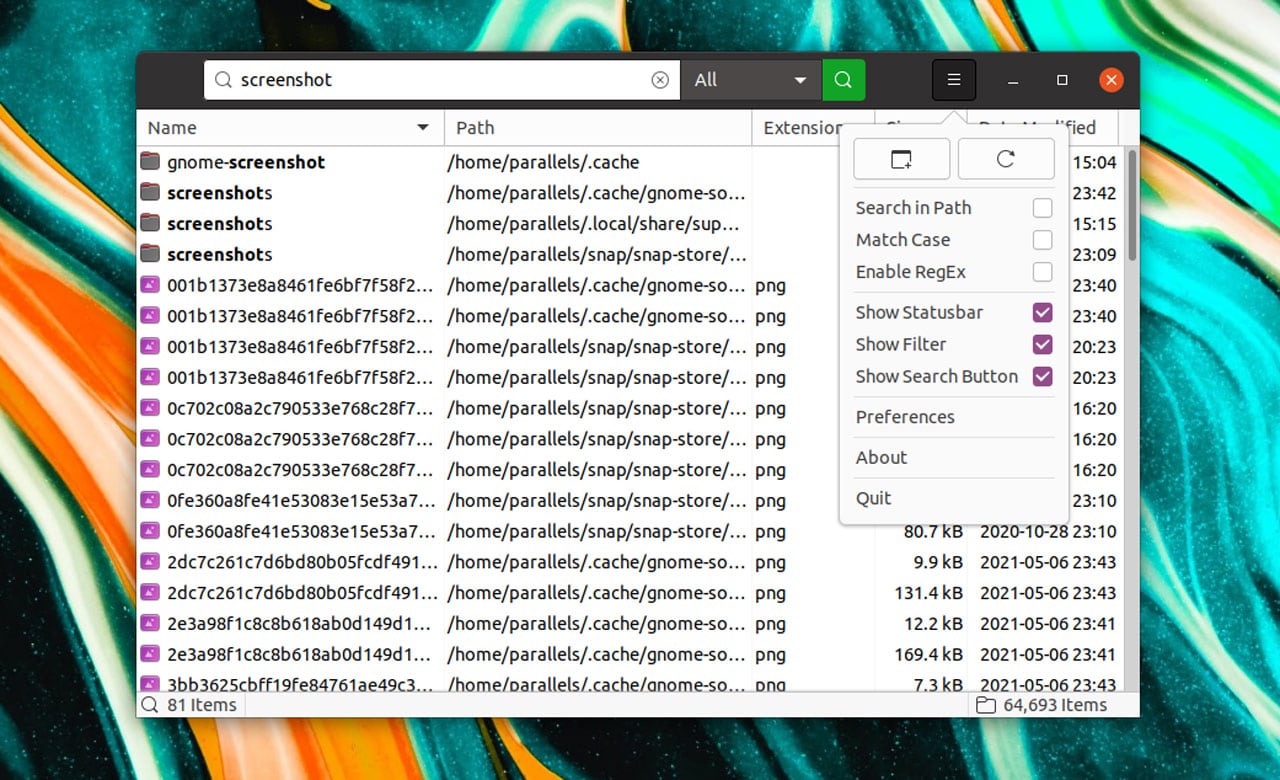
FSearch is built using GTK3 but it is designed to be desktop-agnostic. It works as good on lightweight Linux desktops like XFCE and Cinnamon as it does on fully-featured desktops like GNOME Shell or KDE Plasma.
As it runs independent of any file manager it has fast performance and low memory usage.
I’d wager most people find the search tools provided in Nautilus (or other file managers) sufficient for resurfacing a misplaced selfie, errant MP3 or project file feared deleted.
But if you are looking for a search tool that is nothing but a search tool—i.e., faster and more flexible capable—FSearch is worth a shot.
It offers the following features:
- Instant (as you type) results
- Wildcard support
- RegEx support
- Filter support (files, folders, everything, etc)
- Fast sort by filename, path, size, etc
- Include/exclude specific folders from indexing
And I should mention that the user interface is customisable. If you don’t like how it is laid out, you can dive in and rejig it to suits your needs.
By default FSearch uses a traditional UI with menubar that looks right at home on MATE and XFCE. But if you prefer client-side decorations you can enable a CSD option via the Preferences panel (though it requires a restart of the app to take effect).
In Preferences you’ll also find an option to enable a dark theme, as well as access advanced settings to control things like window size, column configuration, single-click opening, keyword highlighting, and more.
Finally, you have complete control over what areas of your file system the app can and cannot access — so if you don’t want it to sift through that 2TB external backup drive for photos, you can tell it not to.
I should make one thing clear: FSearch does not search in files. It only searches file/folder names. If you need a full-text search tool try something like Recoll.
Install FSearch on Ubuntu
Source code for FSearch is available on the project’s GitHub page, but chances are you don’t want the hassle of compiling it to see if it’s worth punt.
Instead, install the latest stable release of FSearch on Ubuntu 16.04 LTS through 24.10 using the official FSearch PPA.
To do this, add the PPA to your list of source softwares:
sudo add-apt-repository ppa:christian-boxdoerfer/fsearch-stable
Then install the app:
sudo apt install fsearch
Once installed, open FSearch from your preferred app launcher/app menu to get started.
You can report bugs on the FSearch Github issues page.
This article was updated.
The first version of this article was written in 2016. It was updated in 2021 to reflect the fact that FSearch is now stable, and has picked up a couple of new features since our initial hands-on.