


Snap is Canonical’s universal package format for Linux that lets developers build their software once so users on multiple Linux distributions can use it.
At least, that’s the theory.
In reality, few Linux distributions besides Ubuntu make use of Snaps. Linux Mint offers access to the Ubuntu repos which has the snapd package, but it prevents users from installing it.
If you’ve already tried sudo apt install snapd on Linux Mint 20 or later, including the latest Linux Mint 22.3 (Zena), and hit ‘has no installation candidate’, it’s expected. Mint blocks the package on purpose.
Sure, Linux Mint is based on Ubuntu and benefits from the bug fixes, security patches and kernel updates Canonical’s engineers provide, but it is no fan of snaps.
But there is a workaround.
Why does Linux Mint block snaps? Mint’s main objection isn’t to the snap format itself but to the Snap Store. Unlike apt repos or Flatpak, it’s closed-source and centrally controlled by Canonical, with no option to point it at an alternative repository.
You can read Mint’s own reasoning for blocking Snap if you want. Despite its opinion, it does let you install snaps on Linux Mint if you really want to – it’s just a little more involved than you might think.
Remove the nosnap.pref block
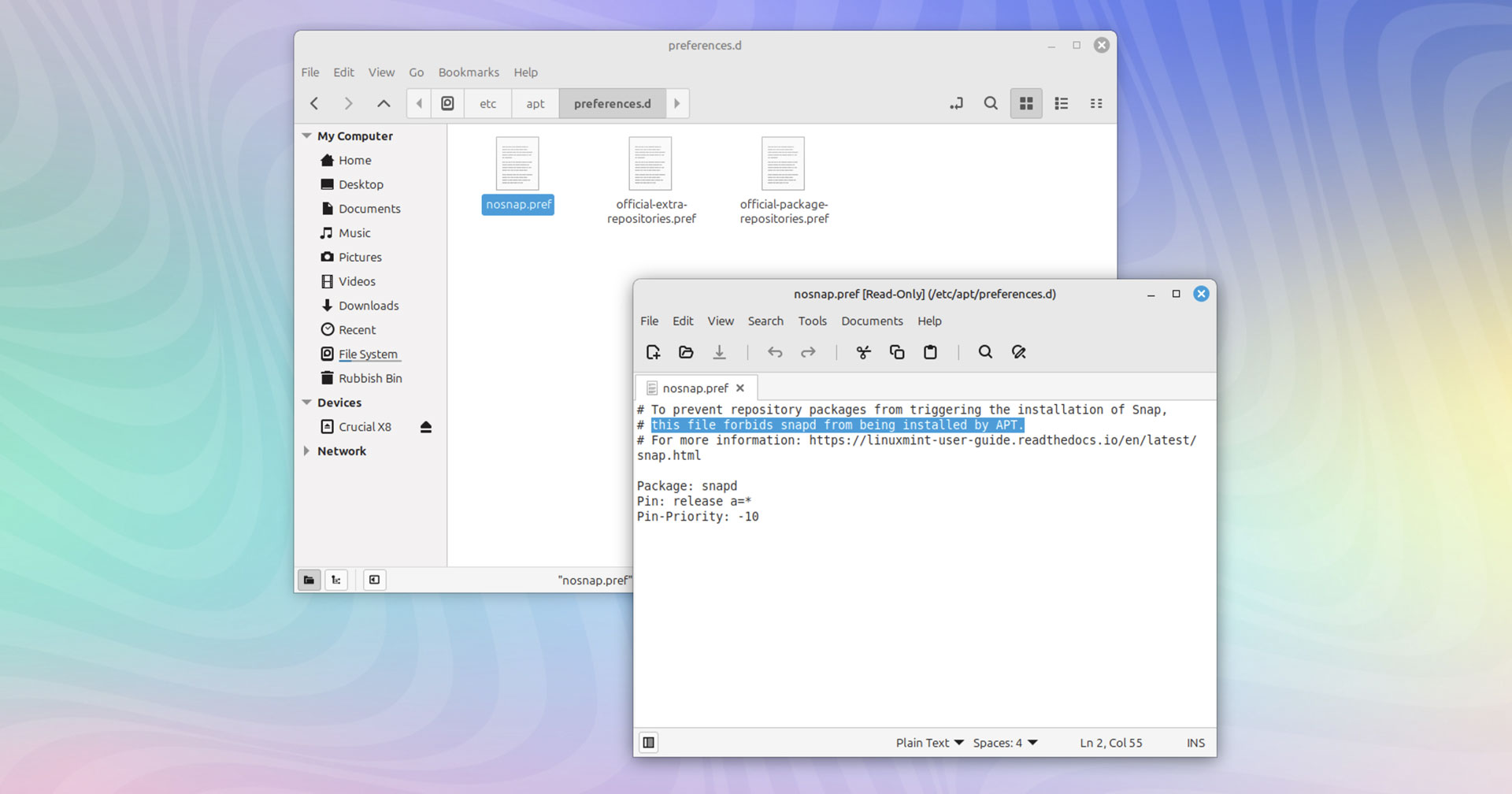
You can enable Snap support in Linux Mint using either the command line or a graphical interface. I show you how to do it from the command line, as it’s faster and there’s less chance for things to go wrong.
In a new Terminal window navigate to the apt preferences folder using the change directory (cd) command like so:
cd /etc/apt/preferences.d
Inside this folder is the nosnap.pref file.
You can delete this file, but I suggest you move it and rename it as a backup. That way, if you decide you want to disable snap app support in Linux Mint, it can be restored.
Run this command to move/backup the Snap blocking file:
sudo mv nosnap.pref ~/Documents/nosnap.backup
That’s the hard stuff done!
Install snapd on Linux Mint
With the nosnap.pref file removed you can refresh your list of software sources (this lets Linux Mint ‘see’ the snapd package) and enable Snap package support by installing Snapd, the background service that manages and maintains snaps:
sudo apt update && sudo apt install snapd
I recommend rebooting Linux Mint at this point. Nothing bad happens if you don’t, but you might find shortcuts to Snap apps you install in the next step don’t appear in the Mint Menu until you have.
Test that snapd is working
Before installing an app you actually want, confirm snapd is running properly:
sudo snap install hello-world
hello-world
You should see Hello World! printed back. If you do, you’re set – if you don’t, see the troubleshooting tips below before going any further.

When ready, you can install snap applications using sudo snap install and giving a package name, for example:
sudo snap install spotify
After installation completes, open your app from the Mint Menu or run it directly in the terminal. Unlike Flatpaks, which need a flatpak run org.name.etc command, snaps run using their package name alone.
Update snap apps on Linux Mint
Snap apps update themselves automatically in the background, so most of the time you won’t need to do anything. Snapd checks for updates several times a day and installs them without notifying you.
If you want to update everything immediately rather than waiting, run:
sudo snap refresh
It won’t prompt you to confirm each update; it just gets on with it. To update a single app instead of everything you must add the package name:
sudo snap refresh spotify
To see when an app last updated, or check what update is scheduled next, run snap refresh --time.
Other Snap commands to know
To uninstall a Snap package run sudo snap remove followed by the package name, e.g., sudo snap remove spotify.
If you’d rather see new features before they roll out generally, you can switch a specific app to its beta or edge channel with sudo snap refresh <package> --beta or --edge. Bear in mind these builds are less stable, so it’s not something to do with software you rely on daily.
Snaps keep two copies of each updated app, the active and the previous, in case there’s an issue and you need to revert. You can free disk space by removing snap revisions – for larger snaps, like LibreOffice, doing this can release significant amounts of space.
You can find more commands available to manage, control, pin or rollback Snap updates by sifting through Snapcraft docs site – that also covers how to adjust permissions for Snaps via interfaces.
Troubleshooting
hello-world doesn’t print or the install hangs
Check whether the snapd socket is actually running:
systemctl is-active snapd.socket
If it comes back anything other than active, start it manually:
sudo systemctl start snapd.socket
Then try the hello-world install again.
Snap install fails with a confinement error
Some snaps need broader access to your system than Mint allows by default and require classic confinement, which you can install by passing the flag:
sudo snap install package-name --classic
However, running apps in a security sandbox is one of the main benefits of snaps. You should try to avoid installing apps that need classic confinement unless it is explicitly called for on the snap store listing.
Install the Snap Store (App Center)

You can’t search for, install or manage snap apps in Linux Mint’s default Software Manager tool but you can install Ubuntu’s App Center (as a snap package, pictured above).
App Center lets you sort and search thousands of snaps on the Snap Store, update and manage those you install (including changing to beta or edge builds) and more – all without needing to use your terminal.
To install App Center as a snap run:
sudo snap install snap-store
Once install is complete, open App Center from the Administration category in the Mint Menu.
Snap vs Flatpak on Linux Mint
Linux Mint uses traditional Deb packages by default, but includes support for Flatpak and the Flathub Linux App Store out-of-the-box. For most users, it’s all they need and it’s what Software Manager is built around.
Snap is worth the extra steps above specifically when the app you want is Snap-only, or when the Snap Store build is more current than what’s available via Flatpak or a PPA.
But there’s no need to pick one exclusively since both can run side by side on the same system without issues (if, perhaps, a little confusion when you forget which is which format).
Disable Snap Support in Linux Mint
If you followed this tutorial, tried snaps but change your mind, you can disable Snap package support in Linux Mint by restoring the nosnap.pref backup file from earlier.
First things first, uninstall the underlying Snap daemon by running this command. It will uninstall all snap apps you’ve installed too, along with their data, so backup anything important first:
sudo apt remove --autoremove snapd
Then, restore the config file like so:
cd /etc/apt/preferences.d
sudo mv ~/Documents/nosnap.backup nosnap.pref
Finally, run an update check to make sure everything clicks back in to place.
After that, no more snaps unless you repeat this guide to remove the ‘no snap’ preference file.
Linux Mint takes an assertive stance against Snap packages by default, but it has its reasons. Despite this, it’s happy for users to install what they want, but with the understanding they are not officially supported.
I hope this guide helps you out if you want to install snap apps on Linux Mint. There are some great apps available, so get exploring!