
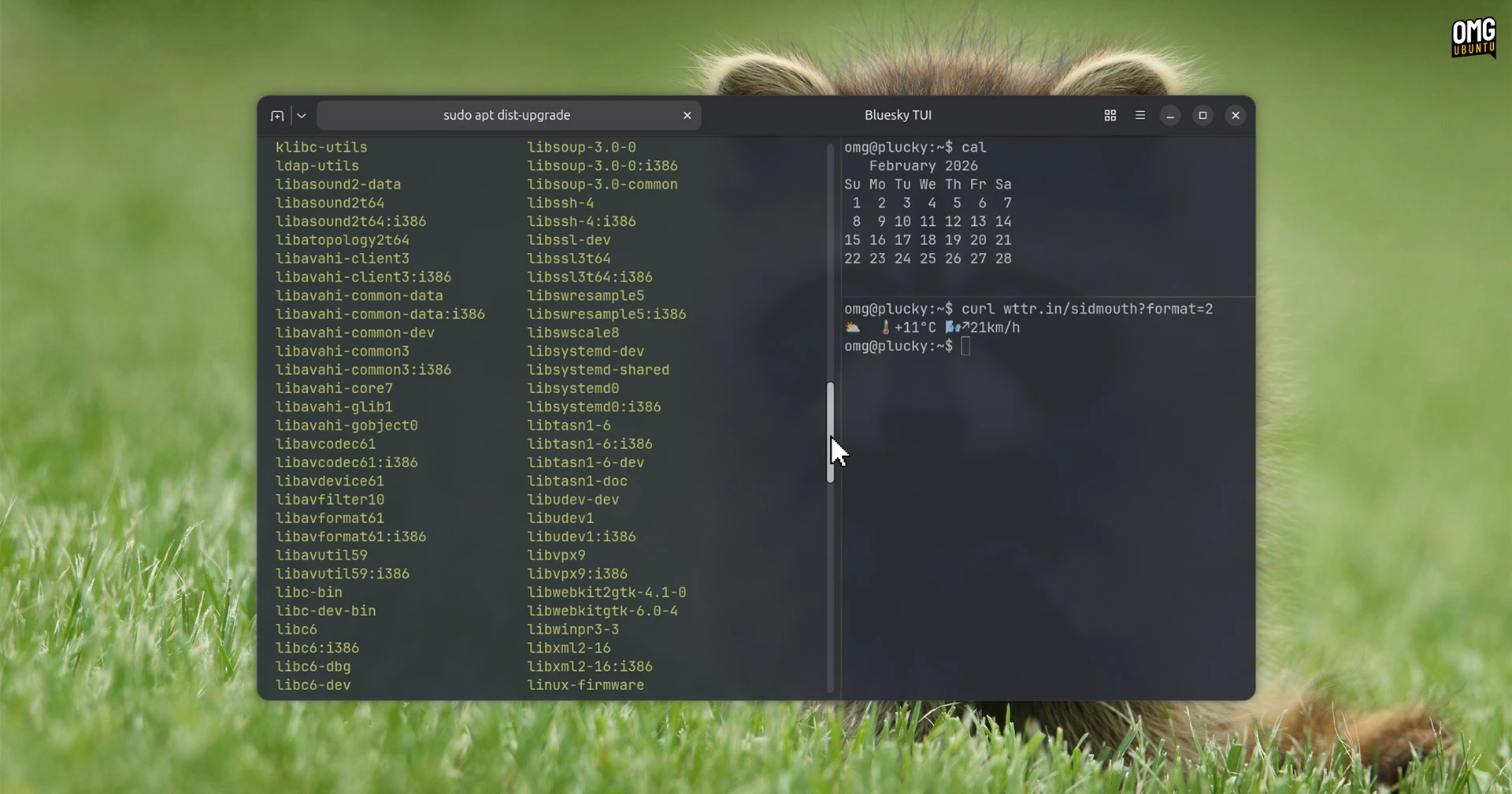

A big update to Ghostty terminal emulator has dropped, delivering a raft of new features like scrollback search, native scrollbars and and process completion notifications.
Ghostty 1.3.0 packs in 6 months of development effort: 2,800+ commits from 180 contributors.
That means hundreds of performance tweaks, bug fixes and platform optimisations for those using it on macOS, Linux and FreeBSD (Ghostty isn’t available on Windows).
But since it’s the new features that most of you care about, and this update to the Zig-based open-source terminal adds a couple of long-requested ones.
Ghostty 1.3.0: Highlights
Text search/match
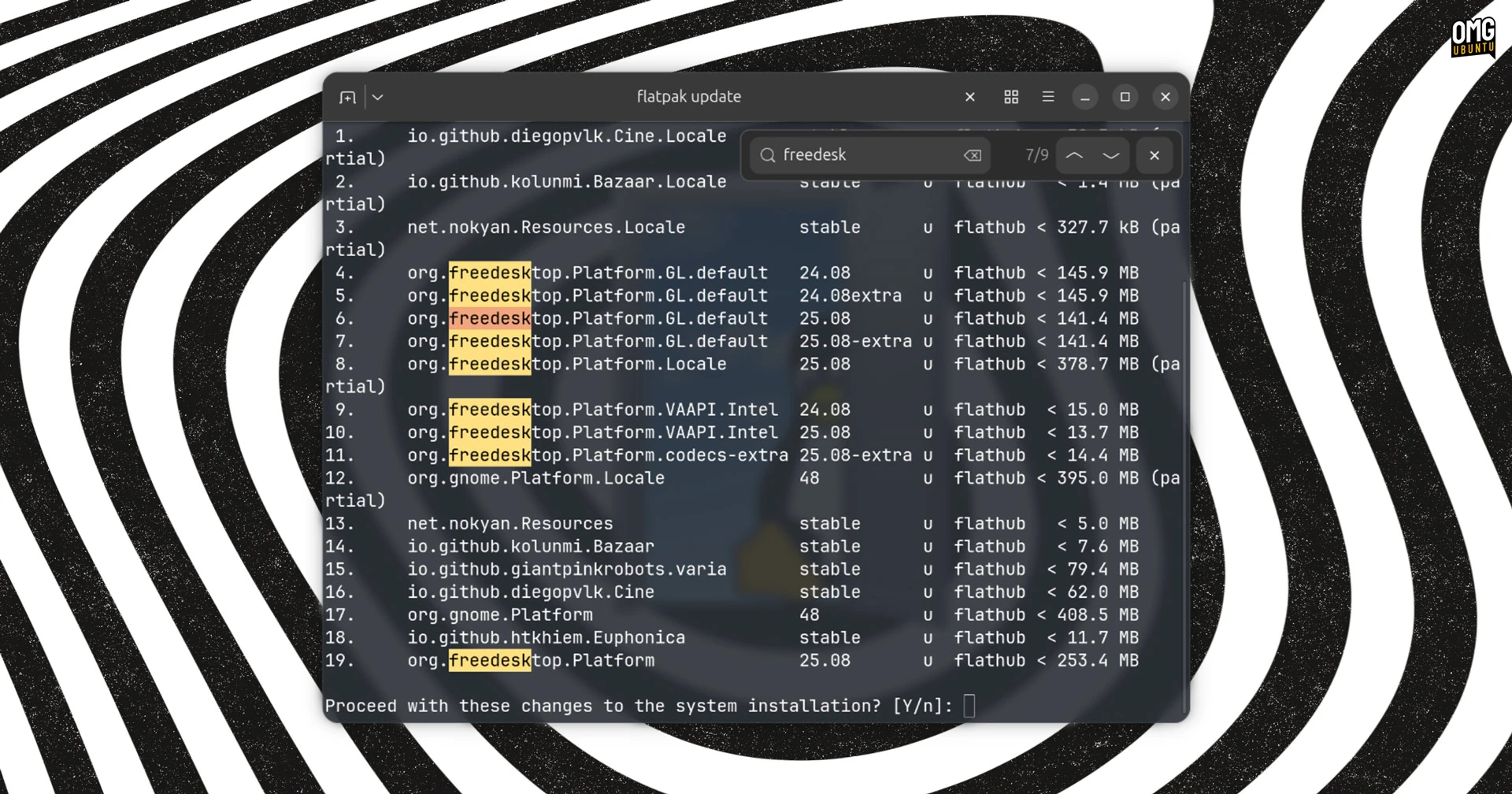
You can now search your terminal scroll back in Ghostty by pressing ctrl + shift + f on Linux ( cmd + f on macOS). A search box appears in the corner (drag it to any corner you like on macOS). Text entered in the box matches to text in the current viewport.
Navigate matches using the arrow buttons or keyboard shortcuts – configurable, like most things in Ghostty are. If there’s a caveat it’s that, understandably, it only matches to current viewport, not the entire scroll history.
Ghostty says the feature is “implemented using a dedicated search thread that operates concurrently with terminal I/O. The thread grabs the terminal lock in small time slices to make forward progress on searching while minimizing impact on I/O throughput or rendering.”
This means if you don’t use search, or you close the search bar after you’ve activated it, search threads end and no additional resources are used.
Scrollbars in Ghostty
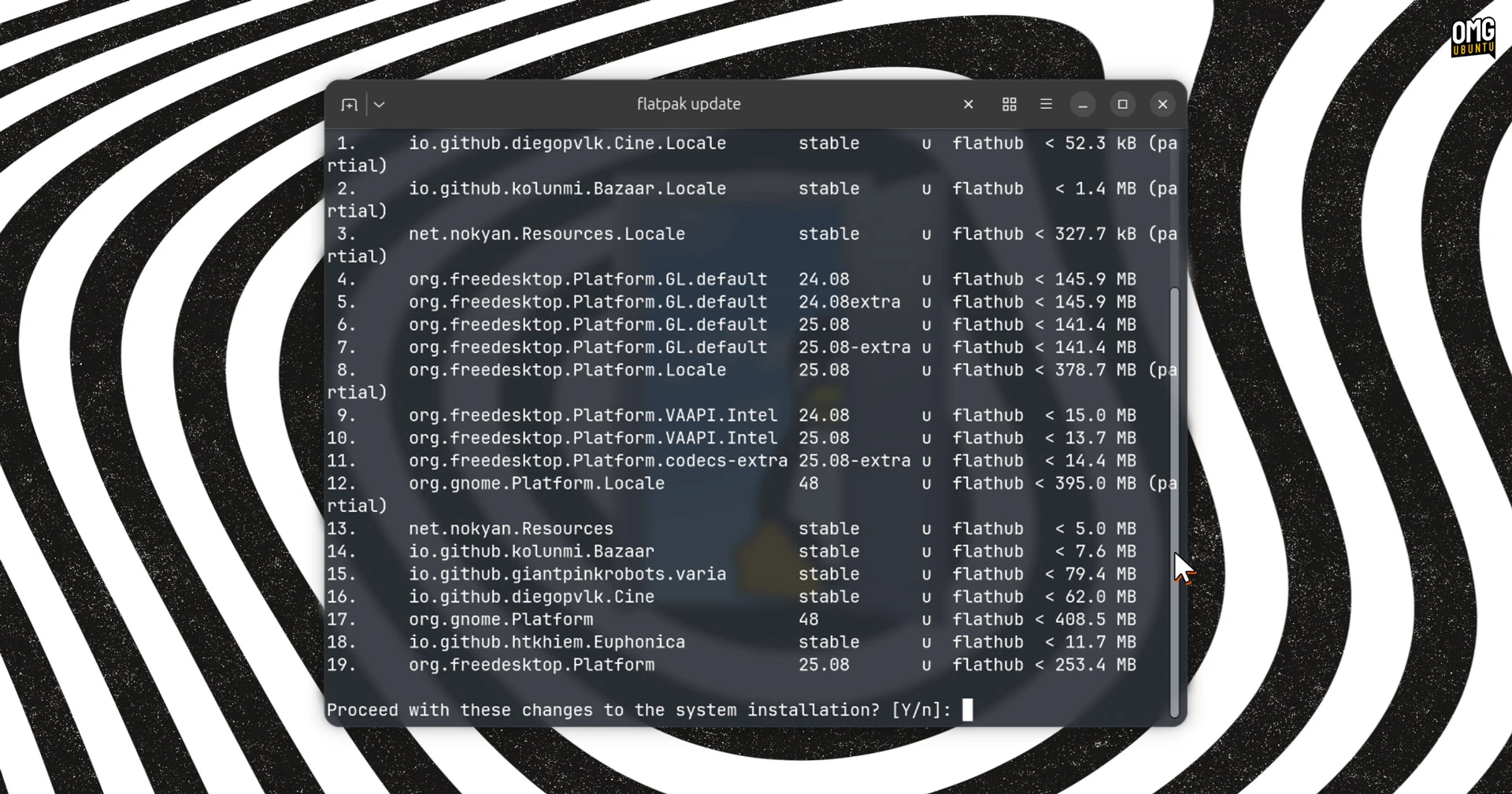
I reported last month that Ghostty added native scrollbar support, and this new stable release sees it roll out to all users.
On macOS and Linux, Ghostty follows the native system scrollbar setting, and scrollbars work like you’d expect: drag, click the bar to jump, etc. As the system default is followed – you can configure different behaviour – you get overlay scrollbars on Ubuntu, i.e., invisible until you mouse near.
For those at the back: it was already possible to scroll in Ghostty via mouse wheels, keyboard shortcuts and touchpad gestures. This new setting simple adds visible scrollbars, which offer visual context when your page deep in back scroll.
Other improvements
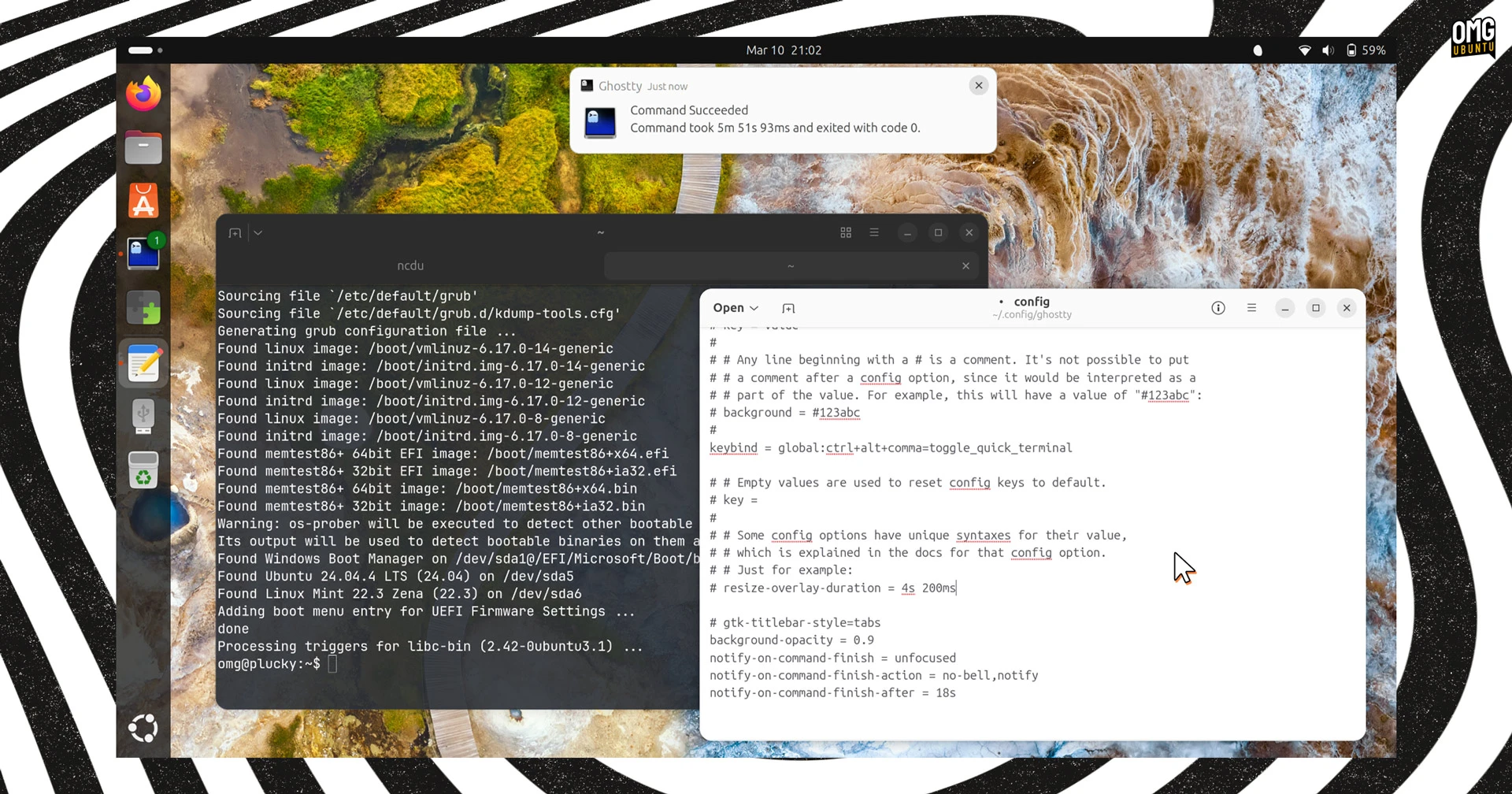
Rounding out the “big features” (from my point of view) is command completion notifications, which you can control and customise in your config file to suit your tastes with actions (sound, notifications, delay before a notification is sent, whether to alert if terminal is focused or not, etc).
Ghostty 1.3.0 also introduces support for click-events, so you can move the cursor to a specific part of a shell prompt. Support varies by Shell. It works in Fish, Nushell, Zsh, and others.
Additionally, devs note a “more complete and accurate implementation of OSC 133”. This improves consistency in behaviours like jump-to-prompt or copy command, resizing the window during an active prompt and other long-available features.
Ghostty Linux builds also see several specific changes of note:
- Two-finger left/right swipe to switch between tabs
- Extra CLI ‘new window’ options:
-eand--working-directory - Correct centring of windows using custom
window-height/-width - Respecting GNOME’s middle-click paste setting
- XKB mapping now works
Other changes include the reordering terminal splits using drag and drop (macOS; planned for GTK); working directory inheritance controls for new tabs and splits; better I/O performance and ‘rearchitected’ render, lowering terminal lock by 2x to 5x.
On a related note, an effort’s underway to get Ghostty in to the Ubuntu repos. This will make it easier to install Ghostty in Ubuntu via apt – albeit a frozen snapshot. It’s unlikely it will make it in time for Ubuntu 26.04 LTS, but great to see nonetheless.
In the mean time, you can install Ghostty on Ubuntu in a variety of ways: downloading an unofficial community-maintained Ghostty DEB build or AppImage, an unofficial Snap, or compile the entire thing from source code.
For automatic updates, add the community-maintained Ghostty PPA. It provides builds for Ubuntu 24.04 LTS and Ubuntu 25.10 (Ubuntu 26.04 LTS will be added in April):
sudo add-apt-repository ppa:mkasberg/ghostty-ubuntu
sudo apt update && sudo apt install ghostty
For macOS, Ghostty provides official binaries (recommended, and now supporting in-app updating), but it’s also available via Homebrew and other CLI package managers, if you’re making use of those.