

Heard of the AV1 (AOMedia Video 1) codec? Chances are you have, as this open source, royalty-free video compression standard is championed by the likes of Google, Netflix, Amazon, and even Apple.
All for a very good reason (beyond the anyone-is-free-to-use-it-no-catches aspect).
AV1 produces fantastic quality video at often significantly smaller file sizes. For major video streaming services you can see the appeal: bandwidth means money, and a video codec that delivers decent quality but is data efficient is a no-brainer, costs-wise.
But you might be interested in using it too.
If you upload content to video sharing sites, AV1 is often the preferred choice as it often requires no re-encoding on their end). And if you want to make high-quality backups of media you own (e.g., Blu-Rays) and not use up all your disk space doing it, this code can help.
AV1 Video Encoding on Linux, Easy.
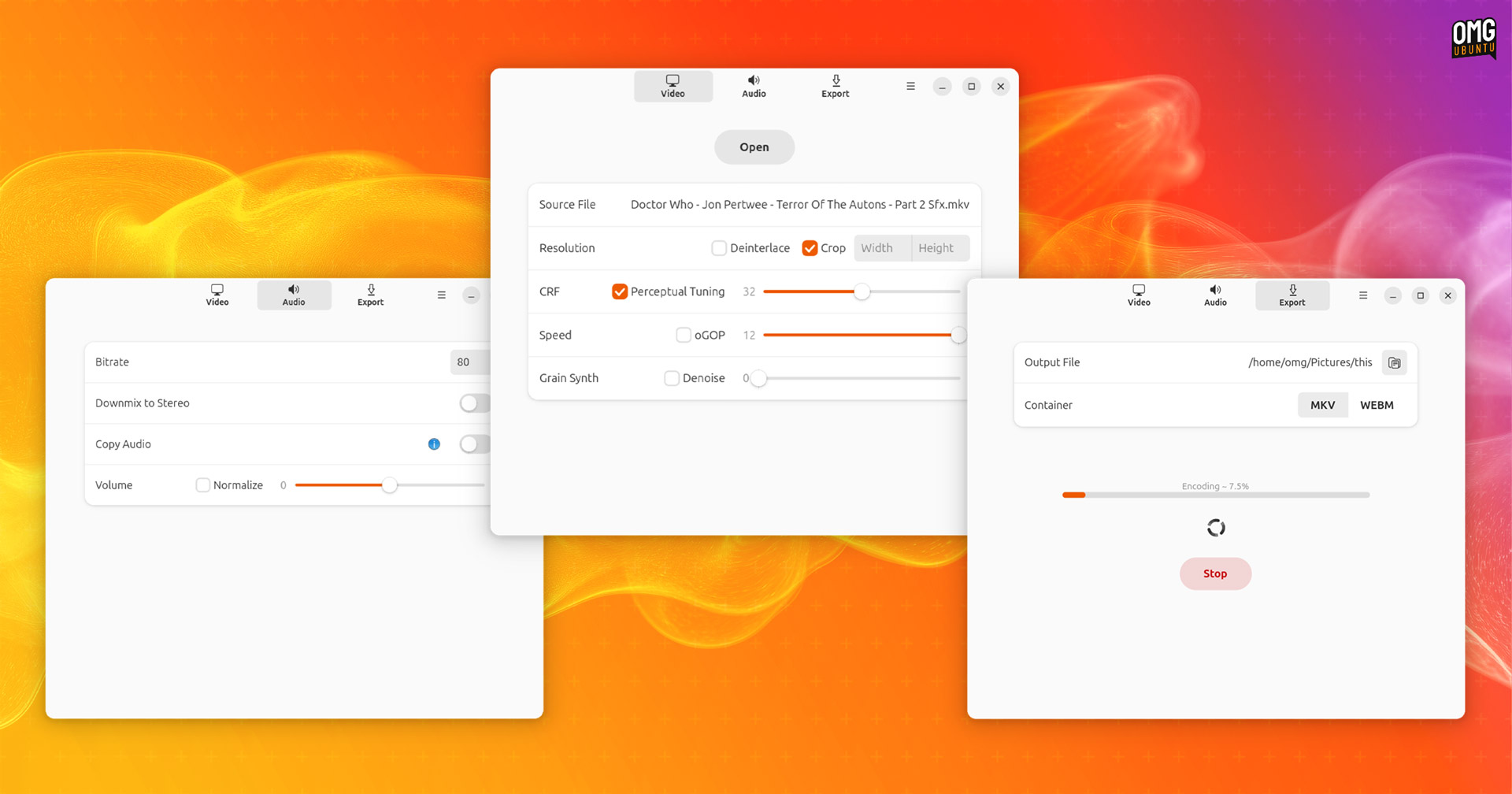
Aviator is a GTK4/libadwaita AV1 encoder app for Linux with the kind of easy-to-use interface you’d expect an app built in this toolkit to provide.
You can import video encoded with a different codec, set a quality and speed preference, then convert to AV1 in a choice of MKV or WEBM container.
The GitHub project says that it was “designed to be a no frills, easy to use AV1 encoding GUI that any beginner can pick up and immediately understand how to use.”
The app is not quite “one button and done”, but it is surprisingly approachable given the complexity and power of the backend encoder. If trying to use HandBrake leaves you with a headache, Aviator’s lack of menus and drop-down filled with acronyms and abbreviations is a real balm.
You can control video settings:
- Set a custom crop resolution and deinterlace
- Set Constant Rate Factor (CRF) value (lower numbers = higher quality)
- Enable perceptual tuning (for better quality)
- Set speed value (lower values are slower, but better quality)
- Enable oGOP (Open GOPS)
- Denoise and add artificial grain
And adjust audio settings:
- Set audio bitrate
- Downmix to stereo
- Copy audio from input file (ignores all other audio settings)
- Increase/decrease volume
- Normalise volume (perceived loudness)
In-app tooltips, as well as project GitHub give a solid overview of each setting and slider present in Aviator’s Video, Audio and Export sections, explaining what each is for, and the best values for different use cases.
What is SVT-AV1-PSY?
For encoding, Aviator uses SVT-AV1-PSY, a fork of SVT-AV1 software encoder “with perceptual enhancements for psychovisually optimal AV1 encoding” and optimisations to ensure it uses hardware resources in a more efficient manner.
I know; “psychovisually optimal” sounds a little word-salady-y. The goal of the fork is to produce better encodes, ones deemed more visually pleasing than standard SVT-AV1 aat the same bitrates.
Aviator also bundles its own version of FFmpeg for “decoding videos, upscaling & downscaling videos with the sharp Catmull-Rom scaling algorithm, and encoding audio using the Opus audio codec via libopus.”
Do I need a beefy GPU to use this?
No. Aviator makes use of a the SVT-AV1 encoder (well, a fork of it) so it runs entirely on your CPU.
Encoding is resource intensive (as anyone who’s needed to crush a giant MKV down to MP4 in HandBrake can attest). Most common iGPUs, like the Iris Xe found in cheap Intel N100 mini-PCs, support AV1 decoding, but not encoding.
SVT-AV1 was co-designed by Intel for fast software encoding on multi-core CPUs – no beefy dGPU needed!
While some newer GPUs include dedicated AV1 encoders, they don’t use SVT-AV1 and thus, to my knowledge, won’t be of any help or benefit here since this is built around a software encoder.
While CPU encoding is slower, uses resources, and can result in more heat generation, resulting in throttling, the SVT-AV1 encoder was co-designed by Intel and efficient at encoding on CPUs, able to take advantage of multi-core CPUs and multi-threading for efficient encoding.
Encodes aren’t done in a hot second (especially if you’re working with large files and trying to preserving as much quality or natural grain – common in older movies, and something I hate removal of – as possible), but it’s far from slow.
Install Aviator on Ubuntu
For me, the hype seems justified.
A 25 minute MKV I re-encoded in AV1 using Aviator has a file size that’s almost half the input, without — that I can tell — any visual degradation at all. Best of all, on my cheap, low-power Chuwi with archaic chip, the job only took about 10 minutes!
If you’ve got a few cores to spare, space to save, and a bit of time to kill, go try it out.