

A new GNOME Shell extension makes it easier to control UxPlay on Ubuntu (and other Linux distributions) easier.
It’s called UxPlay Control and it does exactly what it suggest: it gives you control over UxPlay.
It does this by adding a small applet to the top panel. From there, you can easily start and stop AirPlay server sessions as and when you need. You can also access a GUI Preferences panel from which to dial in your preferred behaviour.
But if you’re looking at me a bit weird, thinking “what’s UxPlay?”, I’ll give you a refresher.
UxPlay: What is it?
UxPlay is a free, open-source and totally unofficial AirPlay server implementation for Windows, macOS and Linux (including Raspberry Pi).

It allows you to mirror your iPhone, iPad or Mac screen on your desktop, where it shows in a floating window you can share via other apps, like Discord and OBS Studio.
iPhone screen mirroring on Linux can be handy, and UxPlay gives you it – but you can’t interact with what you see, unlike Scrcpy for Android.
You also can’t watch DRM or other rights-restricted video content playing on your Apple device on your desktop via the mirror – that kind of content will only play back on the device itself.
The latest release of UxPlay supports HTTP Live Streaming (HLS) via AirPlay. This lets you send video1 from an app on your Apple device to your ‘server’ so it streams directly, without sharing he rest of the screen.
Finally, UxPlay works as an AirPlay Audio server too. When streaming audio only, UxPlay supports Apple Lossless (ALAC) AirPlay2 Audio and can be made to fetch cover art and track metadata for use in… Whatever you can think of using them in!
So what’s the purpose of it?
As passive mirror, there are lots of use-cases where UxPlay can prove useful: debugging iOS apps and noting quirks; demoing or presenting app or content to others (in person, a video call, or online content), and plain old monitoring of something (like sports scores).
But while UxPlay is powerful, managing all these options from the command line can be cumbersome — which is where UxPlay Control can help.
GUI Control with an Extension

UxPlay is run and configured from the command line by default, so the appeal of UxPlay Control is in offering you some GUI toggles and switches to make configuring and managing it easier.
If you’d prefer using a graphics tool over the terminal, this extension gives you a frontend to:
- Start/stop UxPlay service
- Panel icon turns green when server active
- Configure device and host name (what you see in iOS)
- Control access with a pin/password
- Set your preferred resolution
- Enable auto-fullscreen on connect
- Adjust audio latency and initial volume
- Define custom ports
Given the multitude of customisation, tuning and other options available from the CLI client, not all of those are catered for graphically in this extension, but the most important ones are (bar setting left/right orientation off the bat).

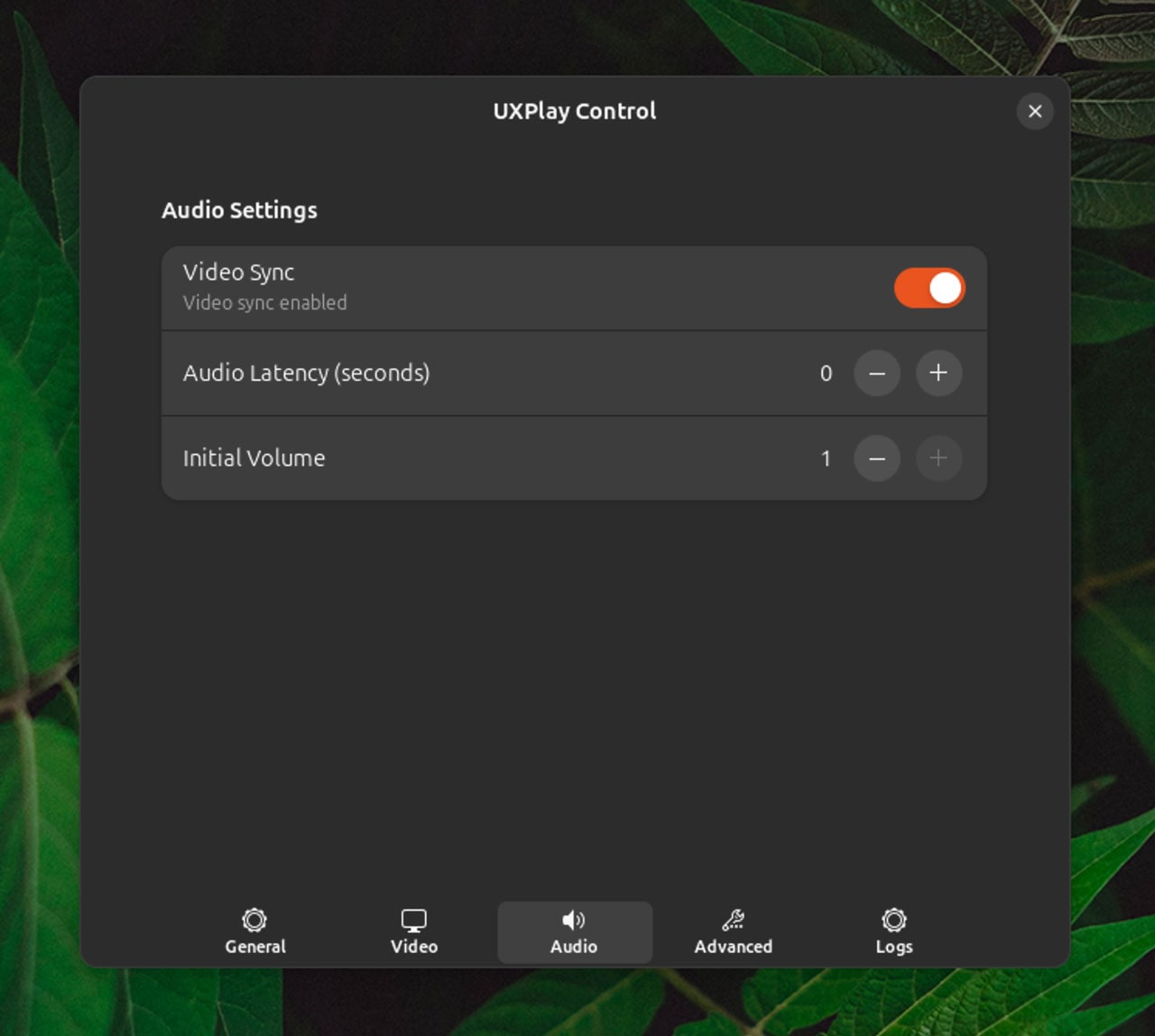

If you think it’d be useful, try it out!
UXPlay Control works on GNOME 41 and above, and can be installed from the GNOME Shell Extensions website. I can’t find any hosted source code for it (it’s not on the developer’s GitHub) but you can sift through the files that are downloaded.
For this extension to be of any use you do need UxPlay installed. On Ubuntu, that’s easy: you can install by running sudo apt install uxplay. You should also install gstreamer1*-plugins-bad too.
For a newer version of UxPlay, get it direct from upstream.
- AirPlay HLS in UxPlay only supports YouTube video atm, which you could just open a browser tab to watch natively on your desktop, but hopefully more apps/services gain support. ↩︎