

The latest stable update to Google Chrome improves its Memory Saver with new controls that could, depending on your workflow and hardware, help reduce the browser’s memory footprint.
And some would say it needs it.
Google Chrome has a rep for being a memory hog. But is it deserved? Once upon a time, perhaps. Yet whenever people do tests they tend to find that Chrome’s RAM usage is less egregious than popular opinion would contend.
Anecdotally, many users still say otherwise.
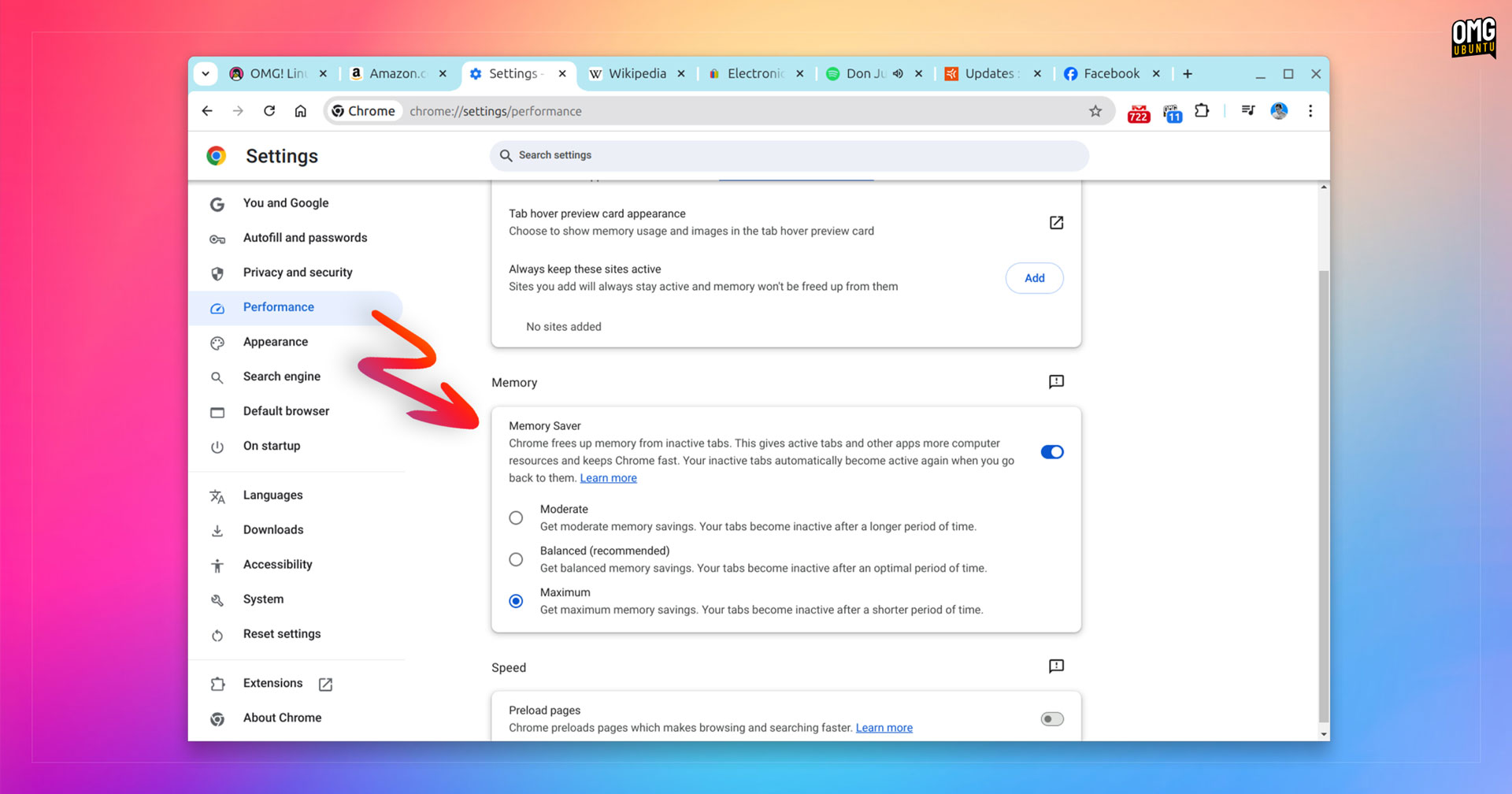
Which is perhaps why the latest update to Google’s dominant web browser introduces 3 new options to control the existing Memory Saver feature, all accessible via the Settings > Performance panel once Memory Saver is turned on.
The 3 new modes are:
- Moderate – tabs made inactive after extended duration
- Balanced – tabs made inactive sooner, based on system needs
- Maximum – tabs made inactive after a shorter period of time
In effect, you can now tell Chrome to free up tabs from inactive tabs sooner than it previously did.
For users on memory-constrained systems it may mean they can open more tabs without needing to close old ones, and run memory-intensive apps outside the browser without having to close it.
What is Google Chrome Memory Saver?
Memory Saver was added to Google Chrome in 2022 as an means to improve the browser’s performance during heavy usage, and potentially extend battery life by using less power (since more memory used means more power consumed).
To do this it “…frees up memory from inactive tabs [to give] active tabs and other apps more computer resources and keeps Chrome fast. Your inactive tabs automatically become active again when you go back to them”.
Memory Saver was already useful, but the new controls make it even better
It’s especially handy if you’re the kind of person who keeps a LOT of tabs open, including memory-heavy ones like, ahem, Gmail, Google Maps,YouTube… ;)
Inactive tabs are marked so you know they’ll reload when you switch back to them, and Chrome lets you add specific sites to a keep-alive list since there may be websites, web apps, and web services you need to stay active in the background.
Curious about how much memory a tab in Google Chrome is using? Open the built-in task manager or, for less effort, enable the Settings > Appearance toggle to list active memory usage in the preview which appears when you hover over a tab.
Getting This Update
These expanded Memory Saver controls are present in the latest Google Chrome stable release. If you have the browser installed (and updated it recently) you can go take advantage – the feature is not enabled by default.
If you don’t have the browser already then installing Google Chrome on Ubuntu is easy: download the DEB from the Chrome website, open it App Center to install, then away you go.
The Google APT repo gets added when you install using the DEB. This means future Chrome browsers updates are installed right alongside your other Ubuntu updates.