

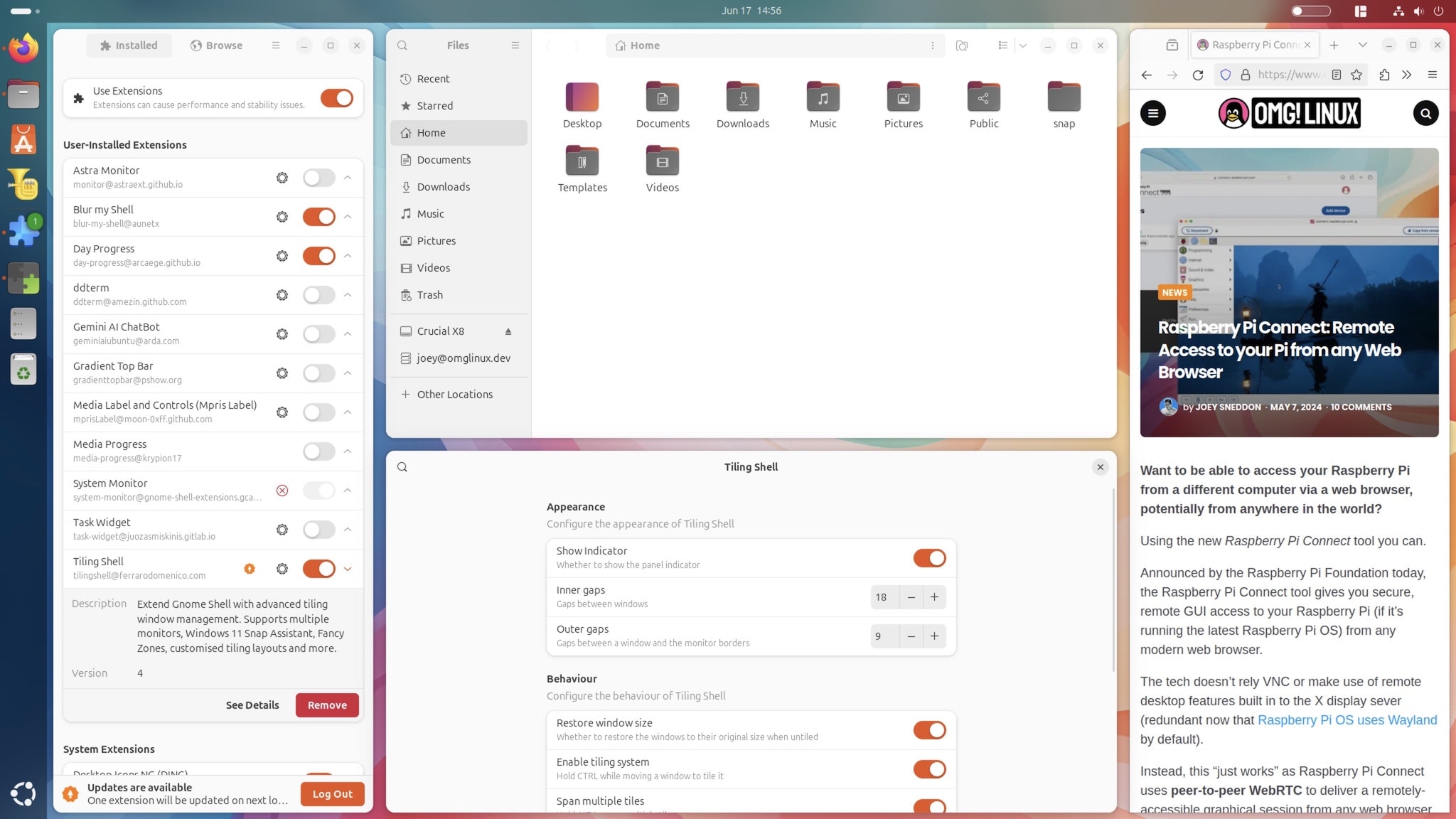
If you’re looking for a more configurable window tiling experience on Ubuntu, look no further than Tiling Shell, a new GNOME Shell extension to turbo-charge window snapping with a host of interactive features.
Ubuntu gained its own ‘enhanced tiling’ capabilities last year, adding the Tiling Assistant GNOME Shell extension to its default desktop install. Out-of-the-box, the distro supports quarter-tiling, horizontal half-tiling, and a tiling prompt which suggests other open apps to snap.
This was a much welcome addition to the Ubuntu desktop as it finally answered a long-standing feature request from users of the distro. No surprise; it’s something I was using daily.
But I’ve now disabled Ubuntu’s Enhanced Tiling features in favour of this extension.
Tiling Shell: Advanced Window Tiling

Tiling Shell does everything Ubuntu’s own tiling add-on does, plus a whole lot more: it’s more advanced, more configurable, and offers different ways of tiling.
It also works with multiple monitors (even if they use different scaling), and comes with a number of tiling layouts built-in, plus a layout editor to allow you to create and save customs layouts.
As efficient as keyboard-driven window tiling is (and it is) I am a mouse-first person. Tiling Shell supports a pointer-led, visual way to snap windows. It gives those who covet keyboard-based window tiling a powerful drag-and-drop alternative.
Tiling Shell’s on-screen Snap Assistant (only visible when you’re moving a window) is the real USP. Using this I’m able to quickly snap windows to a choice of advanced layouts rather than, in the past, snap things to sides/corners and then resize manually.
The Snap Assist slides in from the top of the screen whenever you move a window with your mouse. It’s modelled after the tiling assistant added in Windows 11 last year, but is more configurable since you can add/edit the layouts within in it.
Which brings me to the second compelling feature: the layout editor.
All of the default layouts Tiling Shell offers are editable, but you’re not stuck with them: you can create custom tiling layouts to suit your needs. If you regularly use a specific arrangement simply create a custom layout using the on-screen editor, and save for future use:

A small dialog appears each time you enter the layout editor to remind you how to use it: split tiles horizontally (left click) or vertically (left click + ctrl); resize sections using the handles between then; delete a section by right-clicking on it — remember to save when you’re done!
Tiling Shell also enables you to snap a window to a chosen area within a layout without using the Snap Assistant.
You can tile windows by pressing super and using your keyboard arrow keys. Or, hold the ctrl key when moving a window to see the active layout on screen. Move a window over a zone then drop to ‘snap’ it — simple!
⭐️ You can set which key, ctrl, alt or super , activates tiling mode in the extension’s setting.
Set the active layout (the one keyboard modes tile to) from the panel indicator (or the Snap Assistant drop zone) by clicking on your preferred layout. Next time you use the keyboard shortcuts, tiling will apply to that layout.
Finally, you can resize tiled windows using the handles between sections (this auto-resizes all windows to accommodate), or resize windows using the native window resizing (when you hover over a corner or edge).
Tiling Shell features at-a-glance:
- Snap Assistant drop-zone (can be disabled)
- Advanced tiling layouts
- Create custom layouts using on-screen editor
- Supports window tiling keyboard shortcuts
- Option to set gap size
- Panel indicator applet (can be disabled)
- Export/import custom layouts
- Various settings/options
With Apple (belatedly) adding proper window tiling to its own desktop OS in this year’s macOS Sequoia update, those of us Linux may be feeling smug. After all, we’ve long enjoyed configurable, powerful window snapping features of our own.
But Tiling Shell takes things up a gear.
Install Tiling Shell on Ubuntu
If you pine after keyboard-driven tiling window managers other distros and desktop environments provide, but you don’t wish to abandon your mouse or GNOME Shell, give Tiling Shell a try and see if it offers what you need.
• Get Tiling Shell on GNOME Extensions
I’m eager to know what you think of this extension, so don’t be afraid to share your thoughts and suggestions on how this could be even better down in the comments!