
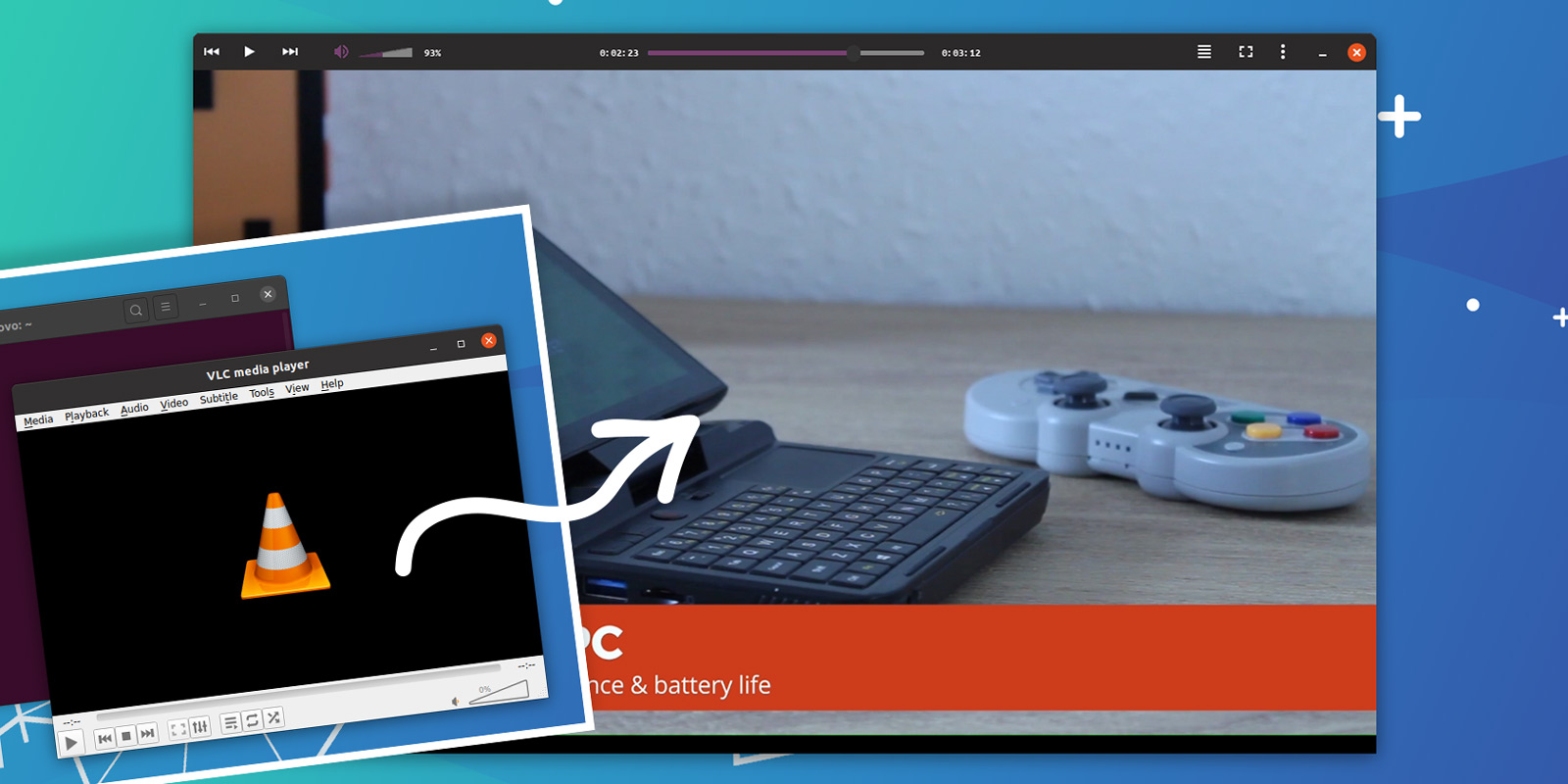

Make the VLC video player look awesome on Ubuntu by using the VLC Yaru Dark skin.
This VLC media player skin is a community creation that tweaks the UI to follow the look and feel of the Ubuntu Yaru theme, making this versatile video app look more in keeping with other Ubuntu apps you run on your system.

Plus, the Yaru Dark VLC theme mimics client-side decoration, moving player controls in the window’s header bar, moves volume and progress bar in-line to streamline the look, and hides repeat and shuffle buttons.
For comparison, here’s what VLC looks like by default in Ubuntu 20.04 LTS:
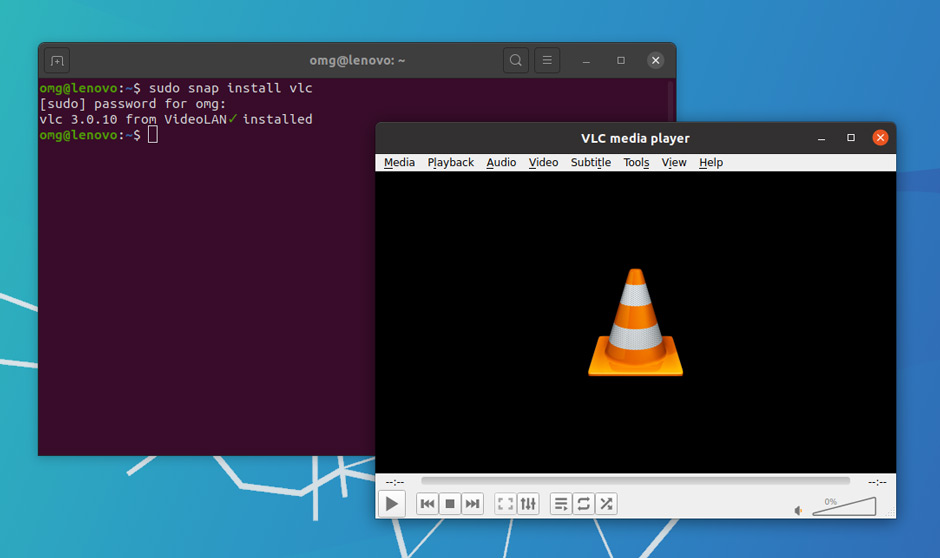
Although the menu bar is hidden by this theme you can still access VLC’s various options, settings, and toggles from the hamburger menu.
This skin also tweaks the full-screen appearance, theming VLC’s on-screen display (OSD) controls using the Yaru colour scheme:
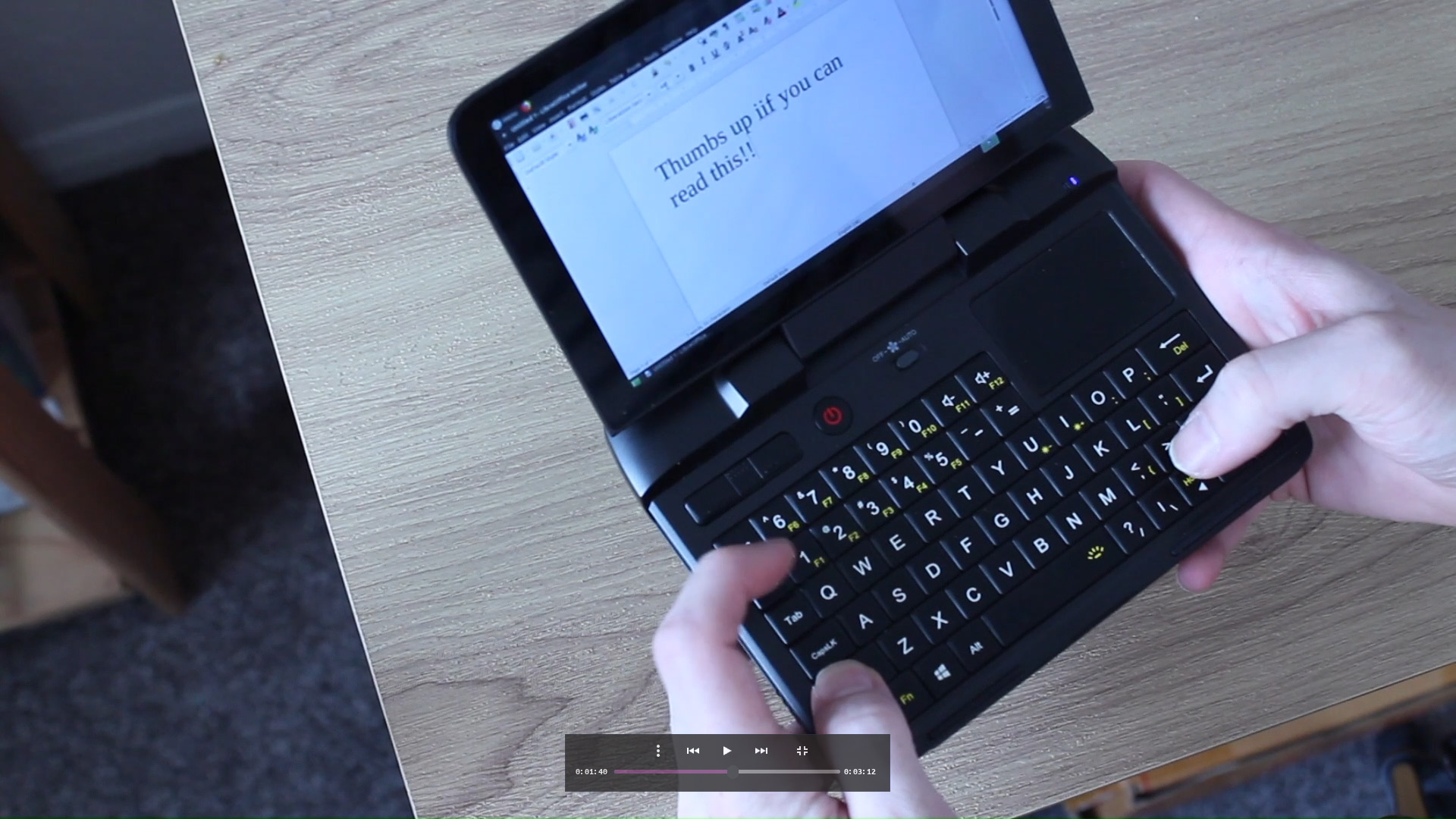
In all, this ace Yaru Dark VLC skin brings changes the look of VLC for the better.
You can download the Yaru Dark VLC skin from Gitlab as a .vlt file
To install this VLC skin download the file above, save it somewhere accessible, then:
- Open VLC
- Go to Preferences > Interface > Use Custom Skin
- Select the
YaruDark.vltfile - Quit and re-open VLC
You can switch back to VLC’s standard look by going to Preferences > Interface and picking the ‘Use native style’ option. Again, quit and restart the player for the change to take effect.
Want to learn more, file a bug, or contribute? You’ll find VLC Yaru Dark on Gitlab.