


I use the humble list (aka ls) command on Ubuntu routinely, but it’s a little lacklustre in the looks-department by default.
But I recently came across a small Ruby gem which “beautifies” the ls command by adding colour and flashy font-awesome icons.
The ls command is one of the top terminal commands every Ubuntu user should know. Type those two little letters into the terminal and it will ‘print’ (display) a list of all files and folders that exist within in the active directory (the folder you’re in).
However, it can tell you more than just file names.
There are various ls flags that let see and/or sort what’s shown by file format, size, date and more. The ls man page has full details on you what you can do using this command.
I mention all of that because, sadly, not all of the advanced options work with colorls – so keep that in mind!
Colorls for Bash
Colorls is the name of the script that prettifies ls output with pop of colour and some neat icons.
If you use it alongside other command line customisation tools, like Oh my zsh and the powerlevel9k theme, you can easily create a slick terminal setup like this one:
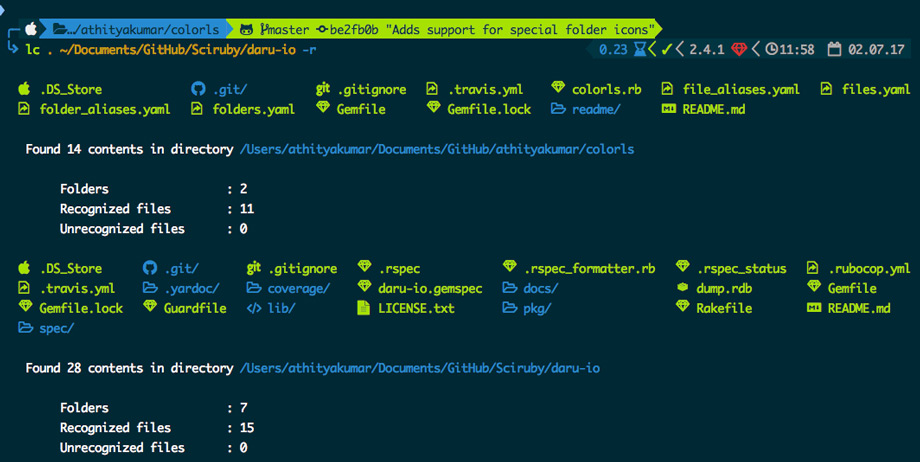
Yes, I know: this is utterly trivial. But triviality is the point here – a bit of Bash bling, nothing that transforms the way you use the terminal. Does make it nicer to gawk at, though.
Install Colorls on Ubuntu
Like what you see and want to add colorls to your system? Great!
You need to install a few of things to get going: Ruby, the colorls Ruby Gem, and a modified font packed full of the glyphs.
Step one: Install Ruby (and its dependencies) from the Ubuntu repos:
sudo apt install ruby ruby-dev ruby-colorize
Step two: Download and install a patched version of your desired terminal font from Nerd Fonts.
Nerd Fonts is project that patches some popular fonts with an impressive amount of of glyphs and emoji. A patched version of Ubuntu Mono (the default terminal font on Ubuntu) is available, as are many others, including Roboto and Powerline.
Once your chosen font is installed, set it as your custom font using in your terminal of choice. If you’re using Ubuntu’s default that’s via the Edit > Profile Preferences > General pane:
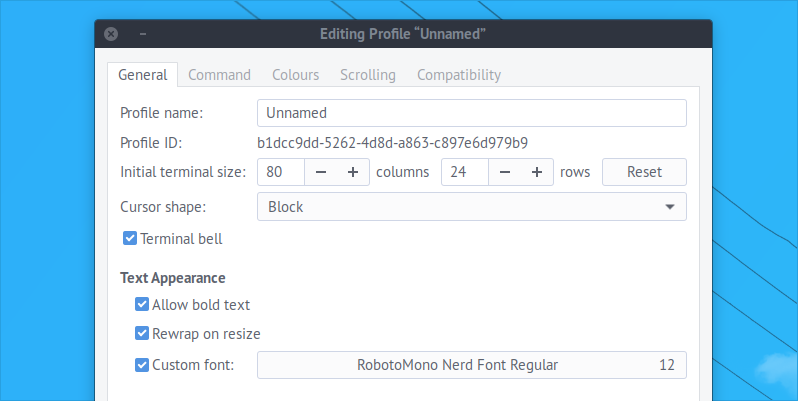
Step Three: Install the Colorls Ruby gem from the command line:
sudo gem install colorls
Ket the Gem download and build, then run the colorls command.
Colorls’ developers suggest you add a terminal alias for the tool, specifically ‘lc‘ (if you’re not a Mono developer, this shouldn’t conflict with anything else).
To create the terminal alias modify the .bashrc file(s) and add alias lc='colorls'.
Now when you run ‘lc‘ you see a display of colorful information:
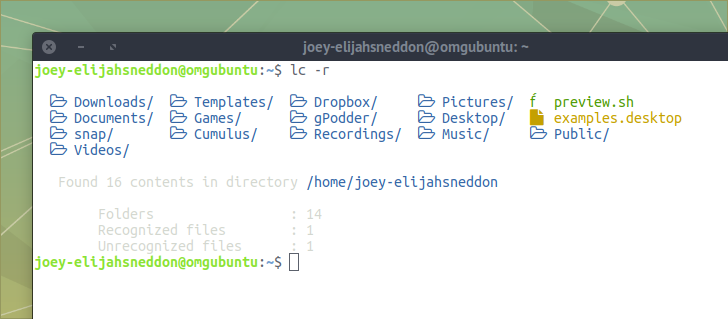
A few useful commands/options to use:
- Run
lc -rto show a readable ‘report’ on the number of files and folders in the specified folder(s). - Add
--sort-dirsor-sd/--sort-filesor-sfto sort by directories or files first - Use
--dirsor-d/--filesor-ffilters entries to show only directories or files - Adding
-1display all everything in a single column
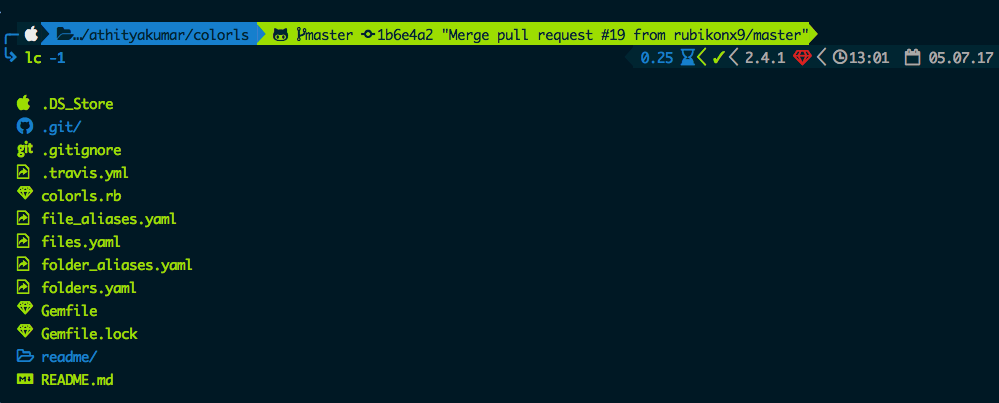
And that’s it!
Let me know if you try this out by leaving a comment. Want to see more command-line tips and tricks? Well, you can let me that too!