
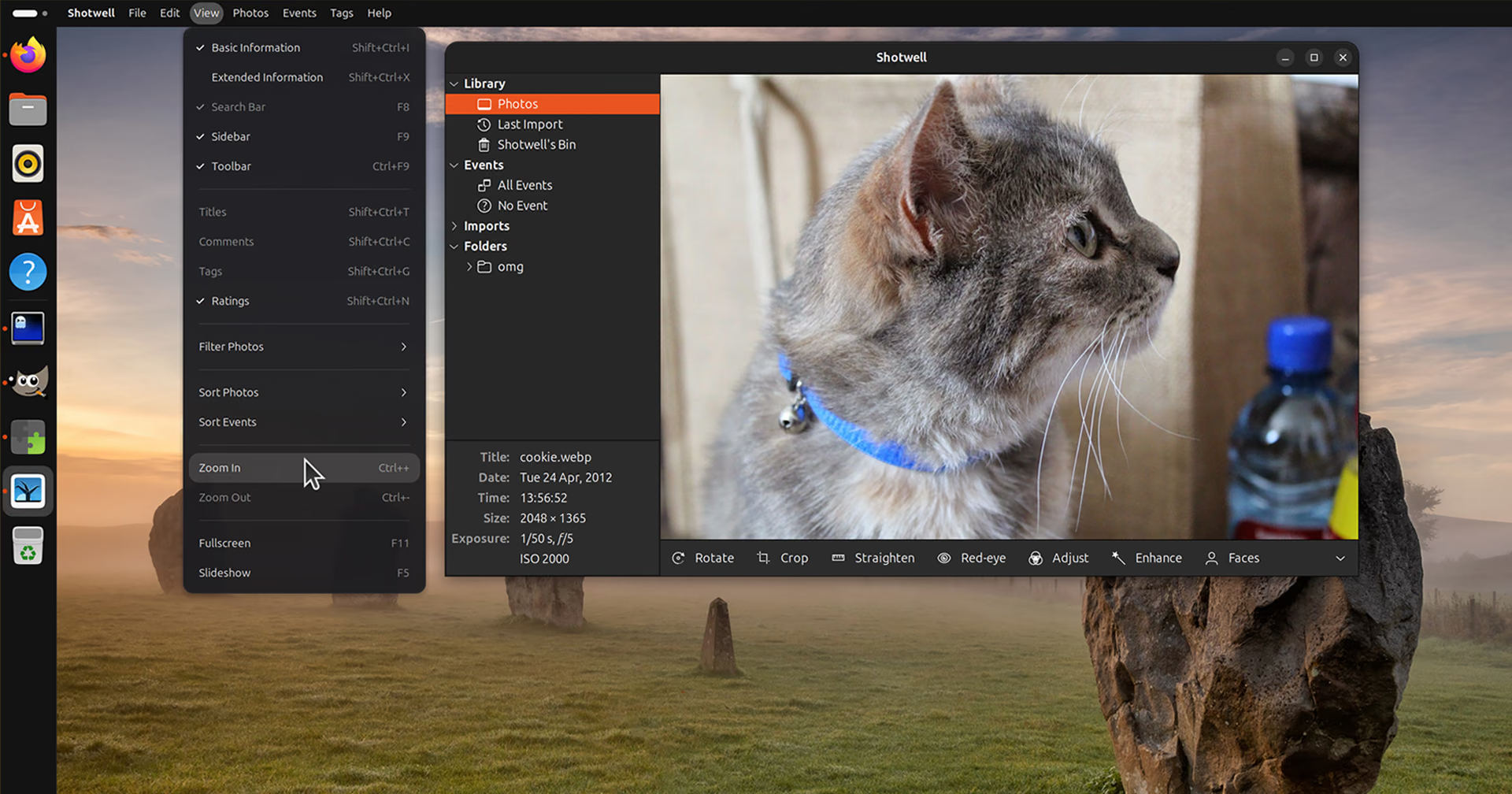

A new global menu extension for GNOME Shell was released this week, and unlike ones you may might tried (and given up on) in the past, this one seems to work well.
Earlier global menu efforts have been scuppered by Wayland, API changes and the fact that many modern Linux apps no longer ‘export’ menus, leaving the top panel empty for most apps.
This one has menus for 292 well-known app and, by installing an optional companion tool, allows apps like GIMP and Shotwell to display their full apps menus too.
For more than 290 well-known applications, ones which don’t expose traditional app menus on Linux (or on Wayland), the extension creates a menu using the app’s documented keyboard shortcuts:
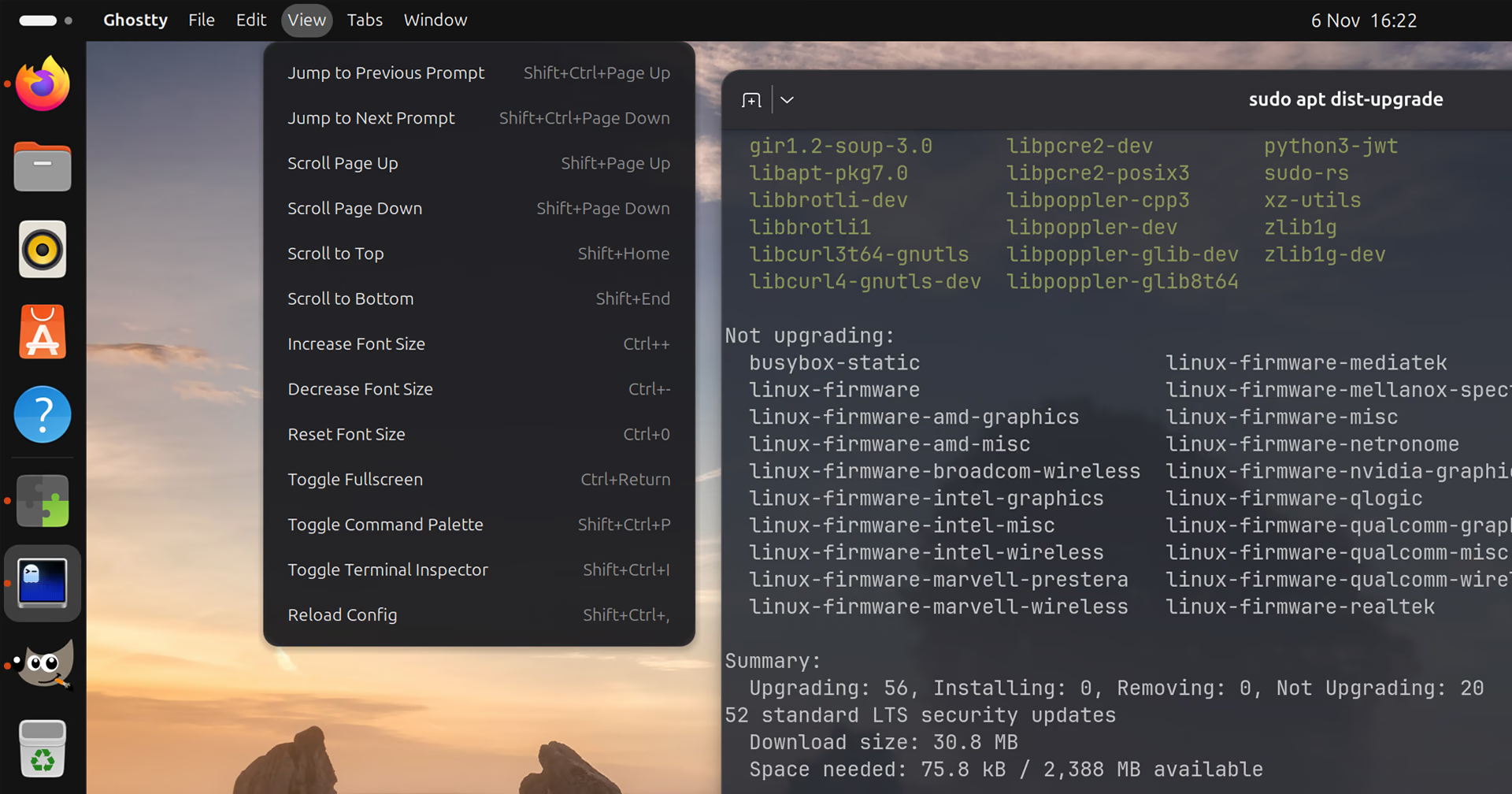
This is a really clever approach, as it doesn’t matter what kind of app it is (yup, even, retch, Electron): if the app has keyboard shortcuts for key actions, they can be exposed in menus and triggered with a click.
For software that does have a traditional app menu (and exports it over Dbus), there is an optional companion daemon package you can install. This sends the real, full app menu through to the global menu (and, where able, removes the menu from the app).
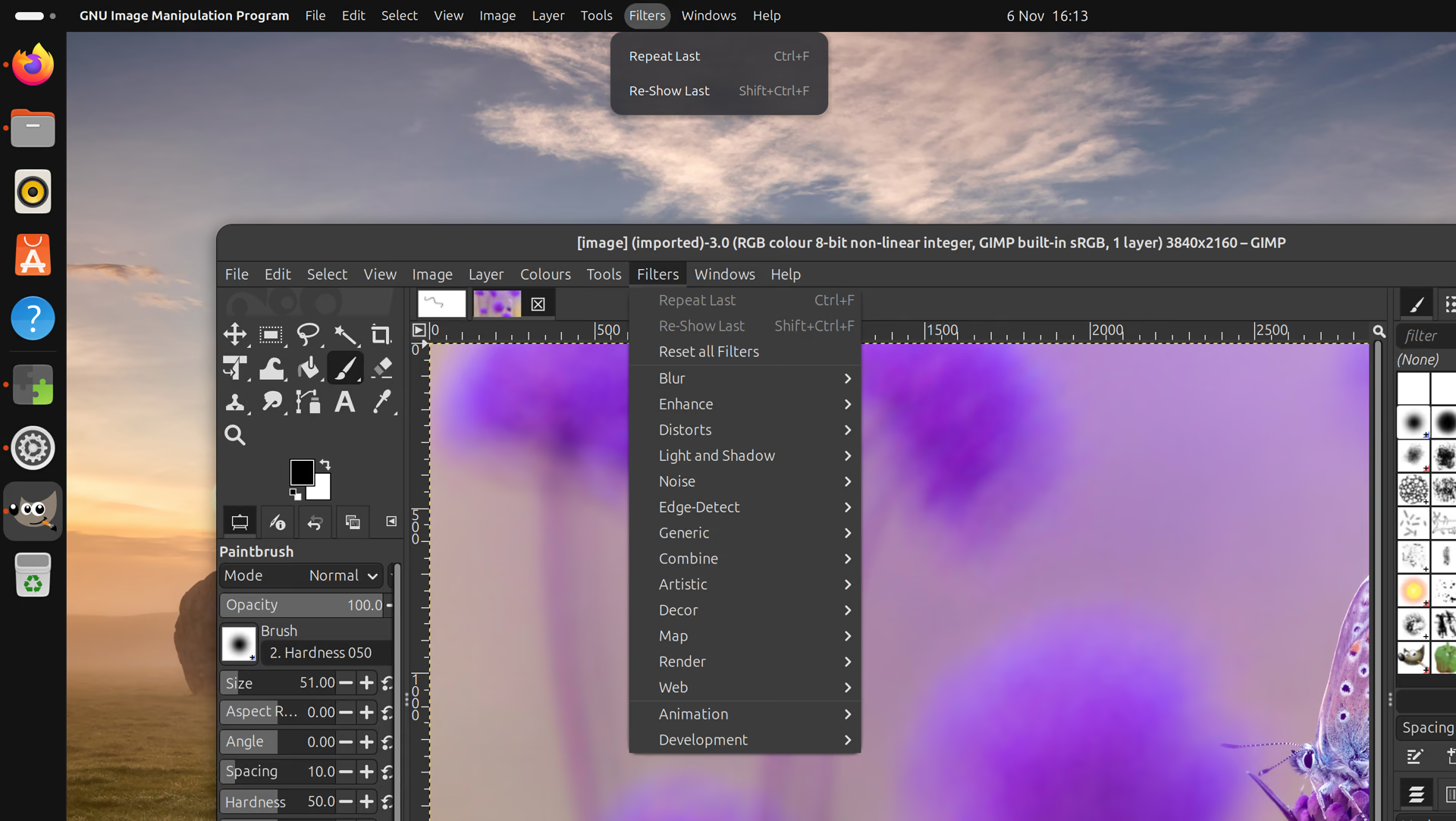
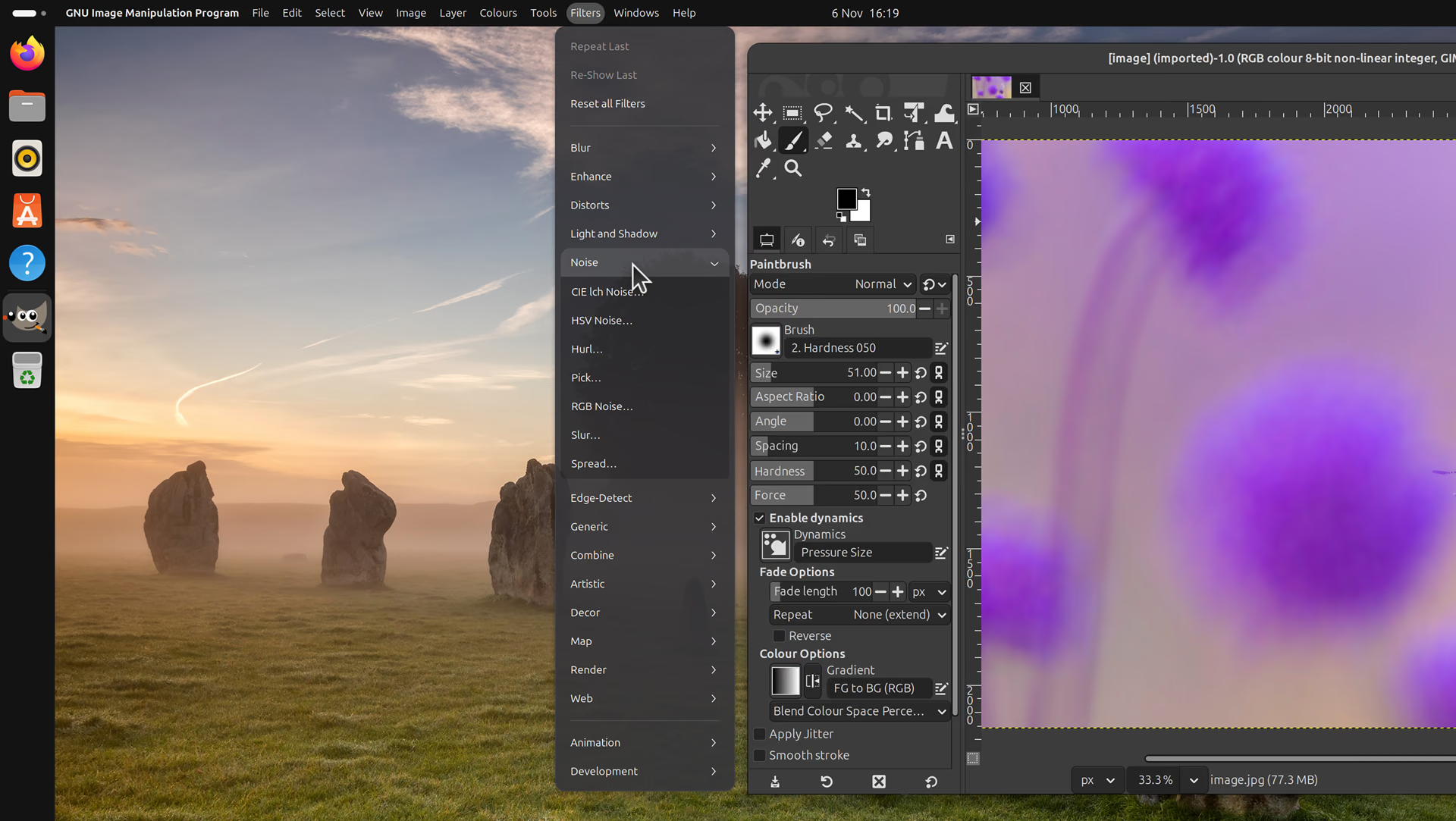
For software like Shotwell & GIMP you can see how the approach differs when the companion is installed versus without. The latter offers the full menu, with real-time insensitive (greyed out; non-selectable) actions based on what you’re doing.
See the difference between the two approach in these images:
The companion tool has to be built from source. On Ubuntu that’s not as hard as it sounds. Run this block of code, hit y where needed and it will do the hard work for you – you must log out and back in after for the companion to be loaded.
sudo apt install git make python3-setuptools
git clone https://github.com/Unmade760/orbit-global-menu.git
cd orbit-global-menu
make build
sudo apt install ./global-menu_*.deb
Even with the companion, things aren’t perfect; some apps, like Firefox, need a tweak before they show their full menu. The project’s setup guide covers the how and why of doing that – for a complete experience, it’s worth doing.
Finally, if a focused app isn’t covered by either approach, it doesn’t leave you with a blank panel as it’s covered by simple window, workspace and session actions.
Menus use opaque backgrounds by default (there’s a blur option, but it only worked for me with Blur My Shell enabled), and the workspace switcher pips vanish from the top bar when this is active, but you choose to show them.
The focused app title appears in bold, but can be shown in regular font weight or hidden entirely.
You can view and edit the 292 modern menus the extension comes with via the settings panel, if you fancy it. It’s also possible to create your shortcut mappings to provide fuller menus for ones not covered (expect coverage to expand with future updates).
Install Global Menu on Ubuntu
Global Menu supports GNOME 48 – 51, so if you’re on Ubuntu 26.04 LTS or later, you can try it out. Use it to relieve your memories of Ubuntu’s Unity desktop (which added a global menu in 2011).
Remember: for full apps menus, you do need to install the companion daemon. I had no issues with it on Ubuntu 26.10.
Try it out and let me know what you think – now, if only someone would resurrect the HUD…