


Mission Center, the fancy (and yes, a little Windows-y inspired) GTK4/libadwaita system monitoring tool for Linux has been updated.
For those unfamiliar with it, Mission Center makes it easy to check your CPU, Memory, Disk, Network and GPU usage, get an overview of running processes and track their resource usage, and manage system services – all from the one app.
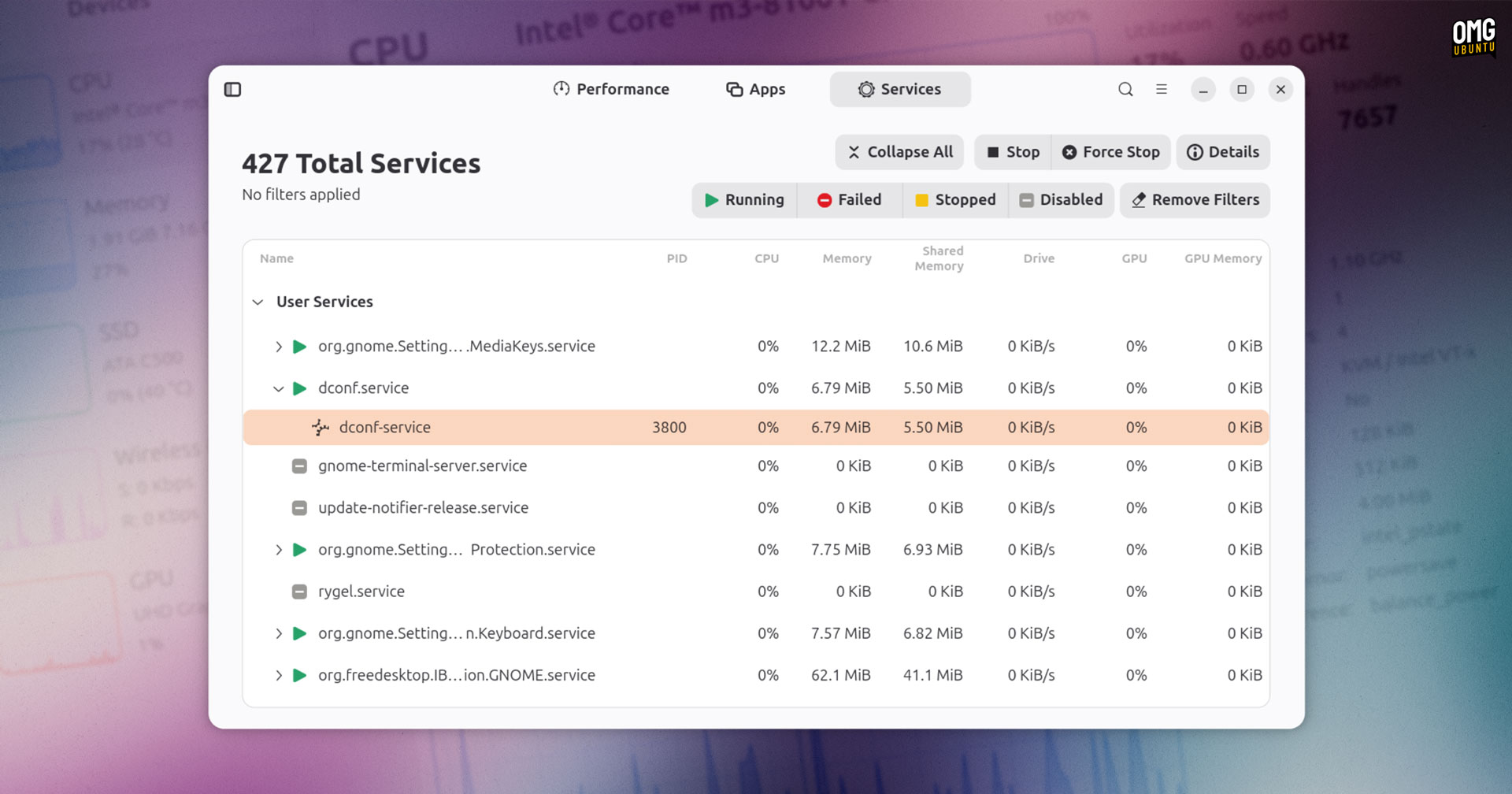
In Mission Center 1.1, the Services page has been overhauled. It now lets you see child processes and user services, and filter services based on status (e.g., stopped, failed, running, etc) with the main column view updating quickly.
The new backend “shares a LOT with the apps page” per its developers. It also benefits from a batch of bug fixes and performance improvements that ought to mean better performance when running than in earlier builds.
In the Apps tab you can now right-click on a process and send an OS-level signal to it. Options are: STOP, CONT, HUP, INT, TERM, KILL, USR1 or USR2.
Tons of detail on system hardware components and capabilities are shown in Mission Center, from CPU cache size and RAM form factor to dGPU PCIe speed. All very handy, but what about info on the underlying OS itself?
To save needing to open a different app (or using Fastfetch in a terminal), Mission Center now includes an About System dialog showing details on package manager and version, kernel release number and version, and desktop environment:
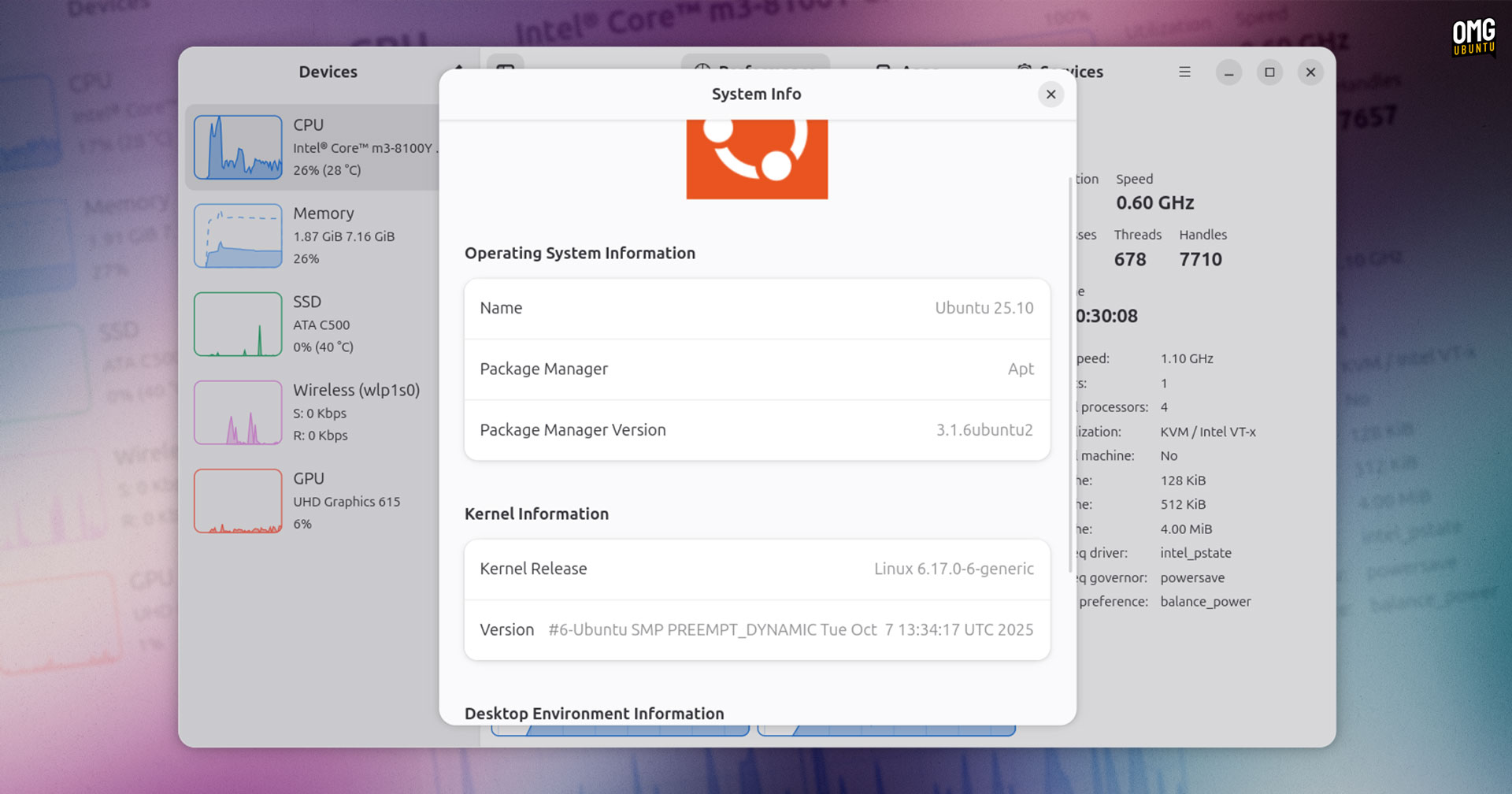
Mission Center’s developers describe this as the ‘first iteration’, so it sounds like we can expect to see the dialog populated with additional system info in future updates, making it more useful on more systems.
Other changes and adjustments bundled in the new version include:
- Reduced CPU usage when fetching and updating data
- Displays CPU power draw (where supported)
- Fan backend and configurations improved
- SMART temps of 0 Kelvin now ignored
- GPU value reading made more robust
- Snap packaging fixes
In all, this is another solid update to an already capable system monitor. This is one of my favourite desktop Linux apps — not because I need to use it often, but because it’s so nice to look at I find myself wanting to use it often!
Install Mission Center on Ubuntu
Mission Center is free, open-source software available for most major Linux distributions.
You can install the latest release of Mission Center from Flathub on most Linux distributions, while those who prefer a portable format can download an AppImage (including for ARM devices) via the releases page on the Mission Center Gitlab.
If you use Ubuntu you can install the Mission Center Snap through the desktop App Center or from your terminal by running:
sudo snap install mission-center
However, at the time of writing do be aware that Snap build is NOT yet at v1.1. It should arrive soon, and if you have the snap installed you’ll get that update (once it’s out) automatically in the background. It’s now available.