


A number of AI-powered developer tools are available on Linux, from the Warp terminal emulator to Kiro, the Amazon-backed ‘agentic’ IDE.
Google takes a different tack. Rather than offering a standalone app it offers Gemini CLI as a free, open-source tool for accessing its LLM chatbot from any modern-ish terminal emulator on Linux (or macOS or Windows – it’s not a Linux exclusive).
Gemini CLI does most of what regular Gemini does, but from the command line. It can even interact with your system directly, read and edit files and run commands (which could be useful for assistive debugging or a vector for calamity, fear-level dependant).
And yes: if your well of creativity has run dry, you could use the Gemini CLI to dilute the web with more derivative slop and drown out genuine human efforts.Or contract a mental health issue, or make a spiffy app with hokey code you don’t understand.
What can the Gemini CLI do?
Google says Gemini CLI “excels at coding” but was built to be a versatile, local utility applicable to all kinds of tasks. Some of the more interesting claims include the ability to:
- Query and edit large codebases
- Generate apps from PDFs or sketches using multimodal capabilities
- Automate tasks, like checking pull requests or undertaking rebases
- Ground queries with Google Search, which is built into Gemini
You can use Gemini CLI for free, albeit with a catch You’re limited to 100 requests per day (RPD) Gemini and 5 requests per minute (RPM) on the Gemini 2.5 Pro model. If you go over those rate limits it’ll bump you down to a less capable but rate-friendly model.
Which means if plan on using this on the free tier for anything overtly complex that relies on a lot of rapid queries in a short window, you may find you need a paid plan.
There is a Terms of Service and Privacy Policy to keep in mind if you want to use this. Using it with local files, which may contain sensitive personal information is, obviously, a risk.
Installing Gemini CLI on Ubuntu
Here’s where things get wordy.
Gemini CLI is distributed as Node package. It requires Node.js version 20.x or higher to run. Ubuntu 24.04 LTS ships with Node.js 18.
To run Gemini CLI on Ubuntu 24.04 you will need to upgrade Node. NodeSource makes it easy to do this via an APT repo you can add to your system. But not everyone likes the idea of giving third-party projects root access to their system, so keep that in mind.
If you’re on Ubuntu 25.04 or later (or you choose to upgrade Node to a new version on Ubuntu 24.04 per the guide linked above), here’s what to do:
Step 1: Install Node and NPM, the Node Package Manager if you haven’t already. This will pull in a moderate amount of (not massive) dependencies, so be warned:
sudo apt install nodejs npm
Step 2: Install Gemini CLI using npx (this runs Node packages without you needing to install them globally, thereby avoiding any need for root privileges):
npx https://github.com/google-gemini/gemini-cli
On Ubuntu, the npx command will complete silently, so you may wonder if anything happened at all!
Once installed this way, Google says you can run gemini to launch the command line tool in any terminal emulator on your system, anytime you need it.
However, on Ubuntu, the plain gemini command won’t work if you install as above, for reasons Google do not consider an issue.
Instead, you’ll need to run npx @google/gemini-cli each time. Less memorable, I know. You can install it globally through npm with root privileges1, but… Eh, I didn’t fancy doing that – and I’d wager you don’t either.
The basics in using Gemini CLI

The first time you run Gemini CLI you will be asked to sign in with your Google account (you don’t need any kind of special Gemini or Vertex subscription to do it – any Google account will work). This generates a link in the terminal; click it, authenticate in your browser, the CLI will be logged in.
It’s best practice to cd into a project directory before you run the Gemini. CLI Then you can start giving it tasks relevant to what’s inside.
For example, if you cd into a Git repo you could launch Gemini CLI to tell it to “generate a summary of all of the changes from yesterday”, “convert the entire codebase to Python”, or any other other code-related tasks.
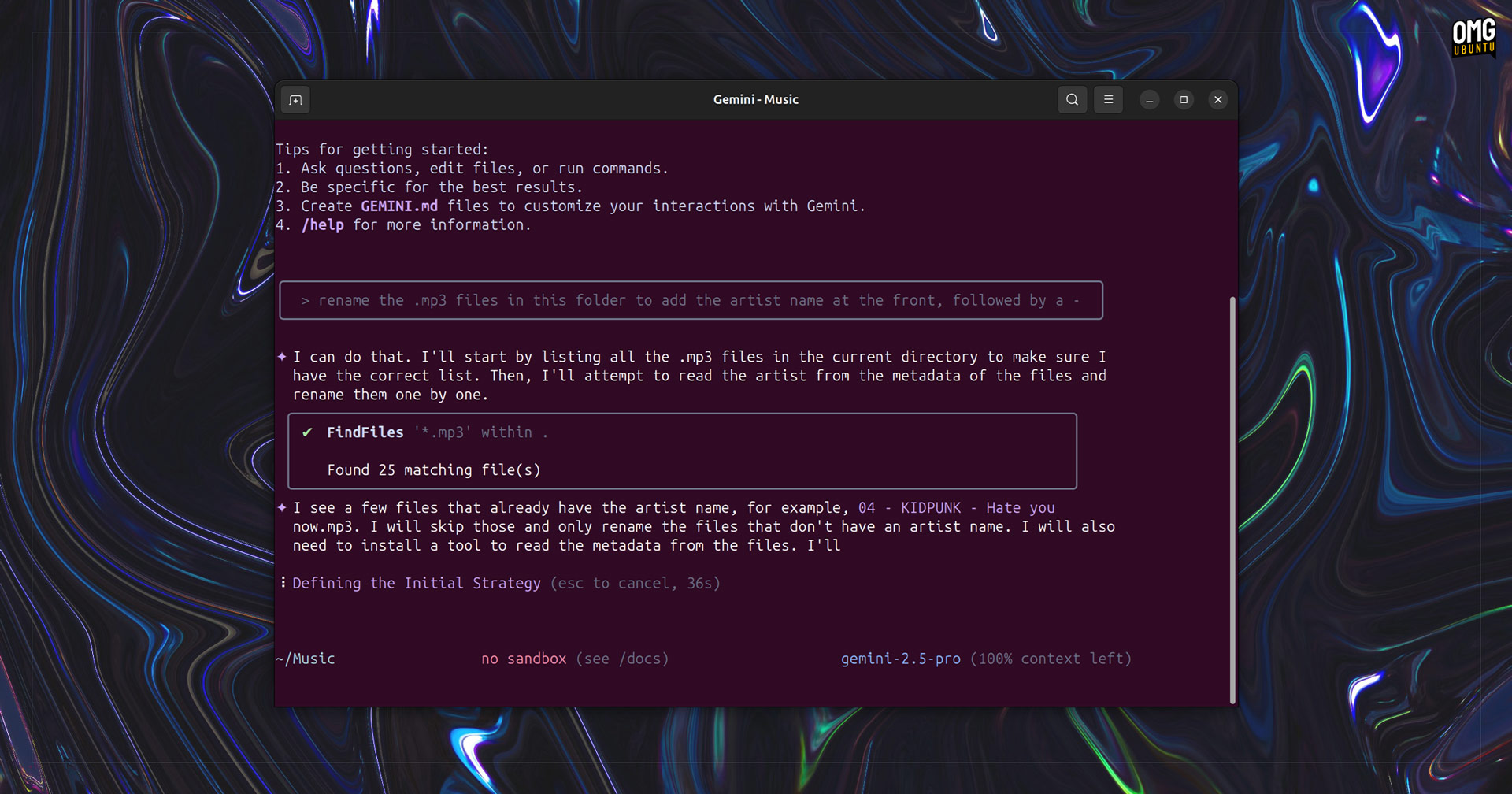
But it’s not just coding this is useful for. Let’s say you cd into a folder full of images, you could run Gemini CLI and ask it to “convert all the images in this directory to png, and rename them using dates from the exif date”.
Should a task require Gemini CLI to do something, like install a package, access a different folder, or edit a file, you’ll be prompted to allow it. You can do this once, or give it ongoing permission.
It can do more beyond that (I’m not being super imaginative), and there are nifty ‘slash commands‘ you can use to refine (or pummel) Gemini into working your way, and hook up custom commands that it (or you) can run to automate away common actions.
One good command is /compress. This can help reduce the input size sent to the language model, which is helpful in preserving ‘tokens’. If you’re working with with large files or an ongoing task, that will help you stay within free-tier limits.
Is Gemini CLI worth using?
I’m not here to tell you (or anyone) that Gemini CLI is some miracle product you “must” use. I’m a blogger, not a YouTuber. Like any software I spotlight, I do so to inform: let you know what’s out there, so you know your options.
Compared to IDE-based AI tools, Gemini CLI is mildly more interesting to me since it lives in the same terminal I use for everything else. Being able to run it in a directory to work directly, a ‘context’ that web UIs can’t match, is tempting.
But AI is not a magic wand, it’s a utility.
Developers already using Gemini in a web browser for code-related tasks may find having the AI assistant available in their terminal, able to access and amend local files a time saver.
Others… Would probably rather not invite the AI monster in to their closet.
- Run
npm install -g @google/gemini-cli– it’ll error withoutsudofirst, though. ↩︎