


Did you know it’s possible to use an iPad (or an Android tablet) as an external monitor on Ubuntu?
I don’t mean simply mirror your desktop to your tablet either, but use its screen to extend your laptop or PC desktop, much like a real external monitor that physically connected by a cable.
I recently found this feature was available, but hidden, in Ubuntu, thanks to a casual comment I saw on Reddit while searching for something else.
Naturally, I had to try it out for myself.
I have wanted to use my tablet as a second screen to my Ubuntu laptop for ages. Not out of a real need (but it is handy), more the satisfaction of knowing that “anything Apple can do…” Linux can do too.
Good news: this feature works well, and is easy to set up in Ubuntu. If you’re curious about it works in action you can hit play on the (hastily recorded) video embed below:
Pretty cool, right?
We need to thank the developers working on GNOME for making this possible.
Among the new features in GNOME 42 were backend tweaks to the Remote Desktop Protocol (RDP), plus a glut of screen-sharing changes which make it possible to extend the desktop to a virtual monitor.
Latency is always a big issue with RDP, which is notoriously laggy since you’re connecting through the internet. To offset the lag issues, GNOME gains frame-tracking and enhanced hardware acceleration for RDP connections.
The feature remains network dependant so don’t expect flawless fluidity if you’re using it on a poor or slow connection, but the changes made offer a smooth, usable experience for simple tasks.
In a nutshell, any Linux distro with GNOME 42 (or later) can use a RDP-supported device (e.g., Android tablet, iPad, or even another computer) as an external monitor, similar to Apple’s SideCar feature (which lets macOS lets users extend their desktop to an iPad screen wirelessly).
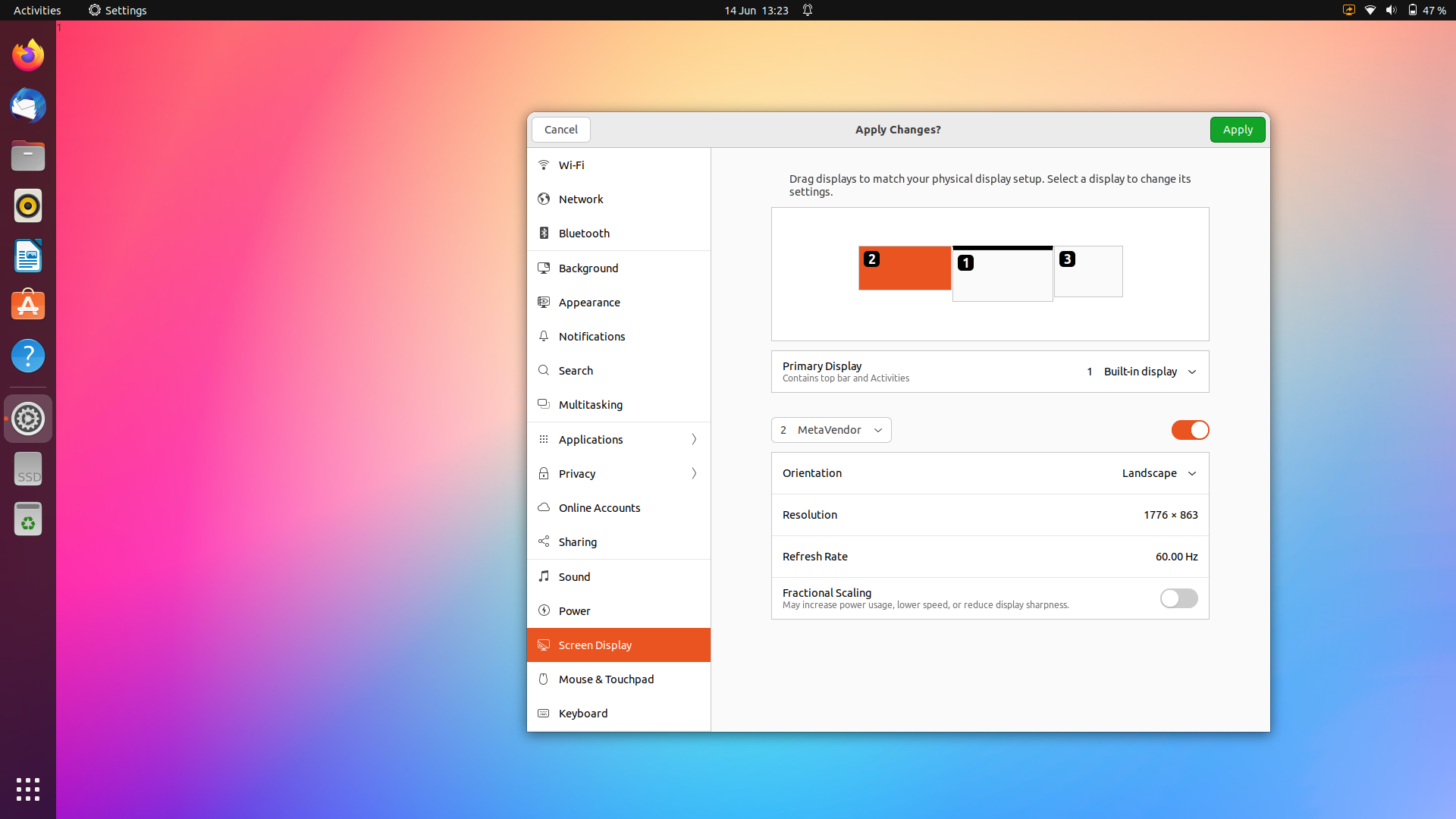
Virtual monitors behave exactly like a real monitor connected by a cable to your laptop or PC. Reposition virtual monitors from the Settings > Display panel just like physical one, and set the virtual monitor screen resolution independent of your main display.
This kind of feature is not new new (it’s been possible to use a tablet as an external monitor for a while, even on Linux), what is new is that all of relevant pieces to make this work are now baked into GNOME desktop and so available on Ubuntu.
Ergo, it’s deliciously easy to set-up — let’s look at how.
Enable Virtual Monitors in GNOME
If you want to try this out, you can do so if you’re using Ubuntu 22.04 LTS or later (or a different Linux distribution based on GNOME 42 or later) since the backend pieces to support virtual monitors in GNOME are not present in earlier versions of the desktop.
I tested this in an Ubuntu Wayland session but it will work with legacy X11/Xorg too.
Step 1: Open a Terminal window and run this command: –
gsettings set org.gnome.desktop.remote-desktop.rdp screen-share-mode extend
This command is required. It enables extendable virtual monitors over RDP.
For now, there’s no GUI toggle as the feature is still considered “experimental” — i.e., not polished enough for the masses to make use of. But I’ve used it for a while and it works well, just be aware your milage might vary.
Step 2: Enable Remote Desktop sharing in GNOME, in the following way:
- On Ubuntu 22.04 LTS go to Settings > Sharing and turn on Sharing. Then, when the option appears, turn on Remote Desktop. Set a username and password to enable you to securely connect from your tablet/phone.
- On Ubuntu 24.04 LTS go to Settings > System and click on the Remote Desktop entry. On the page that slides in (make sure Desktop Sharing tab is selected) turn on Desktop Sharing. Set up a username and password.
Step 3: Install an RDP client app on your tablet or smartphone, then use the app to connect to your Ubuntu desktop.
I use Microsoft’s free Remote Desktop Mobile (available for Android and iOS) to connect to Ubuntu from my iPad. I enter my IP1 address, the username and password I set above, and click ‘connect’. It takes a second or so to connect.
Other RDP apps may need/ask for other information too, like a computer hostname or port number. In Ubuntu 24.04 LTS both of those details are shown in the Remote Desktop sharing page in the Settings app, so note them down if needed.
Step 4: When connected to your desktop through an RDP app go back to your Ubuntu laptop or PC and open Settings > Display. Reposition your virtual monitor, set a screen resolution, and apply any other adjustments (if needed) to perfect the setup.
Multi-monitor behaviours you’ve tweaked elsewhere (e.g., ‘show dock on all monitors’) are respected by your virtual monitors, which is handy.
That’s it; you can now use your tablet or iPad as an external monitor!
Caveats to using your tablet as a monitor
Virtual monitors over RDP is a cool features, but keep in mind that RDP is a slow protocol in general.
Even on world’s fastest internet connection, the “speed” will never be fast enough to enable you to use your iPad as a playback monitor when editing video, nor gaming due to the aforementioned frame rate/lag issues.
Also, this feature lets you use your tablet as a virtual monitor, but it is not an input device. You can’t touch your tablet to interact with Ubuntu apps or the desktop UI, or use additional input, like an Apple Pencil or stylus, to interact with apps.
Finally, when you’re not using RDP to connect to your tablet I recommend turning it off (in the Settings app). It’s unlikely anyone nearby would be able to access your computer without your knowledge, but a bit of risk reduction never hurts.
Let me know what you think of this!
- To find your IP in Ubuntu go to Settings > Network, click the cog icon next to the active network, and find your IP in the ‘Details’ pane. ↩︎