


I asked Santa Claus for a new microphone so I can improve the quality of voice-overs in OMG! Ubuntu YouTube videos.
And whaddya know: the famous white-bearded one (no, not Gandalf!) kindly obliged, stuffing a Blue Yeti microphone under my (mum’s) xmas tree.
But does this multi-pattern USB condenser microphone work with Linux?
Thumbing through the official documentation while my veggie Turkey got cold, I only saw Windows and Mac OS X compatibility listed. Linux isn’t mentioned at all…
But fret not, it’s just a USB-powered microphone, and getting it configured on Ubuntu was painless.
Using the Blue Yeti Mic with Ubuntu
- First step is to connect the microphone to your PC via the USB cable
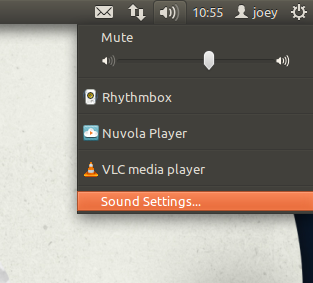
- Open ‘Sound Settings‘ option present in the Ubuntu Sound Menu
- Select the ‘input’ tab from the Sound Settings window
- Under the section headed ‘Choose a device for sound input’ select ‘Yeti Stereo Microphone’
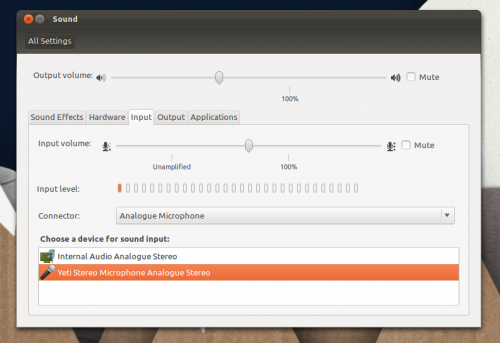
Your Yeti is now set-up for recording. To test how well its working, and whether you need to adjust the gain on the microphone, use the ‘Sound Recorder’ application that ships with Ubuntu by default.

Lastly, and this step is optional, to enable use of the external headphones jack on the Yeti repeat the above steps but choose ‘the output’ tab and select the Yeti option.
When sound is set to output via the Yeti it will not output through your computer’s sound card and speakers.
If don’t want to be wearing headphones to hear yourself, you can set output to your computer, but be aware that depending on your setup the microphone may be able to hear itself, resulting in feedback or echoing.