


Want to run a web app, like Google Tasks, on your Ubuntu desktop, complete with all the features the online version has? Well, you can — using Mozilla Prism.
Mozilla Prism allows websites to be launched from the desktop, and run in their own separate window that is configured differently to the main Firefox web browser.
Most people refer to the as ‘web apps’, but Mozilla prefer to call them ‘single site browsers’ (SSBs) since that is what they are.
A standalone Mozilla Prism package is available to install on Ubuntu from the regular software repo:
sudo apt-get install prism
However, I suggest you use the Mozilla Prism Firefox Add-On instead (you’ll see why in a bit):
You can install it from the Mozilla Add-Ons repository in any recent version of Firefox by heading to https://addons.mozilla.org/en-US/firefox/addon/6665 and clicking the add to Firefox button.
Configure Mozilla Prism for Google Tasks
In this example I am working with Google Tasks, but any valid web app URL will work. Once you have installed the required tools, the next step is go to the following web address in Firefox:
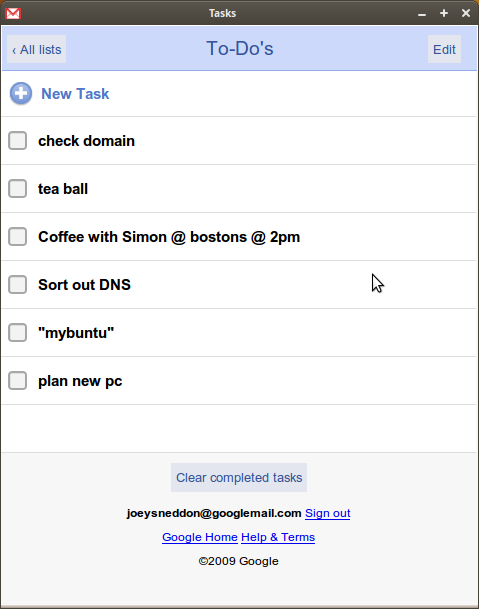
- http://mail.google.com/tasks/ig
There is also nicer (but larger) version of Google Tasks designed for Android:
- http://mail.google.com/tasks/android
If you installed the Prism Add-On you can go to tools > Convert Website To Application in Firefox to er, Prism-ify the Tasks web app in a click or two.
If you installed the standalone Prism runtime, open Prism from the Applications Menu, and enter one of the above addresses in the URL field shown in the Prism app interface.
Google Tasks works best if you leave all of the navigation/status/etc options unchecked.
Finally, click ‘Install Shortcut On Desktop’.
The reasons why recommended the Prism Add-on over the standalone app? Icons.
The add-on gives you the option to change the icon used for a Prism app. You can leave the icon as it is (it will be pixelated, as it’s the website favicon – as Google Tasks is part of Gmail, you get a Gmail icon:

But the add-on approach allows you can set your own app icon. For Google Tasks, I use the this one:

No matter which approach you use to create the web app, a launcher for it will be added to your desktop. Double-click it this and mark it as trusted and then the icon will show.
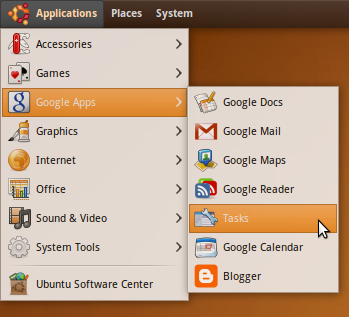
You can move the icon anywhere you like! I moved my shortcut to a special folder, and then created a Google Apps entry in the Ubuntu Applications menu, which houses links to all my Prism web apps:
Don’t use Firefox?
Mozilla Prism is handy, but it is based on Firefox. If you don’t use Firefox, but Google Chrome/Chromium, you can create web app shortcuts too — and it’s much easier than with Prism. You just need to click on the “create application shortcut” button in the control menu.
Chrome doesn’t give you an option to change the icon, but this is simple enough to do yourself. Just right click the app shortcut, go to properties, click on the icon and choose a new one!

There are big differences between using Chrome or Firefox to make shortcuts – it’s purely down to which browser you use.
That said, any extensions used in Chrome will also work in Chrome Shortcut Apps unlike Prism apps, which can’t. (E.g., any adblockers, userstyles, and so on).