

Along with the recently covered design changes set to arrive in Ubuntu 13.04 came some changes to the look of the Unity launcher.
These small updates change the shape and icon of the dash home button (colloquially termed “BFB”) and tweak the look of Unity’s launcher tiles.
Now, if you’re one of those folks who just can’t wait to get the latest thing I’ve created a simple little guide for you to follow to install these new-look ‘assets’ in Ubuntu.
How To Install New Unity Design Assests
First download the modified assets, which I’ve archived in the following file:
Extract the contents of the archive and copy and replace (as root) all the items in resultant folder to “/usr/share/unity/6” and to do this via the command line:
cd <location of download>/raring-launcher-assets/
sudo cp -r * /usr/share/unity/6
For the changes to take effect, you need only log out then back in.
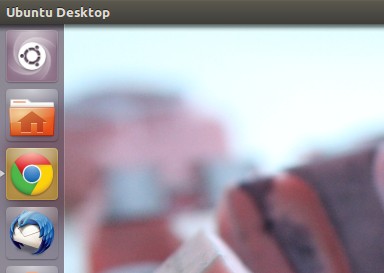
To undo changes or revert to default just reinstall the “unity-common” package through the Ubuntu Software Center or by running the following command:
sudo apt-get install --reinstall unity-common