

If you want to install Discord on Ubuntu or Linux Mint you’re in good company: the popularity of this messaging platform is at an all-time high – for 2 simple reasons: it’s free, and it’s good!

In this guide I show how to install Discord on Ubuntu 22.04 LTS and above using the official Linux client, which is free (but not open-source) software.
I show you how to install the official Discord snap app from the Canonical Snap Store, as well as how to download the official Discord Linux DEB package or install the Flatpak build.
Regardless of the way you choose to install it, you get the same official version of Discord, with most of the same features and core functionality available to those on Windows and macOS.
Discord’s desktop app lets you:
- Sign up/create a new account
- Create a Discord channel or server
- Join public and private channels and servers
- Send messages, gifs, files, and media
- Share your screen with friends/channels
- Take part in audio chats
Plus a fair bit more.
What is Discord?
Discord bills itself as an “all-in-one voice and text chat for gamers”. It’s free, secure, and works on desktop and phone devices.
Don’t be put off if you’re not a gamer as the service is also hugely popular with non-gamers too. In fact, all of the Discord channels I’m a member of have nothing to do with gaming!
Indeed, a growing number of Linux projects maintain Discord channels where people can chat and discuss the project, provide/offer support, and organise development.
What makes Discord so fun is that it’s incredibly versatile. It can be what you need it to be; you can make your own private Discord server for you and your friends or join public/popular channels; you can add chat bots, chat with people in real time using text or audio, share memes, gifs, and more.
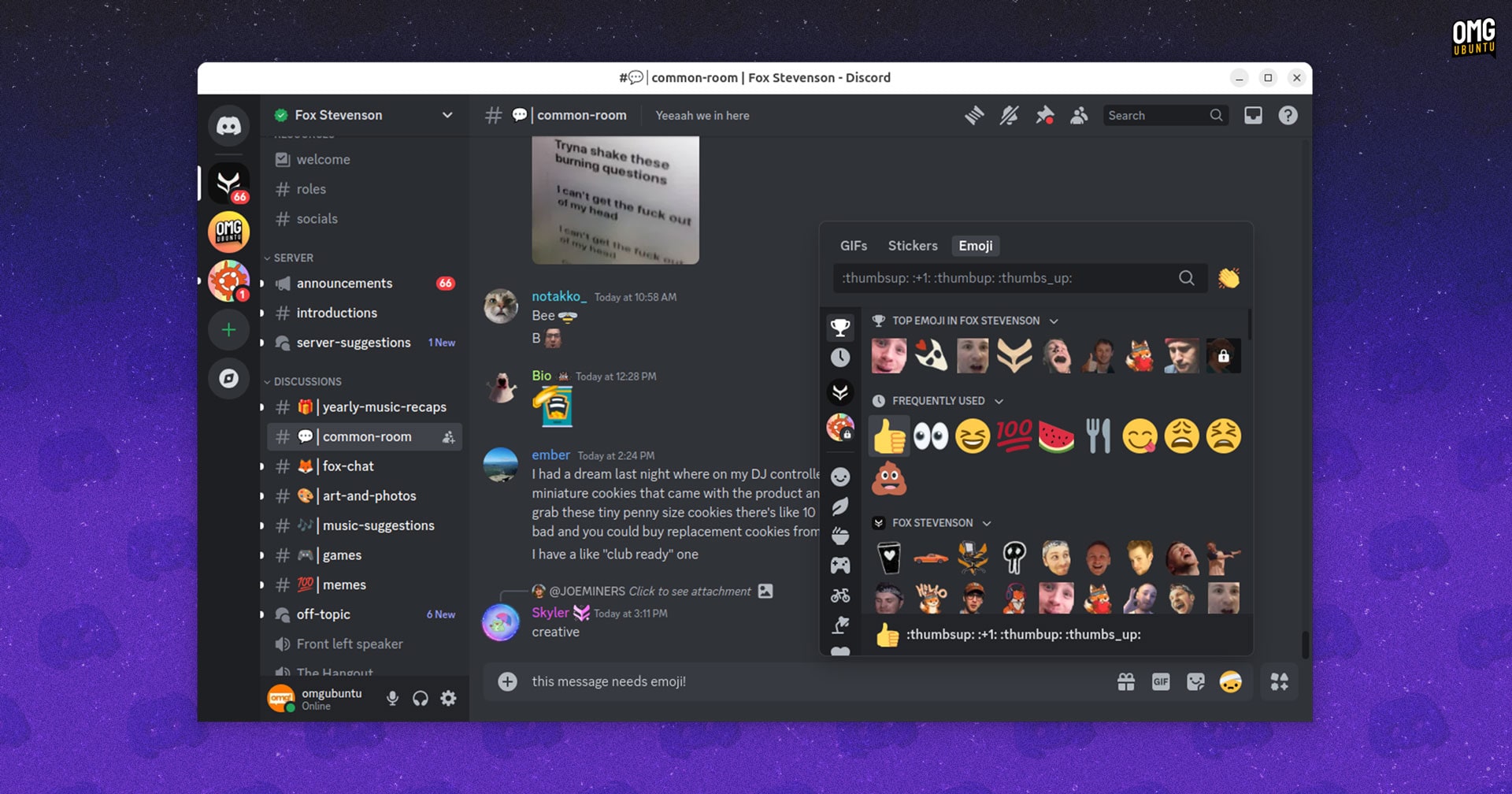
Still, messaging services are only as good as the people who use them. In this regard Discord comes up trumps. It has an official Linux app, and apps for Windows, macOS, Android, and iOS. There’s also a Discord web client to people can use it in any web browser or on a Chromebook.
Discord is also free — at least for now. The company says it may introduce optional paid extras, like sticker packs (similar to WeChat) in the future. But its core functionality, i.e. chatting, is a veritable buffet you’re 100% free to feast on!
Install Discord on Ubuntu
Option 1. Install Discord Snap
Discord’s Linux app is Electron based (as it is on other systems). Despite this, the app integrates neatly with the GNOME Shell desktop Ubuntu users. It has a status tray indicator with a small set of options, and can deliver native desktop notifications.
You install Discord from the Snap Store using Ubuntu Software or the new App Center in Ubuntu 23.10, or head to the Snap Store website for more details.
If you prefer to use a CLI, install the Discord snap app using this command:
sudo snap install discord
To update the Discord snap you need to do… Nothing. Snap apps update automatically in the background as you use your computer.
Like many Electron apps, Discord for Linux is 64-bit only. If you run a 32-bit version of Ubuntu you won’t be able to install it. To check if you’re use a 32-bit or 64-bit system go System Settings > Details.
Option 2. Install Discord from Flathub
If you have use Flatpak on Ubuntu (or a Linux distro that enables Flatpak by default, such as Linux Mint 21.x) you can install Discord from Flathub. In Linux Mint that’s as easy as opening the Software Manager application and searching for ‘Discord’, then clicking ‘install’.
Option 3. Install Discord in Ubuntu as DEB
The Discord snap is the easiest way to install the client on Ubuntu, but it’s not the only way.
You can also also install Discord on Ubuntu, Linux Mint, elementary OS, Zorin OS, and other Ubuntu-based Linux distributions using the official Discord DEB package.
Either download the Discord DEB from the Discord website using a web browser or, if you prefer the command line, fetch it using wget instead:
First, download Discord for Linux using wget, which is preinstalled on Ubuntu:
wget https://dl.discordapp.net/apps/linux/0.0.76/discord-0.0.76.deb
Then, once the download is complete, run this command to install the Discord DEB package:
sudo apt install ./discord-0.0.76.deb
After installation completes, open the app launcher (click the button at the bottom of the Ubuntu Dock) search for Discord, and click on the matching result to open the app.
After that, log in using your account details (or signup for a new account) and start chatting!
Discord’s Linux app (DEB version) will check updates each time you open it. When a new version is available it will download it in-app and install it — you don’t need to download a DEB and re-install.
Should I start an official OMG! Ubuntu Discord server for readers to connect? Let me know below!