

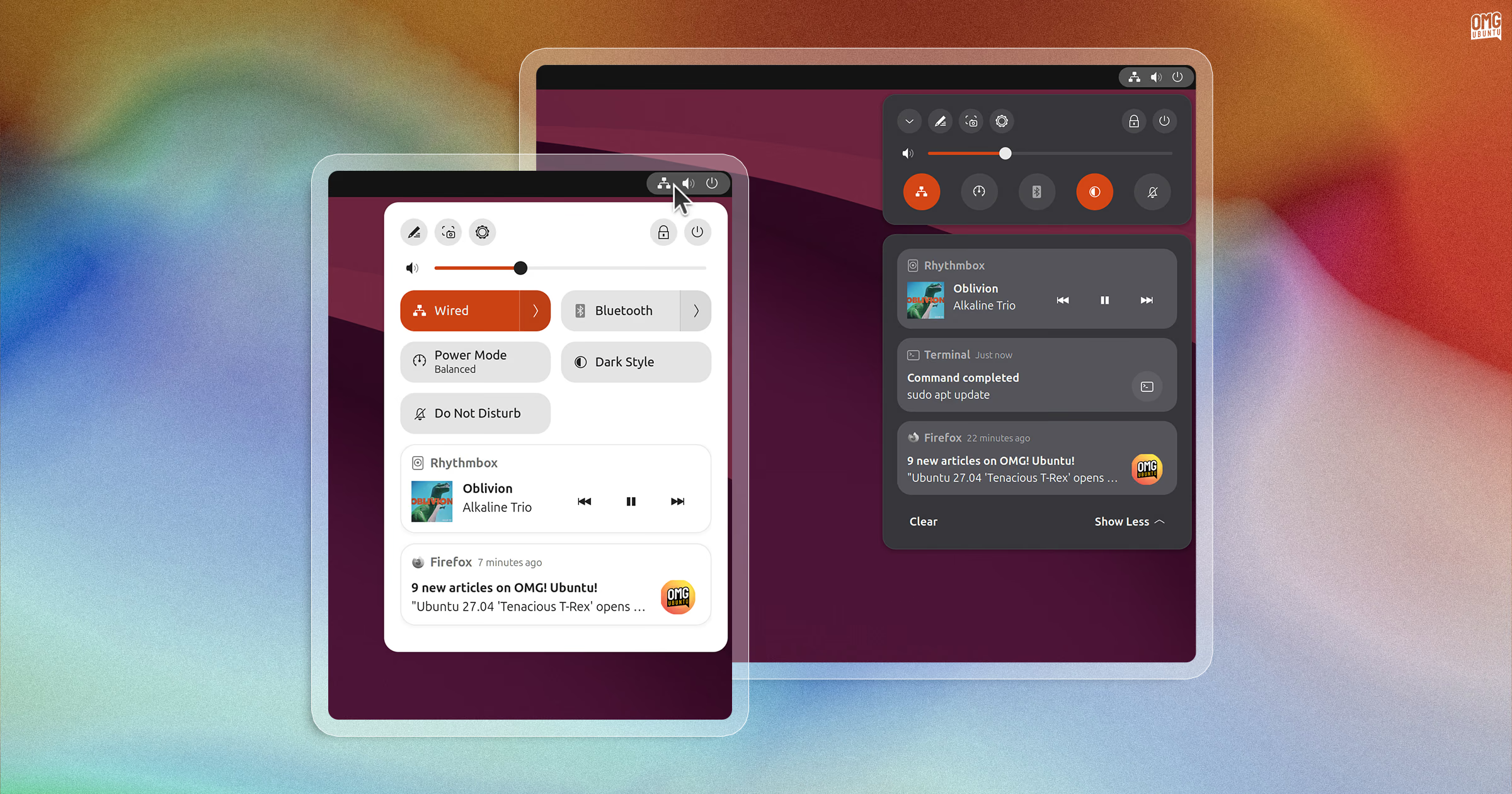
Sanket is a GNOME Shell extension that lets you rejig how the desktop’s date menu, calendar, notifications and Quick Settings look and behave – and then some.
It can put notifications beneath the Quick Settings menu in a floating island, or embedded inside of it. Quick Settings toggles can shrink to dots when space is tight, and expand again as and when needed, Android-style.
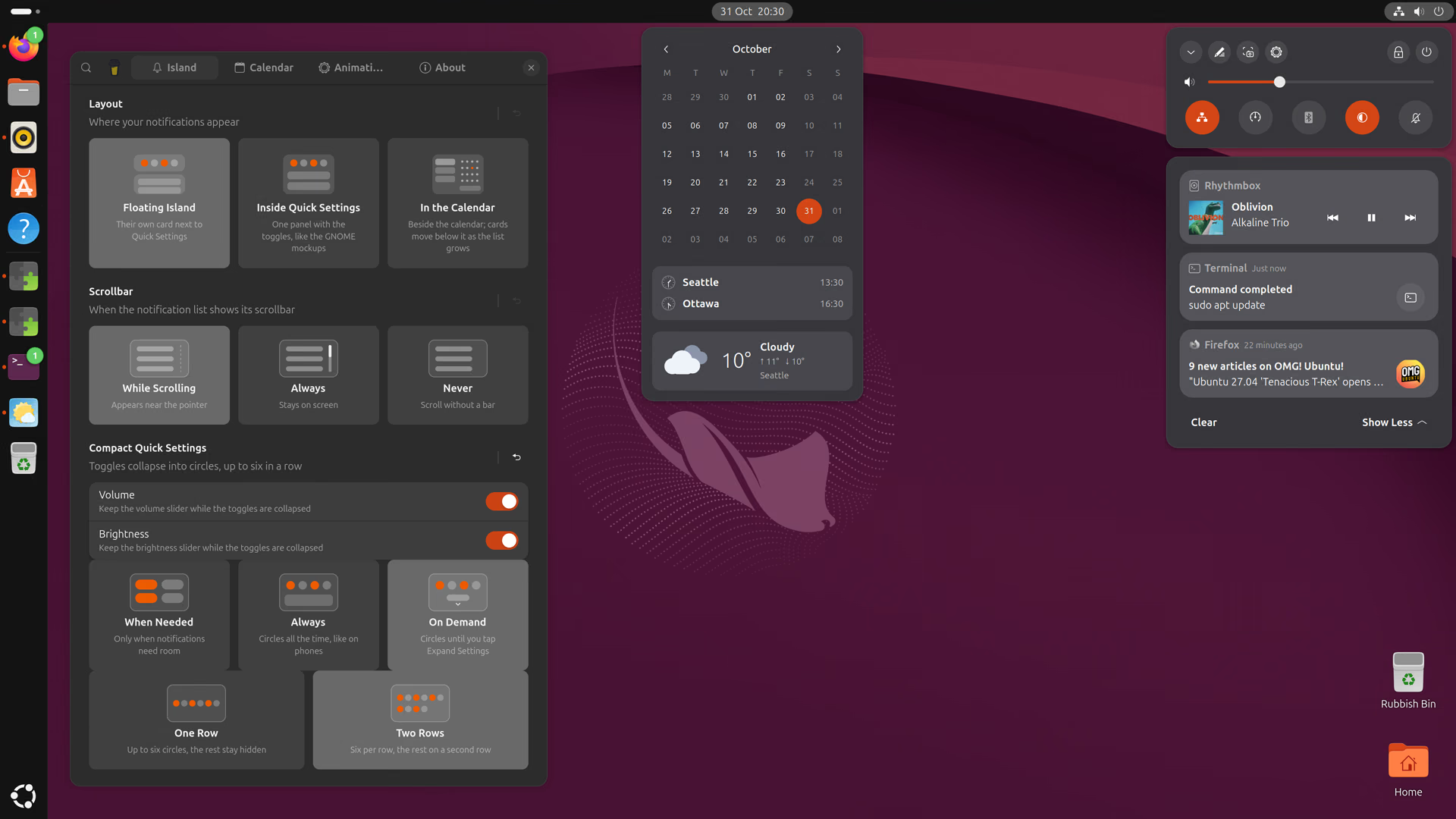
As well as shrinking Quick Settings pills to dots, other menu tweaks let you show up two rows of controls and choose if volume and brightness sliders remain visible in compact mode. An ‘edit’ mode lets you drag and drop the order of controls too.
With notifications no longer having to sit inside the calendar popover, it becomes more of dashboard than a catch-all. Forecasts via GNOME Weather compact to a single animated icon, and timezones in GNOME Clocks can be shown with analog icons.
Sanket does change how notifications are managed, making only the most recent visible. A bit jarring to me since expanding the list (wherever it’s place) is more effort than simply seeing them. Notifications can be pinned, which is neat.
But what makes this more useful is that you don’t need to use everything it offers.
There is a lot that you can change using Sanket – or not. You can keep the stock layout and just use it for other things, like hiding the calendar header or ‘upcoming events’ lists.
I like that its settings includes visual previews of many layouts and options, so you know where elements shift without performing the ol’ ‘change something then work out what it did’ routine.
If you’ve never looked at GNOME Shell’s calendar or Quick Settings menus and thought ‘I wish I could change that bit’ then Sanket may not be that appealing.
But if you enjoy customising your desktop, or trying to make GNOME look more like other desktop environments or OSes – combined with Dash to Panel this can create a more ChromeOS-y inspired setup – then it’s well worth a look.
Sanket works on GNOME Shell 45 through 51. You can install it from the GNOME Extensions website (the desktop Extensions Manager app lets you browse and install extensions without needing a web browser).
Learn more about it on its GitHub page.