


Mosaic brings automatic tiling to GNOME Shell, but without asking you to use it permanently. Turn it on when you want windows to arrange themselves, turn it off when you want floating windows back.
The extension works with GNOME 45 and up, adding a toggle to Quick Settings to enable the auto-tiling mode. When off, you’re in floating mode (which still has tiling features). Expand the toggle to access more options or get at Mosaic’s settings.
It’s the easy on-demand nature that makes Mosaic different to similar extensions that exist.
When the auto-tiling mode is active (the toggle is turned on) all your windows arrange themselves on screen for you, with news windows slotted into the moment you open them, using a tree-based i3-style approach, per the Mosaic GitHub.
Naturally, there are keyboard shortcuts to manipulate and manage windows on your workspace, though some don’t always respond or might be intercepted by app in focus – a minor annoyance.
Press super + return to enter window management mode, then press:
| Shortcut | Action |
|---|---|
| o | Change orientation of focused window |
| arrow keys/vim | Move focused window around layout |
| ctrl + arrow keys/vim (then enter) | Swap place with other window |
Outside of window management mode, press super + g to toggle a window between floating and tiled state, and press super + r to enable resize mode. I find using the mouse to drag between gaps to resize is more reliable.
Window management mode works when auto-tiling is off, albeit differently. Perhaps useful if you want to create an exotic arrangement of apps using the keyboard alone.
If this reminds you of System76’s Pop Shell, there is a reason: Mosaic began as a fork of it that. Pop!_OS has since moved from GNOME Shell to the COSMIC desktop, with similar functionality built into the desktop.
Mosaic’s developer says the extension aims for “simple and intuitive window management as well as minimal configuration and sane defaults” and was inspired by the Rethinking Window Management blog post from GNOME’s Tobias Bernard1.
It certainly meets a different use case to, say, Tiling Shell, the adaptive window tiling extension for GNOME Shell I’ve written about before. That offers custom layouts, various interaction modes and a wider range of configuration options.
Mosaic is less fussy with less complexity than that (and some other window tiling extensions for GNOME Shell). Whether it’s the “best” tiling add-on for Ubuntu is, naturally, only something you can decide for yourself by trying it.
Install Mosaic Extension on Ubuntu
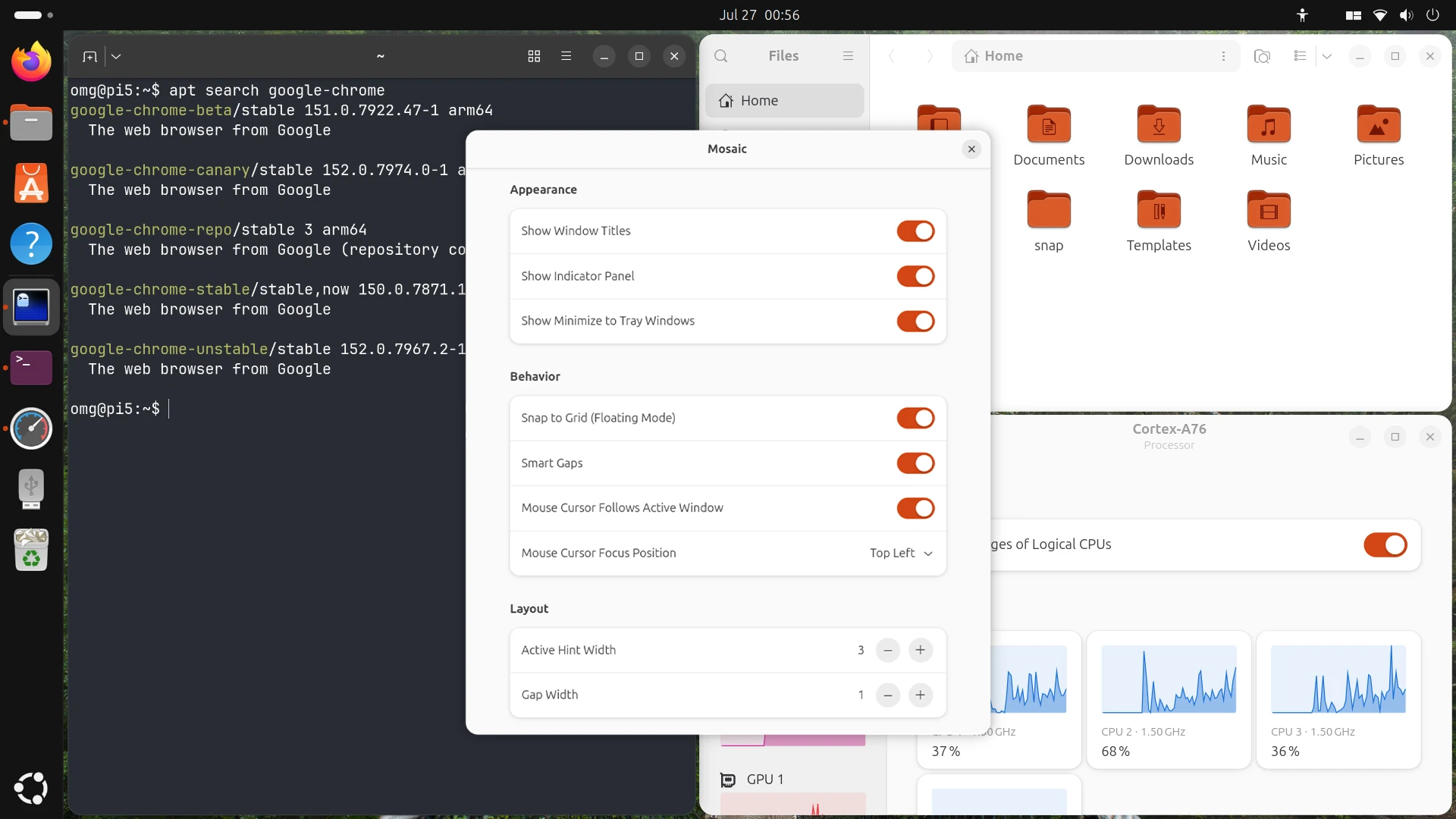
Mosaic is available on GNOME 45 and later from the GNOME Extensions website (I recommend using the Extensions Manager app, available the Ubuntu repos, to install it, as it’s less hassle and provides more features).
You can also install it locally by building the source code. That method allows many additional shortcuts to work, but be sure to read the GitHub carefully because it will change native Shell shortcuts that you may have become used to.
- It is not the only effort looking to make that concept a reality. ↩︎