

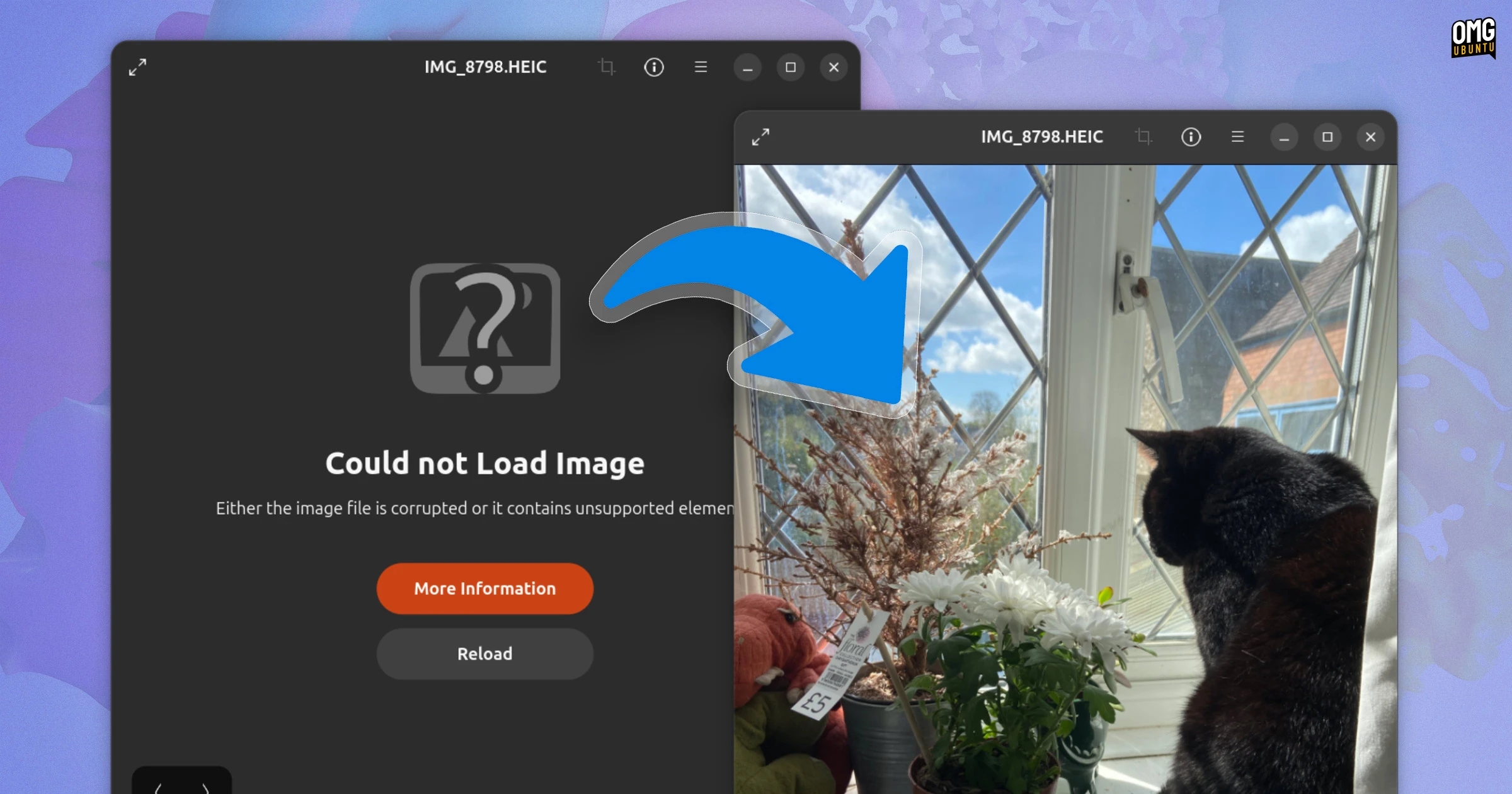
If your HEIC photos show a “Could not load image” error in Ubuntu 26.04’s Image Viewer, you’re not alone – it’s an intentional breakage, albeit one that’s easy to fix.
HEIC files are a variant of HEIF which use H.265/HEVC compression. If you own an iPhone or a newer Android device, the stock camera app uses this format by default.
But Ubuntu 26.04 LTS no longer preinstalls a decoder library for HEIC (though more accurately, it’s tweaked dependency chains to ensure one is no longer pulled in).
When you connect your smartphone to a computer running Ubuntu 26.04 LTS to browse photos in Nautilus (or import them using Shotwell), you may see thumbnails for your HEIC encoded snaps, but if you try to open them for a closer look, you’ll get an error.
“Could not Load Image”, it says with inconsistent capitalisation, “Either the image file is corrupted or it contains unsupported elements”. There’s a button to view ‘model information’ (which isn’t that informative to a layperson), and a button to reload.
Although not stated, I assume H.265’s myopic licensing restrictions are why Canonical doesn’t want to ship a decoder by default. One was included in earlier versions of the distro, so if you upgrade to Ubuntu 26.04 LTS from a previous release, you may not be affected.
Only HEIC is impacted. Other HEIF images compressed using different codecs, like AV1, are not affected.
How to fix the error and open HEIC images again
Ubuntu 26.04 LTS longer ships with the libheif-plugin-libde265 decoder by default (on live sessions and fresh installs), so if you want to HEIC images to load in Loupe or other apps, you just need to manually install it from the archives.
Open your Terminal and run:
sudo apt install libheif-plugin-libde265
That’s it, though may need to logout and back in for the change to take effect.
H/t Winston S.