

Open-source cleaning tool BleachBit has gained a text-based user interface (TUI) as an optional alternative to its standard graphical frontend.
Unlike BleachBit’s existing CLI, which is intended for non-interactive use in scripts, the TUI is fully interactive, you navigate the interface with your keyboard (there’s limited mouse support) to select, preview and clean out cruft.
The BleachBit TUI caters to use cases the GUI doesn’t, be that headless Linux servers managed remotely or being available on lightweight desktop systems where adding the overheard of GTK dependencies isn’t wanted.
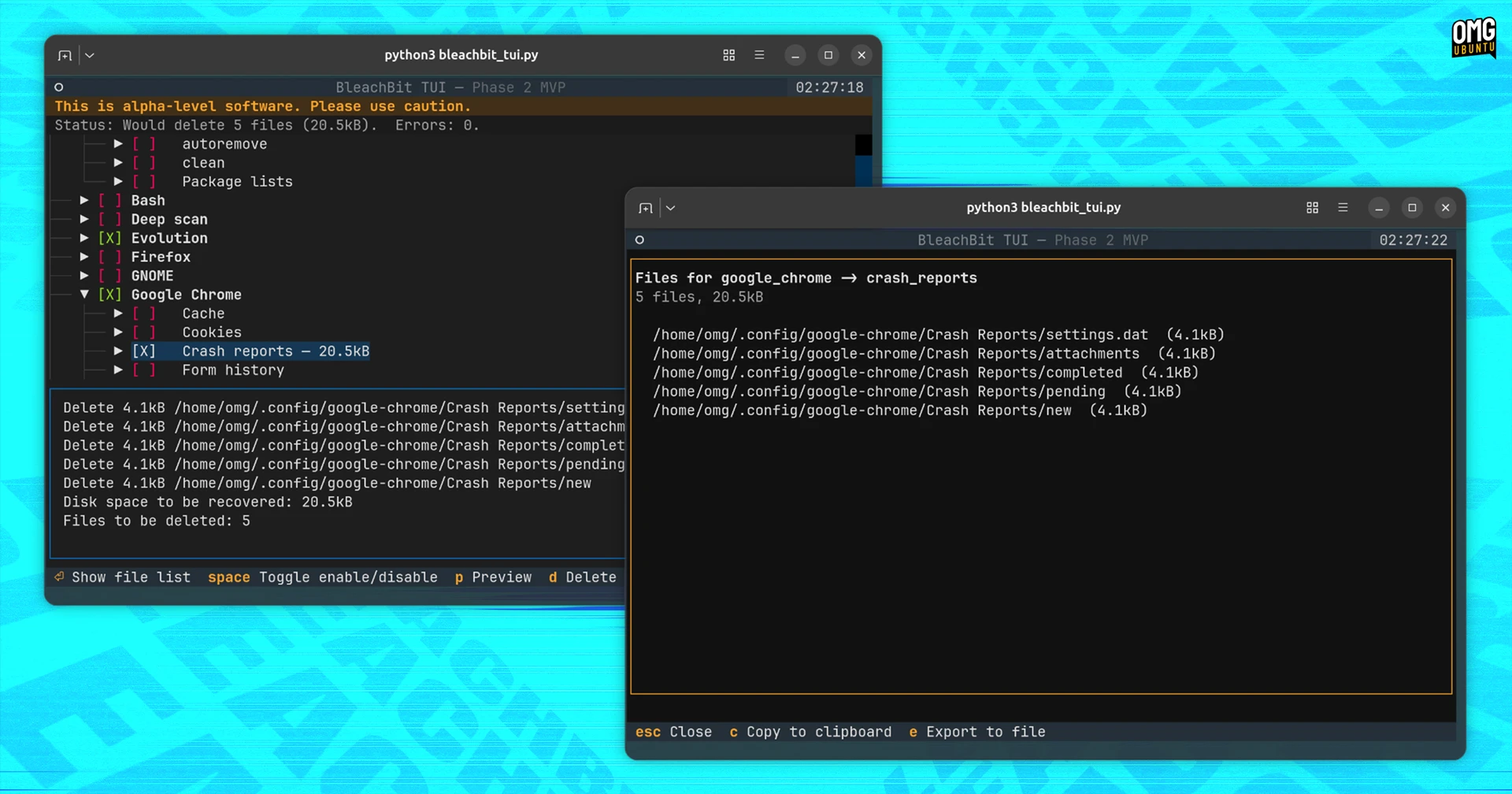
Currently in alpha, the new TUI runs on the same backend as the BleachBit 6.0 release. In my own hands-on with it, I was able to manually set the apps and system tools to clean, and expand them for specific choices, then run a preview to see what files would be cleaned out.
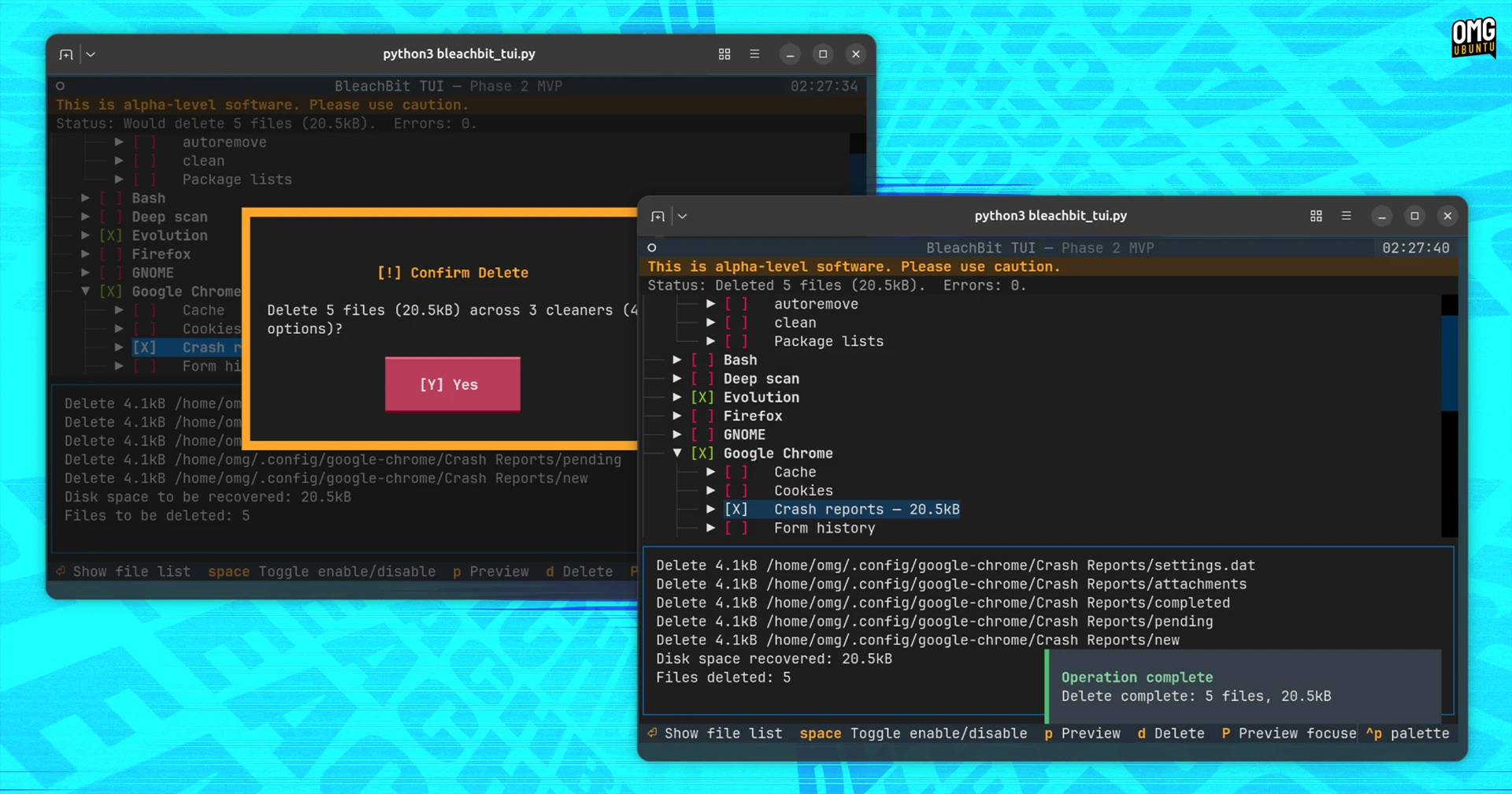
I then proceeded with cleaning to free up some disk space. It all worked well, and there are plenty of in-TUI warnings and confirmation prompts to prevent accidental deletions. An option to overwrite deleted files for improved privacy is also available.
But ‘localisation’ (translations), Expert Mode, protected paths, chaff generation and online update checking are not yet supported.
Preferences can only be set from the GUI app for now, but because the TUI shares the same backend it picks up existing settings automatically, which the project say includes “selected cleaning options, keep list (whitelist), custom cleaning list, and cookie keep list (cookie manager)”.
A demo video was uploaded to the BleachBit YouTube channel if you want to see it how it looks in action before trying it out yourself.
Try BleachBit TUI on Ubuntu
The BleachBit TUI is in alpha and not included alongside the stable builds. To test it on on Linux you can pull and run the tui branch from the BleachBit GitHub.
First, install the dependencies needed by the terminal-based version:
sudo apt install git python3-{chardet,textual,psutil}
Clone the repo:
git clone https://github.com/bleachbit/bleachbit.git
Enter the cloned repo folder:
cd bleachbit
Fetch the latest branches:
git fetch origin
Switch to and track the TUI branch:
git switch --track origin/tui
Finally, run the BleachBit TUI:
python3 bleachbit_tui.py
If you plan on testing this regularly, keep the branch up to date with the latest changes from GitHub.