


Are you in the mood to stream or screen-record? If so, a new version of OBS Studio is out with an appreciable set of improvements you’ll want to take advantage of!
OBS Studio 31.1 adds support for multitrack video on Linux (and macOS) having been a Windows-only feature in an earlier release. Multitrack enables OBS to send different quality video streams (e.g., 720p, 1080p, etc) to streaming services directly.
If you primarily stream to Twitch this feature is better known as “Enhanced Broadcasting” can help reduce latency which is important if you’re streaming gaming rather than, say, crochet (or as I’ve started watching recently, people building Lego sets).
Multitrack video output also adds support for additional canvases, network tweaks and TCP Pacing, and support for Stream Delay across Windows, macOS and Linux.
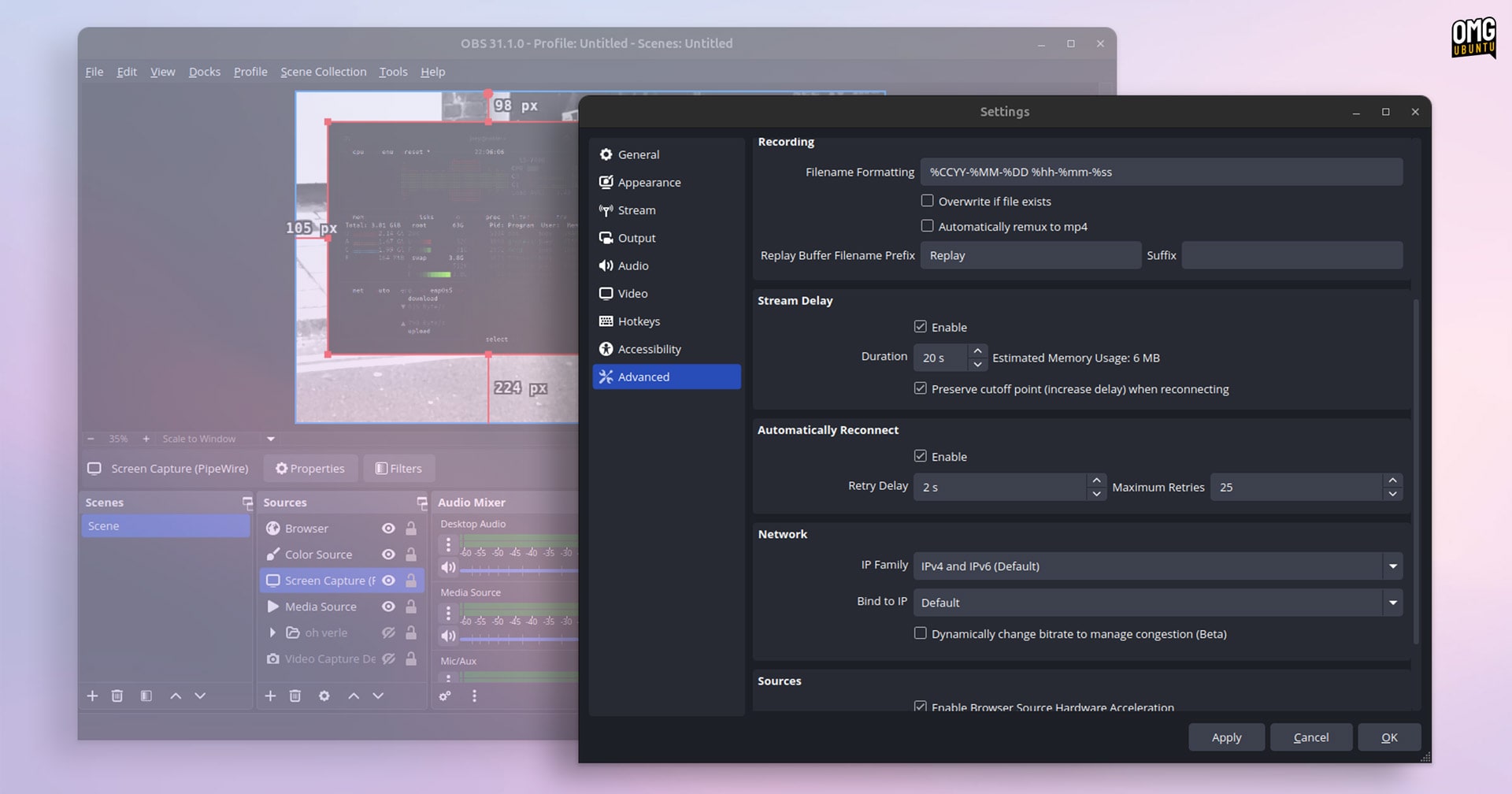
The Linux version of OBS Studio 31.1 also adds ‘explicit sync support for PipeWire screen capture’. This means if you use OBS to record your screen and its audio on a Linux distribution using PipeWire (like Ubuntu), it keeps audio and video properly in sync.
Linux builds now support for hardware-accelerated browser source, albeit disabled by default on NVIDIA GPUs owing to “feature-support inconsistencies across model series and driver series”, per the release notes.
The OBS Studio browser source is used for in-stream overlays, chat boxes, and (on occasion) literal web pages, so enabling hardware acceleration should help improve the performance by offloading rendering to the GPU (where able).
Beyond those Linux-specific additions, OBS Studio 31.1 is now available for Windows for ARM, albeit not as fully-featured as the regular Intel/AMD Windows build, and certainly not as stable: OBS Project say it should be considered experimental software for now.
OBS Studio 31.1 includes other changes, such as:
- New UI appearance options, font size and density (padding/spacing)
- Preview zoom controls
- AV1 B-frame support for AMF
- Colour format/space/range GPU conversion
- QVBR rate control for VA-API
- Preview/Source context menu reorganised
- Preview draw performance has been improved
- V4L2 virtual camera support on non-Linux environments (e.g., BSD)
Scores of OS-specific fixes feature in this update, including a remedy for audio distortion issues on Windows, a quirk where Linux hotkeys could stop working, and the macOS build crashing when add or unloaded browser source.
In all, another solid update to this popular cross-platform screen casting staple — especially if you’re running it on Linux!
How to Install OBS Studio 31.1
OBS Studio is free, open-source software and you can download the latest version for Windows, macOS or Linux from the OBS Project website or from GitHub (where a DEB for Ubuntu/Linux Mint is linked in the assets section).
You can also install OBS Studio from Flathub. As an official, verified Flatpak maintained by the OBS Project directly, they consider it to be the ‘recommended’ way to install OBS Studio on Linux.
If you use Ubuntu, Linux Mint, Zorin OS or another Ubuntu-based distro you can add the official OBS Project PPA to your software sources to install OBS Studio. The PPA packages the latest stable release for both Ubuntu 22.04 LTS and above.
To install OBS Studio as a DEB from the PPA, first add the PPA:
sudo add-apt-repository ppa:obsproject/obs-studio
Then, install OBS Studio using apt:
sudo apt install obs-studio
Finally, there’s an unofficial package on the Canonical Snap Store. This is a modified build with other changes, including a handful of extra plugins, filters, and system integration tweaks (but v31.1 is not yet in the stable channel).