


Good things come to those who wait, and goodness knows we’ve been waiting years for GIMP 3.0 to be released — but rejoice: a stable release of GIMP 3.0 is finally available to download.
With 7 years of development bundled up inside, the list of changes is significant. As a result, GIMP 3.0 is fronted with major new features, big and small.
In this post I (will do my best) to run through the most impactful and interesting new features in GIMP 3.0, as well as spotlight some smaller changes that make a big difference.
Keen to learn more?
GIMP 3.0: Best New Features
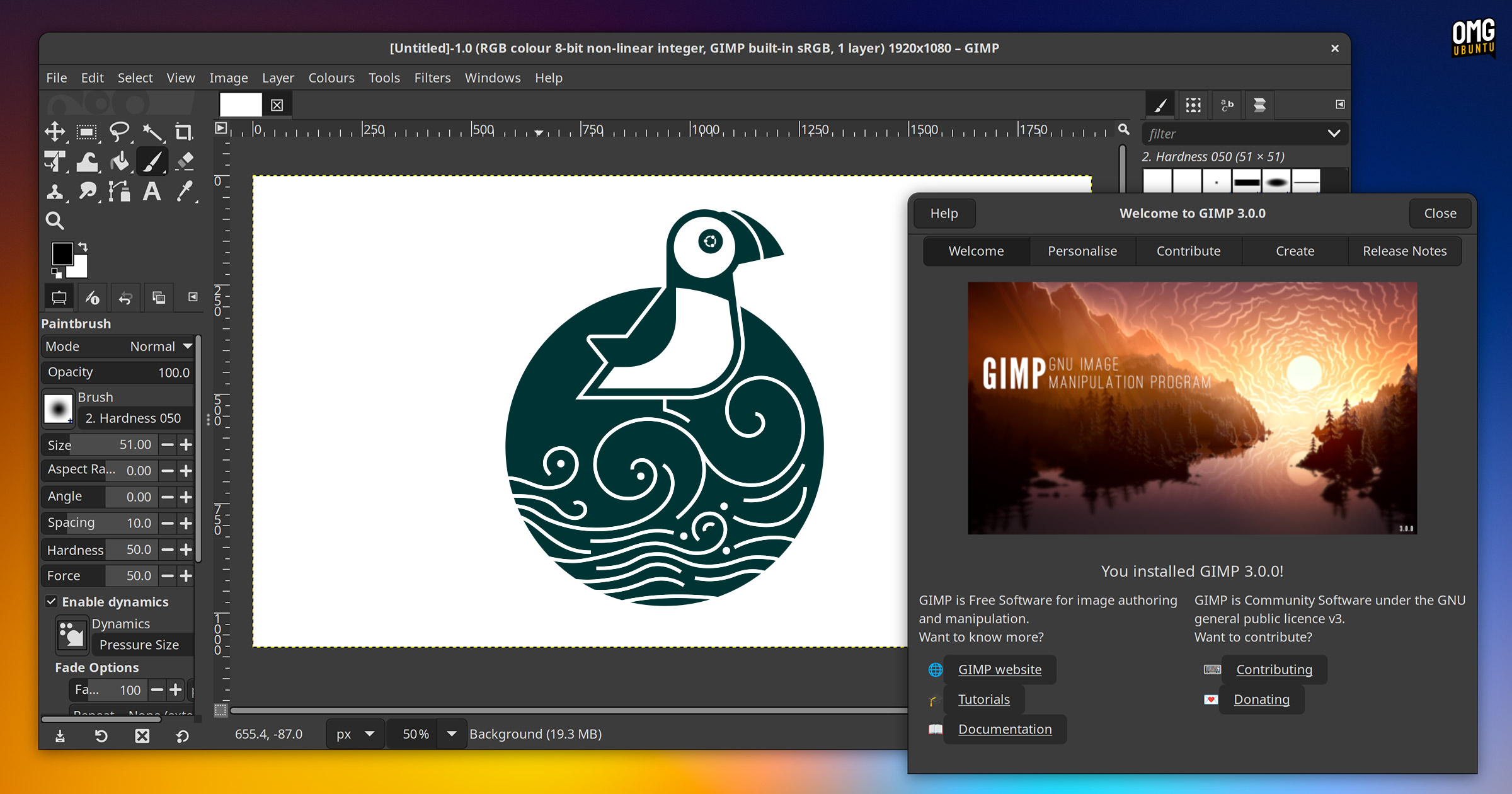
GIMP 3.0 introduces a GTK 3 UI with native Wayland and HiDPI support, improved tablet/touch input, and a new CSS-based theme system that will enable users to create their own custom themes for the app.
There’s also improved onboarding by way of a new Welcome Dialogue (see screenshot above). This serves as a springboard to create/open images, customise the UI/settings, and learn more about the latest features, get help, or get involved.
GIMP’s new GTK 3 UI also provides a new ‘merge menu and titlebar’ option that fans of streamlined header bars (aka CSD) are sure to approve of.
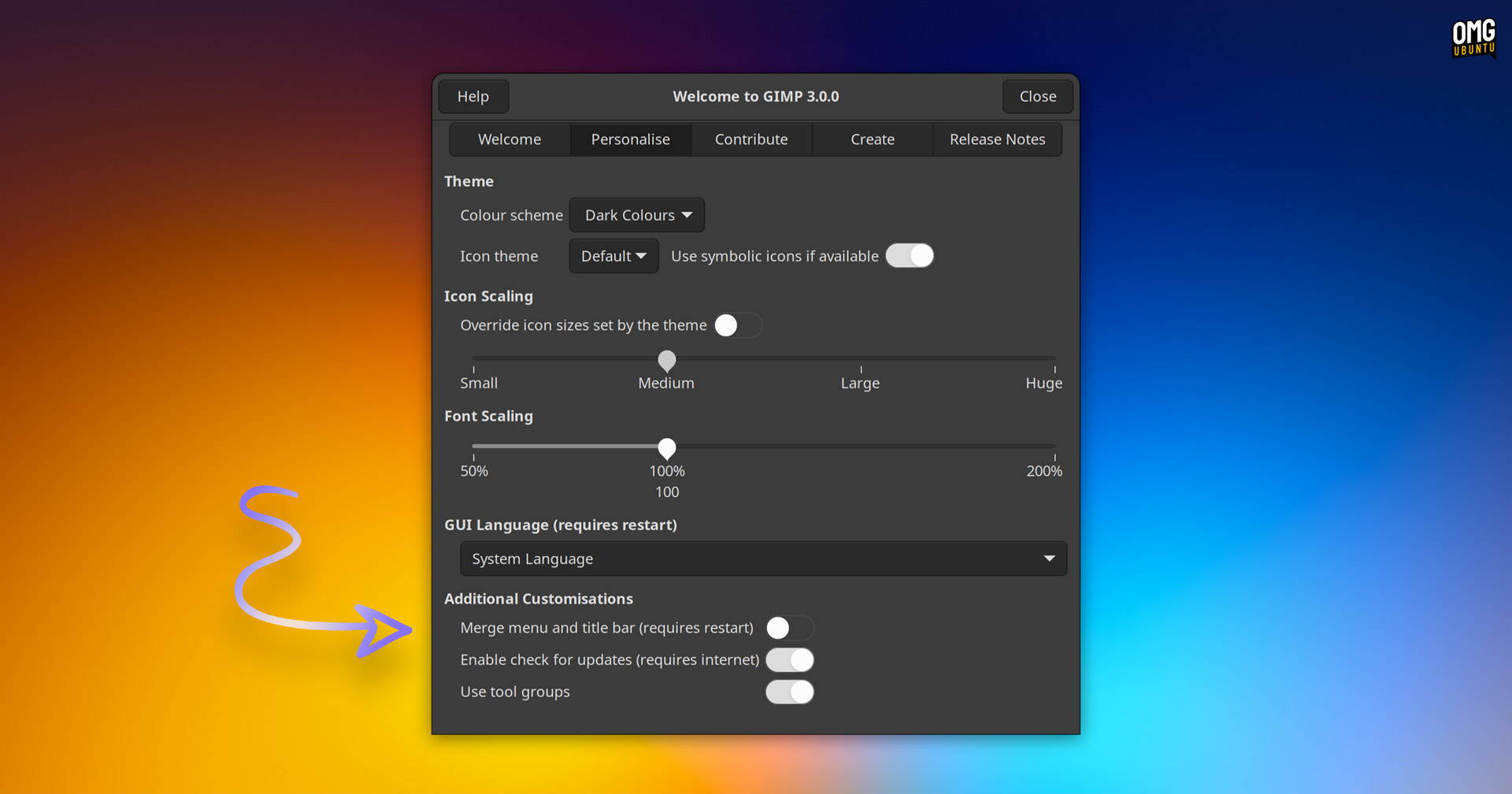
To enable GIMP’s merged ‘header bar’ (as it is not enabled by default) head to the Welcome Dialogue > Personalise tab and toggle the option on – though it requires restarting the app to take effect so it’s best to try it out before you’re hours deep in an edit.
Here’s what the ‘merged’ window frame option looks like in action on Ubuntu 24.04 LTS:
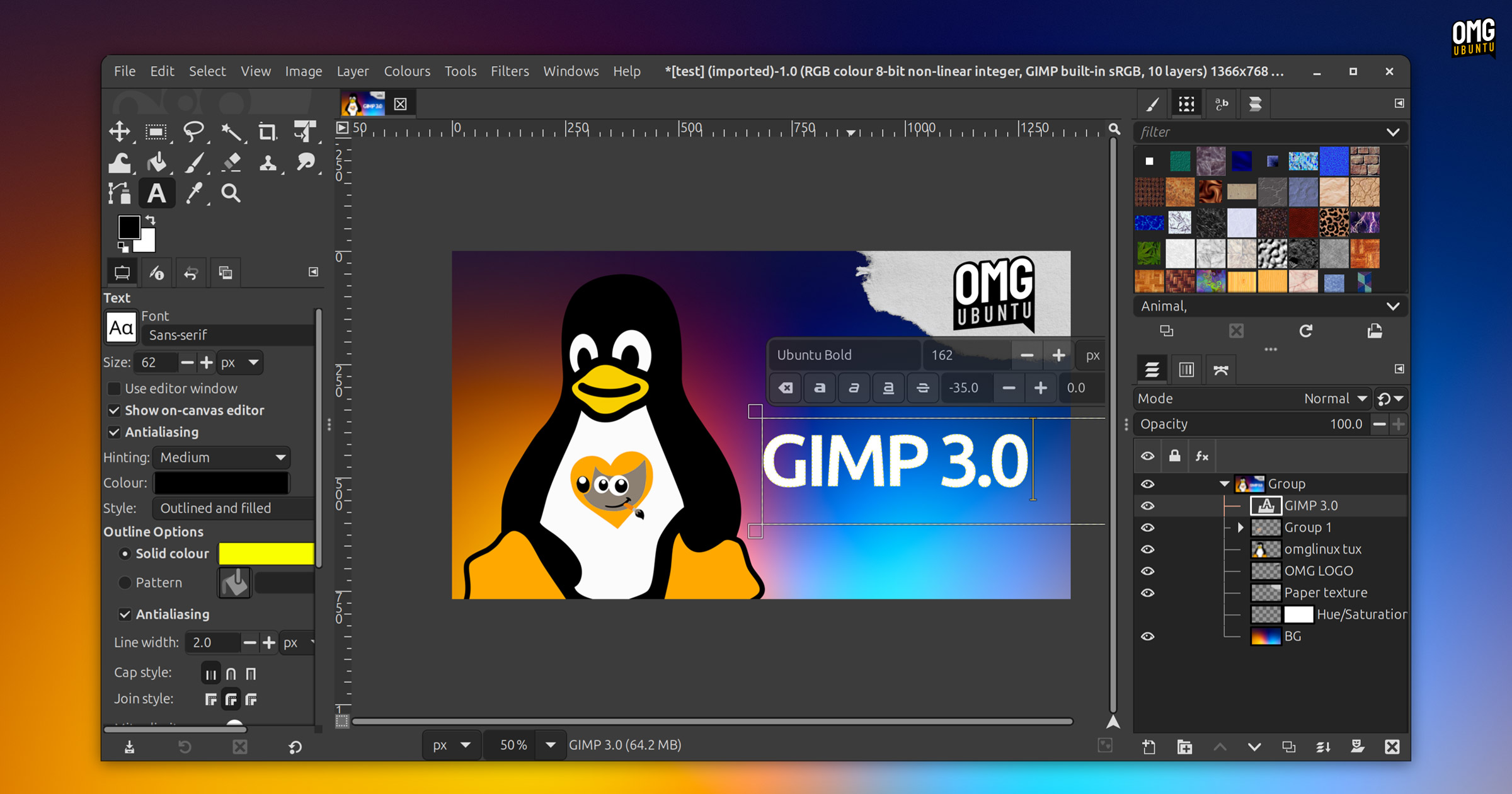
Non-destructive editing in GIMP 3.0 is another big change. It address a long-standing request from creatives wanting to experiment, ideate and adjust filters, effects and other edits without applying them immediately, as in earlier versions.
Further edits can be made after an effect has been applied (without repeatedly mashing undo to go back to before it was applied). GIMP says it’s possible to re-edit most GEGL filters (including in saved files) to toggle them on/off, delete, or destructively merge1 them.
Adding text is also non-destructive. Text can be edited on-canvas and styled with strokes, shadows, bevels and other effects whilst remaining editable (including in XCF files you’ve been sent). Just double-click on the text layer to re-edit it.
Copying and pasting now creates a new layer by default—something that already makes a huge difference to my workflow if no-one else’s!
An expanded set of on-canvas tools allow for easy brush sizing, panning, zooming, rotating, while a new paint tool ‘auto expand’ layer setting does what it says on the tin: extends the canvas when you draw beyond its bounds.
Better support for opening Adobe Photoshop (.PSD) files in GIMP 3.0 sees the editor equipped to open PSDs with 16-bits-per-channel, export PSDs using GIMP’s built-in metadata export tool, and save CMYK merged images correctly.
A redesigned GIMP logo sees the iconic mascot Wilber now rendered in a flatter, simplified style.
There also performance boosts through render caching, thread-safe processing during multi-threaded operations, and a retooled plugin API with support for Python 3, JS, Lua and Vala plugins, and interactive GEGL filter search by pressing the / key.
Other changes in GIMP 3.0:
- New canvas snapping options
- Pinch gesture to zoom canvas
- Layer name searching now supported
- “Layer sets” replace “Linked layers”
- Multi-threaded JPEG2000 decoding
- Expanded set of stroke selection options
- New paint select tool to isolate specific regions
- PNG-based ICNS files now support colour profiles
- Multiple layer selection to move and/or transform all
- Support for
ic05icon types and ARGB icon formats - Faster loading of images from remote/cloud providers
- Extensive support for RGB color spaces beyond sRGB, including AdobeRGB
- Merging ‘passthrough’ group layers now merges a render of the group
- Long file names now ellipsised in File and Windows menus
- Render-after-filters is used when selecting by colour
- Support for uncompressed 16 bit ABR brushes
- Better compatibility with older XCF files
- BMP images now import losslessly
As GIMP 3.0 stable release is comprised of changes spanning several years, it’d be difficult to name-check every change contained within. So in addition to everything above, be aware that scores of smaller quality-of-life buffs come included too.
As it stands, GIMP 3.0 is a significant upgrade sure to impress long-time users of the oft-described ‘free Photoshop’ rival—now boasting improved support for opening PSD files, no less.
The best way to discover all of the new features in GIMP 3.0 isn’t by reading, it’s by trying.
Install GIMP 3.0 on Ubuntu & Linux Mint
You can install GIMP 3.0 on Ubuntu in a number of ways.
There’s a GIMP Snap app maintained by the Ubuntu ‘Snapcrafters’ team, an official GIMP Flatpak build on Flathub, and a new official GIMP AppImage (a self-contained run-time you can double-click to run, or you can install Gear Lever to integrate AppImages with Ubuntu more deeply).
For the new GIMP AppImage for Linux (and for Windows and macOS builds, should you need those) you can head over to the official website to download GIMP and learn more about this release.
Thanks Dominic & somePaulo!
- An option to merge filters (i.e., destructively apply) is provided for those who need/want to continue the old GIMP 2.10 way of working ↩︎