

If you try to open an AppImage on Ubuntu 24.04 LTS or later, nothing happens. In this post I explain why, and show you how to fix it in under 2 minutes.
On older versions of Ubuntu using AppImages was easy. You’d download an .appimage file, grant it executable powers (i.e., right-clicking on it, going to Properties, and giving it permission to run), then double-click the AppImage to run it.
On versions of Ubuntu released after 2023, that method doesn’t work. If you double-click on an AppImage file, even after you give it the relevant permissions, nothing will happen.
Nothing; not even a helpful error message to explain why.
Why don’t AppImages work on Ubuntu like the used to? Is it an ideological-driven limitation to force us to use Snap apps? A security measure? An oversight or bug?
None of the above.
Newer versions of Ubuntu ship with FUSE 3, a more recent version of FUSE (the ‘Filesystem in User Space’ interface) — but AppImages require FUSE 2 to run; they expect/rely on features only found in the older version.
Discussions between AppImage devs, Linux distribution maintainers, and software vendors are on-going in an effort to move the situation forward. Adapting AppImages to use FUSE 3 isn’t trivial (or desired), but Linux distros don’t want to continue supporting FUSE 2.
For users, the impasse is irrelevant since it’s easy to make AppImages work on Ubuntu: just install the FUSE 2 package manually.
How to Get AppImages to Run on Ubuntu
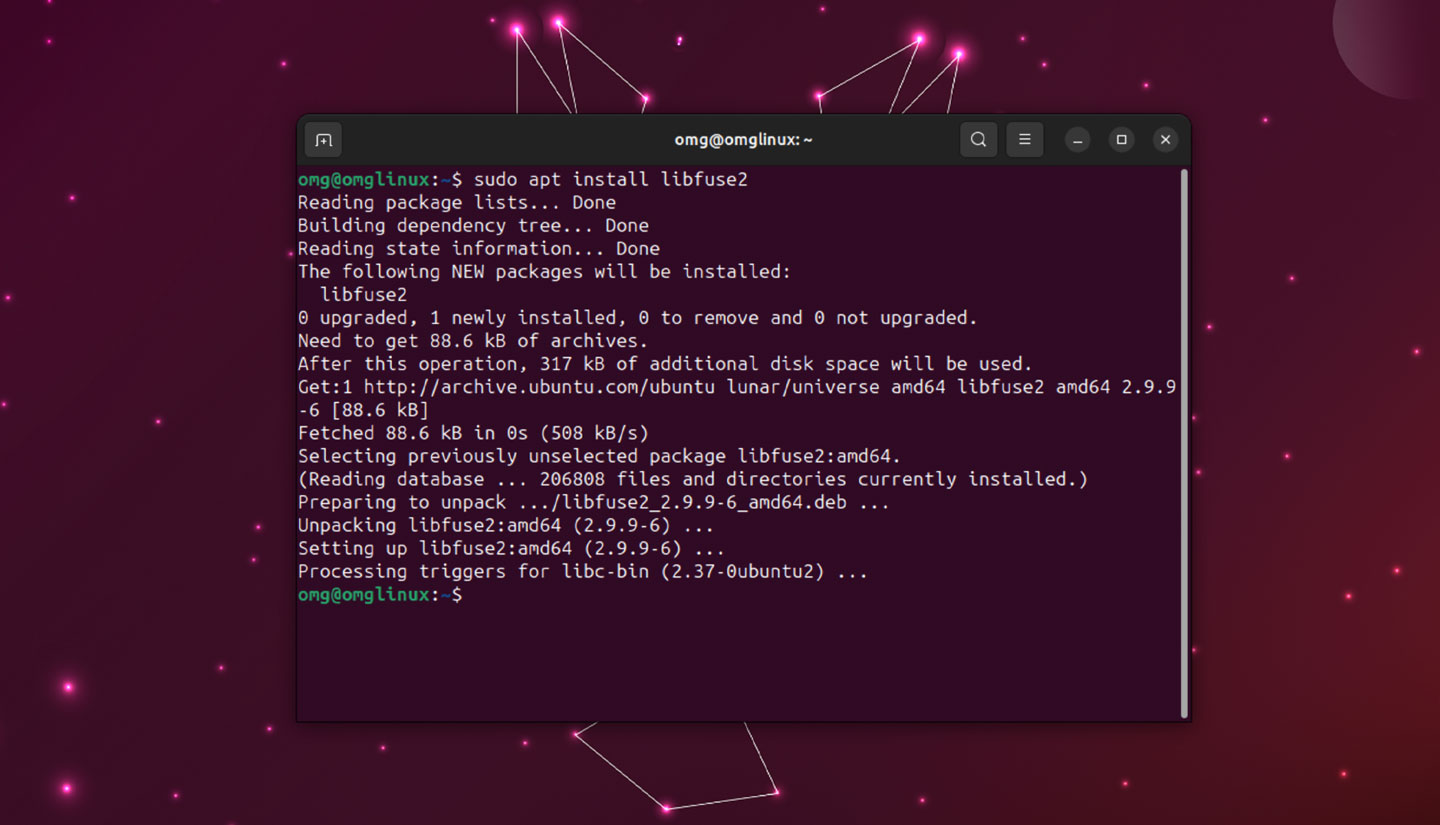
Installing the FUSE 2 package is all you need to do to get AppImages to run/open/work on Ubuntu.
You don’t need a PPA, or compile source code, or worry about package conflicts as the libfuse2 package is available in the Ubuntu repos (in universe – enabled by default, but if not: open Software Sources and check the box beside universe).
You can install FUSE 2 alongside FUSE 3 without issues. The older version doesn’t replace the newer package; they coexist (not the case for FUSE 1 so do not install FUSE 1 – it will screw your system up, and AppImages still won’t work).
To install FUSE 2 on Ubuntu 24.04 LTS or newer, open a new Terminal window and type (or paste) the following command:
sudo apt install libfuse2t64
If you’re on Ubuntu 23.04 or 23.10 (both are EOL, FYI) then the package name is just libfuse2 as Ubuntu 24.04 LTS was when all of the 64-bit t_time bug problems were tackled.
Press the enter/return key, enter your password to authenticate, and blink while the necessary library is downloaded, unpacked, and installed.
That’s it; now if you double-click on an AppImage to open it (assuming it has permission to run first, of course) it will open and run as intended.
Scores of awesome Linux apps are available as AppImage, including the Kdenlive video editor, Audacity audio editor, image writing tool BalenaEtcher, and slick system monitor tool Mission Center — this “issue” is catching plenty of users off guard, not just you.
By following the steps above, you’ll be able to run your favourite AppImages on Ubuntu.