
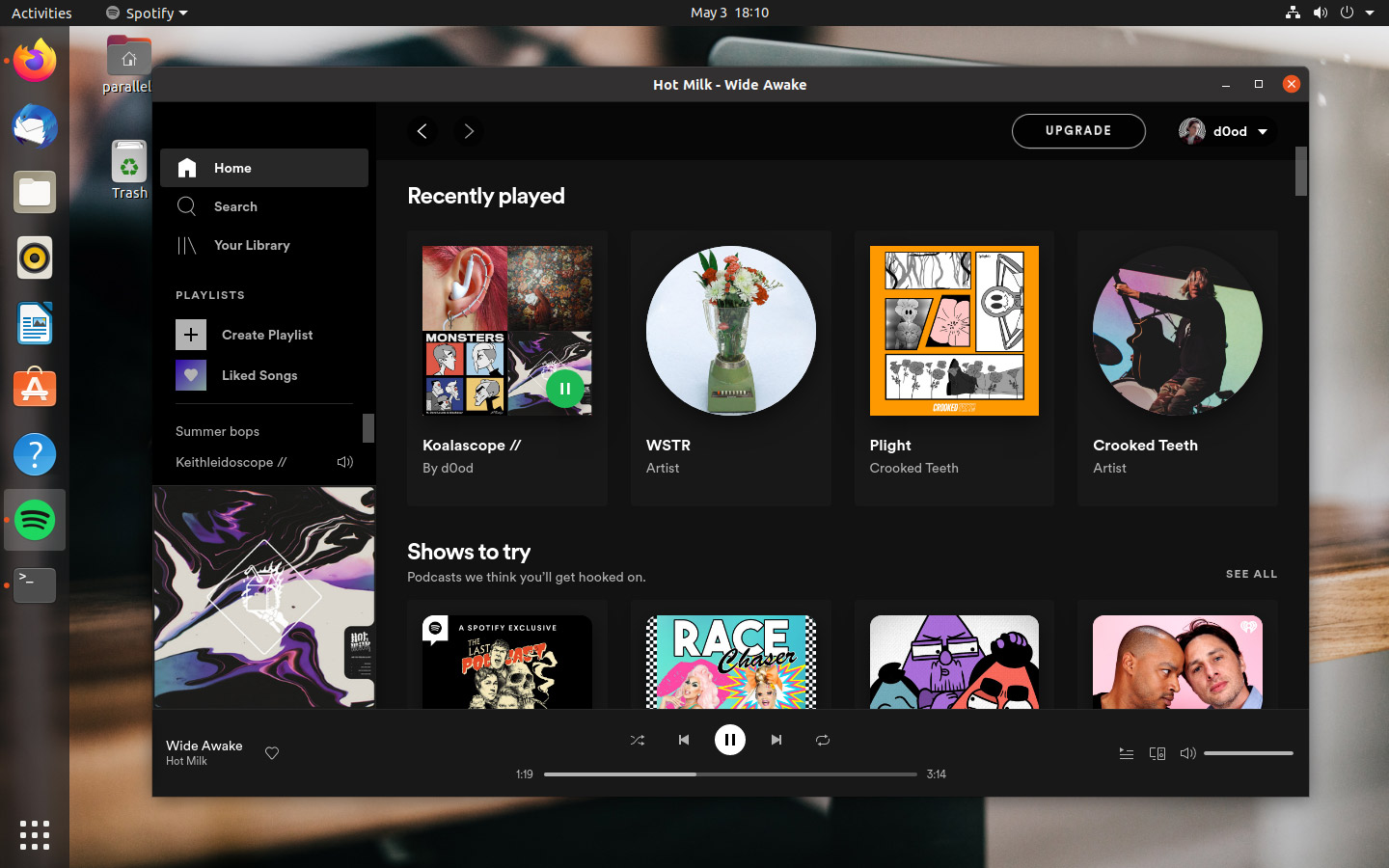

Installing Spotify on Ubuntu, Linux Mint, Zorin OS or similar Linux distributions is easy, as this guide will prove.
Spotify is the world’s biggest music streaming service. Hundreds of millions of people use it to listen to music and podcasts each and every day — that figure includes a sizeable set of Linux as Spotify make an official desktop app for Linux.
What makes it so popular? The fact you can use Spotify for free by signing up for an account. No fees, no fuss. You can buy a Spotify Premium subscription to unlock additional features like ad-free, offline and higher quality listening, but it’s not necessary.
While the Spotify web player works in any modern web browser, the official Spotify desktop player for Linux provides the best listening experience since it has tight integration with the Ubuntu desktop and responds to your keyboard media keys.
For all you need to know about installing Spotify on Ubuntu, read on!
How to Install Spotify on Ubuntu
Spotify Snap
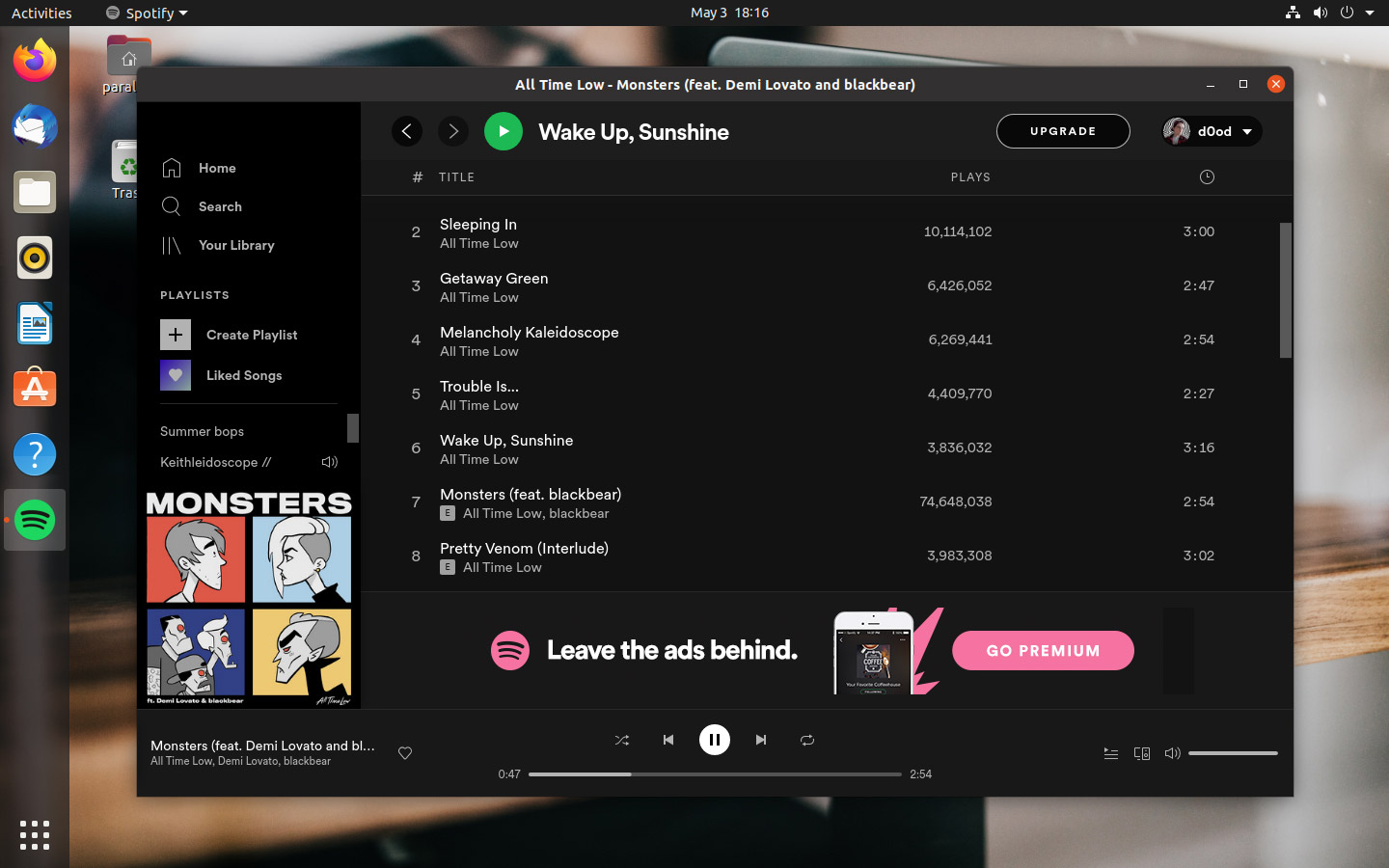
The official Spotify Snap app makes it easy to install the desktop player on Ubuntu 18.04 LTS and above (as well as on other Linux distributions which supports snap apps).
You can install Spotify on Ubuntu by searching for it in Ubuntu Software/App Center, or install it using the command line:
sudo snap install spotify
Both methods install the Spotify snap app. New versions of Spotify will be installed automatically in the background if using the snap – you don’t need to manually update.
Spotify APT repository
Not a fan of snaps? The official Spotify Linux repository provides DEB builds for Ubuntu (including flavours, spins, and remixes).
First add the repo so your system’s list of software sources, then run apt install spotify-client to get the same desktop player as the snap, but in a traditional package format.
You need to be comfortable with the command line to do this. It can be done using a GUI but the CLI is just significantly faster.
Copy and paste the following command in to the Terminal app to add the Spotify APT repo and fetch the security key to verify packages:curl -sS https://download.spotify.com/debian/pubkey.gpg | sudo apt-key add –
echo “deb http://repository.spotify.com stable non-free” | sudo tee /etc/apt/sources.list.d/spotify.list
curl -sS https://download.spotify.com/debian/pubkey_6224F9941A8AA6D1.gpg | sudo gpg --dearmor --yes -o /etc/apt/trusted.gpg.d/spotify.gpg
echo "deb http://repository.spotify.com stable non-free" | sudo tee /etc/apt/sources.list.d/spotify.list
Next, install Spotify using apt:
sudo apt update && sudo apt install spotify-client
Let it download, unpack, and install. Then, launch the Spotify desktop app from your preferred app launcher or app menu, sign in with your account (it works great with free plans) and enjoy!
New versions of Spotify for Linux are released every few months. You’ll be able to install the updates alongside other Ubuntu software updates using the Software Updater (or apt, if you prefer).
Download a DEB directly
Alternatively, you can download the DEB from the Spotify repository using your web browser by going to https://repository.spotify.com/pool/non-free/s/spotify-client/ in a new tab and download the most recent DEB package.
Then, double-click on the DEB in the file manager to install it through Ubuntu Software/App Center (or Mint Install, if you’re on Linux Mint).
The downside to downloading the DEB directly? It doesn’t add the APT repo, so you won’t get new updates through the Software Updater.
Summary
So that’s how to install the Spotify desktop client on Ubuntu (or Linux Mint). Which method did you use? Did it work okay? Or are you a fan of a rival music streaming service? Sound off down in the comments.