

Ubuntu gamers wanting to get right to action with Steam can now do so straight from the login screen.
Steam-login runs nothing but Steam’s Big Picture Mode. No fuss, no frills, just Steam.
It uses the lightweight xfwm4 window manager powering the session behind the scenes. The result is less over-head on your hardware, leaving more juice for Steam to take advantage of.
The purpose of the session is solely to run Steam.

Steam-login is not an official feature of the Steam for Linux beta but a third party hack.
That doesn’t mean that it isn’t worth installing – if you’re a gamer it most certainly is.
Notes
To exit the Steam session you need to press the “Steam” button followed by “Exit”. Pressing the close button will only minimize the window.
Download
On to installing.
Download and install the following .deb package.
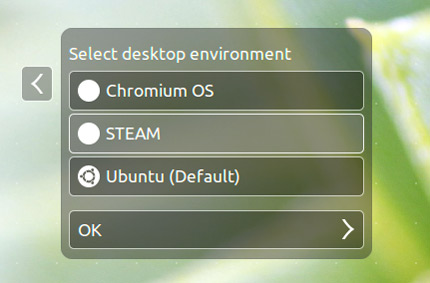
Once you’ve installed (and assuming Steam is already set up with your account) you can log out, go to the session selector, click ‘Steam’, followed by ‘OK’, and then login.
To remove steam-login at a later date open the Ubuntu Software Center and search for ‘steam-login’, followed by ‘Remove’.
Steam in Action
Curious to see what Steam for Linux is like in action? We made a quick video overview earlier this week…
Thanks to Thomaz