


GNOME 50 is out, bringing a new set of features to the open-source desktop environment that Ubuntu uses.
The latest release, codenamed “Tokyo”, enables Variable Refresh Rate and fractional scaling by default, expands parental controls, and plumbs in support for hardware accelerated remote desktop sessions.
GNOME’s core apps also pick up improvements, with new ink and text tools in Document Viewer, faster thumbnail generation in Files, and the ability to see event attendees for public events in Calendar.
Ubuntu users will get GNOME 50 as part of Ubuntu 26.04 LTS, which is out in April 2026.
For a closer look at the user-facing changes available, read on.
New Features in GNOME 50
VRR and fractional scaling on by default
GNOME 50 enables Variable Refresh Rate (VRR) support on compatible monitors. This is arguably the headline change for desktop users since it means no gsettings tweaks or distro patches are needed to benefit from this.
What does it do? What it says; it changes the display refresh rate to sync to whatever’s shown on screen. Faster actions require faster rendering, thus a higher refresh rate (things like gaming or scrolling web pages, etc). If you’re staring at static content, a lower refresh rate.
Low-latency cursor support is also provided, which lets your mouse cursor move at your monitor’s maximum refresh rate when VRR is active, even if the app you’re working with is running at a lower one.
GNOME’s VRR support was, like fractional scaling, previously an experimental feature. It was not enabled by default in vanilla upstream builds, but many downstream Linux distributions shipping GNOME did enable it for their users.
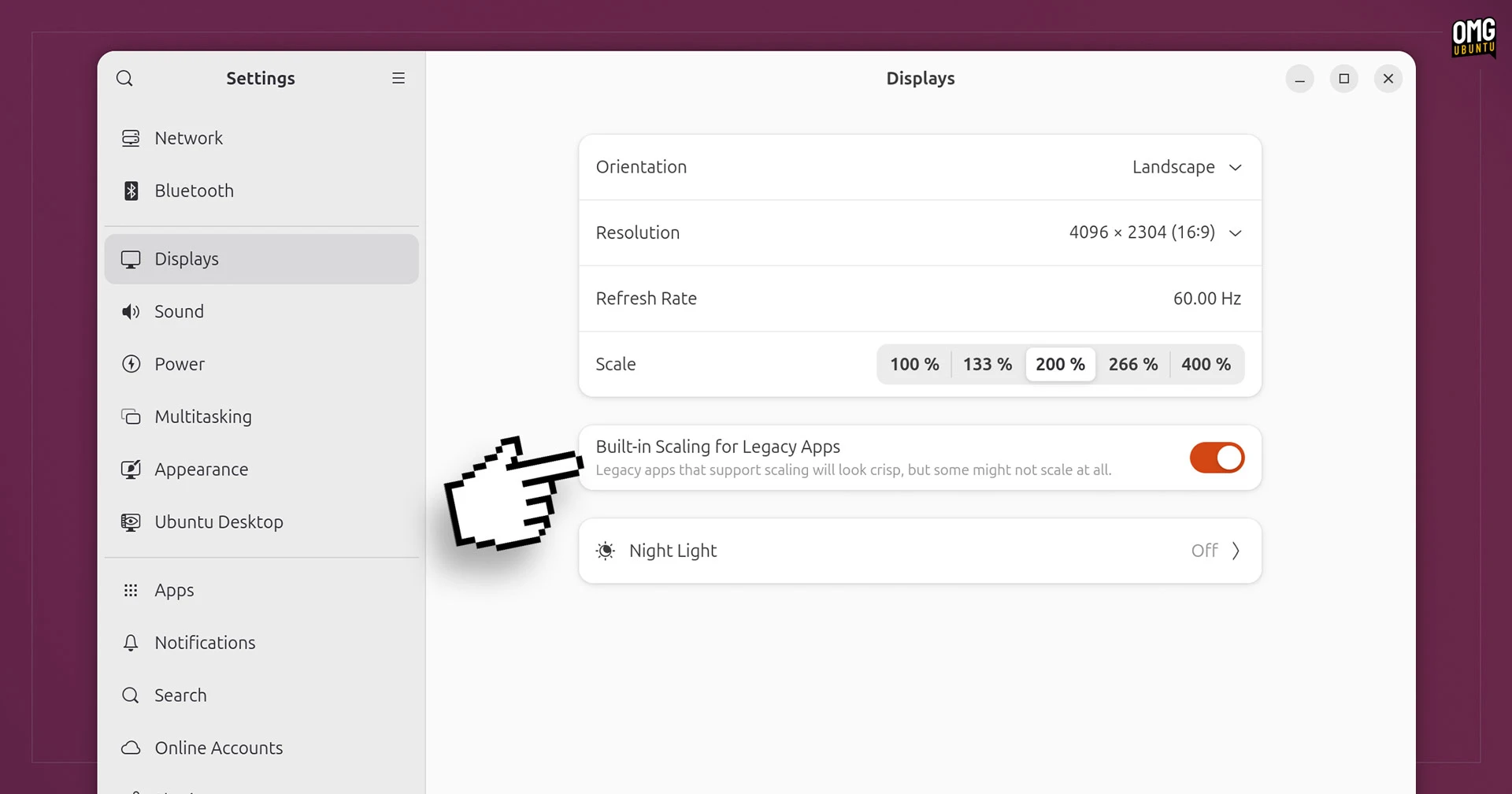
Alongside this, and new in Ubuntu, is a setting to enable legacy app scaling, i.e., of X11 apps running on Wayland via xwayland. A toggle in Settings > Displays you choose to scale X11 apps the same as the running natively on Wayland.
A note does warn that not all legacy apps can or will scale properly, so be aware that some ancient software you make use of could up look weird, over-sized or rather blurry and software when this X11 scaling setting is enabled.
Power Profile indicator
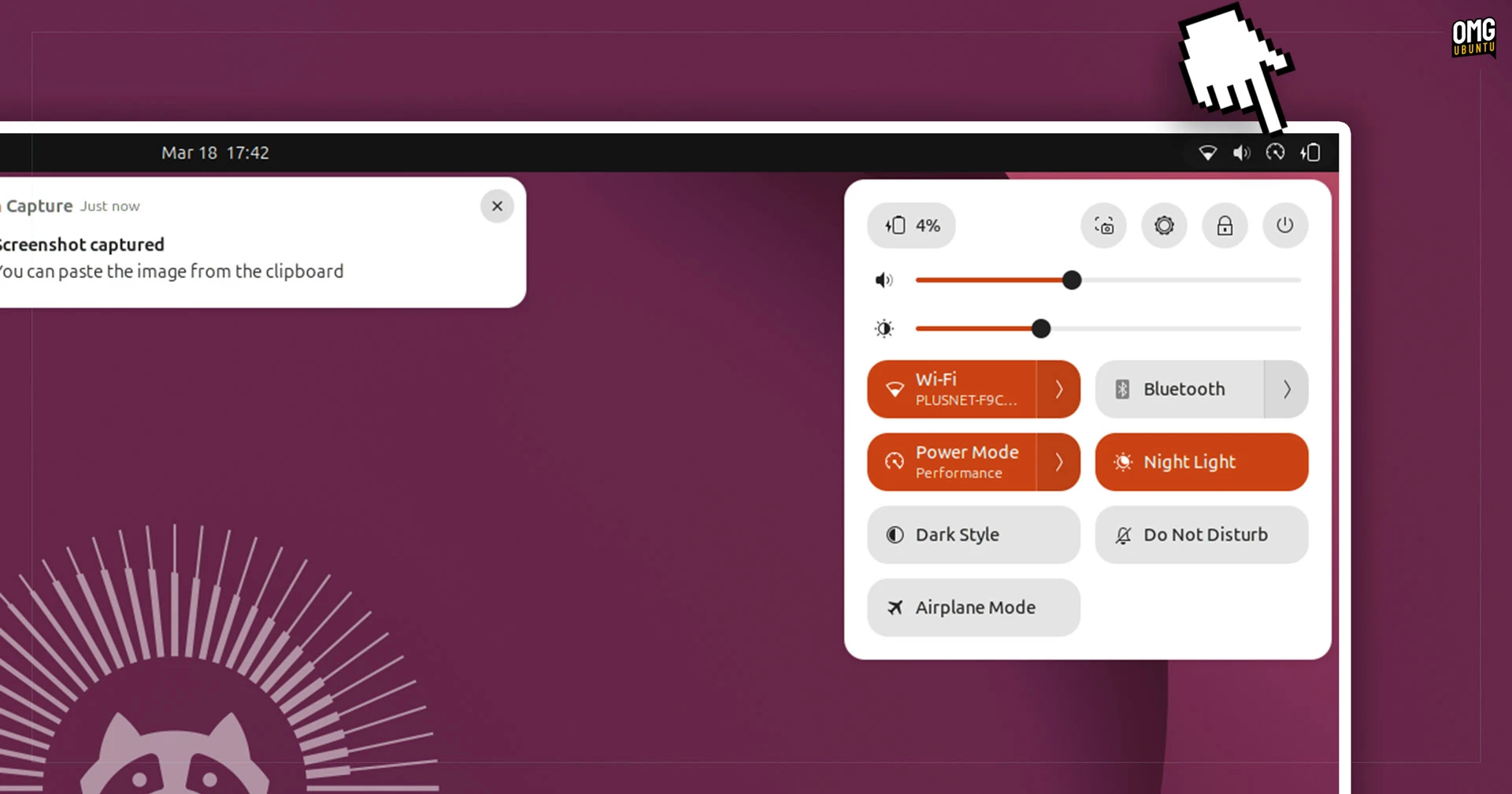
Ever enabled Low Power or Power Mode mode on your laptop, only to forget?
GNOME 50 now shows a power profile icon in the Top Bar (panel) when you switch away from the standard Balanced power mode. The icon may seem annoying, but the point is to act as a reminder and this is something other operating systems also show/indicate.
PDF form filling in Document Viewer
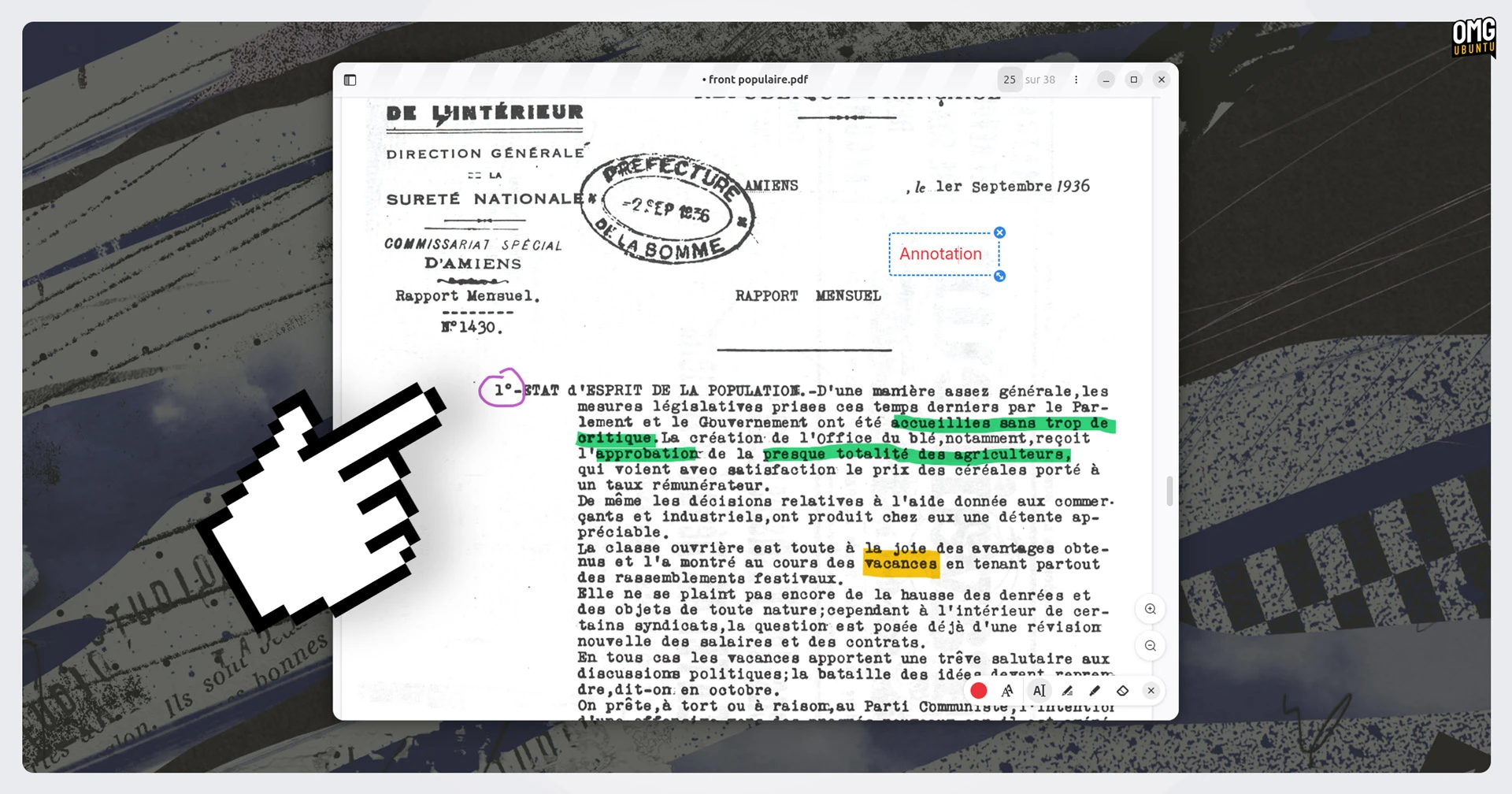
GNOME’s Document Viewer (aka Papers, as of GNOME 49) picks up new editing tools that let you draw directly on documents directly or add free text annotations.
To use them, click the pen tool icon at the bottom of the on-canvas controls. This will show available tools and a colour palette. When active, draw out text annotations, signatures, doodles, diagrams or callouts directly on your documents, and save them.
The free text tool is sure to be useful for filling in PDF forms which aren’t actually fillable forms, while the ink makes adding real signatures to digital documents easier than other methods. In both cases, an eraser tool is included should your annotations or artistry go awry.
Working with Papers’ existing annotations is easier, as there’s a new menu to edit them from the sidebar and a toast shown when deleting annotations (in case you didn’t mean to). Also of note, a new “copy email address” menu item.
File manager tweaks

There’s no single headline feature for Files in this update, but the desktop workhorse continues to pick up a stack of smaller tweaks that help it work better and more efficiently.
File thumbnails (using glycin) and icons are said to load faster; memory usage has been reduced; grid view caption options can now be access from the View menu or right-click context; and sidebar operation labels made a little less long.
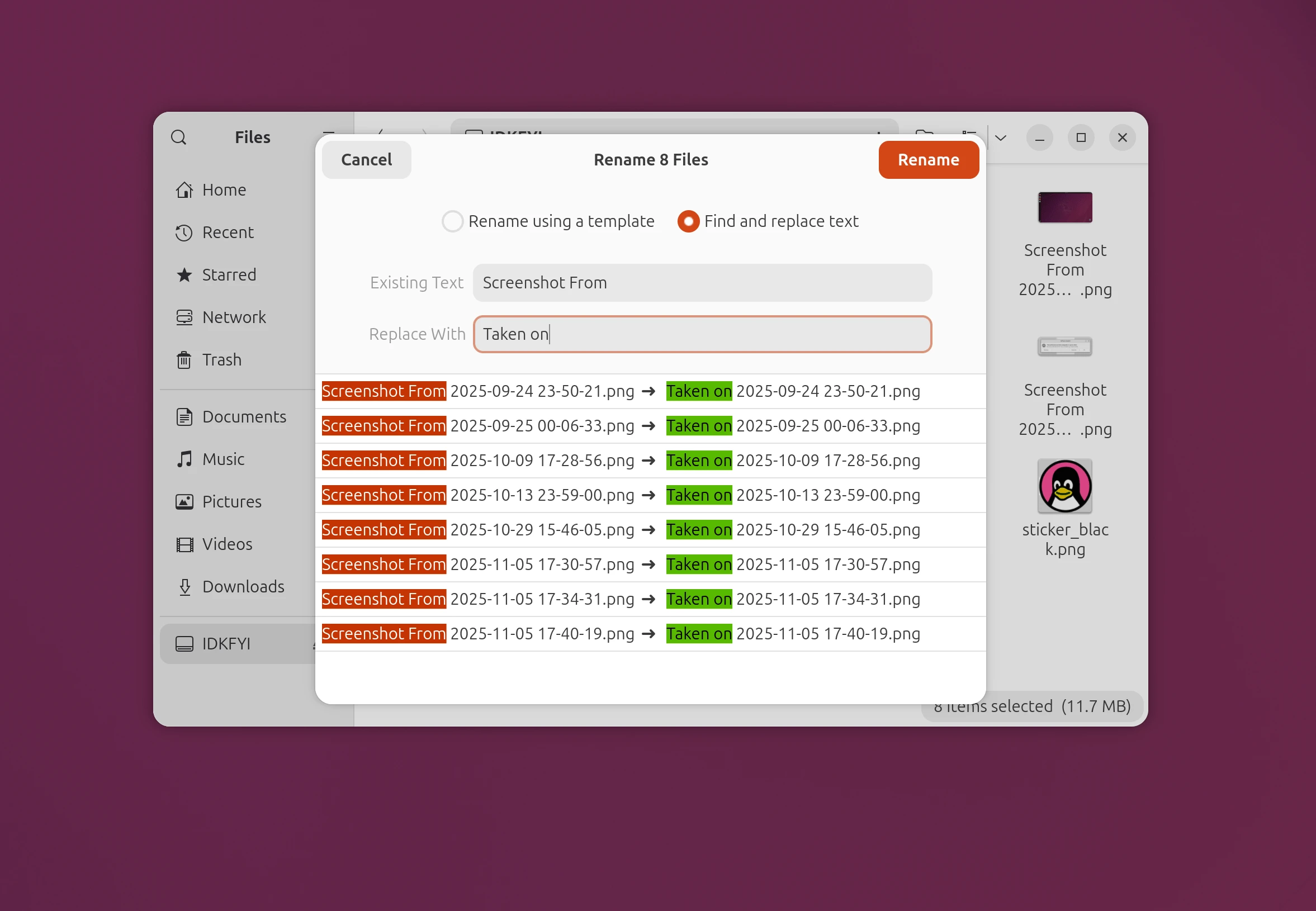
The batch rename feature (an under-appreciated feature) is able to highlight text being replaced as you type, which sounds a bit “ok” until you use it:
Search can support multiple file type filters at the same time; you can pop-out folder/file properties in free-floating windows (default is modal ); and the path bar can handle case-insensitive completions – those of us with lackadaisical typing skills are much obliged.
Parental controls
A major effort in expanding parental controls and digital wellbeing features in GNOME, funded by a grant from Endless, has been taking place in the last few GNOME releases. In GNOME 50, that work brings expanded support for parental controls.
Parents can set daily screen time limits and bedtime schedules for child accounts which, once reached, results in the screen automatically locking.
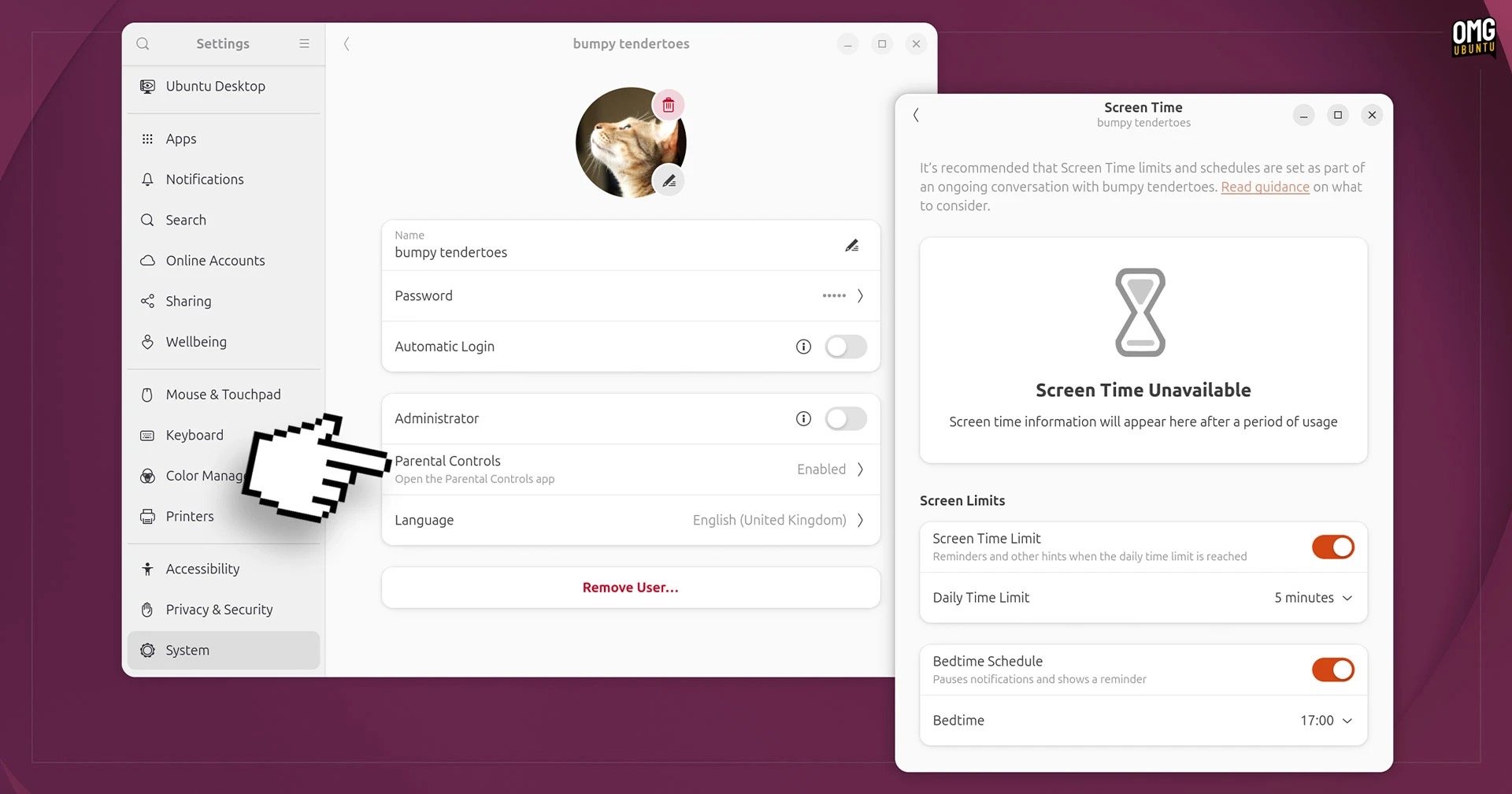
Notifications are shown to child users as they approach their limits, and time extensions can be granted if/when needed by a parent via GNOME Shell – they need to authorise it, of course.
You may be able to use these features on Ubuntu 26.04 LTS, but you’d need to install the Parental Controls app (package name malcontent-gui ) from the repos first, and then create a child account to apply restrictions too.
Testing this feature on Ubuntu 26.04 LTS to crib screenshots for this post, I found none of the screen time and ‘bedtime’ limitations I set for a test account in Ubuntu 26.04 LTS triggered any kind of response.
But restricting access to apps and the web browser did work, although even when Settings was toggled off in a child account it could still be opened via the Quick Settings menu. These issues may be Ubuntu-specific quirks since the distro doesn’t ship the Parental Controls app by default. .
Something to keep in mind if you were planning to make use of this in the upcoming LTS.
New reduced motion setting

Accessibility remains (rightly) a big focus of many Linux desktop environments, GNOME included.
GNOME 50 sees Orca, the built-in screen reader tool, undergo a big revamp. The preferences window has been redesigned, settings now apply globally by default rather than saved per-application (resolving friction when switching browser), and more UI items get announced.
Also available in Settings > Accessibility > Seeing is a new Reduced Motion toggle. When enabled this aims to dial down UI animations. If you find the constant flitting and fading distracting or physically uncomfortable, it’s great you can curtail it within GNOME itself.
Remote Desktop GPU acceleration
GNOME 50 supports hardware-accelerated remote desktop sessions, with video encoding (via Vulkan and VA-API) offloaded to the GPU. All being well, this should result in smoother sessions with less lag when connecting to modern desktop systems.
NVIDIA users get explicit sync support, and HiDPI support means remote clients scale correctly to their own display resolution. Webcam redirection lets your local camera appear as if it’s plugged directly into the remote machine, useful for ‘there but not there’ video calls.
An assortment of reliability and security improvements also slip in, including Kerberos authentication for headless setups, connection throttling and keyboard layout indicator to let you know when/if a remote session takes control of the input.
Other changes
Several community-made apps gain GNOME Circle acknowledgement with this release. Circle apps are not Core apps (not made, maintained or distributed by GNOME itself), but recognising as being best-in-class examples.
The new Circle apps are screenshot annotation tool Gradia, media compressor Constrict, the Sessions timer tool, and (a somewhat self explanatory) Sudoku game.
Among new/tuned panels in the Settings utility:
- Sound > Volume Levels separates apps based on input and output
- Date and Time provides a first-day-of-week setting
- Wi-Fi shows a status page if there are no saved Wi-Fi networks
- Apps asks for confirmation when removing file/link association
GNOME Calendar gains an attendee list, letting you can see who’s been invited to an event and whether their attendance is required or optional; supports ICS export; and improves navigation as arrow keys can now move through events in month view.
On laptops with hybrid graphics, GNOME 50 fixes detection issues when using the right-click ‘Launch using Dedicated Graphics Card’ to ensure the right GPU is used. This effort – coming to KDE as well – relies on a newer version of switcheroo-control.
The display brightness OSD will now appear when you mash the brightness up or down buttons but no change can happen (i.e., you’re at peak or lowest brightness). The lack of feedback previously was not consistent with how the volume OSD behaves.
Finally, GNOME 50 is (naturally) crammed with bug fixes, optimisations and performance tuning – things which are arguably as important as any of the shiny new features that sit on top, if harder to call out or screenshot in recaps like this.
How to get GNOME 50 on Ubuntu
GNOME 50 ships in Ubuntu 26.04 LTS, due in April 2026. You won’t be able to upgrade to GNOME 50 in current supported versions of Ubuntu officially (or unofficially, without great effort).
Rolling release Linux distributions can begin packaging the update from today, but if you can’t wait to try it out you can download a GNOME OS image and run it in the GNOME Boxes app (it won’t work as well in other VM software like VirtualBox).
The full release notes are on the GNOME website, should you fancy a closer look.