

Do you currently run Ubuntu 24.10 on your computer but want to upgrade to the new Ubuntu 25.04 release to benefit from its (many) changes?
As long as you’re full up-to-date and have a working internet connection, you can upgrade to Ubuntu 25.04 directly – no need to do download an ISO, flash it to a USB stick and do a clean install.
And upgrading soon is a good idea.
Ubuntu 24.10 supports ends in July, and those using it after that date will need to upgrade to Ubuntu 25.04 to continue receiving security updates. Those left cold by the churn of upgrading every 6 to 9 months should consider installing Ubuntu 24.04 LTS as it’s supported until 2029.
Chances are you know all of that; you clicked through to this article because you want to upgrade to 25.04, so let’s get on to the actual “how to” part!
Upgrading to Ubuntu 25.04 is Easy
To upgrade to Ubuntu 25.04 you need to meet following (basic) requirements:
- Be running Ubuntu 24.10 (not Ubuntu 24.04, 23.10, etc)
- Install all pending updates (if not, go do it now)
- Have a reliable internet connection (upgrades download a lot of packages)
You also need adequate free disk space but the upgrade assistant will check for that and ‘nope-out’ if you’re running low on available space.
Also, it’s a good idea to backup any important/critical files, configs and settings now, before you begin. Upgrades can go wrong and could leave you unable to login (and if it’s your only computer, unable to do much).
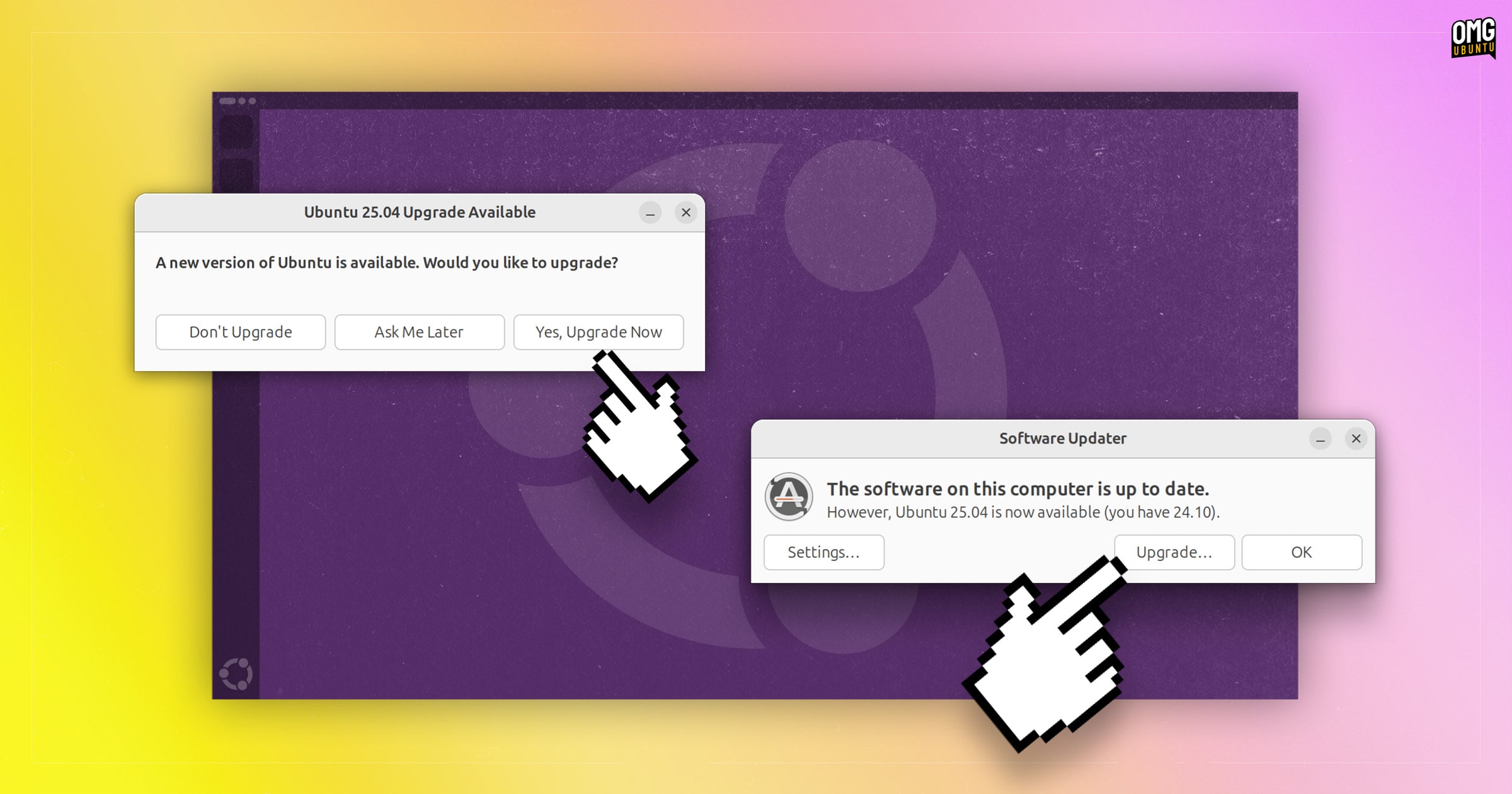
To initiate the upgrade:
- Wait for Ubuntu to notify you that an upgrade is available
- Upgrade from the Software Updater app
Both methods use the same graphical upgrade assistant to handle the upgrade itself.
Click “upgrade” on the upgrade prompt and then follow along with on-screen instructions.
First you’ll be shown a list of release notes and (importantly) known issues. Read through those and, if happy to continue, do so.
Next, the actual upgrade element begins. A list of packages that need installed, updated and/or removed is compiled. These are presented to you so you can check through and, if happy with how things look, agree to ‘Start Upgrade’:

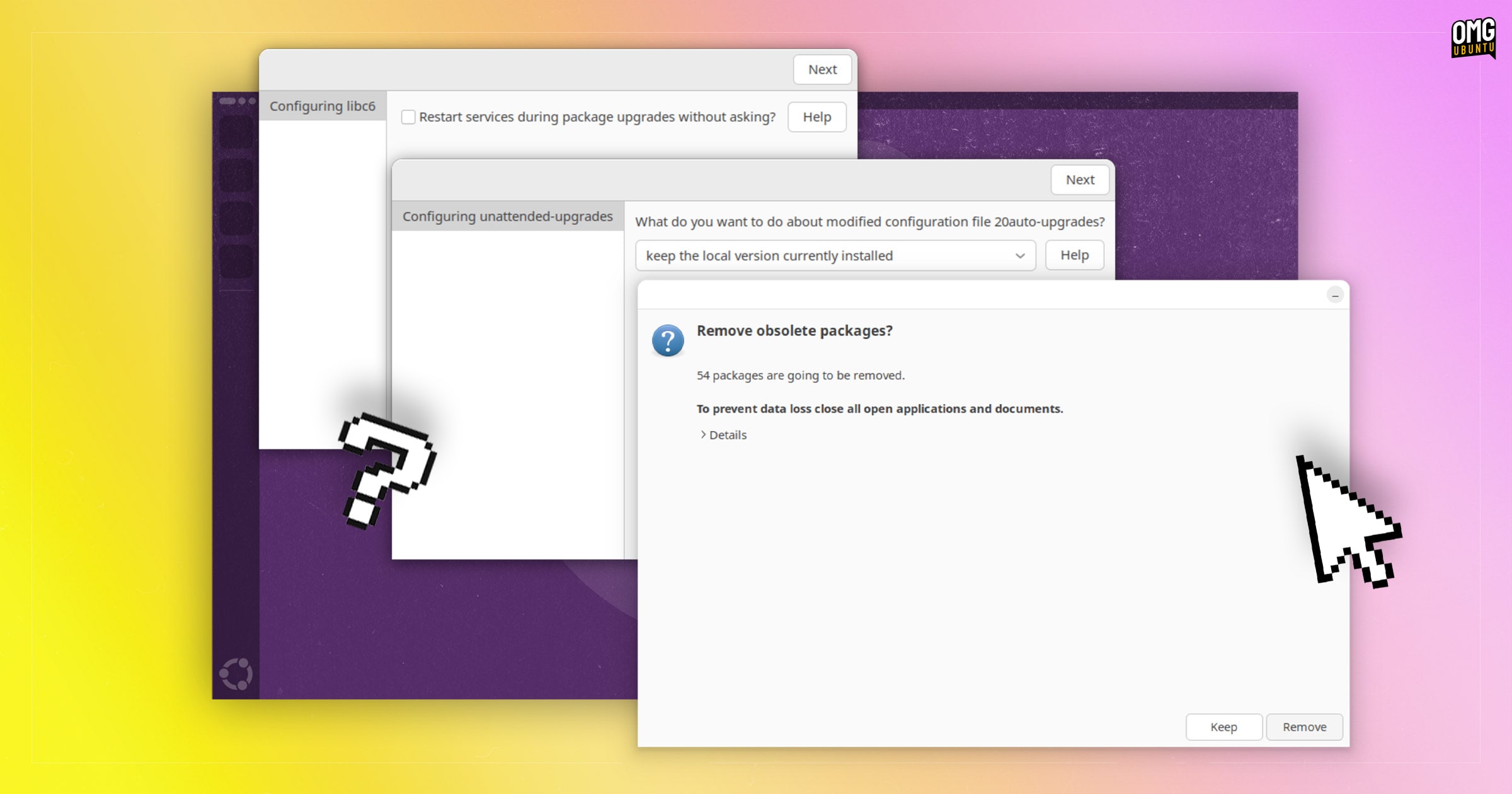
Throughout the upgrade process there may be times when a dialog appears to ask you to confirm/deny replacing or restarting certain packages, system processes, or obsolete packages.
Read through what each dialog is asking you carefully then action accordingly in order to allow the upgrade to continue.
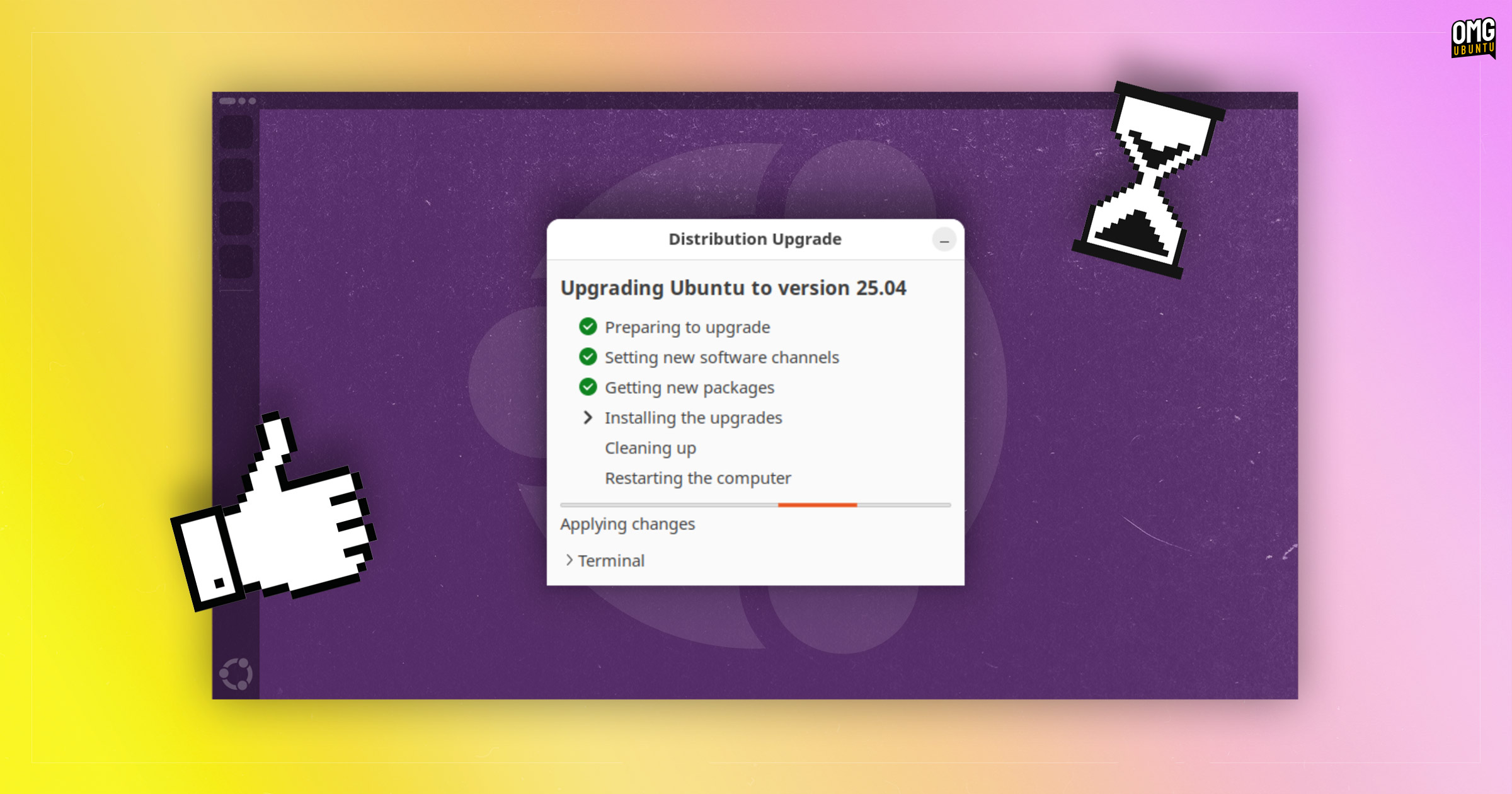
Otherwise, sit back and let the upgrade do its thing – how long that takes!
Depending on the amount of packages that need to be unpacked and the speed of your system, this can take anywhere from a couple of minutes to over an hour, so be patient.
Once everything is downloaded, unpacked, installed and ready to go you’ll be asked to “restart the system to complete the upgrade”.

Resist the urge to not do this right away,
I get it; you’re eager to start exploring the changes but many of those nifty new features, system services and foundational enablements can’t take effect until you restart — for the best experience after an upgrade, always reboot.
Upgrade Ubuntu from the command line
Don’t want to upgrade to Ubuntu 25.04 through the graphical Software Updater app? You can upgrade from the command line instead.
To get going, open a new Terminal window and run:
sudo do-release-upgrade
This command will first check to see if a new release is “officially” available for upgrade, display information about it and ask if you wish to proceed.
If you do, tap the y key followed by enter.
Thereafter, pay close attention to everything that follows: your current packages are vetted, old repos changed to newer ones, the upgrade delta calculated, and a comprehensive list of packages to be added, upgraded and removed presented.
Only if you’re happy to continue, proceed.
You may be asked to manually confirm overwriting or replacing a couple of packages during the upgrade itself, do pay close attention to command-line output.
Once everything is completes you’ll be prompted to reboot – do what you’re told!
When your system boots back up, you can log in to the Plucky Puffin using your existing user account and begin exploring the (many) changes it brings!
Ubuntu Upgrade Tips
Small tip:
- You can continue to use Ubuntu while the upgrade is happening but as updates are downloaded and unpacked you may encounter issues, crashes, graphical quirks, and so on – it’s best to leave the upgrade do its thing.
However:
- Don’t leave your device unattended during an upgrade. You may be asked to confirm package overwrites/changes in both GUI and CLI methods. The upgrade process won’t continue until you action those requests.
Also:
- Upgrading a laptop? Connect your charger BEFORE you begin, unless you’re confident your battery will last the duration. If your device turns off mid-way through the upgrade you could be left without a bootable OS!
Note:
- 3rd-party PPAs, APT repos and other software sources are disabled during upgrades. You must manually re-enable these (if they support the new release) after the upgrade in order to continue getting updates from them.
Can I upgrade from Ubuntu 24.04 LTS?
If you’re wondering whether you can upgrade from Ubuntu 24.04 to 25.04 directly the answer is no, you can’t.
Instead, you meed to upgrade to Ubuntu 24.10, then upgrade from Ubuntu 24.10 to 25.04.
In that scenario it is honestly less effort to download Ubuntu 25.04, flash the ISO to a USB stick, boot it, and reinstall — which in Ubuntu 25.04 is easier thanks to the new ‘replace’ option available in the system installer.