

Of the (many) handy new features in Ubuntu 24.04 LTS is the ability to access OneDrive files through the Nautilus file manager as a remote mount.
This is made possible by the msgraph package, a new Gvfs backend that Nautilus can use, account integration with GNOME Online Accounts (GOA), and Microsoft giving the GNOME project the relevant permissions, nods, and approvals.
And while this cloud file access feature isn’t obvious to set up it is easy once you know how. It works with both regular Microsoft OneDrive accounts and OneDrive accounts provided for and/or managed by an organisation such as your work.
As a ‘turn key’ solution it’s great: available to use out of the box, no 3rd-party apps, random scripts, or extraneous add-ons requiring you to enter your precious account details in to them.
But there is a really annoying issue with it: it doesn’t stay connected.

I can successfully add my Microsoft 365 account in Online Accounts without issue and slide the ‘Files’ toggle to enable the Nautilus OneDrive integration and it all works great.
But it only works until I shutdown or reboot.
Because the next time I login and I try to access OneDrive in Nautilus it fails, giving me an “invalid credentials” error. In Settings a warning icon next to my Microsoft 365 account denotes an issue and clicking through reveals an info bar telling me to ‘reconnect’.
Only, reconnecting doesn’t work either. Microsoft’s auth page opens and I can login without issue. But when it has to auth pass back to GOA it can’t due to an “invalid UTF-8” issue.
The only way I’m able to get the feature to work (again) is to fully remove my account from Online Accounts and set things up from scratch — each time I log in!
It’s not a hassle but when I just want to grab a file it’s a bit of a faff (British word, that).
How to Fix the Microsoft 365 Account Issue
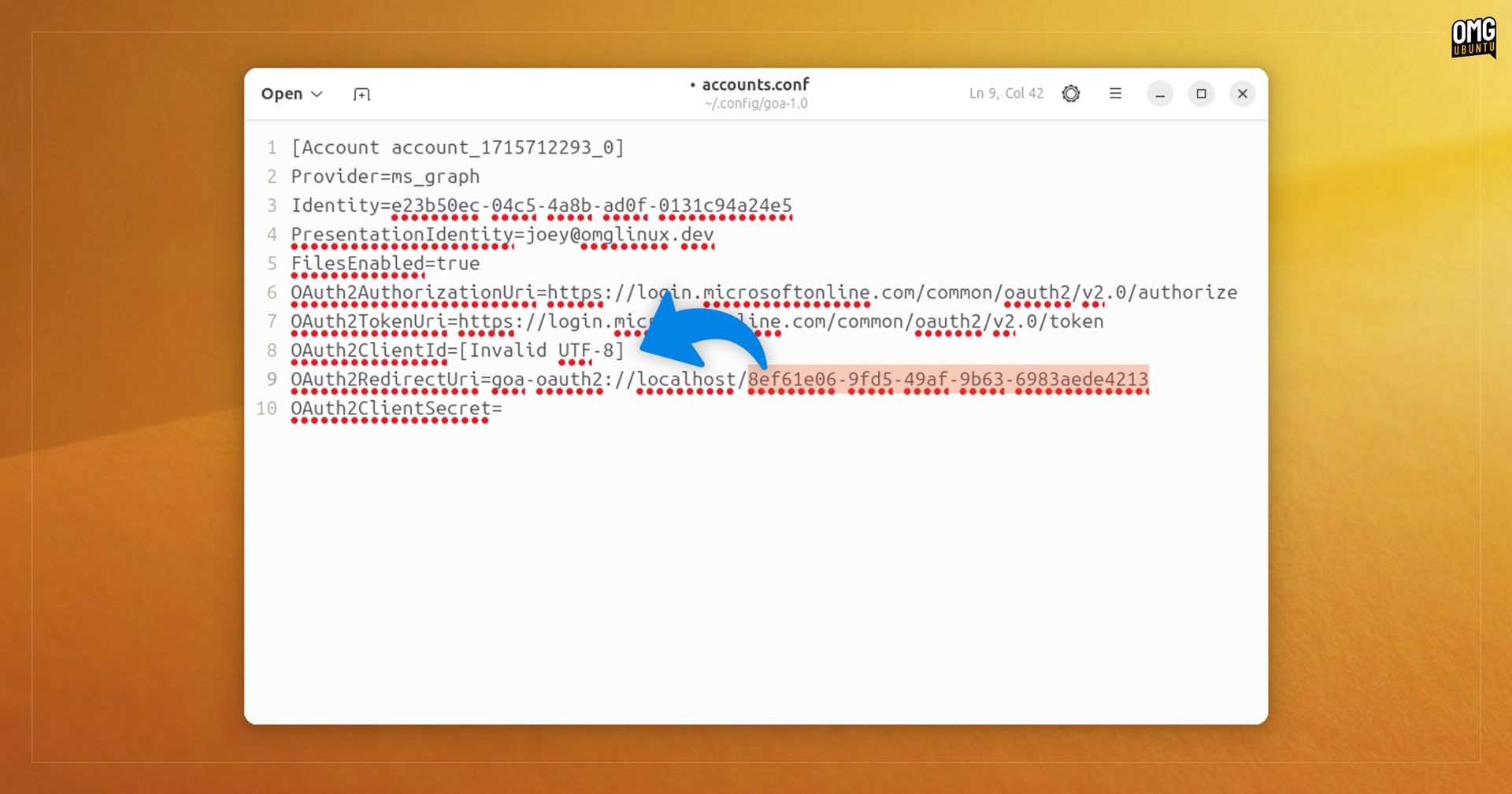
Well, the good news is that the ‘invalid credentials’ issue that occurs between sessions is a bug and a fix has been merged upstream which I hope will filter down to Ubuntu 24.04 LTS soon.
In the meantime there’s a manual workaround to “solve” it.
So if you’re bugged by this account reset issue and wish to stay consistently connected to your cloud account between sessions here’s how:
- Open
~/.config/goa-1.0/accounts.confin a text editor - Go to the
OAuth2RedirectUrisection - Copy the number string after
localhost/(this is your client ID) - Go to the
OAuth2ClientIdsection - Replace
[Invalid UTF-8](including brackets) with your client ID - Save and reboot
That’s it; your Microsoft 365 account will now stay auth’d and working between sessions, no more “invalid credential” errors and no need to reauthorise or remove your account to stash or retrieve files from OneDrive.
Hope it helps!