




GNOME 51 is out, bringing FIDO2 passkey login, a Reduced Motion option and frame scheduling changes that make UI animations and scrolling feel smoother.
Core apps pick up improvements too. The desktop Maps app gains offline area downloads and live transit data, Papers now lets you add visual signatures and Nautilus speeds up the loading of large folders.
While this is a more modest release than we’ve become accustomed to – some planned changes, like a GTK4 port of Disks and a slider to change touchpad scroll speed, didn’t make it in – there is still plenty to look out for.
Ubuntu 26.10 is out on 15 October and ships with GNOME 51, with its own customisations on top. New GNOME releases aren’t backported, so Ubuntu 26.04 LTS stays on GNOME 50 for the duration of its supported period.
GNOME 51: New Features
Mutter puts smoothness in the frame
The latest version of Mutter, the compositor that powers GNOME Shell, saw another slate of backend changes to optimise the way how are ‘drawn’ on screen.
Among changes this cycle is a rejig in how the frame clock estimates render time, which helps reduce the chance of dropped frames on systems where the old fixed estimates were either too stringent or too generous, hardware dependent.
Mutter 51 also improved screen recording and remote desktop sessions by reducing the amount of unnecessary work done in the background during grabbing. Lowering the overall overhead (irrespective of hardware or software rendering) means a smoother end result.
What about GNOME getting frosted blur effects? Many Linux blogs trumpeted it, but it’s not a user-facing change – not yet. Mutter has gained support for the Wayland background blur effect protocol, but apps and surfaces must request it – no default ones do.
There’s no background blur in GNOME Shell by default, so don’t go hunting for a toggle as you won’t find one.
Use your keyboard to resize screenshot area

Keyboard adjustments are now available in GNOME Shell’s interactive screenshot tool.
Using your keyboard’s arrow keys, you can expand, contract or move the selection area, without needing to use the mouse.
Press an arrow to select a side, then keep tapping to make the selected area bigger or smaller. Hold shift or ctrl while pressing an arrow key to move in larger or finer increments, and hold alt and press an arrow key to move the whole selection area.
Hit R to reset the selection area entirely. As in earlier versions, when the screenshot feature is open you can hit return to take the snap – which, in this release, no longer uses a camera shutter sound effect as Adwaita now has its own native sound set.
Web and FIDO2/passkey login support
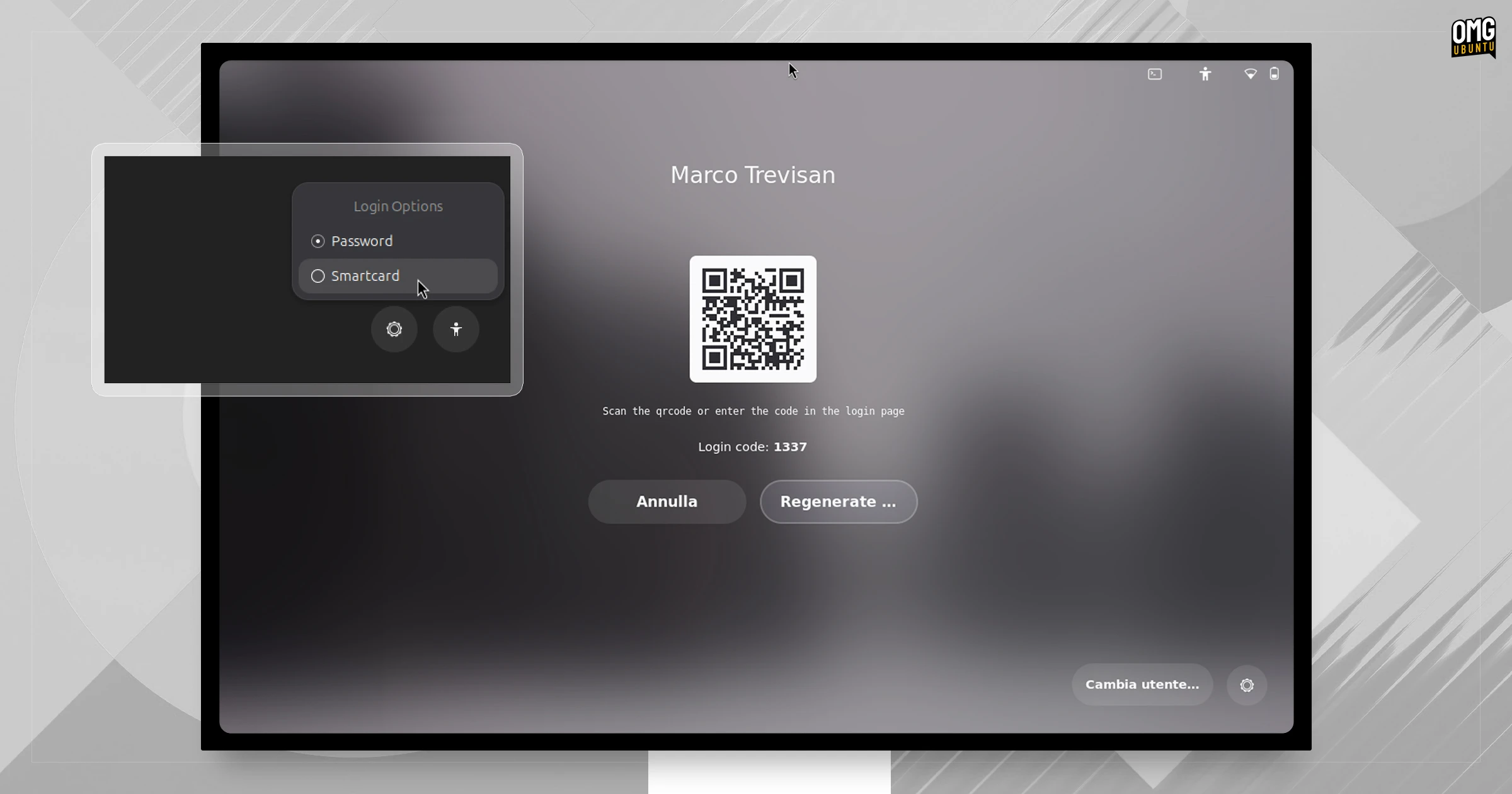
GNOME Display Manager (gdm3) has improved support for authentication mechanisms, including smartcards and web-based logins, on the login and lock screens. These are primarily of use to those with corporate or remote setups, rather than home users.
Smartcard login isn’t new, but GDM’s unified authentication framework adds web login (QR codes and URLs) and FIDO2/passkey support. The work is all designed to be expandable, so that other auth methods can be easily added in future.
GNOME Shell saves monitor brightness
GNOME Shell now saves monitor brightness level for each monitor, and any colour mode setting (e.g., HDR), and restores it on reboot.
Previously, the kernel sysfs backlight interface was assumed to remember it, but the flaw with that is… brightness can change because of power-saving modes (i.e., dimming). The ‘dimmed’ value is restored on the next boot – which isn’t always what you want.
And there’s handling of newer HDR setups. Brightness may be controlled entirely in software (i.e., Mutter) so the hardware won’t save anything; the system may want to keep the hardware backlight up for HDR highlights, meaning the slider value is off.
In GNOME 51, the Shell stores and restores brightness instead. Monitors are identified by their EDID vendor, product and serial numbers, and for invalid EDIDs, there’s a built-in fallback to the physical connector.
Easily add visual signatures to documents in Papers

You can now add handwritten signatures to PDFs in the document viewer, aka Papers.
Papers 51 lets you add visual signatures by drawing them out with your mouse, touchscreen or stylus, but you can also import a photo of a signature and Papers will remove the background. Unlike freeform doodles, signatures are saved to reuse again.
Other improvements in Papers v51 include more descriptive paper sizes in document properties and printing free text annotations by default.
A slew of new Settings
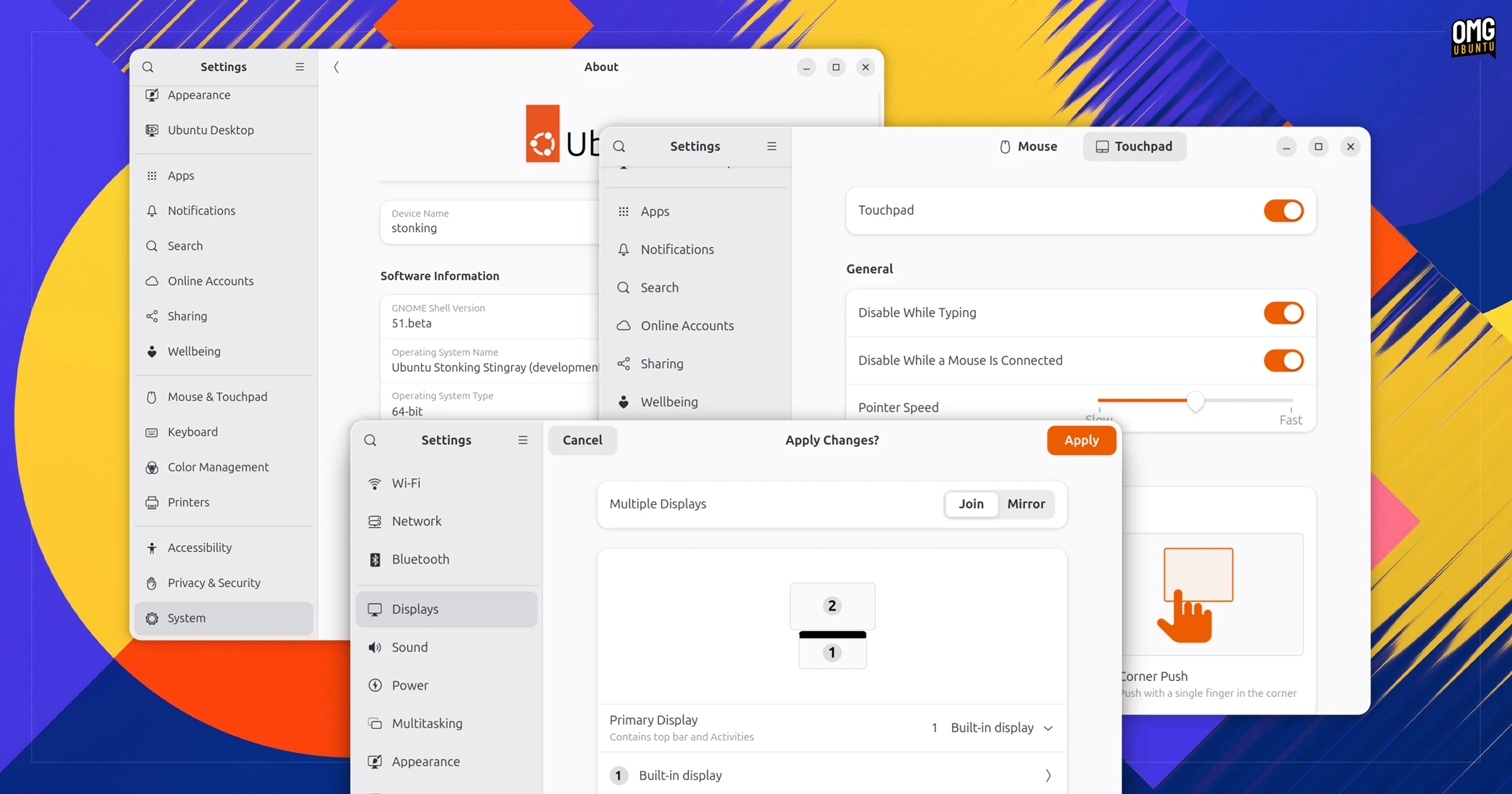
There are new toggles, switches and options to be found in Settings (aka gnome-control-center) in GNOME 51.
In Mouse & Touchpad, laptop owners can now choose to disable the touchpad if a mouse is plugged in. If you’re prone to brushing the touchpad whilst typing (cough) this is a nice quality-of-life thing.
An Auto Rotate toggle is shown in Displays to users of devices with an accelerometer1. When enabled, it lets the display orientation change based on device position. Displays also added centre-aligned snapping to make arranging external monitors easier.
DNS domain search settings were added to the Network pane, and support for WEP wireless security removed from Wi-Fi configuration (it’s pretty outdated these days). Wireless hotspot dialogs were updated to use newer libadwaita widgets.
Beyond that, the fingerprint enrolment UI in Users got improved, and the About (system details) page got rejigged: it’s easier to get to, has reordered information and shows a button to open the release notes for the GNOME version you’re on.
Remote Login now supports SSH socket servers. Accessibility > Seeing > Reduced Motion toggle dials down animations in the GNOME UX, like app minimising and maximising, and the way applets and menus appear. It doesn’t tun it all off – app picker still spawns.
Nautilus file manager tweaks

Nautilus, aka Files, the GNOME file manager, has a neat new trick: a badge count is shown on the pile of icons when you drag multiple ones to drop elsewhere. This lets you know how many items are selected.
And if you were bugged by the fact copied files were not auto-selected after long transfers, that bug has been fixed – you can quickly run follow-up actions, like rename, without needing to highlight them first.
If you shrink a Nautilus window down to a portrait-sized width, you can switch between open tabs using a cool tab overview, like the one found in GNOME Web and Ptyxis terminal. A tooltip was added to the ‘detach window’ button in file properties.
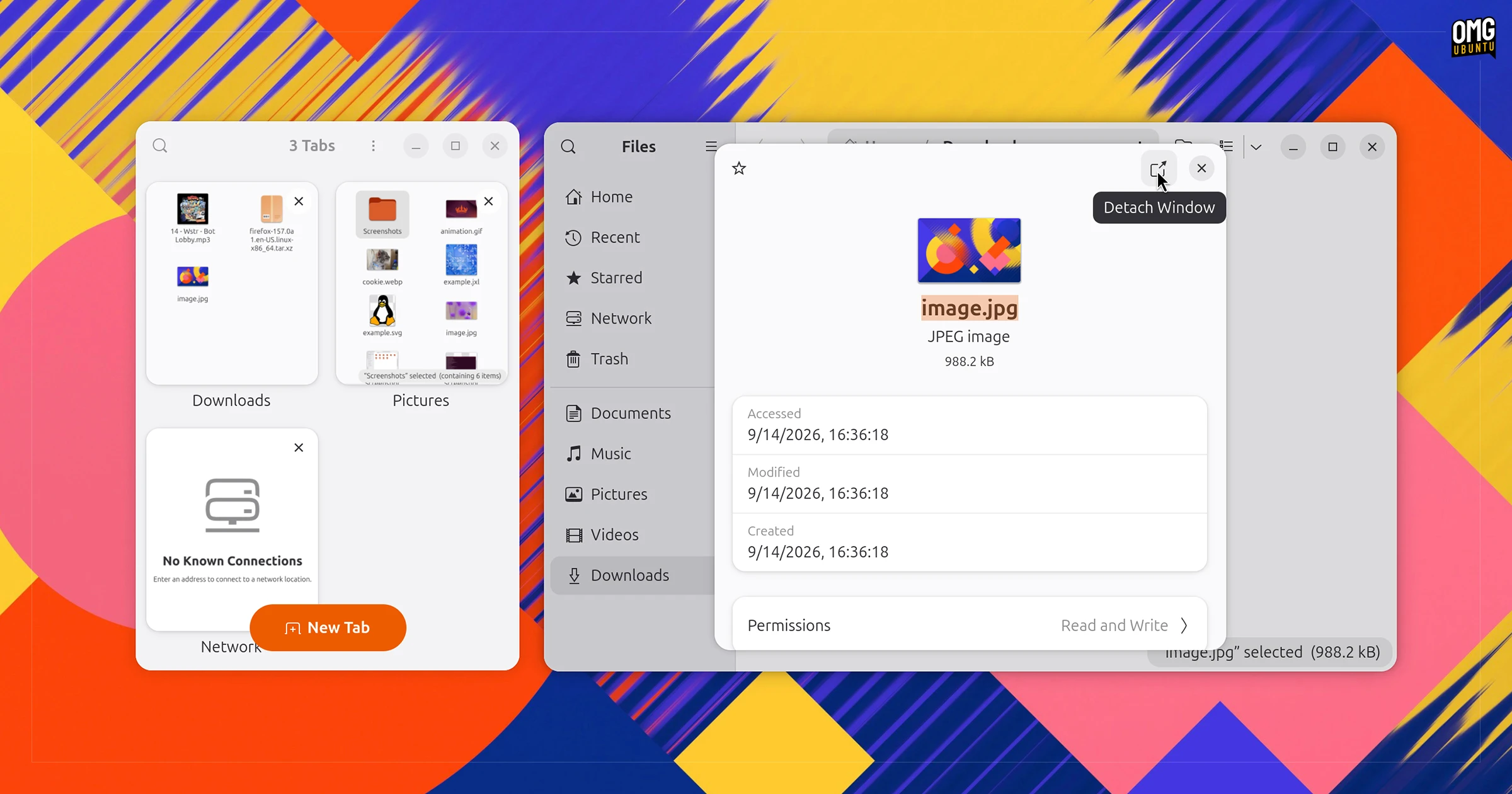
GNOME also says there’s an uptick in performance, as “several slow operations no longer block the app”. This will feel most pronounced when trudging through large folders filled with files, which will also load faster during refreshes too.
Maps lets you save areas offline

Maps, GNOME’s desktop mapping app, lets you download maps for offline use in v51. You can select a large area or a small region to save for local, offline use. Downloaded areas can be removed when no longer required from a simple management dialog.
“This is a huge win for traveling abroad”, GNOME says, noting that data roaming can be expensive and network coverage patchy.
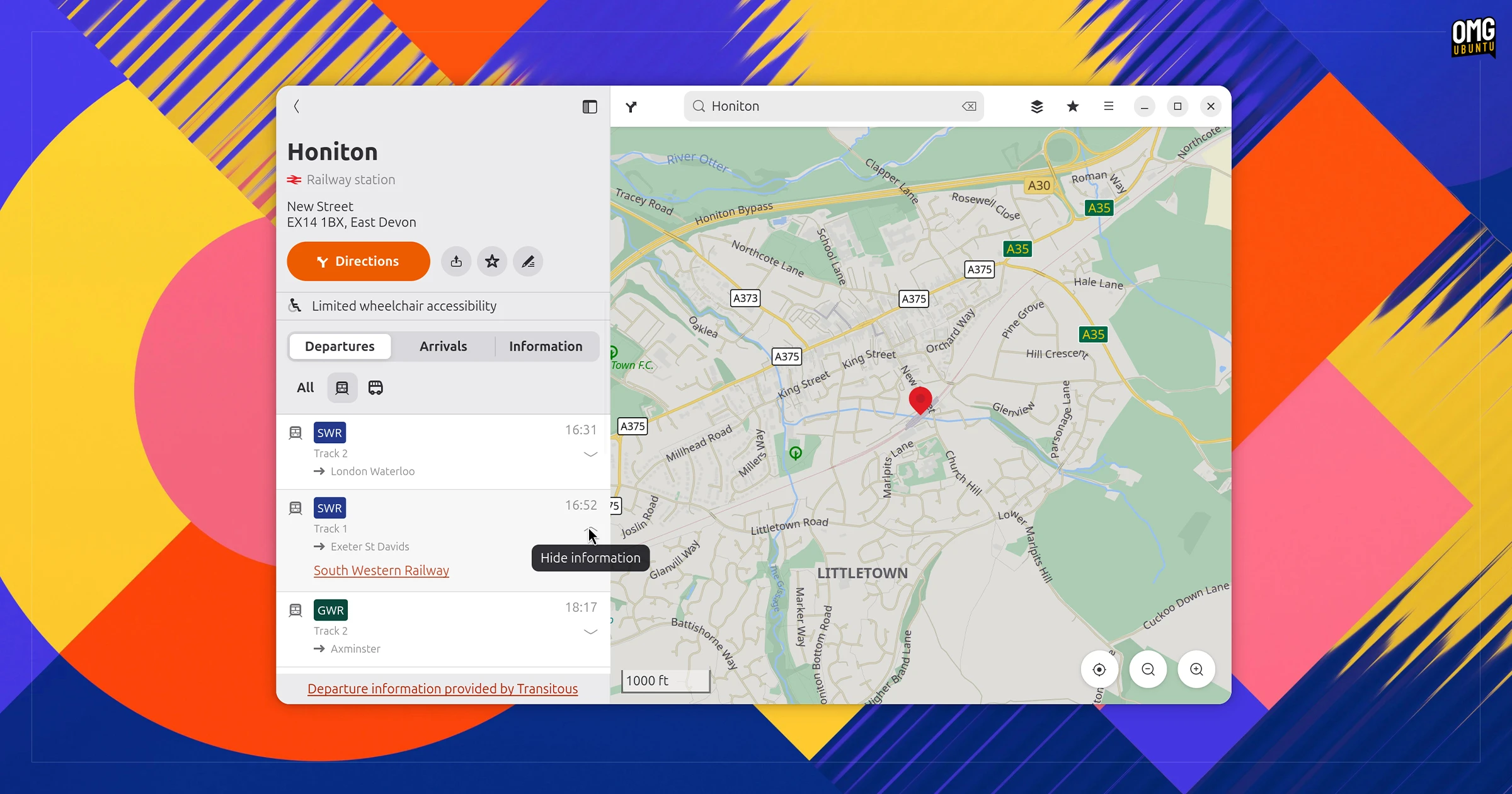
Other changes in Maps v51 include live departure times for buses, trains and other services when tapping on a station or route stops, as well as real-time delay information is surfaced to tell if public transport is running late – only where data is available.
Itineraries also list how long it takes to walk to and from the stops on a planned journey.
GNOME’s ‘Quick Look’ was ported to GTK4

Sushi, a companion tool for Nautilus that makes it easy to preview files without opening them, has been ported to GTK4 for GNOME 51. I wrote about Sushi’s GTK4 port recently and, suffice to say, I’m a fan.
The spacebar file previewer now matches the rest of the desktop’s design style, respects the system dark mode setting, can easily go fullscreen (double-click on the content) and now uses the same image rendering libraries as the rest of GNOME desktop.
The preview window also now resizes dynamically based on the size of what’s being previewed, controls for interactive previews (movies, audio, PDFs) appear as overlays and the buttons in the window were streamlined too – all in all, a nice update.
Note: Sushi is a companion tool for Nautilus, not a built-in feature. The package is not preinstalled on Ubuntu – don’t thwack spacebar manically and expect to see anything – you need to install gnome-sushi yourself.
Other changes
On the core apps side, other changes of note:
- Image Viewer shows camera, colour details in image properties
- Calendar tweaks events dialog, smoother Month view scrolling
- Remote Desktop supports sharing smartcards, Kerberos auth
- Web can generate secure passwords; streamlined the address bar
- Software shows Flatpak EOL warnings, clearer permissions
- Extensions app decoupled from GNOME Shell (now a standalone tool)
More changes worth knowing about:
- Adwaita icon for the XDG Projects folder
- oo7 support in Shell to store and retrieves passwords2
- Support for SVG-based cursors
- Legacy NVIDIA GPU driver interfaces removed3
- Smaller screen recording sizes due to VA-API H.264 rate controls
- Fingerprint reader no longer used on login screen
- Selection of new wallpapers
- Improved screen reader behaviour and announcements
- Fractional scale rendering support in GTK 4.23
Oh, and more thing: GNOME Shell now handles wallpaper loading via glycin, rather than Mutter. This keeps libmutter trim, as image-loading dependencies and APIs could be dropped, making it easier to build on top of elsewhere.
Get GNOME 51
GNOME 51 is released 16 September, with source code available to download by following the links on gnome.org. Ubuntu users get GNOME 51 in the 26.10 release, which is released on 15 October. Rolling-release distros may package it up and push it out sooner.
If you don’t want to wait, but you want to play with what’s new, you can use the GNOME OS images – these aren’t intended to be used as a main OS, and are designed to be used in Boxes.
- There was already a Quick Settings toggle for this in earlier versions, if I recall correctly. ↩︎
- Not used by all distros, AIUI ↩︎
- If you’re using an older NVIDIA GPU with an older proprietary driver, you may need to run GNOME 51 on Nouveau instead. As most modern Linux distros don’t make it easy to use old NVIDIA binary drivers, and they don’t play nice with Wayland, the end-suer impact of this is not as dramatic as it sounds. ↩︎