


Ubuntu doesn’t run Android apps and games natively, but Waydroid is an open-source effort that lets you use them – and it’s really easy to setup on Ubuntu.
Earlier this year, Waydroid was finally packaged in Debian. That puts it a simple apt install away on Ubuntu 26.04 LTS and later. No need to add a PPA, find a third-party package or run scripts from Reddit threads.
If there’s an Android app or game you’d like to be able to use on your desktop, Waydroid gives you the means to do it.
It runs a containerised version of Android (LineageOS) rather than a VM, allowing Android apps to run side-by-side alongside Linux ones, and integrate with system hardware.
Perfect it isn’t. It only works on Wayland, NVIDIA users have to use software rendering (details below). How well it runs depends on your hardware and, as importantly, what else you have open, since two OSes are sharing one system’s resources.
Install Waydroid on Ubuntu
On Ubuntu 26.04 LTS (and later), you can install Waydroid from the archives.
Open your terminal and run:
sudo apt install waydroid
It will pull in the the Waydroid v1.63 release along with dependencies needed to run it.
Once unpacked, you can launch Waydroid from the applications grid. The first-run wizard asks you to pick an Android type to download. If want to to use Google Play and related GAPPS features, to select the image with that.
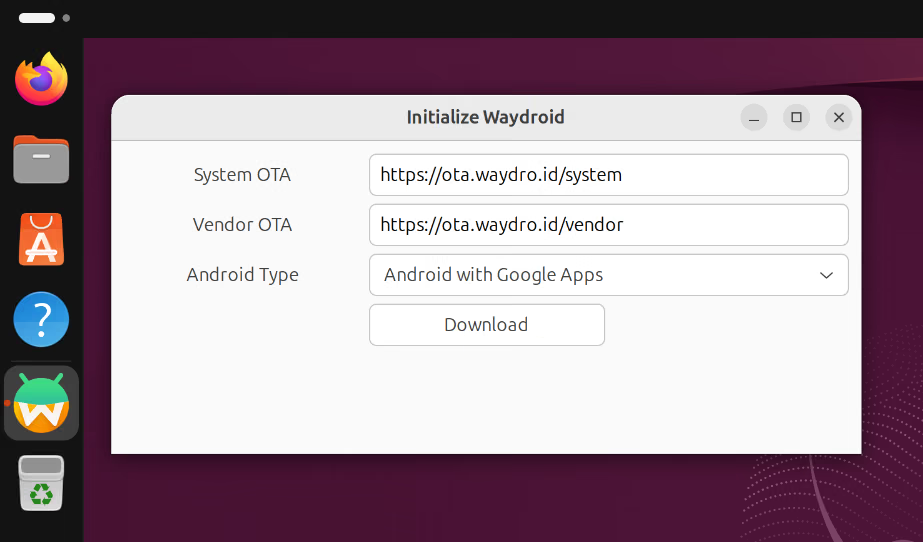
Once done, open Waydroid again and it’ll run through the Android system setup. This gets you to signing in with your Google account, and so on. After this, a few app shortcuts, including Settings and Google Play, will appear in the application grid.
Clipboard is bi-directional, so you can copy/paste to and from Android apps and regular Linux ones, and apps notifications appear in GNOME, which is neat. Everything else is passed through (my Bluetooth gamepad input was not, which was annoying).
Despite Waydroid running a full Android version, the actual image download itself isn’t huge, around 1.1GB or so, Mn my system (with a few simple games installed), Waydroid took up around ~4GB of disk space in total.
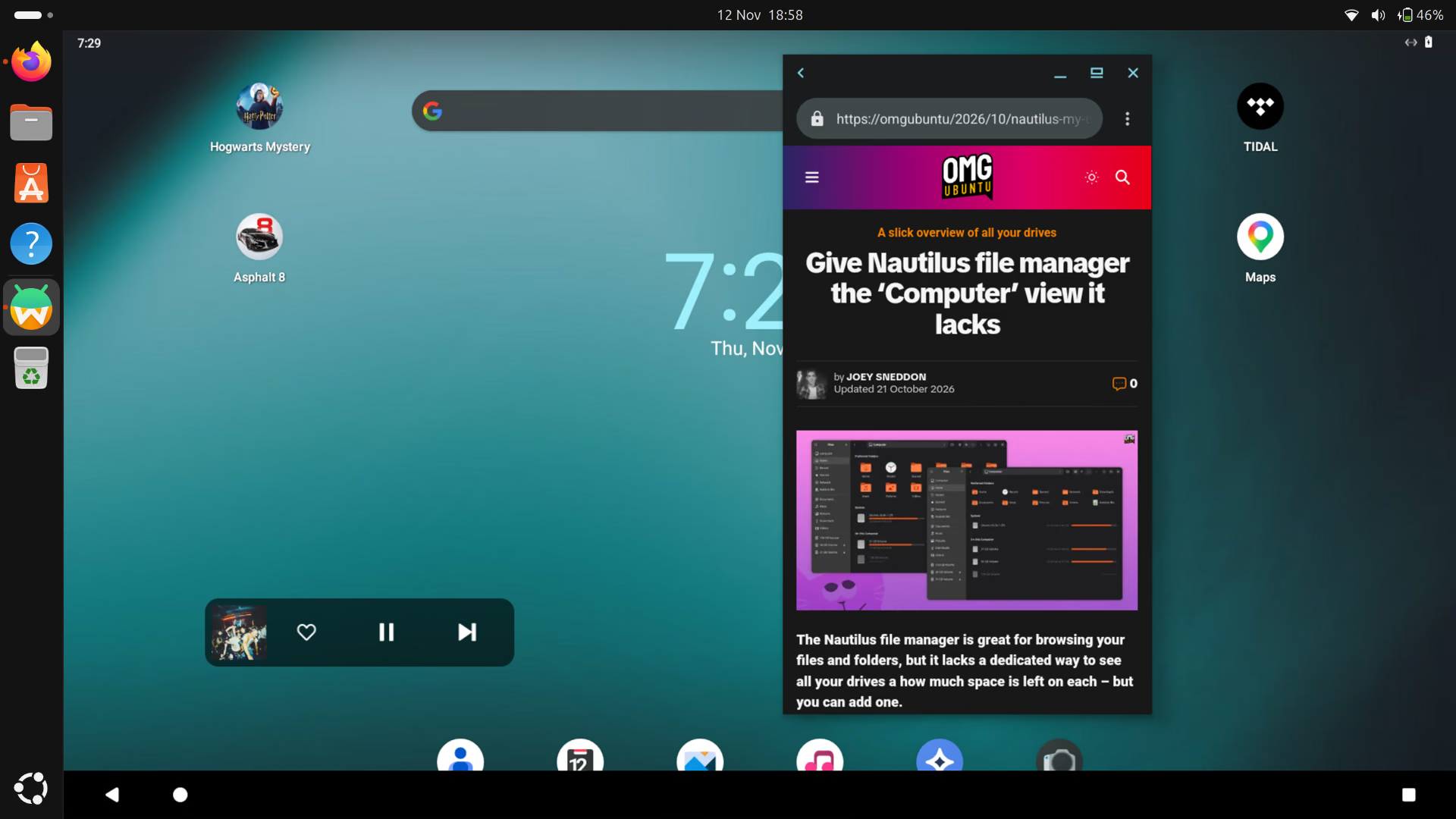
Configuring Waydroid is done from the command line. If you want to change display scaling or enable multi-window mode you’ll need to run commands to do that – the official documentation has details.
Changes only apply after you restart your Waydroid session. Right-click the Waydroid icon in the app grid or the Ubuntu Dock to find a context menu with an option to stop and start.
I reduced the display scale (original value 225 was too large, so I reduced it):
sudo waydroid prop set persist.waydroid.dpi 180
I wanted to be able to resize and move Android apps around, so I enabled multi-window mode by running this command:
sudo waydroid prop set persist.waydroid.multi_windows true
Within Android, I disabled the on-screen keyboard (OSK) from opening when a text field is selected. A toggle to nix that is located inside of Android’s Settings > System > Languages & input > Physical keyboard.
Depending on what else you plan to do with Waydroid on Ubuntu, you may like to set up a shared folder to make passing files between systems a little easier.
And, if you really want, you can even create your own dedicated Waydroid session that lets you login to a full-screen Android experience.
Can I use Google Play on Waydroid ?
Yes, if you picked the “Android with Google Apps” image during initial set up. You will need a Google account to install anything, though.
If Google Play reported that your device isn’t verified for Play Protect, there are steps on the website’s document page that walk though the (simple) way to resolve it.
Can I install apps without Google Play?
Google Play is optional. You can install APKs via ADB or within the Android environment, so if there’s an open-source store, like F-Droid, you’d rather use, you can – in place of or alongside Google Play.
What’s the performance like?
I was mildly curious to try Waydroid on Ubuntu now it’s in the archive. I recall trying it in the past and… It was a bit of a finicky fudge. The effort has matured a lot, and I dare say it’s good enough for what most people would need it for.
Performance is better than a virtual machine as there’s less overhead. Android’s core UI, apps and so on were nippy on my laptop (similar to Android apps on a Chromebook).
Waydroid says GPU acceleration works out of the box on Intel and AMD. My test laptop uses an integrated AMD and, sure enough, it was used from the get-go (along with the rest of Ubuntu, obviously).
My test laptop isn’t exactly “rig” material, running an older AMD Ryzen 2500U with integrated AMD Vega 8 graphics. Devices with discrete graphics will fare better. The Waydroid website says NVIDIA users need use software rendering for better (!) performance.
I’m not a gamer, but I installed a few games listed in Google Play’s free chart and they ran well, with audio. A racing game I tried showed occasional screen tears and dropped frames. Nothing dramatic though.
Screen colours, input and other features appeared to work fine. Android is built around touch input, so you click and drag instead of tap and move, which feels clunky and makes the effort feel slower than it reasonably is.
Closing apps won’t exit Waydroid
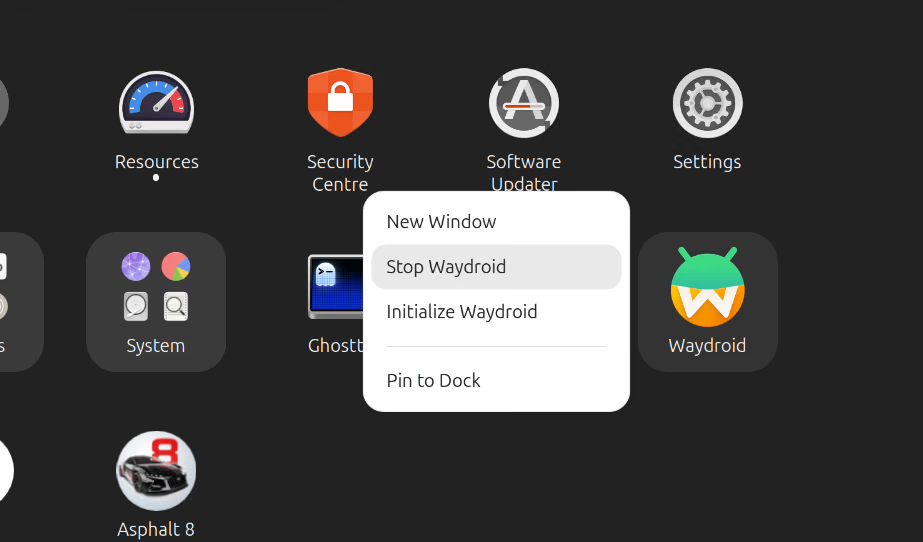
If you plan to play around with Waydroid, be aware that you should explicitly stop Waydroid (right-click on its icon and choose ‘Stop Waydroid’) when you don’t need it.
Otherwise, even if you close all open Android apps, the OS and its subsystems continue to tick away in the background. That will leave fewer resources for Ubuntu and other software (cough, web browser with 117 tabs, cough).
Is Waydroid worth using?
Waydroid fills a gap, and is a fun curio. As an open-source project, it’s only going to keep improving.
I don’t test how well this copes running demanding Android apps or heavy multitasking. Most people will want to run a couple of apps or games, occasionally. For that, it seems like it could hold up – quirks permitting.
And now that install is just one apt command, if there’s an Android-only app or game you’ve continually pulling your phone out to use, you could see runs in a window on your desktop instead.