



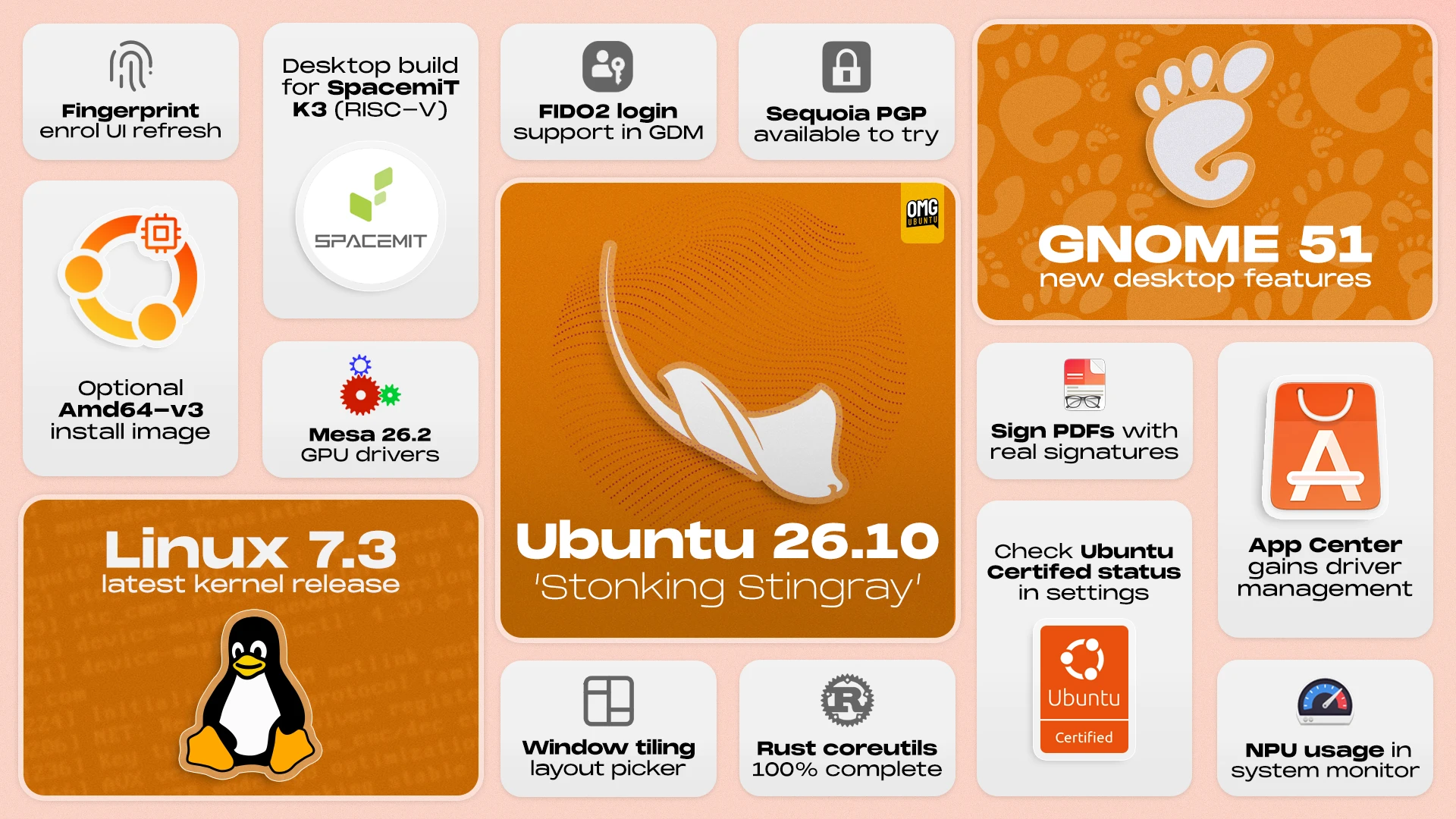
Ubuntu 26.10 has been released with a faster way to tile windows, passkey sign-in on the login screen and a full set of Rust-based core utilities.
The newest interim release, which is backed with updates for 9 months, also brings GNOME 51, Mesa 26.2 and the Linux 7.3 kernel. Plus, updated apps, new experimental ISOs for modern Intel, Arm64 and RISC-V hardware and expanded TPM-backed full-disk encryption.
Here’s a rundown of what’s new, and what’s worth knowing before you install or upgrade to 26.10.
Ubuntu 26.10: What’s New?
New window snapping widget

Ubuntu 26.10 offers a faster way to tile windows, mid-drag.
When you start moving a window a layout picker peeks in from the top of the screen. Drag your window up towards it to reveal a layout picker. Move your window over a zone to see a ghost preview of where the window will snap. If happy, release to drop it in place.
Ubuntu doesn’t provide an easy way to turn this off “off”, but if the layout picker flitting in distracts you, this command disables the pop-up:
gsettings set org.gnome.shell.extensions.tiling-assistant enable-layout-picker false
To turn it back on run the same command again, but put true in place of false.
Passkey login

GDM login and lock screens now support FIDO2 passkeys and web-based sign-in (smart cards were already supported). This mainly helps corporate and managed devices, but as it runs on a unified authentication framework, more sign-in methods can be added in time.
Check your Ubuntu Certified status
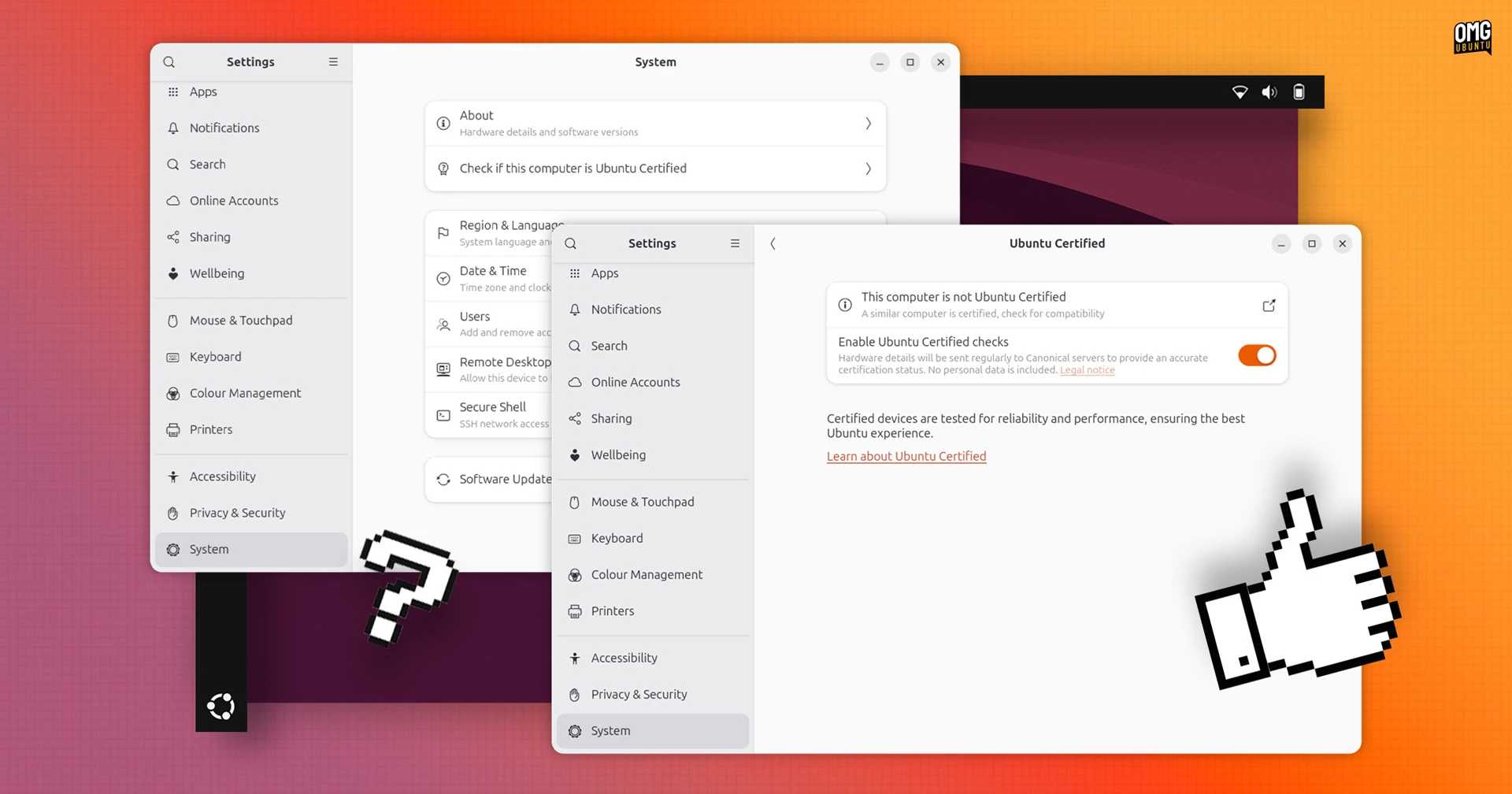
Checking whether your laptop or PC is Ubuntu Certified is easier in 26.10: open Settings > System and find out.
Status checks go through the Ubuntu Hardware API via the hwctl client, which became a snap package in this release.
If your computer matches a certified device, the new Ubuntu Certified page says so. If it doesn’t, it says that too. And if it’s a close but not exact match, it tells you that as well and gives a link to a device listing page on the Ubuntu website to learn more.
Don’t fret if your device isn’t certified: most aren’t. The label is only given to devices whose OEM paid Canonical to test and maintain support for a specific version of Ubuntu.
Add written signature to PDFs

Document Viewer (aka Papers) now lets you add handwritten signatures to PDFs and save them for future use. Draw one with your mouse, stylus/graphics tablet or touchscreen via the new canvas, or import a photo of your signature and let the app remove the background.
Signatures are stored so you can quickly apply them again, and they work like other annotations so you can reposition and resize them on the page.
Other changes include more description names for paper sizes in document properties and free text annotations added to documents now printed out by default.
Screenshots made accessible
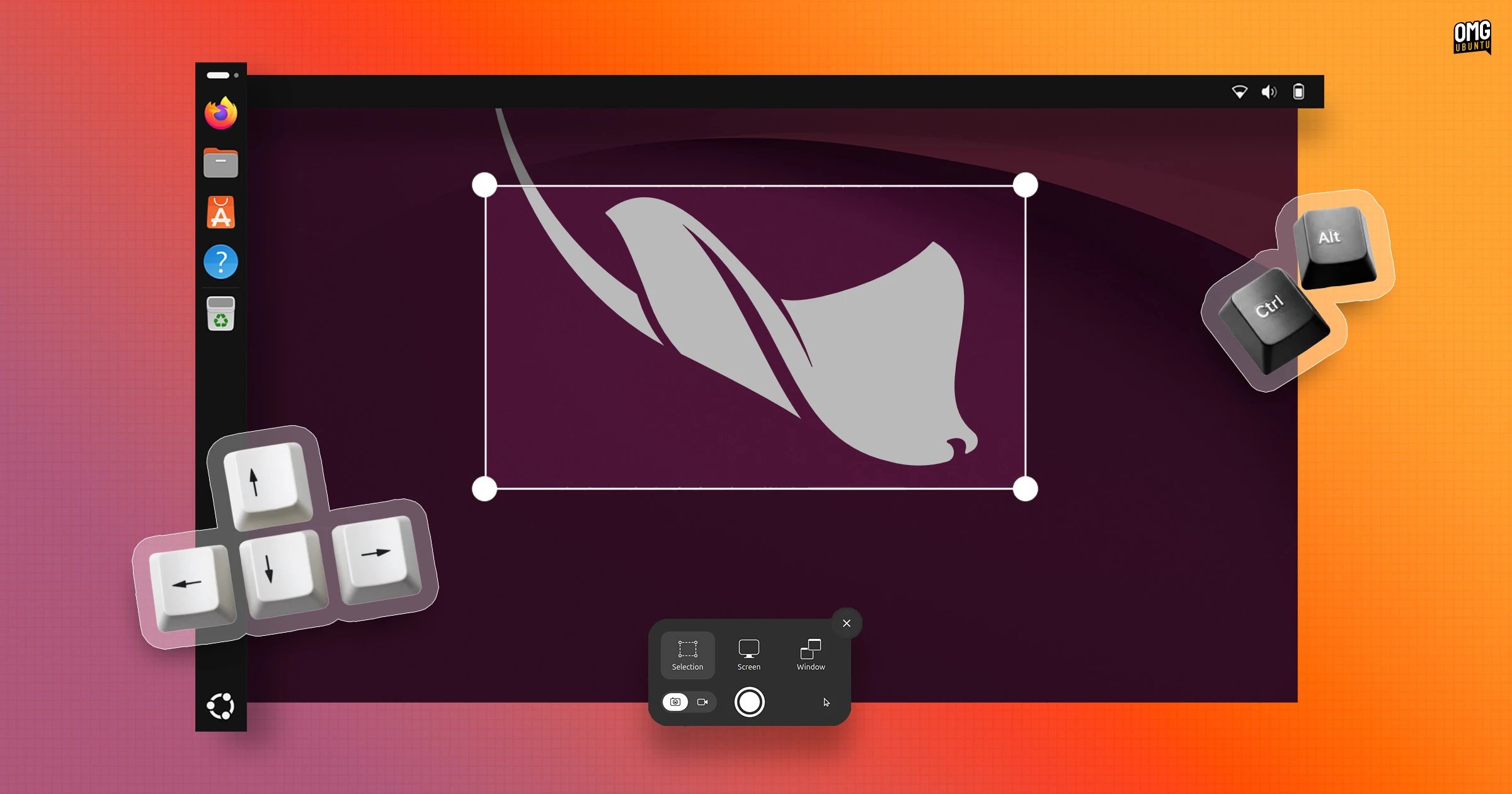
Screenshot selections can be adjusted from the keyboard.
Draw an area out, then press a keyboard arrow key to pick a side of the selection – keep tapping to make it bigger or smaller, or hold Shift to move in larger steps or Ctrl in smaller ones. Hold Alt with your arrow to move the entire selection area.
If you lose track of what you’re doing, tap R to reset and start over.
You’ll hear a new sound when you take a screenshot (which, as before, can be done with enter), as GNOME chose to replace the “inappropriate camera shutter” sound to save the blushes of folks who’d got suspicious stares whilst screen-snapping in public with the sound on!
Nautilus tweaks
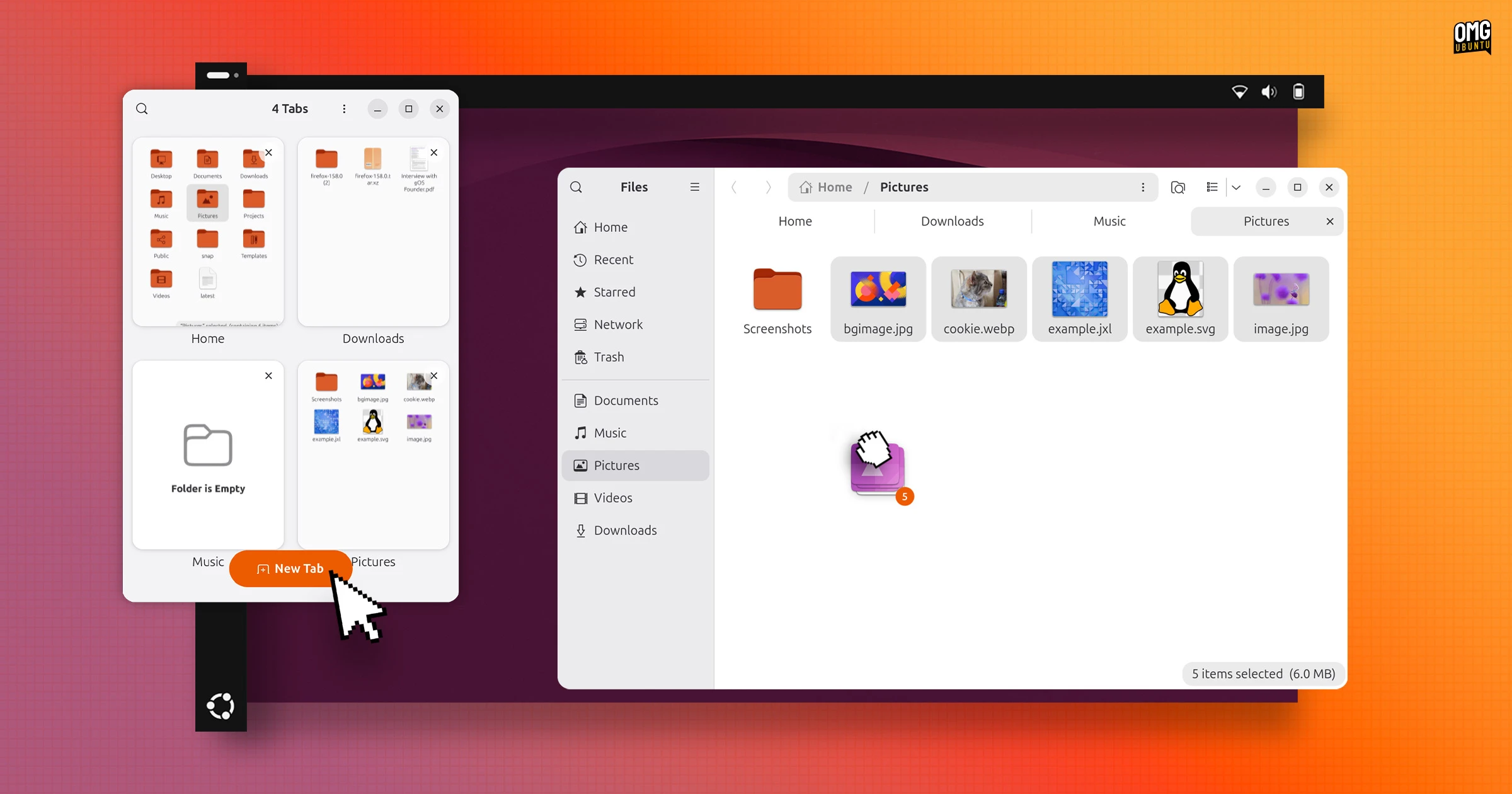
Nautilus now shows a file count as you drag multiple files to a new location. Backend changes also make files in large folders load faster during refresh. At small widths a new tab overview button appears to make it easier to see and switch between tabs – useful in tiled setups.
Desktop Icons GTK4
DING, the desktop icons extension Ubuntu uses, moved to GTK4. That change sees context menus and dialogs better match the rest of the desktop.
The desktop right-click menu also opens faster. There used to be a slight pause in appearing as DING checked the system clipboard for content to paste. That’s now run asynchronously.
Desktop icon stacks can be opened and closed from the keyboard now too, and the Open With dialog no longer shows an option to ‘Find new apps’ for the associated file since it tried to open GNOME Software and, well, Ubuntu doesn’t use that…
App Center changes

App Center gains an Add-ons section with new pages: Additional Drivers lets you enable or switch drivers (but only appears on devices with hardware that needs them, e.g., NVIDIA GPUs); Media Support has a one-button installer for codecs needed to play music and video formats.
And, for fun, there is a button that opens the Firmware Updater app, if launching it through the normal app picker feels like a chore.
App Center is now better at matching the Snap and Debian versions of the same app. For apps available in both formats, a unified details page shows download size, publisher, permissions and version number, so you can pick the one you want.
Updating is more reliable too. Apps no longer linger in the update queue after being updated. If you install third-party Debs, App Center finally lets you install newer builds for apps you already have.
Expanded Settings
Settings has more options, toggles and switches to poke around with.
In Mouse & Touchpad, a toggle lets you choose to disable the touchpad of a mouse is plugged in, while system details on the About page are now listed as a single page with reordered information (and a link to view the GNOME release notes).
On a touchscreen? Displays has a toggle that to control auto-rotation (the effect of which should be self-explanatory) When arranging the position of multi-monitors, the little squares will now centre-align snap to make exact arrangement easier.
The Network pane gains DNS domain search settings, but support for WEP wireless security is gone from Wi-Fi configuration because of how outdated and insecure it is.
And the Reduce Motion setting in Accessibility now does what it says and dials down animations, albeit not everywhere: the app picker and overview zoom are unaffected when it’s enabled.
Brightness in memory
GNOME Shell now remembers each of your monitor’s brightness level, along with any colour mode setting (i.e., HDR) and restores it between reboots.
“How is that a change?”, you wonder.
Previously, the kernel was used to remember display brightness, but power-saving modes can adjust it, so a dimmed value might reapply on the next boot. Shell now remembers brightness for each monitor, telling them apart by their EDID (make, model, etc).
APT is more helpful (at last)
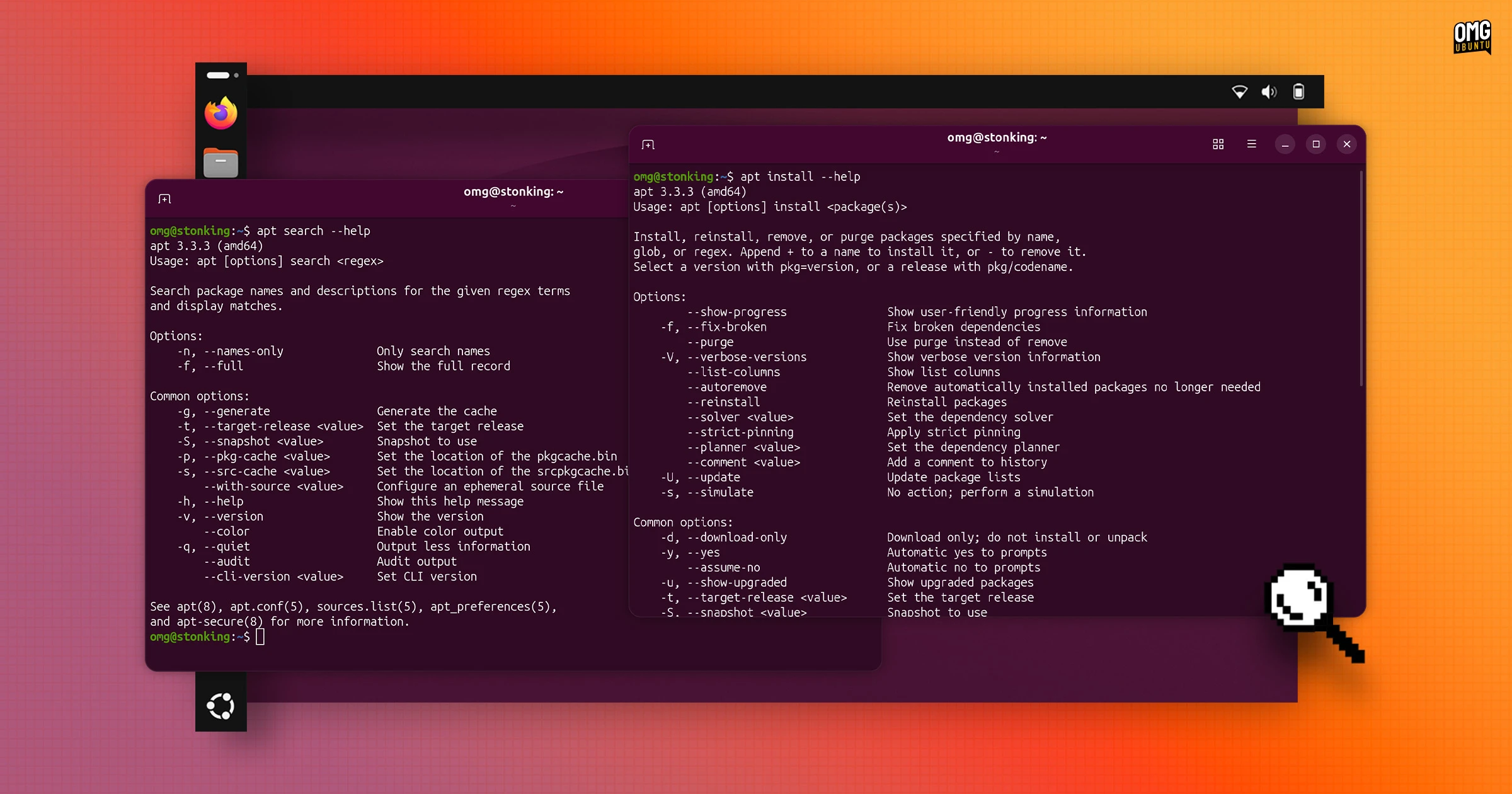
Ubuntu 26.10 ships with APT 3.3.3, a modest update with a major benefit: --help is now specific to the command you ran (the release notes call this “interactive” help).
In earlier versions, adding --help to a subcommand would tell you… little. For example, apt install --help got you the same output as running apt --help. If you wanted to know which flags install accepted, you’d have to open the man page.
In 26.10, the help flag is now specific to the subcommand so apt install --help now lists the options that apply to install. Other subcommands work the same way (not all, so keep that in mind). It should reduce visits to Google to find an option or syntax construction.
Expanded TPM-based disk encryption
Ubuntu 26.10 can be installed with TPM-backed full disk encryption (FDE) on devices that lack a hardware root of trust (hardware that lets the OS verify firmware hasn’t been meddled with).
The catch is you’ll need to set a PIN or passphrase during installation., but PCs made since 2021 have one and unlock automatically, so no PIN will be needed.
Resources tracks NPU usage
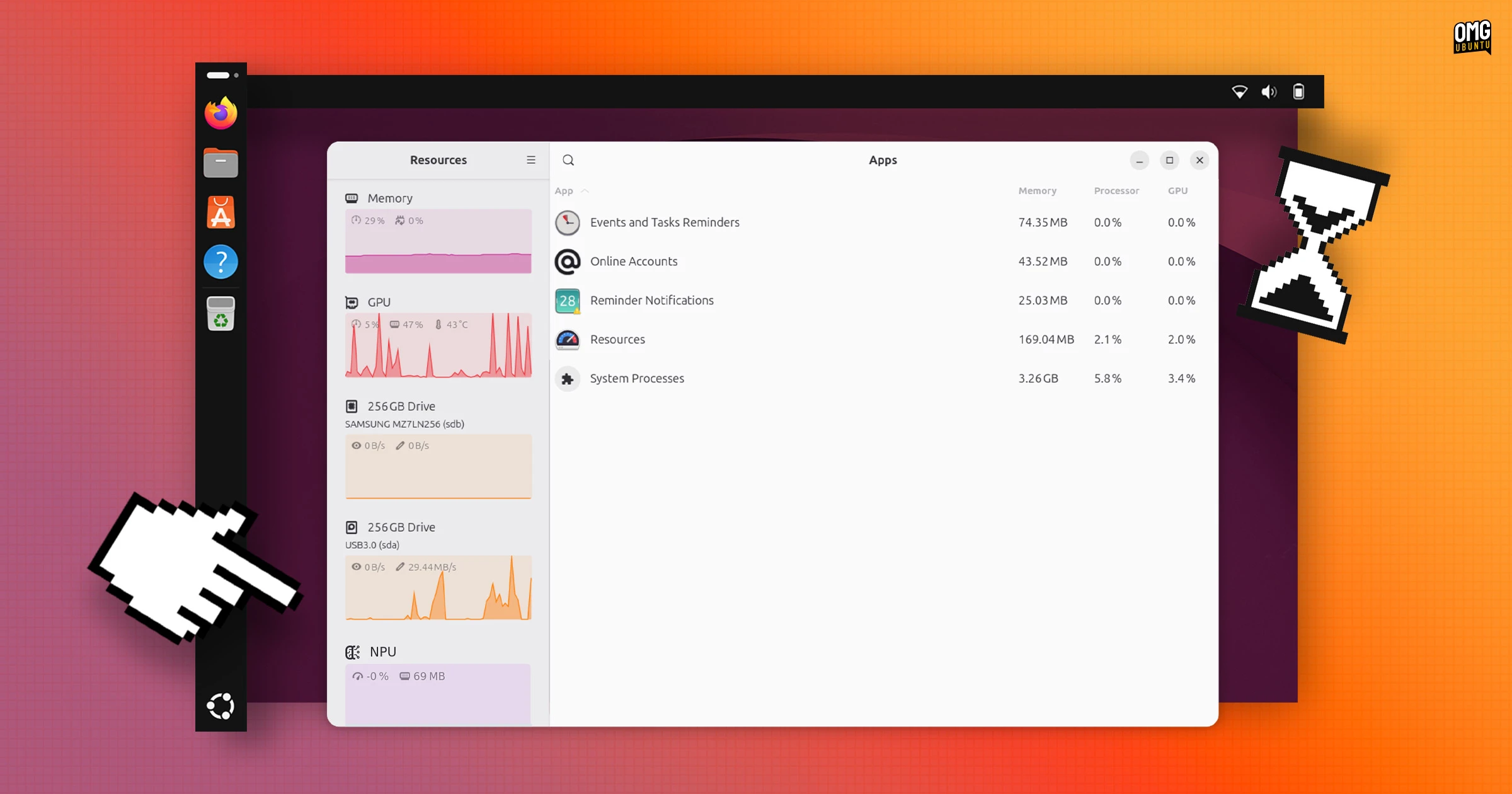
Resources, the system monitor Ubuntu adopted in 26.04, can report NPU activity for AMD Ryzen 7040, 8040 and Ryzen AI 300/400-series chips, including real-time power and performance stats.
Usage numbers now appear over the graphs in the sidebar instead of beneath them, and a tap of F9 will lshow or hide the sidebar (saves clicking the button to do it). Also, the app is better at tracing and reporting Steam games and Snap apps too.
Amd64-v3 installer image
Ubuntu 26.10 is to download in more ways as there’s now a separate amd64v3 installer – albeit, only available to download from the official cd image server rather than the main Ubuntu website. Even so, many will want to get it.
The amd64v3 image installs Ubuntu with packages optimised for newer CPUs that support x86-64-v3 instruction sets (most Intel and AMD chips made after 2015 do, but some budget and embedded CPUs and SoCs don’t so can’t boot from a v3 image).
Performance is reportedly better on the v3 images, mainly for those who do number-heavy workloads or run lots of virtual machines as the additional capabilities are made better use of.
First official RISC-V desktop image
An official, but entirely experimental, desktop image for modern RISC-V boards is available for the first time.
The RISC-V desktop images come in GNOME and minimal Xubuntu flavours, aimed at the SpacemiT K3 and QEMU respectively. No official support is provided (updates do arrive, ofc) and the GNOME ISO lacks a few desktop snaps, including App Center.
Linux 7.3 is ready and able
Ubuntu 26.10 ships with Linux 7.3 but—dramatic crash—not a finished version. The final release comes out later end of October, so the kernel baked in the ISO is a release candidate. Users of 26.10 do get the ‘final’ kernel as a software update.
Among Linux 7.3 highlights is early support for Snapdragon X2 Elite machines, including the Asus Zenbook A14, as well as more bits of hardware working on X Elite models, including webcams.
EXT4 gets a streamlined multi-block allocator to make file space pre-allocations faster during large downloads, while FUSE with io_uring also gets zero-copy support, so a FUSE server can read client data directly
A KSM fix to reduce UI micro-stutters under heavy memory loads while VRAM management is notably improved on lower-end graphics cards with <8GB of video memory, delivering an appreciable uptick in gaming performance.
GPU driver bump
Graphics get a bump. Mesa 26.2 delivers mesh shader support to NVK, the open-source NVIDIA Vulkan driver, and low-latency Vulkan Video encode and decode for AMD GPUs.
NVIDIA’s 615 driver series replaces 595 and 610 series, and now only ships the open kernel modules, which cover Turing and newer GPUs. Older cards will need the 580 series.
Rust-ification
Ubuntu’s move to Rust-based core utilities is now complete, with cp, mv and rm coming from uutils. Rust-based OpenPGP tooling (Sequoia) is preinstalled but not default (Canonical plans to make it the default in 27.04).
Further down, dbus-broker replaces dbus-daemon as the system’s message bus (after 22 years) to modernise and improve security of how desktops apps and services talk to each other – though users won’t notice a difference.
Memory saver
When memory runs out, Ubuntu 26.10 now tries to kill apps before any services that hold the session together. This should mean rogue browser tab or background process is less likely to result in being dropped back at the login screen.
Getting Ubuntu 26.10
Ubuntu 26.10 is available to download from today from the Ubuntu website or release image server. For the x86-64-v3, RISC-V, Raspberry Pi or WSL images, head to the cd image sever.
This release runs on modern 64-bit Intel/AMD laptop or PC, Arm64 devices, including Raspberry Pis and Snapdragon X1 laptops and newer RISC-V developer boards, including the SpacemiT K3 and SiFive BigSky platform.
Any device that runs Ubuntu 26.04 LTS can upgrade to 26.10. The upgrade takes place in-place without reinstalling, but will require a command to be run first as LTS releases are configured to only upgrade to new LTS releases by default.
Which of these changes will you notice first? Tell me in the comments!