




Sometimes I find an application, a script, or a GNOME extension that does something so minor that most people (even myself, sometimes) won’t find all that useful.
And yet I still want to write about them.
Often, I won’t – either because there’s just not enough to say (beyond a “heh”) or because of the kind of comments those posts tend to attract.
Cos’ some folks assume if I blog about something, I’m suggesting it’s the best thing since sliced bread was invented. Rarely is that the case; I like to showcase options, make people aware of alternative ways to do things, or show that even simple stuff can be done.
So today, coming across the ‘App Hider’ extension, I thought: “whatever; I’m gonna go for it”.
‘App Hider’ GNOME Extension
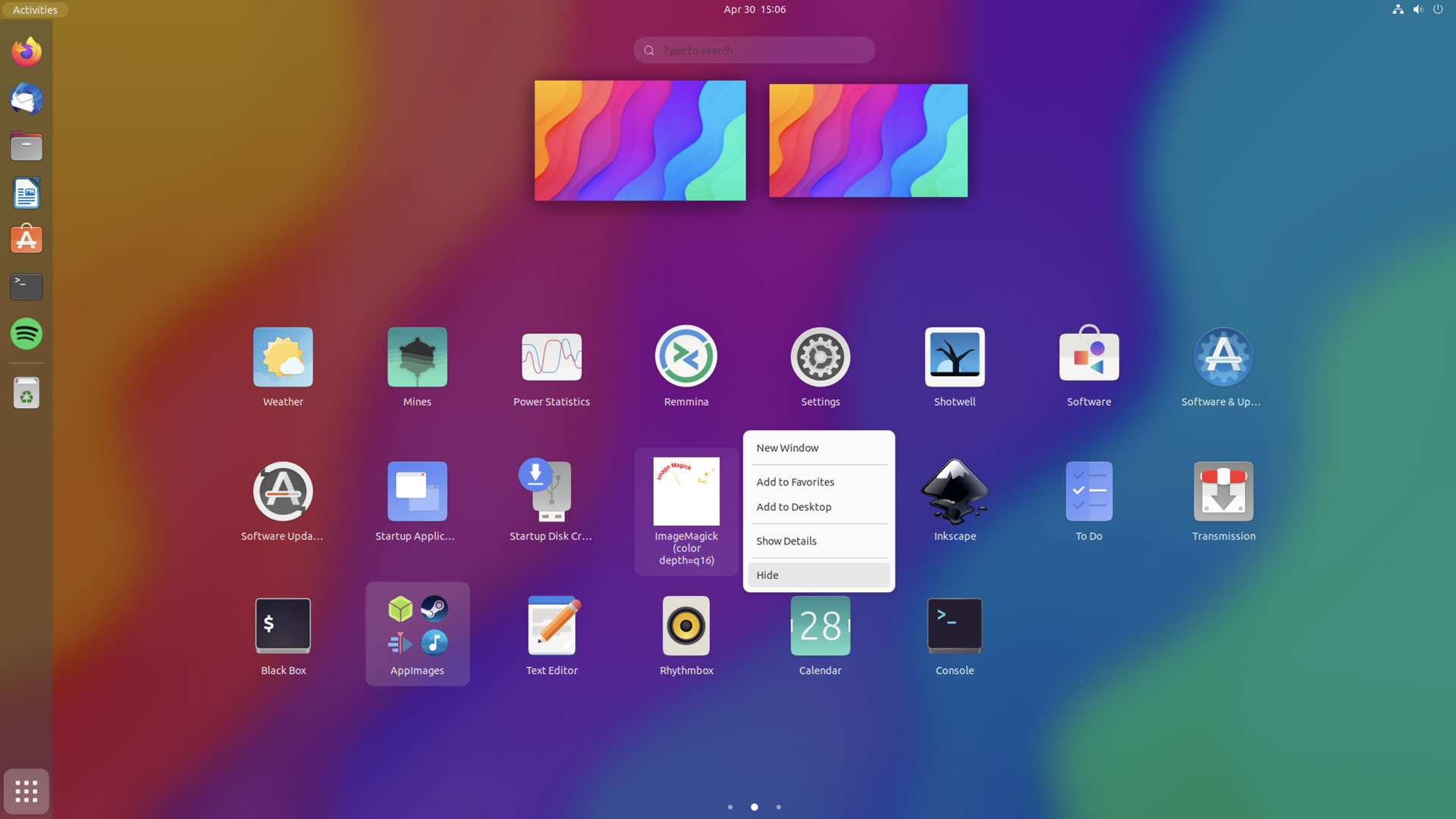
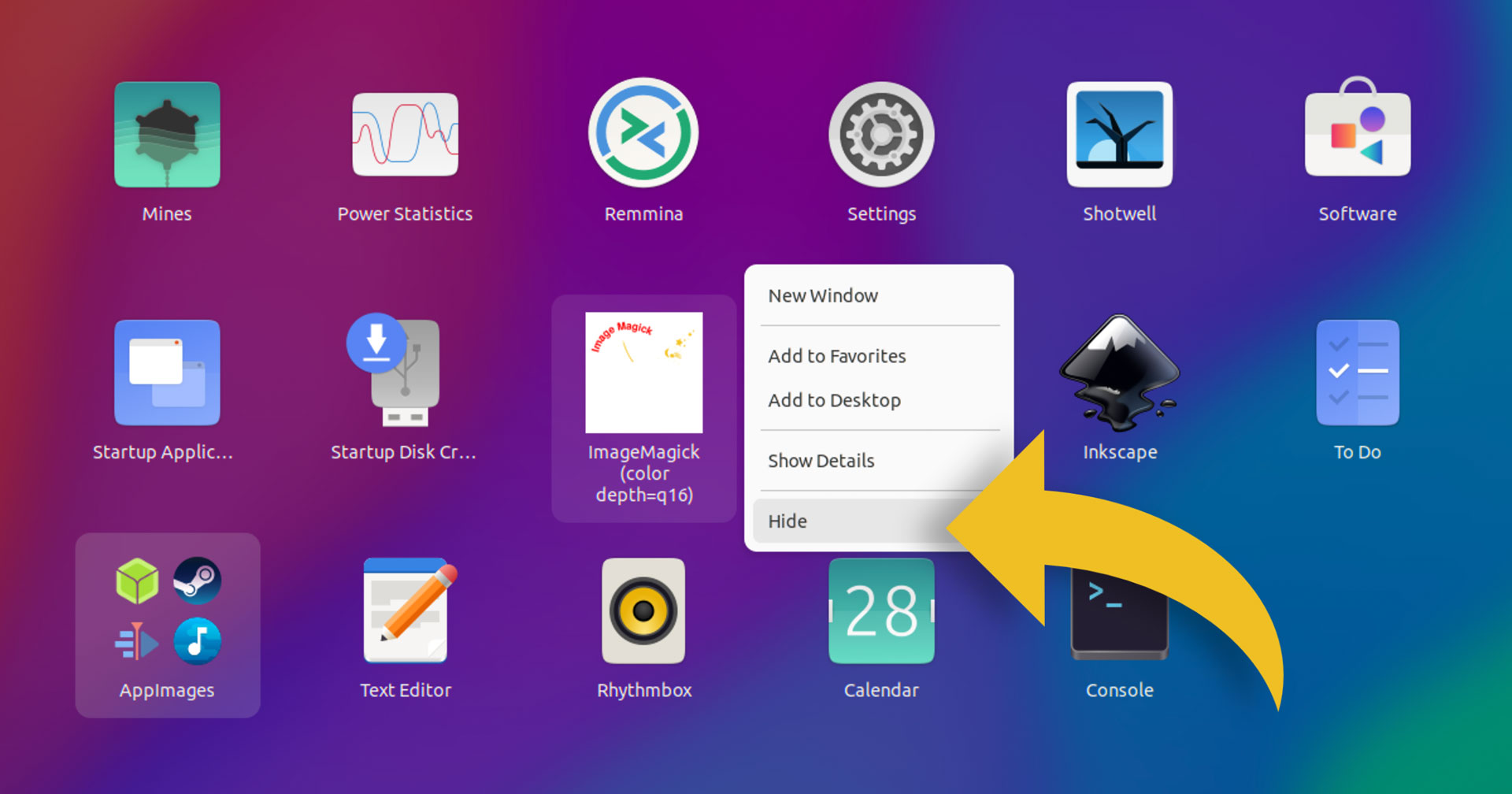
App Hider is a GNOME Shell extension that makes it easy to hide any app shortcut you see in the Applications grid. All you have to do it right-click on the icon you wish to remove and choose “Hide”.
That’s literally it.
GNOME Shell has an unofficial, extension-free way of hiding icons you don’t want to see (something iPhone users will be familiar with been doing for years): put things into app folders. This way, you don’t see an icon that irks you, but it remains there when you need it.
But perhaps you don’t like having lots of app folders, or you do but you like them to contain contextually relevant things.
If so, the App Hider GNOME extension is for you.
My Use Case
I’ve no idea how I end up with Imagemagick and Xterm shortcuts in my Applications grid, but I do. Presumably they’re installed when installing something else (which means I can’t uninstall them if another app needs them).
However, I don’t want to have to keep staring at them.
Previously, I’d drag and drop these unwanted shortcuts into the “Utilities” app folder Ubuntu (and upstream GNOME) provides by default. Out of sight, out of mind.
But with the App Hider extension I can right-click on the shortcut, select “hide”, and bam—it’s gone.
Install App Hider Extension in Ubuntu
If you think App Hider GNOME extension might scratch an itch you have you can install it from the GNOME Extensions website using your browser, though you’ll need an extension/add-on and a system package installed for the integration to work.
Alternatively (much easier) install the Extension Manager app from the Ubuntu repos, then open it, search for App Hider, and hit the green ‘install’ button to get it.

App Hider supports GNOME 42 and above so you need to be using Ubuntu 22.04 LTS or later to be able to install it.
You also have to log out (and back in) after you install the extension else the “hide” option won’t appear when right-clicking on icons in the Applications grid context menu.
Shortcuts you hide are only hidden, not removed from your system.
To un-hide an app shortcut you’ve hidden just head into App Hider’s settings panel to remove it. Alternatively, disable or uninstall the extension (but that’s drastic, yo).
Go try it out!