



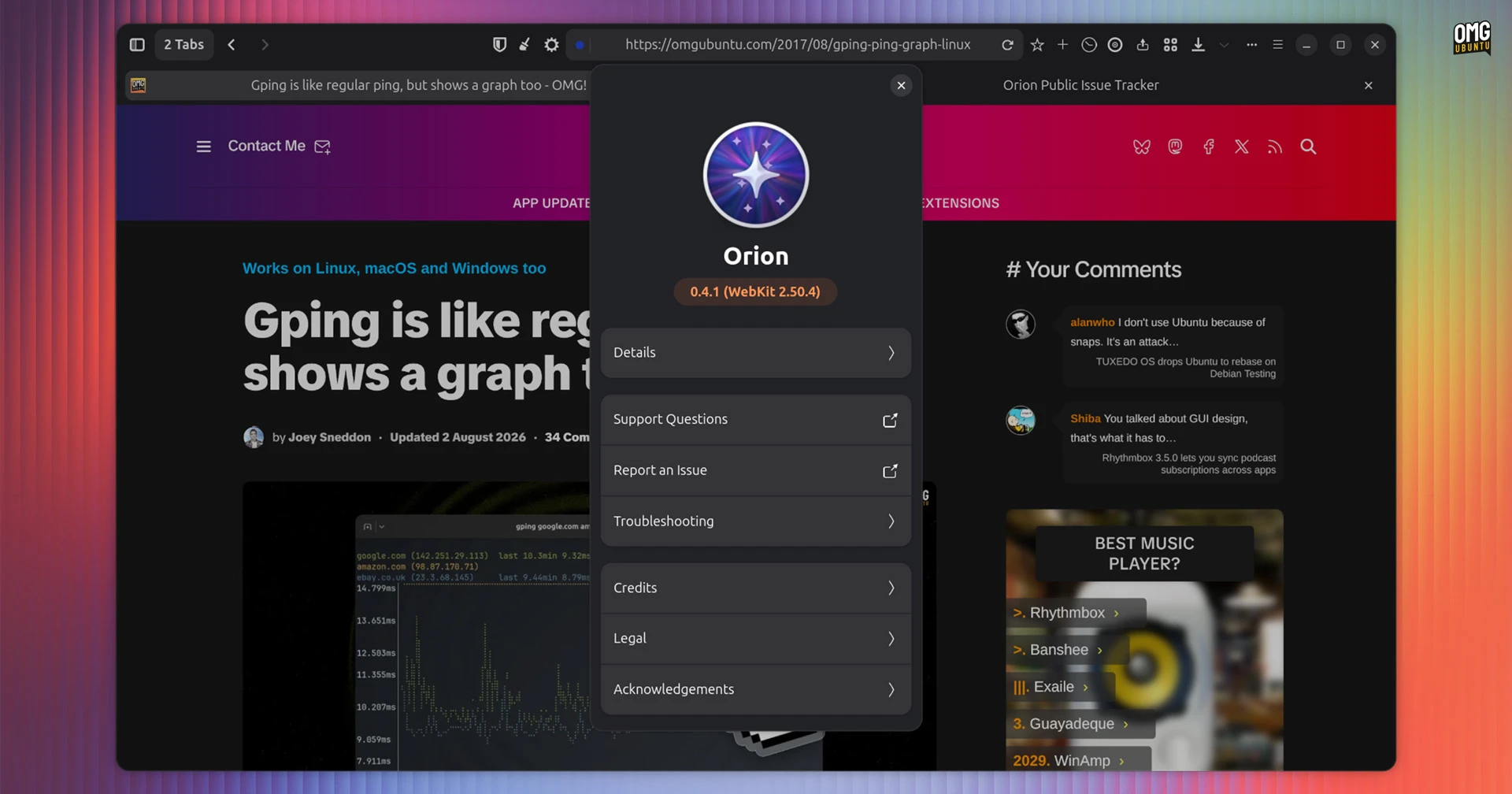
Kagi has released a new beta of Orion for Linux, a WebKitGTK-based port of its popular browser for macOS and IOS.
Orion for Linux v0.4.1 builds on the v0.3.0 public beta, released in May, adding more features found on its macOS and iOS versions and improving existing ones.
The new beta adds working private windows, a functional (if bare-bones) download manager and a toolbar overflow menu. The overflow menu lets you hide buttons out of the way but without making them hard to reach.
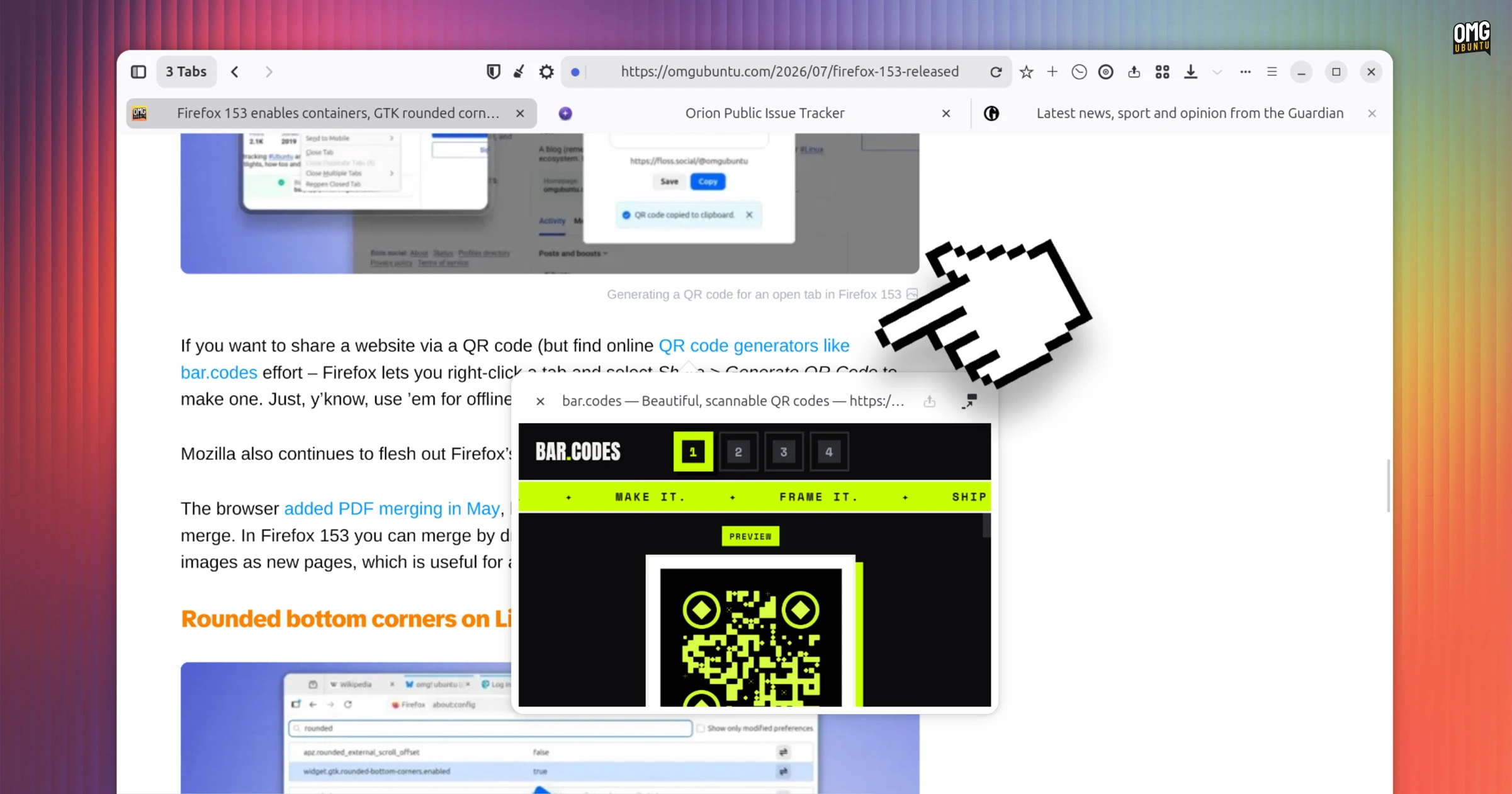
Orion’s link preview feature also makes its way to Linux. This isn’t the ‘AI summary’ sort of preview (thankfully). More like macOS ‘Quick Look’ for web pages; you can view a link from the page you’re on, without it opening a tab.
In this beta, there’s no keyboard shortcut to activate link previews – macOS users get to press shift + click – but a context-menu entry is there when right-clicking on a link. The preview can’t be resized but it has an ‘open in tab’ button:
Elsewhere, the v0.4.1 beta includes Orion’s Programmable Buttons feature. These let you create custom toolbar buttons that run code or apply conditions to web pages, on-demand, like a bookmarklet. They can live on the toolbar or hide in the overflow menu.
You can add and edit these action buttons manually, using the in-browser editor. Or you can import ready-made ones from a URL. Orion’s GitHub has a repo of open-source programmable buttons, if you need some inspiration.
Local sync support also lands in this beta, which is welcome.
iOS and macOS versions of Orion use iCloud to sync bookmarks, tabs etc., across platforms. Kagi has plans to offer its own cloud sync backend in time but, for now, you can now export your key data as a file and import it into another build.
Plenty of smaller changes are included too.
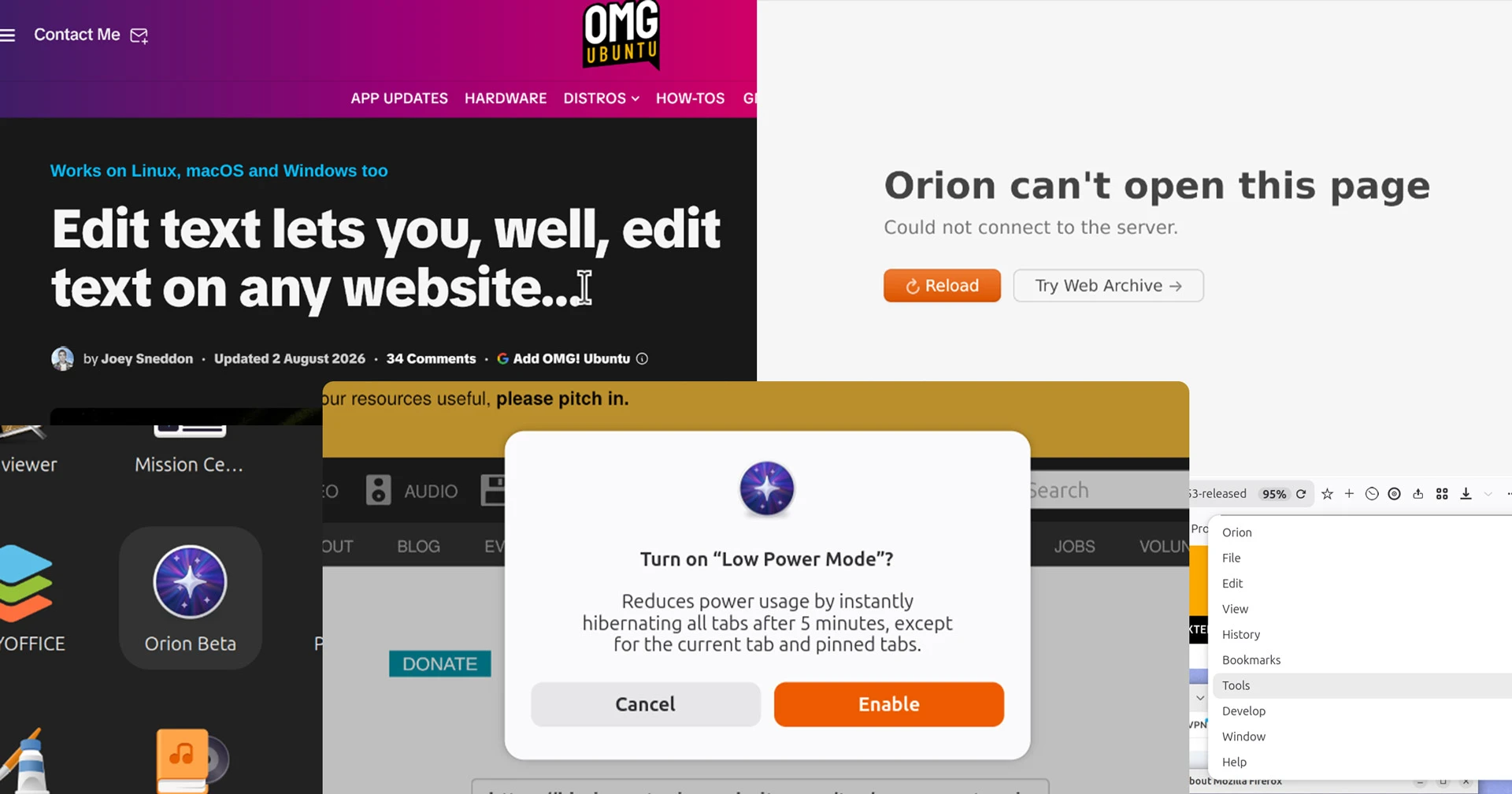
There’s an option to open a page on the Internet Archive (a button for this is also shown if a website fails to load), and you can add and use custom search engines in the address bar.
Plus:
- More basic browser shortcuts, including F5 reload
- Sidebar renamed ‘Windows’ to ‘Tab Groups’
- “Never for This Site” option in the password manager
- Bookmark HTML import from Chrome and Firefox
- ‘Edit website text’ tool
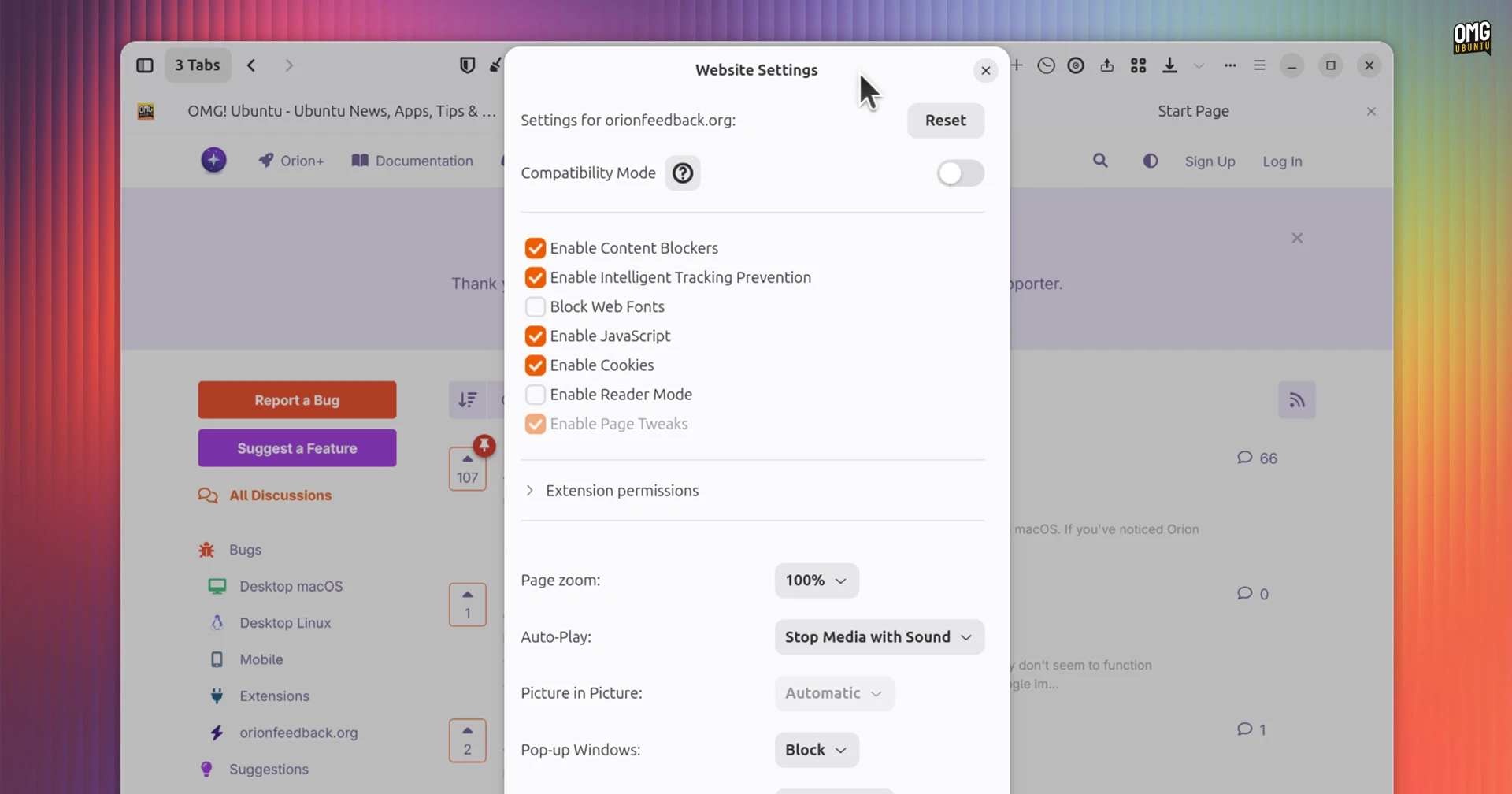
- Website settings now work (block web fonts, cookies, etc)
- Low Power Mode option (suspends tabs after period of inactivity)
Kagi says this build sees the browser’s overall stability and performance improve, and that the interface is more refined and polished. Intelligent Tracking Prevention is now enabled for ‘all’ WebKit network sessions, too.
However, many of Orion’s novel browser features, like erasing web page elements, are yet to be ported over or are heavily WIP, and some core browser capabilities, like being able to rearrange toolbar icons or use Chrome extensions, are similarly not yet ready.
How to install Orion’s Linux beta
Orion for Linux is available to install on all major distributions as a Flatpak, but it is not available on Flathub. Kagi has set up its own Flatpak repository.
If you already use Flatpak on Ubuntu, add the new Orion browser Flatpak repo:
flatpak remote-add --if-not-exists orion-beta https://flatpak.orionbrowser.com/orion-beta.flatpakrepo
Then, install Orion for Linux (beta):
flatpak install orion-beta com.kagi.Orion
As Orion is a GTK4/libadwaita app it relies on the GNOME 50 runtime. If you don’t have that runtime on your system it is downloaded alongside the first app you install which requires it.
To update to future beta releases, run this command from your terminal:
flatpak update com.kagi.Orion
Alternatively, you update Flatpak software using a GUI package manager, like GNOME Software or Bazaar. Both are available in the Ubuntu 26.04 LTS repos.
A beta is a beta, folks
Kagi says this beta ‘makes Orion feel much closer to a daily driver’, but keep in mind that it the beta is earned: this remains incomplete. Only install it if you’re fine with issues, rough edges and frequent webpage crashes.
File bugs you come across using the Orion feedback site.